Why Wont My Iphone Play Through Hdmi

Your iPhone may not play through HDMI because of a faulty adapter, incompatible cable, or incorrect settings. This guide walks you through the most common reasons your iPhone HDMI connection fails and gives you clear, step-by-step fixes. Whether you are using a Lightning to HDMI adapter or trying to mirror your display, you will find the answer you need right here.
You plug in your iPhone HDMI adapter, turn on the TV, and… nothing happens. The screen stays dark. No video. No sound. It is frustrating, especially when you just want to share a photo, watch a movie, or present something on a bigger screen. If you have ever asked yourself, “Why won’t my iPhone play through HDMI?” you are not alone. This is one of the most common tech frustrations people face when trying to use their iPhone with a television or monitor.
The good news is that most HDMI playback problems on iPhones have simple solutions. In this guide, we will walk through every major reason your iPhone HDMI output might fail and give you practical fixes you can try right now. From adapter compatibility to cable quality, we cover it all. Let us get your iPhone connected to your TV.
Key Takeaways
- Adapter Compatibility Matters: Always use an MFi-certified Lightning to HDMI adapter to avoid playback issues.
- Check Your Cable and Port: A damaged HDMI cable or dusty port is one of the top reasons for failure.
- Restart and Update: A simple restart or iOS update often solves HDMI output problems instantly.
- Settings Need Adjustment: Screen mirroring and display settings must be correctly configured on your iPhone.
- Audio Issues Are Common: HDMI audio problems often relate to cable quality or adapter faults.
- TV and Monitor Settings Count: Your display device must be set to the correct input source.
- Try Alternate Ports: Switching HDMI ports on your TV can resolve connection failures.
📑 Table of Contents
- Why Wont My Iphone Play Through Hdmi: The Most Common Reasons
- How to Fix Your iPhone HDMI Playback Problem
- Understanding How iPhone HDMI Output Works
- Audio Problems When Playing Through HDMI
- Quick Tips for a Smooth HDMI Experience
- When to Replace Your Adapter or Cable
- Common Mistakes People Make with iPhone HDMI
- Final Thoughts
Why Wont My Iphone Play Through Hdmi: The Most Common Reasons
Before jumping into fixes, it helps to understand what is going wrong. Several factors can block your iPhone HDMI connection. Here are the top reasons people run into this problem.
Incompatible or Faulty Adapter
The adapter is the bridge between your iPhone and the HDMI cable. If it is cheap, uncertified, or damaged, your iPhone display will not reach the TV. Apple makes its own Lightning to Digital AV Adapter, and third-party options can work too. But not all of them do. A non-certified adapter often fails to send video signals properly. This is the number one reason people ask, “Why won’t my iPhone play through HDMI?”
Damaged or Low-Quality HDMI Cable
Even with a perfect adapter, a bad HDMI cable will ruin everything. Cables wear out over time. They bend, break internally, or simply fail to support the bandwidth needed for iPhone video output. If your cable is old or was bought very cheaply, it may not carry a clean signal. Always use a high-speed HDMI cable that supports the resolution you need.
Wrong TV Input Source
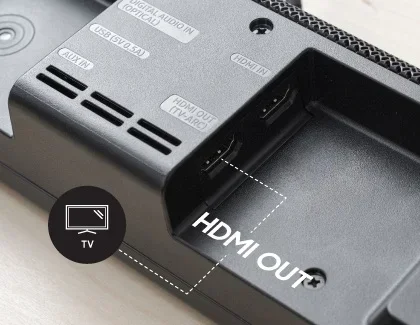
This one sounds silly, but it happens all the time. If your TV is set to the wrong input, you will see no signal from your iPhone HDMI adapter. Most modern TVs have multiple HDMI ports labeled HDMI 1, HDMI 2, and so on. You must select the exact port your iPhone is plugged into. Missing this step is one of the most overlooked causes of HDMI failure.
iOS Software Issues
Sometimes the problem is not hardware at all. An outdated iOS version, a glitchy background process, or a settings misconfiguration can all block screen mirroring over HDMI. iPhones need the right software environment to push video out through an adapter. A simple restart or update can fix this in many cases.
How to Fix Your iPhone HDMI Playback Problem
Now that you know the common causes, let us get into the fixes. Each step below addresses a specific reason your iPhone HDMI connection might not be working.
Fix 1: Use a Certified MFi Adapter
Apple’s MFi program (Made for iPhone) certifies accessories that work safely and reliably with iOS devices. When buying a Lightning to HDMI adapter, look for the MFi logo. This guarantees the adapter supports iPhone video output correctly. Cheap knockoff adapters often advertise HDMI support but fail to deliver stable signals. Spending a little more on a certified adapter saves you a lot of trouble.
Fix 2: Inspect and Replace Your HDMI Cable
Grab a different HDMI cable and try again. This is the fastest way to rule out a bad cable. Look for cables labeled “High Speed HDMI” or “Premium High Speed.” These handle the bandwidth needed for iPhone screen mirroring. If the new cable works, your old one was the problem. Replace it and move on.
Fix 3: Check Your TV Input Settings
Use your TV remote to cycle through the input sources. Select the HDMI port where your adapter is plugged in. Some TVs auto-detect the input, but others require manual selection. If you are unsure which port you used, try each one until you see your iPhone display on the big screen.
Fix 4: Restart Your iPhone
A restart clears temporary glitches that can block HDMI audio and video output. Power off your iPhone completely, wait a few seconds, and turn it back on. Then reconnect the adapter and cable. This simple step resolves many iPhone HDMI issues without any technical knowledge.
Fix 5: Update Your iOS
Go to Settings, then General, then Software Update. Install any available updates. Apple regularly patches bugs that affect display output and screen mirroring functionality. Keeping your iPhone updated ensures the best compatibility with external displays and adapters.
Fix 6: Clean the Lightning Port
Dust and lint can build up inside your iPhone’s Lightning port over time. This debris blocks the adapter from making proper contact. Use a soft, dry brush or compressed air to gently clean the port. Never use metal objects, as they can damage the connectors. A clean port ensures a strong, stable iPhone HDMI signal.
Understanding How iPhone HDMI Output Works
To truly solve the problem, it helps to understand how iPhone video output actually works. When you connect a Lightning to HDMI adapter, your iPhone converts its digital display signal into an HDMI signal that your TV or monitor can read. This process requires both software support from iOS and hardware support from the adapter and cable.
The adapter handles the signal conversion. Your iPhone sends a digital video stream, and the adapter translates it into the HDMI format. If any part of this chain is weak or incompatible, the whole process breaks down. This is why using certified accessories matters so much. A quality HDMI adapter ensures smooth signal conversion with no lag or dropped frames.
Most iPhones support up to 1080p output through the Lightning to HDMI adapter. Newer models with USB-C can support even higher resolutions. Knowing your iPhone’s capabilities helps you choose the right cable and adapter combination for the best results.
Audio Problems When Playing Through HDMI
Sometimes your video plays fine, but there is no sound. Or maybe the audio crackles and cuts out. HDMI audio issues are very common and usually easy to fix. Let us look at the main causes.
No Sound at All
If you get video but no audio, the first thing to check is your TV’s volume and mute settings. Next, make sure your HDMI cable is fully seated in both the adapter and the TV. A loose connection often causes this problem. Also, check that your iPhone is not muted or set to a very low volume. Sometimes the audio output setting on your iPhone needs to be switched to HDMI.
Crackling or Distorted Audio
If your audio sounds fuzzy or crackly through HDMI, the cable might be to blame. A damaged HDMI cable can introduce interference that distorts the audio signal. Try a different cable first. If the problem persists, the adapter itself may be faulty. Some low-cost adapters do not handle audio transmission well. If you also experience crackling through your regular speakers, this could indicate a broader audio issue worth investigating. You might want to look into why speakers crackle for more general troubleshooting tips. Similarly, if you notice muffled sound from any speaker setup, understanding why car speakers sound muffled can offer helpful insights into audio quality problems that also affect HDMI output.
Audio and Video Out of Sync
Lip sync issues happen when the audio and video signals arrive at different times. This is often caused by a low-quality adapter or cable that cannot process both streams smoothly. Using a certified HDMI adapter and a high-speed cable usually fixes this problem. Restarting both your iPhone and your TV can also help reset the audio-video synchronization.
Quick Tips for a Smooth HDMI Experience
Follow these quick tips every time you connect your iPhone to an HDMI display. They will save you time and frustration.
- Always use MFi-certified adapters to ensure compatibility with your iPhone.
- Keep your HDMI cables short and high-quality for the best signal strength.
- Restart both devices before troubleshooting any connection issue.
- Check your TV input source before assuming anything is broken.
- Update your iPhone regularly to maintain the best HDMI output performance.
- Avoid cheap adapters from unknown brands — they often fail within weeks.
- Keep your Lightning port clean to ensure a solid physical connection.
When to Replace Your Adapter or Cable
Even the best accessories wear out eventually. If you have tried all the fixes above and your iPhone HDMI connection still fails, it may be time for new hardware. Signs that your adapter needs replacing include intermittent video, flickering screens, and no audio output. Similarly, a cable that only works when bent a certain way is clearly damaged.
Investing in a quality Lightning to HDMI adapter from a reputable brand pays off in the long run. Look for adapters with built-in compatibility for the latest iOS versions. A reliable adapter gives you a stable iPhone display on any HDMI screen without constant troubleshooting.
Common Mistakes People Make with iPhone HDMI
Avoid these common mistakes that cause HDMI playback failures on iPhones.
- Using non-certified adapters. These often claim compatibility but deliver poor performance.
- Ignoring software updates. Outdated iOS can block screen mirroring features.
- Forgetting to select the right TV input. This is the simplest fix and the most commonly missed.
- Using a damaged cable. A frayed or bent cable will cause signal loss.
- Overheating the iPhone. Heavy video output can cause your iPhone to heat up, which may reduce performance and block HDMI playback. If your device gets unusually hot during use, you might want to check why your CPU temp runs high at idle for general thermal management tips.
By steering clear of these mistakes, you can enjoy a seamless iPhone HDMI experience every time you connect to a display.
Final Thoughts
Dealing with an iPhone that will not play through HDMI can be annoying, but it is almost always fixable. The most common culprits are uncertified adapters, bad cables, wrong TV settings, and outdated software. By working through the fixes in this guide, you should be able to get your iPhone screen showing on your TV or monitor in no time.
Remember to use MFi-certified accessories, keep your cables and ports clean, and stay current with iOS updates. These simple habits prevent most HDMI connection problems before they start. Now you know exactly what to do when someone asks, “Why won’t my iPhone play through HDMI?” You have the answers and the solutions ready to go.
Get your adapter plugged in, pick a great movie or presentation, and enjoy the bigger screen. Your iPhone HDMI setup should work smoothly every single time.
Frequently Asked Questions
Why does my iPhone show no signal when connected to HDMI?
The most common reason is an incompatible or faulty adapter. Make sure you are using an MFi-certified Lightning to HDMI adapter and a working high-speed HDMI cable. Also, check that your TV is set to the correct input source. A loose connection or a dusty Lightning port can also cause a no-signal issue.
Can I use any HDMI cable with my iPhone?
You can use any standard High Speed HDMI cable, but a premium high-speed cable will give you the best results. Cheap or damaged cables may not carry the full signal needed for iPhone video output. Always inspect your cable for visible damage and replace it if needed.
Why is there no sound when my iPhone plays through HDMI?
No sound usually means the audio output has not switched to HDMI. Check your TV volume and make sure the cable is fully seated. Also verify that your iPhone volume is turned up and not muted. If the problem continues, try a different adapter or cable, as faulty hardware often causes audio loss.
Do I need to enable screen mirroring on my iPhone for HDMI?
No, a Lightning to HDMI adapter mirrors your screen automatically without needing to enable AirPlay or screen mirroring in settings. The adapter handles the conversion directly. If your display is still blank, the issue is likely with the adapter, cable, or TV input settings.
What iPhone models support HDMI output?
Most iPhones with a Lightning port support HDMI output through a compatible adapter. This includes models from iPhone 5 onward. Newer iPhones with USB-C, such as iPhone 15 and 16 models, also support HDMI output using a USB-C to HDMI cable or adapter. Check your specific model for the best accessory choice.
Can a software update fix my iPhone HDMI playback issue?
Yes, software updates often include bug fixes that improve HDMI output compatibility. Go to Settings, then General, then Software Update, and install any available updates. After updating, restart your iPhone and try connecting to HDMI again. This simple step resolves many playback issues without any hardware changes.