How to Reload Chunks in Minecraft
Reloading chunks in Minecraft is essential when parts of your world stop loading or start glitching. You can use simple keyboard shortcuts, in-game commands, and server settings to force chunks to reload instantly. This guide walks you through every method so you can get back to building and exploring without frustration.
Minecraft worlds are massive. When you explore far from your base, the game loads new terrain in real time. Sometimes, though, chunks stop loading properly. You might see missing blocks, floating entities, or areas that look completely blank. This is where knowing how to reload chunks in Minecraft becomes incredibly useful.
Whether you play alone or on a server, chunk reloading fixes most visual and performance glitches. It is a simple process once you know the right method. In this guide, we cover every way to reload chunks in Minecraft. You will learn keyboard shortcuts, console commands, and even how to keep chunks loaded permanently.
Do not worry if you are new to Minecraft. The steps are easy to follow, and you do not need any special tools. Let us dive in and get your Minecraft world running smoothly again.
Key Takeaways
- Use the F3 + A shortcut to instantly reload all visible chunks in Minecraft Java Edition.
- The /forceload command lets you keep specific chunks loaded at all times, even when you’re far away.
- Chunk borders help you identify which areas need reloading and debug world generation issues.
- Server-side chunk reloading works differently and requires operator commands or plugin support.
- Improving PC performance with better RAM or an SSD can reduce chunk loading problems significantly. Check out how to install a RAM in a laptop if your system is struggling.
- Common mistakes like using the wrong version or incorrect commands can cause more issues than they solve.
📑 Table of Contents
What Are Chunks in Minecraft?
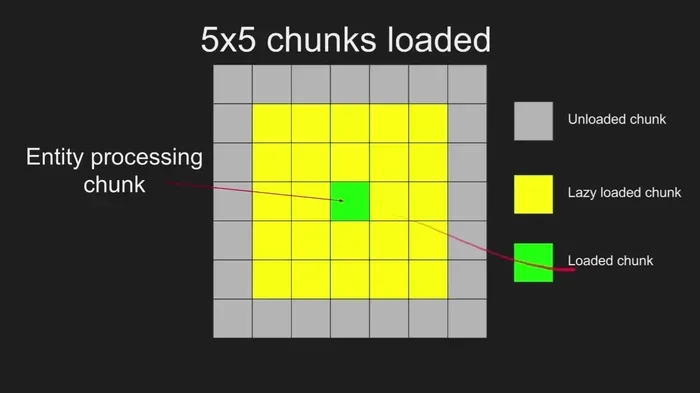
Before you reload anything, it helps to understand what chunks actually are. A chunk is a small section of your Minecraft world. Each chunk measures 16 blocks wide, 16 blocks long, and 256 blocks tall. That is a huge vertical space, but the horizontal footprint is small.
Your Minecraft world is divided into thousands of these chunks. The game only loads the chunks near you. This is called the render distance. When you move, old chunks unload and new chunks load. It keeps the game running without using too much memory.
Sometimes chunks do not load correctly. This can happen after a crash, a server lag spike, or a world generation error. When that happens, you need to reload chunks in Minecraft to fix the problem. Understanding this basic concept makes the rest of the guide much easier to follow.
How to Reload Chunks in Minecraft Using Keyboard Shortcuts
The fastest way to reload chunks is with a simple keyboard shortcut. This method works in the Java Edition of Minecraft. It does not work on Bedrock Edition, so make sure you are playing the right version.
The F3 + A Method
Here is how you do it:
- Open your Minecraft world.
- Press the F3 key to open the debug screen.
- Press the A key while holding F3.
- All loaded chunks will reload instantly.
That is it. The game will refresh every visible chunk. Missing blocks will reappear. Glitched terrain will fix itself. It is a quick and easy fix that every Minecraft player should know.
Important note: This shortcut only works in Minecraft Java Edition. If you play on Bedrock Edition (Windows 10, console, or mobile), you will need a different approach. We cover that below.
When to Use This Method
Use the F3 + A shortcut when you notice any of these problems:
- Blocks are missing or invisible in an area you just loaded.
- Entities like items or animals are stuck or floating in the air.
- The terrain looks different from what it should be.
- You see strange lighting glitches or dark patches.
- Redstone contraptions stop working after a lag spike.
It is a good habit to reload chunks in Minecraft after any game crash. Even if things look fine, hidden errors can linger. A quick reload ensures everything is working as it should.
Using Commands to Reload Chunks
Minecraft has powerful console commands that give you more control. You can use these to reload specific chunks or keep areas loaded permanently. Commands work in both singleplayer and multiplayer worlds.
The /forceload Command
The /forceload command is one of the most useful tools for chunk management. It forces specific chunks to stay loaded, even when no player is nearby. Here is how it works:
- /forceload add — Adds a chunk to the force-loaded list.
- /forceload remove — Removes a chunk from the force-loaded list.
- /forceload remove all — Removes every force-loaded chunk.
To use it, open the chat window by pressing T (Java Edition) or D-pad right (Bedrock Edition). Type the command and press Enter. The chunk at your current position will now stay loaded at all times.
This is great for building large farms or mob spawners far from your base. You do not need to stand near them for the game to process them. Just force-load the chunks and let the game run.
The /reload Command
The /reload command refreshes all loaded data in the game. It reloads resource packs, datapacks, and loot tables. While it does not directly reload terrain chunks, it can fix issues caused by mod conflicts or data pack errors.
Type /reload in the chat and press Enter. The game will reload all custom content. You might need to rejoin a server for the changes to fully take effect.
How to Reload Chunks in Minecraft on a Server
Server owners face different challenges when chunks stop loading. Players might report missing terrain, dropped items, or entities that do not move. Server-side chunk management requires a different approach than singleplayer.
Using Server Console Commands
If you are a server operator, you can reload chunks from the server console. Open the server console or RCON panel and type:
- /forceload add <x1> <z1> <x2> <z2> — Force-loads a rectangular area of chunks.
- /forceload remove <x> <z> — Removes a specific chunk from the force list.
These commands work the same way as in-game commands, but they run from the server side. This means they affect the server regardless of which player is online.
Using Plugins for Chunk Management
Many Minecraft servers use plugins to manage chunks more efficiently. Popular options include:
- Chunky — Pre-loads and generates chunks in a specific area.
- ForceLoad — Adds simple force-load functionality to any server.
- Spark — Helps diagnose chunk loading and performance issues.
These plugins give server owners fine control over which chunks are loaded and when. They are essential for large multiplayer servers with many players spread across the world.
How to Fix Chunk Loading Problems
Sometimes reloading chunks does not solve the problem. If chunks keep failing to load, there might be an underlying issue. Here are the most common causes and how to fix them.
Low RAM on Your Device
Minecraft uses a lot of memory. If your device does not have enough RAM, chunks will fail to load or load very slowly. This is especially common on laptops with limited memory.
If you suspect RAM is the problem, check how much memory your system has. You can also upgrade your RAM for better performance. Installing a RAM module in a laptop is straightforward and can dramatically improve Minecraft performance.
Slow Storage Drive
Your storage drive affects how fast Minecraft loads new chunks. If you are using an old hard drive, chunk loading will be slow. Upgrading to a solid-state drive (SSD) makes a huge difference.
If you want to speed up your setup, consider adding an NVMe SSD. Installing an NVMe SSD is easier than most people think, and it can transform your gaming experience.
World Corruption
Rarely, a Minecraft world file can become corrupted. This causes chunks to fail to load no matter what you do. Signs of corruption include:
- Large areas of missing terrain that do not reload.
- Game crashes every time you enter a specific area.
- Blocks appearing in the wrong places or floating in the air.
If you suspect corruption, try loading a backup of your world. You can also use third-party tools to scan and repair the world file. Always keep backups of your Minecraft worlds to avoid losing progress.
Mod or Plugin Conflicts
If you play with mods or plugins, they can sometimes interfere with chunk loading. A mod that changes world generation might create chunks that the game cannot load properly.
Try disabling recent mods or plugins one at a time. If the problem goes away, you found the culprit. Update the mod to the latest version or check its compatibility with your Minecraft version.
Pro Tips for Managing Chunks in Minecraft
Here are some expert tips to help you manage chunks more effectively:
- Use chunk borders to visualize chunk boundaries. Press F3 + G in Java Edition to see the chunk grid. This helps you identify exactly which chunks need reloading.
- Set your render distance wisely. A higher render distance loads more chunks and uses more RAM. Lower it if you experience lag or chunk loading issues.
- Use force-load sparingly. Force-loading too many chunks can cause server lag. Only force-load the chunks you actively use.
- Reload chunks after large builds. If you place or break many blocks in an area, reload the chunks to make sure everything updates correctly.
- Keep your game and mods updated. Outdated software is one of the leading causes of chunk loading bugs in Minecraft.
Common Mistakes When Reloading Chunks
Even experienced players make mistakes with chunk reloading. Here are the ones to avoid:
- Using F3 + A on Bedrock Edition. This shortcut only works on Java Edition. It will not do anything on Bedrock.
- Forgetting to save your world before troubleshooting. Always make a backup before trying anything that could affect your world data.
- Using the wrong command syntax. Commands are case-sensitive and require correct formatting. Double-check your commands before pressing Enter.
- Reloading chunks too frequently. Constant reloading can cause entities to duplicate or items to despawn. Only reload when you actually need to.
Avoiding these mistakes will save you a lot of frustration and keep your Minecraft world stable.
Final Thoughts
Knowing how to reload chunks in Minecraft is a valuable skill for any player. Whether you use the F3 + A shortcut, console commands, or server plugins, each method has its place. The F3 + A method is the quickest fix for most issues. Commands like /forceload give you long-term control over which chunks stay active.
Remember to check your hardware if chunk loading problems persist. Upgrading your RAM or switching to a faster SSD can make a world of difference. If you are on a laptop, installing extra RAM is one of the best upgrades you can make for smoother gameplay.
Keep this guide bookmarked for the next time your chunks misbehave. With the right tools and knowledge, you can fix any chunk loading issue in minutes. Happy mining!
Frequently Asked Questions
Why won’t my chunks load in Minecraft?
Chunks may fail to load due to low RAM, a slow storage drive, or a corrupted world file. Try reloading chunks with the F3 + A shortcut first. If the problem persists, check your system resources or look for world corruption.
Does F3 + A work in Minecraft Bedrock Edition?
No, the F3 + A shortcut only works in Minecraft Java Edition. Bedrock Edition does not support debug screen shortcuts for chunk reloading. You will need to use alternative methods like restarting the game or using server commands.
What is the /forceload command used for?
The /forceload command keeps specific chunks loaded at all times, even when no player is nearby. This is useful for building distant farms, mob grinders, or any structure that needs to function without a player standing near it.
Can I reload chunks on a Minecraft server?
Yes, server operators can reload chunks using console commands like /forceload or by using management plugins. The process works from the server side and affects all players on the server.
How do I see chunk borders in Minecraft?
In Minecraft Java Edition, press F3 + G to toggle chunk borders on and off. You will see a grid overlay showing each 16×16 chunk boundary. This helps you identify exactly which chunks need reloading or force-loading.
Will reloading chunks delete my Minecraft world?
No, reloading chunks will not delete anything in your world. It simply refreshes the loaded terrain and fixes visual or logic glitches. Always keep a backup of your world as a safety precaution, but chunk reloading is completely safe.