Why Is My Connected Usb Not Showing Up
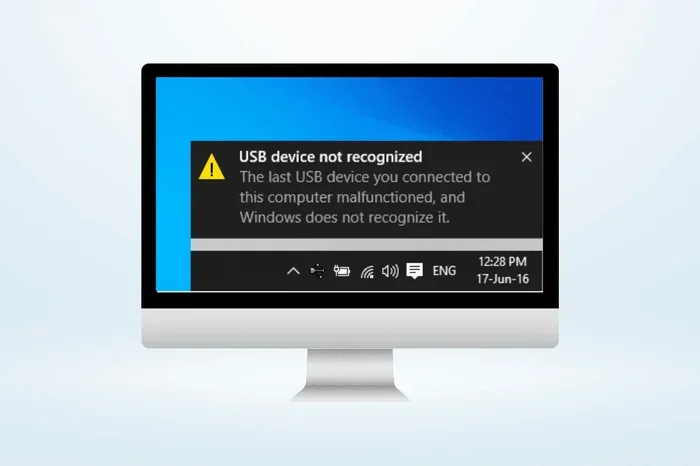
When your connected USB is not showing up, it can be frustrating and confusing. Whether it is a flash drive, external hard drive, or mouse, the issue usually comes down to driver problems, port issues, or device conflicts. This guide walks you through the most common causes and the easiest fixes so you can get your USB device back up and running quickly.
You plug in your USB device, wait a few seconds, and… nothing happens. No notification, no new drive letter, no sign of life. If your connected USB is not showing up, you are definitely not alone. This is one of the most common tech frustrations people face every day. The good news is that it is usually an easy fix.
Whether you are trying to use a flash drive, an external hard drive, or a USB mouse, the reason your device is invisible to your computer is almost always the same handful of causes. In this article, we will walk through every possible reason and give you clear, step-by-step solutions. You do not need to be a tech expert to follow along. Let us get your USB device detected again.
Key Takeaways
- Driver Issues: Outdated or corrupted USB drivers are the top reason a connected USB is not showing up.
- Port Problems: A damaged or loose USB port can prevent any device from being detected.
- Device Manager Fixes: Using Windows Device Manager can often resolve USB detection problems fast.
- Power Settings: USB selective suspend settings may be turning off your ports to save energy.
- Hardware Checks: Sometimes the cable, adapter, or the USB device itself is the real culprit.
- Simple First Steps: Try unplugging and replugging before diving into complex fixes.
📑 Table of Contents
Why Is My Connected USB Not Showing Up?
There are many reasons a connected USB is not showing up on your computer. Most of them are simple and easy to fix. Let us look at the top causes first so you can start troubleshooting right away.
1. USB Driver Problems
The most common reason your USB device is invisible is a driver issue. Windows uses drivers to talk to hardware. If the driver for your USB port is outdated, corrupted, or missing, your computer simply will not see the device you plug in.
Think of it like a language barrier. If your computer and your USB device are speaking different languages, they cannot communicate. Updating or reinstalling the driver usually fixes this right away.
2. Faulty or Loose USB Port
A damaged USB port is another big reason your device does not show up. Over time, USB ports can wear out. They get loose, bent, or filled with dust. If the port cannot make proper contact with your USB plug, the device will not be detected.
Try plugging your USB device into a different port. If it works in another port, the original port may be the problem. Also, check for any visible damage or debris inside the port.
3. USB Selective Suspend Settings
Windows has a power-saving feature called USB selective suspend. It turns off USB ports when they are not in use to save battery. Sometimes this feature gets too aggressive and turns off your port even when a device is plugged in.
This is a sneaky cause because nothing looks wrong on the surface. Your port looks fine, your device looks fine, but Windows is quietly shutting it down to save a little power.
4. Device Conflicts
Sometimes two USB devices fight for the same system resources. This is called a device conflict. When this happens, one or both devices may stop showing up.
This often happens when you plug in multiple USB hubs or connect several power-hungry devices at the same time. Your computer simply cannot handle them all at once.
5. The USB Cable or Device Itself
It sounds obvious, but a bad cable or a broken device is a very common reason for this problem. USB cables wear out over time. The connector tips can bend or break inside. Even if the cable looks fine from the outside, the internal wires may be damaged.
Try a different cable first. Then try the original cable on a different device. This simple test tells you whether the cable or the device is the problem.
How to Fix a Connected USB That Is Not Showing Up
Now that you know the most common causes, let us walk through the fixes. Start at the top and work your way down. Most people find a solution in the first few steps.
Step 1: Unplug and Replug
This is the simplest fix and it works more often than you think. Unplug your USB device, wait about 10 seconds, and plug it back in. This resets the connection and forces your computer to look for the device again.
Make sure you plug the device in firmly. A loose connection is one of the most overlooked reasons a USB device does not show up.
Step 2: Try a Different USB Port
If replugging does not work, switch to a different port. If you are on a laptop, try a port on the other side. Avoid using USB hubs or extension cables for now. Plug the device directly into the computer.
If the device shows up on a different port, the original port may be damaged. You can still use the working port for now.
Step 3: Check Device Manager
Windows Device Manager is your best friend for USB troubleshooting. Here is how to use it:
- Right-click the Start button and select Device Manager.
- Look for Universal Serial Bus controllers. Click the arrow to expand it.
- Look for any yellow warning signs next to a device.
- Right-click the problematic USB device and select Update Driver.
- Choose Search automatically for drivers.
If updating does not work, try right-clicking the device and selecting Uninstall Device. Then unplug and replug your USB device. Windows will reinstall the driver automatically.
Many people who search for why their connected USB is not showing up find that Device Manager is the answer. It is free, built into Windows, and very effective.
Step 4: Disable USB Selective Suspend
If power settings are the cause, turning off USB selective suspend should fix the problem. Here is how:
- Open the Start menu and type Power Options.
- Click Change plan settings next to your active power plan.
- Click Change advanced power settings.
- Find USB settings and expand it.
- Expand USB selective suspend setting.
- Set it to Disabled for both On battery and Plugged in.
- Click OK to save.
This stops Windows from turning off your USB ports to save power. Your devices should stay visible at all times.
Step 5: Update Windows
Sometimes a Windows update fixes USB issues automatically. Microsoft regularly releases patches for driver and hardware compatibility problems. Keeping your system up to date can prevent a lot of USB headaches.
Go to Settings, then Update and Security, and click Check for Updates. Install any pending updates and restart your computer.
Step 6: Run the Hardware Troubleshooter
Windows has a built-in troubleshooter for hardware problems. It can automatically detect and fix common USB issues. Here is how to run it:
- Go to Settings and click Update and Security.
- Select Troubleshoot from the left menu.
- Click Hardware and Devices.
- Click Run the troubleshooter.
- Follow the on-screen instructions.
This tool checks for common problems and applies fixes. It is a quick way to solve issues without manual work.
Common Mistakes That Cause USB Devices Not to Show Up
Some mistakes make USB problems worse or keep them from being fixed. Here are the most common ones to avoid.
Using a Damaged USB Cable
A frayed or bent cable is one of the top reasons a USB device fails to show up. Many people keep using a damaged cable because it still looks okay on the outside. But the inside wires can be broken. Always inspect your cable and replace it if you see any damage.
Plugging Into a Powered USB Hub Without Enough Power
USB hubs are useful, but they can cause problems. Some hubs do not provide enough power for certain devices. External hard drives, for example, need more power than a simple flash drive. If you are using a hub, try plugging the device directly into the computer.
Ignoring Driver Updates
Outdated drivers cause a surprising number of USB issues. Many people forget to update their system drivers regularly. Setting your computer to update automatically can save you from this problem.
Restarting Too Quickly
After making changes like updating drivers or adjusting power settings, you need to restart your computer. Skipping the restart means the changes may not take effect. Always reboot after making system-level changes.
When to Seek Professional Help
Most USB issues are easy to fix at home. But sometimes the problem is deeper than a simple driver update or cable swap. Here are signs that you may need professional help:
- None of your USB ports work at all, even after trying all the fixes above.
- Your USB device works on another computer but not yours.
- You smell burning or see physical damage near the USB ports.
- Your computer crashes or freezes every time you plug in a USB device.
- The problem started after a hardware change or system update.
If you notice any of these signs, it is worth taking your computer to a repair shop. A professional can check for motherboard issues, faulty port controllers, or deeper system problems that are not easy to fix at home.
Also, if you have tried everything and your connected USB is not showing up, a technician can run diagnostic tools that go beyond what Windows offers. They can test individual ports and check for hardware failures you cannot see from the outside.
How to Prevent USB Issues in the Future
Prevention is always easier than fixing. Here are simple habits that keep your USB devices working smoothly:
- Eject devices properly: Always use the Safely Remove Hardware option before unplugging a USB device. This prevents data corruption and port issues.
- Keep ports clean: Dust and debris can build up in USB ports. Use compressed air to clean them gently every few months.
- Use quality cables: Cheap cables fail more often. Invest in good-quality USB cables from trusted brands.
- Update drivers regularly: Check for driver updates every few months. Windows Update handles most of this, but it is good to verify.
- Avoid overloading ports: Do not plug too many power-hungry devices into one hub. Spread them out across different ports.
- Store cables properly: Coil cables loosely and avoid sharp bends. This extends their lifespan significantly.
These small habits save you from a lot of frustration down the road. A little prevention goes a long way when it comes to USB devices.
Quick Tips for Faster Troubleshooting
- Always try a different port before assuming the device is broken.
- Test your USB device on another computer to rule out a hardware failure.
- Check Device Manager for yellow warning icons after every new device is plugged in.
- Keep a spare USB cable in your bag or desk drawer. Cables fail more often than you think.
- If a USB mouse is not showing up, try the same steps above. Many of the same fixes apply to USB pointing devices.
These quick tips can save you time and help you narrow down the problem faster. Start with the simplest fix and work your way up.
Final Thoughts
A connected USB not showing up is almost always a fixable problem. Whether it is a driver issue, a bad port, power settings, or a simple cable problem, you have several tools at your disposal to solve it. The key is to work through the steps methodically and not skip the simple fixes.
Start with the basics: replug, try a different port, and check Device Manager. These three steps solve the majority of USB detection issues. If those do not work, move on to power settings, driver updates, and the Windows troubleshooter. Most people find their solution within the first few steps.
Remember, USB devices are meant to be convenient and reliable. When they stop working, it throws a wrench in your day. But with the right knowledge, you can get back to using your devices in minutes. Keep this guide handy for the next time your USB device decides to go invisible.
Stay calm, follow the steps, and trust the process. Your USB device will show up again, and you will be back to work or play in no time.
Frequently Asked Questions
Why does my USB device show up one moment and then disappear?
This usually happens because of a loose connection or an unstable USB port. Try plugging the device into a different port and make sure the cable is firmly seated. If the problem continues, it could be a driver issue or a failing USB port on your computer.
Can a USB port be repaired if it is physically damaged?
Yes, a damaged USB port can often be repaired. A technician can replace the port or solder a new one onto the motherboard. The cost and complexity depend on your device type and the extent of the damage. For laptops, it is usually a straightforward repair.
Do USB hubs cause devices not to show up?
USB hubs can sometimes cause detection issues, especially if they are unpowered. Powered hubs work much better for devices that need more energy, like external hard drives. Try plugging your device directly into the computer to see if the hub is the problem.
Is it safe to update USB drivers manually?
Yes, it is safe to update USB drivers manually through Device Manager. Always download drivers from the manufacturer’s official website or use Windows Update. Avoid third-party driver update tools, as they can sometimes install incorrect or outdated drivers.
Why does my USB flash drive show up as a removable drive but I cannot open it?
This is usually a file system issue rather than a connection problem. The drive may need to be reformatted, but this will erase all data on it. Try running chkdsk from the Command Prompt first to repair any file system errors before considering a format.
What should I do if my USB mouse is not showing up on my laptop?
First, try plugging the mouse into a different USB port. If that does not work, check Device Manager for any warning signs under Universal Serial Bus controllers. You can also visit our guide on why your mouse might not be showing up on your laptop for more detailed troubleshooting steps.