How to Open Task Manager in Windows 11
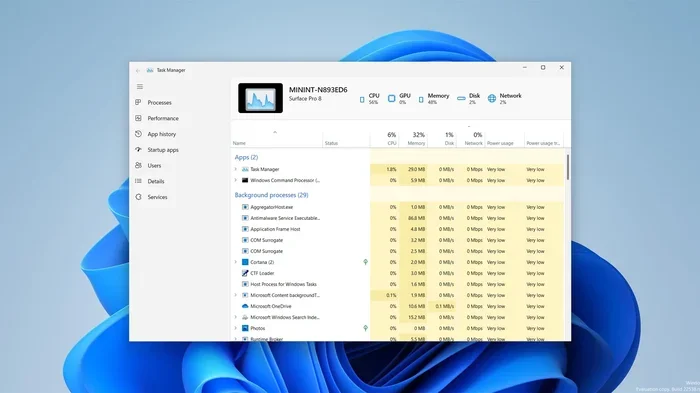
Need to open Task Manager in Windows 11? You have more than half a dozen ways to do it. This guide walks you through every method, from simple keyboard shortcuts to hidden commands, so you can quickly access the process manager whenever you need it.
There are few tools as essential as the Task Manager in Windows 11. Whether your system is running slow or an app has frozen and you need to force quit it, knowing how to open Task Manager in Windows 11 is a basic skill every user should have. It is built right into the operating system, and you can access it in several different ways depending on your situation.
The Task Manager acts as a system monitor that shows you what is running on your computer at any given moment. You can see which apps are using the most memory, which background processes are consuming CPU power, and even how your network and disk are performing. It is one of the first places you should look when something goes wrong with your PC.
In this guide, we will walk you through every way to open Task Manager in Windows 11. From simple keyboard shortcuts to hidden menu options, you will learn all the methods so you can always get to the Task Manager quickly, no matter what you are doing. Each method is easy to follow, and you will be able to use them right away.
Key Takeaways
- Multiple methods available: You can open Task Manager using keyboard shortcuts, the taskbar, Windows search, and more.
- Fastest method: The Ctrl Shift Esc shortcut opens Task Manager instantly every time.
- Useful for troubleshooting: Task Manager helps you force quit frozen apps and monitor system performance.
- No special tools needed: Every method uses built-in Windows 11 features.
- Works for all users: Whether you are a beginner or a power user, these methods work for you.
- More than just closing apps: Task Manager lets you manage startup apps, monitor disk usage, and view active user sessions.
📑 Table of Contents
What Is Task Manager and Why It Matters in Windows 11
The Task Manager is a built-in Windows utility that gives you a detailed look at what is happening inside your computer. Think of it as a dashboard that shows you the health and activity of your system at a glance. It has been part of Windows for many years, but Windows 11 gives it a cleaner, more modern look that is easier to read and navigate.
When you open the Task Manager, you see several tabs. The Processes tab lists every app and background process currently running on your system. The Performance tab shows real-time graphs for CPU, memory, disk, and network usage. The Startup tab lets you control which apps launch when you turn on your computer. Each tab serves a different purpose, but they all help you understand and manage your system better.
One of the most common reasons people open the Task Manager is to force quit an app that has stopped responding. When an application freezes, you can highlight it in the Task Manager and click End Task to close it. This is much faster than waiting for the app to respond or restarting your entire computer. It is also useful when you want to check how much memory an app is using or see if a background process is using too many resources.
If you are someone who likes to keep an eye on system performance, the Task Manager is an excellent tool for performance monitoring. You can watch CPU usage spike, see when memory is running low, and identify which apps are causing slowdowns. Even if you are not a tech expert, the Task Manager gives you helpful information in plain language. You can also check RAM in your laptop directly through the Performance tab to see how much memory your apps are consuming.
Six Ways to Open Task Manager in Windows 11
Windows 11 gives you many options for opening the Task Manager. Some methods are faster than others, and some work better in certain situations. Below, we cover all six methods so you can pick the one that works best for you.
Method 1: Use the Keyboard Shortcut Ctrl Shift Esc
The fastest way to open Task Manager in Windows 11 is by pressing Ctrl Shift Esc on your keyboard. This shortcut opens the Task Manager directly without any extra steps. It works from anywhere, whether you are on the desktop, inside an app, or even on the lock screen.
This keyboard shortcut is a favorite among power users because it is instant. You do not need to reach for the mouse or navigate through any menus. Just press the three keys together, and the Task Manager appears on screen. If you have a wireless mouse connected to your laptop and your hands are already on the keyboard, this is the method to use.
Many people also use this shortcut when an app freezes. Instead of searching for a way to close the app, you simply press Ctrl Shift Esc, find the frozen app in the list, and click End Task. It is a quick and reliable way to handle problems as they come up. This is the single most efficient method for accessing the process manager on Windows 11.
Method 2: Press Ctrl Alt Delete
Another well-known way to open Task Manager is by pressing Ctrl Alt Delete. This combination brings up a blue screen with several options, including Lock, Switch User, Sign Out, and Task Manager. You can then click on Task Manager from that menu.
This method has been around for a long time and still works perfectly in Windows 11. It is especially useful if your keyboard shortcuts are not responding or if you have remapped some keys. The Ctrl Alt Delete screen is a secure screen, which means it is harder for apps to interfere with it.
Some people find this method slightly slower than Ctrl Shift Esc because it requires two steps: first pressing the key combination, then clicking on Task Manager. But it is still a reliable option, and many users are comfortable with it because they have used it for years. It is also a good fallback if the keyboard shortcut method does not work for any reason.
Method 3: Right-Click the Taskbar
If you prefer using the mouse, you can open Task Manager by right-clicking on an empty area of the taskbar. A small menu will appear, and one of the options will be Task Manager. Simply click on it, and it opens right away.
This method is very intuitive and easy to remember. The taskbar is always visible at the bottom of your screen, so you never have to search for a menu or remember a shortcut. Just right-click, look for Task Manager, and click it. This is also a great method if you are using a touchscreen device or a laptop with a trackpad.
You do not need to use keyboard shortcuts at all with this approach. It works the same way whether you are using a desktop setup or a portable computer. If your mouse is not responding, you can try connecting a new input device or using an alternative method from this list.
Method 4: Use Windows Search
Windows 11 has a powerful search feature built into the taskbar. You can use it to find almost anything on your computer, including the Task Manager. Simply click on the search bar at the bottom of your screen, type “Task Manager,” and the app will appear in the results.
From the search results, you can click on Task Manager to open it. You can also right-click on it and choose to pin it to the taskbar or start menu for even faster access next time. This method is great if you are not comfortable with keyboard shortcuts or if you want to see other related tools.
The Windows Search method is also helpful when you are not sure of the exact name of an app. You can type a few keywords, and Windows will show you matching results. It is a simple and visual way to find and open any app on your system. This approach is especially useful for beginners who are still getting familiar with Windows 11.
Method 5: Use the Run Command
The Run command is a quick way to open almost any app or tool in Windows. To use it, press Win R on your keyboard to open the Run dialog box. Type “taskmgr” and press Enter. The Task Manager will open immediately.
This method is fast and efficient, especially if you already use the Run command for other tasks. The command “taskmgr” is the official executable name for Task Manager, and Windows recognizes it right away. You do not need to type the full name or search through menus.
The Run command is also useful when you are troubleshooting system issues. If your taskbar is not responding or the search bar is not working, the Run command is a reliable fallback. It works independently of the desktop interface, so it can get you to Task Manager even when other parts of Windows are not responding. This makes it a valuable tool for system recovery situations.
Method 6: Use PowerShell or the Win X Menu
For more advanced users, you can open Task Manager through PowerShell or the Win X menu. To use the Win X menu, right-click on the Start button or press Win X on your keyboard. A menu will appear with several options, and you can find Task Manager listed there.
If you prefer using PowerShell, you can open it and type “taskmgr” to launch the Task Manager. This method is similar to the Run command but gives you more control if you are already working in a command-line environment. It is also useful if you are writing scripts that need to interact with the Task Manager.
The Win X menu is a hidden gem that many users do not know about. It gives you quick access to a variety of system tools, including Device Manager, Disk Management, and yes, Task Manager. It is worth exploring if you want to become more efficient with Windows 11 and take advantage of the power user features built into the operating system.
What You Can Do With Task Manager in Windows 11
Once you know how to open Task Manager in Windows 11, it is important to understand what you can do with it. The Task Manager is much more than a tool for closing frozen apps. It is a powerful system monitor that helps you manage your computer in many ways.
Monitor Your System Performance
The Performance tab in Task Manager gives you real-time graphs of your CPU, memory, disk, and network usage. You can see exactly how much of your system resources are being used at any moment. This is helpful when you are trying to figure out why your computer is running slow.
For example, if you notice that your CPU usage is consistently above 90 percent, you can use the Task Manager to find out which process is causing the problem. You can sort the Processes tab by CPU usage and see which apps are using the most resources. This makes it easy to identify and address performance issues.
If you are checking how much memory your apps are using, you can see which apps are consuming the most RAM and decide whether to close them. This is especially useful if you are running low on memory and your system is becoming sluggish. For users who have installed an M.2 NVMe SSD in their PC, the Task Manager also provides detailed disk activity information that helps you understand how your storage is performing.
Manage Startup Apps
The Startup tab in Task Manager lets you control which apps launch when you start your computer. Many apps add themselves to the startup list, which can slow down your boot time. By using Task Manager, you can disable unnecessary startup apps and make your PC start faster.
To manage startup apps, open the Task Manager and click on the Startup tab. You will see a list of all apps that launch at startup, along with their impact on boot time. You can right-click on any app and choose to disable it. This is a simple way to speed up your computer without installing any extra software.
End Tasks and Force Quit Apps
The most common use of Task Manager is to force quit apps that are not responding. When an app freezes or becomes unresponsive, you can highlight it in the Processes tab and click the End Task button. This closes the app immediately, even if it will not close normally.
It is important to save your work before force quitting an app, as you may lose any unsaved data. But when an app is completely frozen and you have no other option, the Task Manager is your best tool. It gives you control over your system when nothing else works.
Check Disk and Storage Usage
The Task Manager also shows you how your disk and storage are being used. If you notice that your disk is at 100 percent usage, you can use the Task Manager to identify which processes are causing the problem. This can help you troubleshoot slow performance and high disk activity.
For users who are setting up a new drive, learning how to set up a new NVMe SSD and then monitoring its performance through Task Manager is a great workflow. You can track read and write speeds, identify bottlenecks, and ensure your storage is performing as expected.
View User Sessions and Services
The Users tab in Task Manager shows you all the user sessions currently active on your computer. This is useful in shared or multi-user environments where you need to see who is logged in and what they are doing. The Services tab shows you all the background services running on your system.
You can stop or start services from this tab, which is helpful for troubleshooting system issues. However, be careful when stopping services, as some are essential for Windows to function properly. If you are not sure what a service does, it is best to leave it alone.
Troubleshooting When Task Manager Won Open
In rare cases, you may find that Task Manager will not open or is disabled by your system administrator. This can be frustrating, but there are a few things you can try to fix the issue.
First, try restarting your computer. Sometimes a simple reboot is all it takes to restore access to the Task Manager. If that does not work, you can try running a system file check. Open the Command Prompt as an administrator and type “sfc /scannow” to scan for and repair any corrupted system files.
Another common reason Task Manager may be disabled is due to a registry setting. If you are comfortable editing the registry, you can navigate to HKEY_CURRENT_USER Software Microsoft Windows CurrentVersion Policies System and look for a value called DisableTaskMgr. If it is set to 1, change it to 0 or delete it to re-enable Task Manager.
If you are unable to resolve the issue on your own, it may be worth checking with your IT department or a professional. Some organizations disable Task Manager as a security measure, and you may need admin privileges to re-enable it. You can also use the command prompt or PowerShell to run diagnostic commands that may help restore access.
Final Thoughts
Knowing how to open Task Manager in Windows 11 is a skill that every computer user should have. Whether you use the Ctrl Shift Esc shortcut, the Ctrl Alt Delete menu, or the Windows Search bar, there is a method that works for everyone. The Task Manager is a powerful tool that helps you monitor performance, manage apps, and troubleshoot problems.
Take some time to explore each tab and feature in the Task Manager. The more you use it, the more comfortable you will become. You will start to notice patterns in how your system uses resources, and you will be better equipped to handle issues when they arise.
If you are having trouble with your mouse or input devices, you can also check how they are managed through the Task Manager. For tips on connecting peripherals, you might want to learn how to connect a wireless mouse to your laptop and ensure your devices are working properly with Windows 11.
Remember, the Task Manager is always there when you need it. It is one of the most reliable tools in Windows 11, and mastering its use will make you a more confident and efficient computer user. Keep this guide handy, and you will always know exactly how to get to the Task Manager when you need it most.
Frequently Asked Questions
What is the fastest way to open Task Manager in Windows 11?
The fastest way is to press Ctrl Shift Esc on your keyboard. This shortcut opens Task Manager directly without any extra steps, and it works from anywhere on your system, including the lock screen.
Can I open Task Manager if my mouse is not working?
Yes, you can. The keyboard shortcut Ctrl Shift Esc does not require a mouse at all. You can also use Ctrl Alt Delete and select Task Manager from the menu that appears. Both methods work entirely from the keyboard.
Is it safe to end tasks in Task Manager?
It is generally safe, but you should be careful. Ending a task closes the app immediately, and you may lose any unsaved work. Avoid ending system processes that Windows needs to run, as this can cause instability or crashes.
Why does Task Manager sometimes open in a small window?
Task Manager opens in a compact view by default. To see the full details, click “More Details” at the bottom left corner of the window. This will expand it to show all tabs and information.
Can I open Task Manager from the lock screen?
Yes, you can. The Ctrl Shift Esc shortcut works on the lock screen, so you can access Task Manager even before logging in. This is helpful if you need to troubleshoot a login issue or close a problematic process.
How do I pin Task Manager to the taskbar for quick access?
Open Task Manager using any method, then right-click on the Task Manager icon in the taskbar and select “Pin to taskbar.” This will keep it visible at all times for one-click access in the future.