What Is Input Lag How Can You Fix Test It
Input lag is the delay between your action and what appears on screen. It can ruin gaming, streaming, and everyday computing. You can test input lag with simple tools and fix it by adjusting display settings, updating drivers, and choosing the right cables. This guide covers everything you need to know about identifying, measuring, and reducing input lag.
You press a button on your controller or click your mouse. But something on your screen takes a moment to respond. That tiny delay is input lag, and it can make the difference between winning and losing a game or simply enjoying a smooth experience. Whether you are a gamer, a content creator, or someone who just wants their screen to feel responsive, understanding input lag is essential.
In this guide, we will break down exactly what input lag means, what causes it, how to test for it, and the best ways to fix it. We keep things simple and practical. No jargon. No fluff. Just clear steps you can follow right now.
Key Takeaways
- Input lag is the delay between your input and the screen response: even 20ms can feel sluggish during fast-paced tasks.
- Testing input lag is easy: you can use free online tools, a stopwatch, or a specialized lag tester device.
- Common causes include low refresh rates, processing features, and slow cables: these are often easy to address.
- Enabling game mode and disabling post-processing cuts input lag significantly: these are the fastest fixes.
- Checking your GPU temperature matters: overheating can contribute to input lag and frame drops.
- Fixing a slow system helps too: if your computer struggles, it adds to the delay you experience on screen.
📑 Table of Contents
What Is Input Lag?
Input lag is the time it takes for your device to register your action and display the result on screen. When you press a key, move your mouse, or click a controller button, there is a tiny gap before you see the change. That gap is input lag.
Think of it like a conversation. You speak, and the other person replies. If the reply comes instantly, the conversation flows. If there is a long pause, it feels off. Input lag works the same way. Your device receives the input, processes it, and sends the image to your display. Each step takes time.
For most everyday tasks like browsing or typing, a small amount of input lag is barely noticeable. But for gaming, video editing, or any task that needs quick responses, even a delay of 30 to 50 milliseconds can feel frustrating. Professional gamers often aim for input lag below 10 milliseconds.
Input Lag vs. Response Time
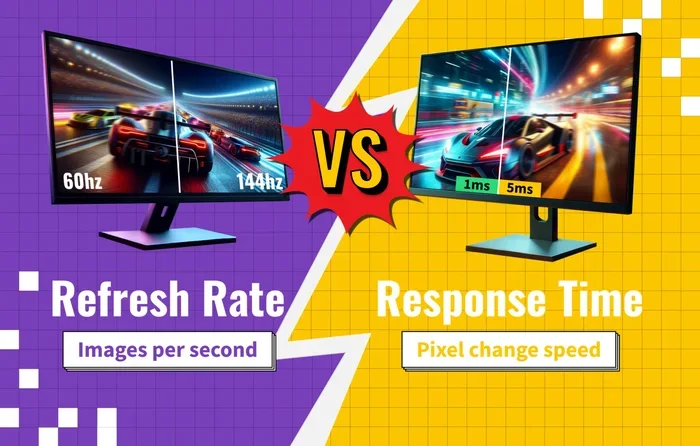
People often confuse input lag with response time. They are not the same thing. Response time refers to how fast a pixel on your screen changes from one color to another. Input lag is the total delay from your action to the screen update. Both matter, but they measure different things.
A monitor with a fast 1ms response time can still have high input lag if the internal processing is slow. That is why it is important to understand both concepts when choosing a display.
What Causes Input Lag?
Several factors contribute to input lag. Understanding the root causes helps you target the right fix. Here are the most common culprits.
Display Processing
Modern screens do a lot of work behind the scenes. They upscale images, adjust colors, reduce noise, and apply motion smoothing. All of this processing adds delay. The more features your display runs, the higher the input lag tends to be.
Televisions are especially guilty of this. Many TVs apply heavy image processing to make content look better. While the picture may look stunning, the added processing creates noticeable input lag.
Low Refresh Rate
Refresh rate measures how many times your screen updates per second, measured in Hz. A 60Hz display refreshes 60 times per second. That means each frame takes about 16.7 milliseconds to display. A 144Hz display refreshes much faster, reducing the time between updates and lowering input lag.
If you are using an older monitor with a low refresh rate, upgrading to a higher Hz display can make a big difference in responsiveness.
Cables and Connections
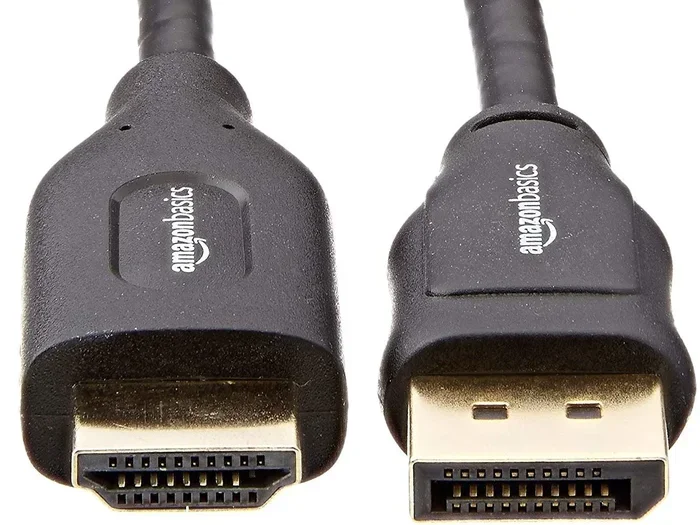
The cable connecting your device to your display matters more than most people think. Older cables like VGA or low-quality HDMI versions can introduce signal delays. Using a certified high-speed HDMI cable or DisplayPort cable helps reduce input lag caused by poor signal transmission.
GPU and System Performance
Your graphics card and overall system health play a role too. If your GPU is overheating or your system is running slowly, frames take longer to render. This adds to the delay you experience. You can check your GPU temperature to see if heat is affecting performance. If your computer is struggling, learning how to fix a computer running slow and freezing can also help reduce delays.
How to Test Input Lag
Testing input lag is simpler than you might think. You do not need expensive equipment to get a good reading. Here are the most effective methods.
Method 1: Use a Free Online Tool
Several websites offer free input lag testing tools. These tools display a flashing pattern on screen and measure how quickly your display responds. You simply open the tool on your browser and follow the instructions. The results give you a clear number in milliseconds.
These tools work well for a baseline measurement. They are not as precise as dedicated hardware testers, but they give you a reliable idea of where you stand.
Method 2: The Stopwatch Method
This old-school method still works. You need a second device with a stopwatch, like your phone. You start the stopwatch on your phone the moment you press a key or click your mouse. Then you stop it the moment you see the change on screen.
It is not perfectly accurate, but it gives you a rough sense of your input lag. If the delay is obvious to you, it is definitely worth addressing.
Method 3: Use a Dedicated Lag Tester
For the most accurate results, you can buy a dedicated input lag tester. Devices like the Leo Bodnar Video Signal Analyser measure display lag with professional precision. These tools are used by reviewers and esports professionals who need exact numbers.
If you are serious about gaming or content creation, investing in a lag tester is worth it. It removes all guesswork from the equation.
What Is a Good Input Lag Number?
Here is a quick reference for what different input lag numbers mean:
- Below 10ms: Excellent. Ideal for competitive gaming.
- 10 to 20ms: Very good. Most gamers will not notice any delay.
- 20 to 40ms: Acceptable. Fine for casual gaming and everyday use.
- 40 to 60ms: Noticeable delay. You will feel the lag during fast actions.
- Above 60ms: Problematic. Needs fixing for any real-time task.
How to Fix Input Lag
Once you know your input lag numbers, it is time to reduce them. Here are the most effective fixes, ranked from easiest to most advanced.
Enable Game Mode on Your Display
Most modern monitors and TVs have a Game Mode setting. This mode disables image processing features that add delay. Turning on Game Mode is the single fastest way to reduce input lag.
Look for Game Mode in your display settings or remote control menu. On a TV, it is usually found under Picture Settings or Display Options. Once enabled, you should see an immediate improvement in responsiveness.
Adjust Refresh Rate Settings
Make sure your display is running at its highest available refresh rate. A higher refresh rate means smoother motion and lower input lag. You can check and change this in your display settings on Windows or macOS.
If your monitor supports 144Hz or 240Hz but is set to 60Hz, you are leaving performance on the table. Switching to the highest supported refresh rate makes a real difference.
Disable Post-Processing Features
Features like motion smoothing, noise reduction, and dynamic contrast add beautiful visuals but also add delay. Disabling these features reduces input lag significantly.
On TVs, turn off features like TruMotion, MotionFlow, or Auto Motion Plus. On monitors, disable any built-in image enhancement settings. Keep only the basics like brightness and contrast active.
Update Your Graphics Drivers
Outdated graphics drivers can cause performance issues that increase input lag. Keeping your drivers up to date ensures your GPU runs efficiently and delivers frames without unnecessary delays.
Visit your GPU manufacturer’s website or use their software to check for updates. This simple step often solves mystery lag problems.
Use the Right Cables
Replace old or low-quality cables with high-speed alternatives. A certified HDMI 2.1 cable or DisplayPort 1.4 cable supports faster data transfer and reduces signal-related input lag.
Avoid using VGA or DVI cables if your display supports digital connections. These older standards are slower and can introduce additional delay.
Check Your System Performance
If your computer or device is struggling, it will add to the delay. Make sure your system is running efficiently. Close unnecessary background programs, check for malware, and keep your operating system updated.
You might also want to look into whether overclocking your monitor is worth it for your setup. Overclocking can push your refresh rate higher, which helps reduce input lag in some cases.
Fix Mouse and Controller Lag
Sometimes the input lag is not from your display at all. It comes from your mouse or controller. A slow or faulty mouse can make your whole system feel unresponsive. If you notice delays with your mouse, try checking your connection, replacing batteries, or updating drivers.
If you use a laptop mouse and experience delays, learning how to fix the mouse on your laptop can solve the problem quickly. A responsive mouse makes a huge difference in how your system feels overall.
Input Lag Across Different Devices
Input lag affects different devices in different ways. Here is how it shows up on various screens and what you can do about it.
Gaming Monitors
Gaming monitors are designed to minimise input lag. They feature high refresh rates, fast response times, and dedicated game modes. If you are a serious gamer, investing in a monitor with 144Hz or higher and a response time of 5ms or lower is the best move.
Televisions
TVs tend to have higher input lag because of their heavy image processing. However, most modern TVs offer a Game Mode that strips away these features. Always enable Game Mode when using your TV for gaming or any real-time activity.
Laptops
Laptop displays vary widely in input lag. Budget laptops often have slower panels that add noticeable delay. If you use your laptop for gaming or creative work, look for models with high refresh rate displays and low response times.
Mobile Devices
Phones and tablets generally have low input lag thanks to their high refresh rate screens. However, certain apps or games may still introduce delays. Checking your device settings and closing background apps can help keep input lag minimal.
Quick Tips to Reduce Input Lag
Want fast results? Here are quick wins that reduce input lag almost immediately:
- Turn on Game Mode on your monitor or TV right now.
- Set your refresh rate to the maximum supported by your display.
- Disable all image enhancement features like motion smoothing and noise reduction.
- Use a high-quality HDMI or DisplayPort cable for your connection.
- Update your graphics drivers to the latest version.
- Close unnecessary background programs to free up system resources.
- Check your GPU temperature to make sure it is not overheating.
These tips take just a few minutes and can dramatically improve how your screen feels. Start with Game Mode and the refresh rate adjustment. Those two changes alone often solve most input lag problems.
Common Mistakes That Increase Input Lag
Avoid these common mistakes that make input lag worse than it needs to be.
- Leaving image processing features on: motion smoothing and dynamic contrast look nice but add serious delay.
- Using old cables: VGA and low-quality HDMI cables slow down signal transmission.
- Running your display at 60Hz when it supports more: always use the highest refresh rate available.
- Ignoring GPU temperatures: an overheating GPU renders frames slower, adding to input lag.
- Not updating drivers: outdated graphics drivers can cause performance issues and increased delay.
Steering clear of these mistakes keeps your setup running smoothly and your input lag as low as possible.
Expert Insights on Input Lag
Professional esports players and display reviewers agree on a few key points about input lag. First, every millisecond counts in competitive gaming. A difference of just 5 milliseconds can mean the difference between landing a shot or missing it.
Second, not all input lag comes from your display. Your GPU, your cable, your peripherals, and even your internet connection all play a role. When troubleshooting, look at the entire chain from input device to screen.
Finally, do not trust marketing claims alone. A monitor advertised as “low lag” may still have higher input lag than you need. Always test with actual measurements using the methods described above.
Conclusion
Input lag is a common problem that affects anyone who uses a screen for fast-paced tasks. Whether you are gaming, editing video, or simply want a more responsive experience, understanding and fixing input lag makes a real difference.
Testing your input lag takes just a few minutes using free online tools or a simple stopwatch. Fixing it involves a combination of display settings, cable upgrades, and system optimisation. Start with the easiest fixes like enabling Game Mode and adjusting your refresh rate. Then move on to more advanced steps like updating drivers and checking your GPU health.
Remember that every millisecond matters. A smoother, more responsive screen improves your experience in ways you will notice immediately. Take action today and enjoy the difference that reduced input lag makes.
Frequently Asked Questions
What is input lag in simple terms?
Input lag is the delay between when you do something, like pressing a button or clicking your mouse, and when you see the result on your screen. It is measured in milliseconds. Lower numbers mean less delay and a more responsive experience.
How can I test input lag at home?
You can test input lag at home using free online tools, a stopwatch on your phone, or a dedicated lag tester device. The online tools are the easiest and most accessible option. They give you a reliable baseline measurement without any special equipment.
What is a good input lag number for gaming?
For competitive gaming, aim for input lag below 10 milliseconds. For casual gaming and everyday use, anything under 20 milliseconds is great. Most people will not notice delays below 20ms, but professional players prefer numbers under 10ms.
Does Game Mode really reduce input lag?
Yes, Game Mode is one of the fastest and easiest ways to reduce input lag. It disables image processing features on your display that add delay. Simply turning on Game Mode can cut your input lag by several milliseconds immediately.
Can old cables cause input lag?
Yes, old or low-quality cables can contribute to input lag. VGA and outdated HDMI cables are slower and can introduce signal delays. Upgrading to a certified high-speed HDMI or DisplayPort cable helps reduce this type of lag.
Is input lag the same as screen tearing?
No, input lag and screen tearing are different issues. Input lag is the delay between your action and the screen response. Screen tearing is a visual glitch where the display shows parts of multiple frames at once. Both can be annoying but require different fixes.