Is Overclocking Your Monitor Worth It
Overclocking your monitor can boost your refresh rate and improve gaming performance, but it comes with real risks. This guide covers everything you need to know about whether overclocking your monitor is worth the potential gains. You will learn about the benefits, downsides, and step-by-step methods to overclock safely.
Overclocking your monitor can boost your refresh rate and improve gaming performance, but it comes with real risks. This guide covers everything you need to know about whether overclocking your monitor is worth the potential gains. You will learn about the benefits, downsides, and step-by-step methods to overclock safely.
If you are a gamer or a creative professional, your monitor is one of the most important parts of your setup. A better refresh rate means smoother motion, less motion blur, and a more responsive feel. Many people look into overclocking their monitor to squeeze extra performance without buying new hardware. But the question remains: is overclocking your monitor worth it? Let us dive deep into the topic and find out.
Key Takeaways
- Overclocking your monitor can boost your refresh rate: Pushing past the factory limit may give you smoother motion and less input lag.
- It is not risk-free: Screen artifacts, overheating, and a voided warranty are real concerns you must consider.
- Panel type matters a lot: IPS and TN panels overclock better than VA panels. Your results will vary.
- Go slow and test often: Increase the refresh rate in small steps and run stability tests at each stage.
- Your GPU must keep up: Overclocking your monitor only helps if your graphics card can push enough frames.
- It is free performance: Unlike buying new hardware, overclocking costs nothing but time and caution.
- Not for everyone: If you use your monitor for color-sensitive work or worry about warranty, overclocking may not be worth it.
📑 Table of Contents
What Is Monitor Overclocking?
Monitor overclocking means pushing your display beyond its factory-rated refresh rate. Every monitor has a maximum refresh rate set by the manufacturer. For example, a 144Hz monitor is rated to display up to 144 frames per second. But some monitors can go higher if you push them.
When you overclock your monitor, you increase that refresh rate. This can give you a smoother picture and less input lag. But it is not always stable. Some monitors handle overclocking well. Others may show visual bugs or even stop working.
How Refresh Rates Work
Refresh rate is how many times your screen updates per second. It is measured in Hertz (Hz). A 60Hz monitor updates 60 times per second. A 144Hz monitor updates 144 times per second. The higher the refresh rate, the smoother the motion looks.
Your GPU sends frames to your monitor. If your GPU can produce more frames than your monitor can display, you waste performance. Overclocking your monitor lets you use more of those frames. This is why gamers love higher refresh rates.
What Happens When You Overclock
When you overclock your monitor, you are asking it to display frames faster than it was designed for. This can work well on some panels. But it can also cause problems. The monitor may overheat. It may show flickering. Or it may simply refuse to work at the higher rate.
The result depends on your panel type. IPS panels often handle overclocking better than VA panels. TN panels are usually the easiest to overclock. But each monitor is different. You need to test your specific display.
| Panel Type | Overclocking Potential | Stability | Best For |
|---|---|---|---|
| IPS | Medium to High | Good | Gaming and creative work |
| TN | High | Very Good | Competitive gaming |
| VA | Low to Medium | Fair | Movie watching and casual use |
The Benefits of Overclocking Your Monitor
Overclocking your monitor can offer real benefits. But they depend on your use case and your hardware. Here are the main advantages:
Smoother Gaming Experience
A higher refresh rate means smoother motion in games. If you play fast-paced shooters or racing games, this matters a lot. You will see enemies move more clearly. Your reactions will feel faster. This can give you a real edge in competitive games.
For example, going from 60Hz to 120Hz is a huge jump. The difference is very noticeable. Going from 144Hz to 165Hz is smaller. But even small gains can matter in esports. Your frame rate and GPU performance both play a role here.
Better Motion Clarity
Higher refresh rates also reduce motion blur. This makes fast-moving scenes look sharper. If you watch sports or fast-action movies, you will notice the difference. Your pixel response time may also improve slightly.
Some monitors also support variable refresh rate technology. This includes G-Sync and FreeSync. These features sync your monitor with your GPU. They reduce screen tearing and stuttering. Overclocking can sometimes make these features work better.
Competitive Advantage
For competitive gamers, every bit of performance counts. A smoother display means better tracking. You can spot enemies faster. Your input lag goes down. This can be the difference between winning and losing.
If you are into esports titles like Valorant or CS2, overclocking your monitor might help. But you need a strong GPU to push high frame rates. Check your GPU performance before you start.
The Risks and Downsides
Overclocking your monitor is not without risks. You need to understand these before you start.
Screen Artifacts and Visual Bugs
The most common issue is screen artifacts. You might see flickering, ghosting, or color shifts. Some pixels may not display correctly. In worst cases, the screen goes black or shows static.
These issues happen because the monitor cannot handle the extra speed. It is like asking a car to go faster than it was built for. Sometimes it works. Sometimes it breaks down. Screen tearing can also get worse if your monitor does not support adaptive sync at the overclocked rate.
Reduced Monitor Lifespan
Pushing your monitor beyond its limits can shorten its life. The panels wear out faster. The backlight may degrade sooner. Over time, you may notice color accuracy dropping.
This is a real concern. A monitor is a big investment. You do not want to burn it out early. Be careful with how far you push it. If you notice colors shifting or brightness dropping, it may be a sign of early wear.
Warranty Issues
Many manufacturers do not cover damage caused by overclocking. If your monitor breaks after overclocking, you may not get a replacement. Always check your monitor warranty before you start.
Some brands are more lenient than others. But in general, overclocking voids your warranty. This is something you need to accept before you begin. Read the fine print on your warranty terms.
How to Overclock Your Monitor Safely
If you decide to overclock your monitor, here is how to do it safely. Follow these steps carefully.
Step 1: Check Your Monitor Compatibility
Not all monitors can be overclocked. Check your model online. Look for user reports on forums. Some monitors have a known overclocking limit. Others cannot be overclocked at all.
Your panel type matters a lot here. IPS and TN panels are usually more overclock-friendly. VA panels are trickier. Check your resolution too. Lower resolutions are often easier to overclock.
Also, make sure your display cable can handle the higher refresh rate. An old HDMI cable may not support it. Use DisplayPort or a high-speed HDMI cable for best results. If your mouse is not working on your laptop after adjusting display settings, it could be a driver conflict. Check why your mouse is not working on your laptop for troubleshooting tips.
Step 2: Use NVIDIA Control Panel
If you have an NVIDIA GPU, the Control Panel makes overclocking easy.
- Right-click on your desktop and open NVIDIA Control Panel.
- Go to Display and click Change resolution.
- Select your monitor and click Customize.
- Check the box for Custom resolution.
- Increase the refresh rate by small steps, 3 to 6Hz at a time.
- Click Test to see if the display works.
- Save the settings if it looks stable.
Go slow. Do not jump to the max right away. Test at each step. If you see flickering or artifacts, go back down.
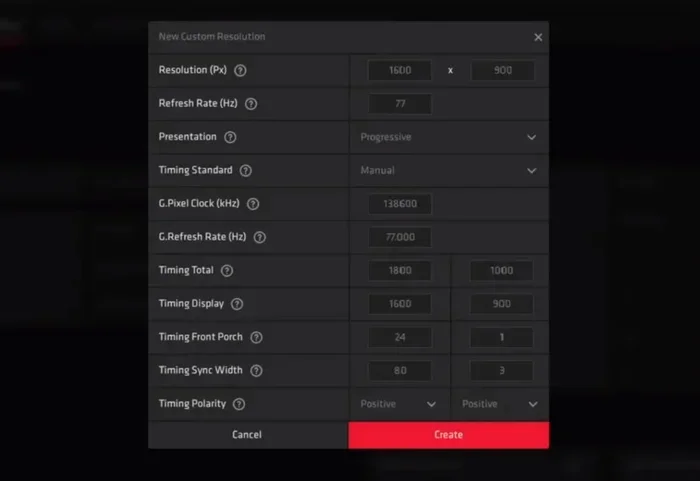
Step 3: Use AMD Radeon Software
If you have an AMD GPU, the process is similar.
- Open AMD Radeon Software.
- Go to the Display tab.
- Click Custom Resolutions.
- Create a new resolution with a higher refresh rate.
- Apply and test the display.
- Adjust in small increments.
AMD also offers a feature called FreeSync. This can help with stability when you overclock your monitor. Make sure FreeSync is enabled in your settings. It works hand in hand with your overclocked refresh rate.
Step 4: Use Third-Party Tools
There are also third-party tools that can help. Custom Resolution Utility (CRU) is a popular free option. It gives you more control over your display settings.
These tools can be powerful. But they also carry more risk. Only use trusted software. And always back up your current settings before making changes.
Quick Tips for Safe Overclocking
- Increase in small steps. Do not jump more than 6Hz at a time.
- Test for stability. Run a game or a stress test for at least 30 minutes.
- Monitor your temperatures. If your monitor gets too hot, back off.
- Save your settings. Keep a record of what works.
- Be ready to revert. Know how to go back to default if things go wrong.
Common Mistakes to Avoid
- Jumping to the max too fast. This is the number one mistake. Go slow and test often.
- Ignoring artifacts. If you see flickering or glitches, stop. Do not keep pushing.
- Forgetting about your GPU. Your graphics card also needs to keep up. A weak GPU will not benefit from a higher refresh rate.
- Using old cables. An outdated display cable can limit your results. Upgrade if needed.
Is Overclocking Your Monitor Worth It?
Now for the big question. Is overclocking your monitor actually worth it? The answer depends on your situation.
When It Is Worth It
Overclocking your monitor is worth it if:
- You have a compatible panel that handles overclocking well.
- Your GPU can push high frame rates at the overclocked refresh rate.
- You play competitive games and need every bit of performance.
- You are okay with the potential risks.
- Your monitor warranty does not matter to you.
If you meet these conditions, overclocking your monitor can give you a real boost. Many users report smoother gameplay and better motion clarity. It is a free way to get more out of your current hardware.
When choosing a new monitor, look for models that are known to overclock well. Check reviews and forums for real-world results. A gaming monitor with a good panel type will give you the best results. You can also browse our guide on the best PC monitor for designers to find high-quality displays that balance performance and color accuracy.
When It Is Not Worth It
Overclocking your monitor may not be worth it if:
- Your monitor is older or has a low-quality panel.
- You already get smooth performance at the stock refresh rate.
- You are worried about voiding your warranty.
- You use your monitor for color-sensitive work like photo editing.
- Your GPU cannot push enough frames to use the higher refresh rate.
In these cases, the risks outweigh the benefits. You are better off keeping your monitor at its stock settings. Or consider upgrading to a better display. If you are shopping for a new monitor, check out our guide on the best TV and PC monitor options. You may find a monitor that already meets your needs without overclocking.
Expert Insights
Many tech experts agree that overclocking your monitor can be safe within limits. The key is to test thoroughly and not push too hard. Here are some expert tips:
- Start with a 3Hz increase. This is the safest way to begin. Test for a few hours before going higher.
- Use a test pattern. Display a solid color screen to check for artifacts. Then try a moving pattern to test motion clarity.
- Watch for overheating. Some monitors get warm when overclocked. If it feels too hot, reduce the refresh rate.
- Keep your drivers updated. Fresh GPU drivers can improve compatibility with overclocked settings.
Remember, every monitor is different. What works for one may not work for another. Your results will depend on your specific model, your panel type, and your GPU. Do not compare your overclocking results to others. Your setup is unique.
Conclusion
So, is overclocking your monitor worth it? The answer is: it can be, if you are careful. Overclocking your monitor can give you smoother gameplay, better motion clarity, and a competitive edge. But it also comes with risks like screen artifacts, reduced lifespan, and warranty issues.
If you have a compatible monitor and a strong GPU, it is worth trying. Just go slow, test often, and be ready to revert if needed. The gains may be small, but for competitive gamers, every bit counts.
Ultimately, the decision is yours. Weigh the pros and risks. Know your monitor limits. And make the choice that fits your setup and your needs. Overclocking your monitor is a free experiment. You have nothing to lose except a few minutes of your time.
Frequently Asked Questions
Can overclocking your monitor damage it?
Overclocking your monitor can cause damage if you push it too far. Screen artifacts, overheating, and pixel burnout are real risks. But if you increase the refresh rate in small steps and monitor temperatures, the risk is low.
How much can you overclock a monitor?
The amount varies by monitor. Some can gain 10 to 20Hz easily. Others may only gain 3 to 5Hz. It depends on your panel type, your monitor model, and your GPU. Always test at each step.
Does overclocking your monitor void the warranty?
Many manufacturers do not cover damage caused by overclocking. This means your warranty may be void if something goes wrong. Check your monitor warranty before you start. Some brands are more lenient than others.
Is overclocking your monitor good for productivity work?
Overclocking your monitor can make your display feel smoother for everyday tasks. But the benefits are most noticeable in gaming and fast-motion content. For color-sensitive work like photo editing, it may not be worth the risk.
Do I need a special cable to overclock my monitor?
A good display cable helps. DisplayPort or high-speed HDMI cables are recommended. Old or cheap cables may not support the higher refresh rate. Check your cable specs before you start.
Can I undo the overclock if something goes wrong?
Yes, you can revert to your default settings. If your screen looks messed up, you can reset your display settings through your GPU control panel. This will restore the original refresh rate and resolution.