How to Enter Bios in Windows 11
Learning how to enter BIOS in Windows 11 is essential for managing hardware settings, boot order, and system firmware. Windows 11 hides the traditional BIOS access behind new menus, but you can still reach it through the Settings app, the Shift + Restart trick, or by pressing a key during startup. This guide walks you through every method with clear steps and practical tips.
Have you ever needed to change a setting on your PC but could not figure out how to get into BIOS? You are not alone. Many Windows 11 users find themselves confused when they try to access their system firmware. The process has changed over the years, and Windows 11 makes it even less obvious. But do not worry. This guide will show you every way to enter BIOS in Windows 11. Whether you want to change your boot order, adjust hardware settings, or troubleshoot a startup issue, you will find the right method here.
BIOS stands for Basic Input/Output System. It is the firmware that starts your computer before Windows loads. Think of it as the bridge between your hardware and your operating system. When you turn on your PC, the BIOS checks your components, finds your storage drive, and hands control to Windows. In older PCs, you pressed a key like F2 or Del to enter BIOS. But Windows 11 has made this process a bit different. Now, you can also use the Settings app or the advanced startup menu. Each method works well, and we will cover them all in detail.
In this article, you will learn the different ways to access BIOS, what to do once you are inside, common settings you might want to change, and how to fix problems when you cannot get in. We will also share quick tips and expert insights to make the whole process smooth and stress-free. Let us dive in.
Key Takeaways
- Multiple Methods Available: You can enter BIOS in Windows 11 through Settings, Shift + Restart, or by pressing a function key at startup.
- UEFI Replaced Legacy BIOS: Modern PCs use UEFI firmware, which offers a more user-friendly interface than the old BIOS.
- Settings App Is the Easiest Route: The Windows 11 Settings app provides a simple way to access advanced startup and BIOS.
- Boot Menu Key Works Too:Pressing F2, F12, Del, or Esc during startup can take you straight into BIOS on most PCs.
- Common BIOS Tasks Include: Changing boot order, enabling Secure Boot, adjusting TPM settings, and managing fast startup.
- Troubleshooting Helps When Stuck: If you cannot enter BIOS, disable fast startup or try the Windows Recovery Environment.
📑 Table of Contents
What Is BIOS and Why Do You Need to Access It?
Before we jump into the methods, let us understand what BIOS actually is and why you might need to enter it. BIOS is a small program stored on a chip on your motherboard. It is the first thing that runs when you power on your computer. Its job is to check your hardware and make sure everything is working before loading Windows.
Modern computers use UEFI, which stands for Unified Extensible Firmware Interface. UEFI is the newer version of BIOS. It does the same job but with a better-looking interface and more features. When people say BIOS today, they usually mean UEFI. Both terms are used interchangeably, and you will see them everywhere online.
You might need to enter BIOS for many reasons. Maybe you want to change the boot order so your PC starts from a USB drive. Perhaps you need to enable or disable Secure Boot. You might want to adjust TPM settings or turn off fast startup. Some people also enter BIOS to update firmware or change fan speeds. Whatever your reason, knowing how to get there is the first step.
Common Reasons to Enter BIOS
- Change Boot Order: Set your PC to boot from a USB drive or external disk.
- Enable Secure Boot: Improve security by ensuring only trusted operating systems load.
- Adjust TPM Settings: Manage Trusted Platform Module for encryption and security features.
- Disable Fast Startup: Fix boot issues or access BIOS more easily.
- Update Firmware: Install motherboard updates for better performance and stability.
- Change Virtualization Settings: Enable or disable Intel VT-x or AMD-V for virtual machines.
- Manage Hardware Profiles: Configure RAM speed, CPU settings, or fan curves.
Methods to Enter BIOS in Windows 11
There are several ways to access BIOS in Windows 11. Some methods are easier than others, and each works on different situations. Let us go through them one by one.
Method 1: Using the Settings App
The Settings app is the easiest and most user-friendly way to enter BIOS in Windows 11. This method works if you can boot into Windows normally. Here is how to do it:
- Click the Start button and open Settings.
- Go to System and then select Recovery.
- Under the Advanced startup section, click Restart now.
- Your PC will restart and show a blue screen with options.
- Click Troubleshoot, then Advanced options, and then UEFI Firmware Settings.
- Click Restart, and your PC will boot directly into BIOS.
This method works on most modern PCs and laptops. It is the recommended approach because it does not require you to press any keys at the right moment. The Settings app handles everything for you.
If you are planning to set up a new NVMe SSD, accessing BIOS through this method is especially useful. You will often need to change the boot order or enable specific SATA or NVMe modes in the firmware settings.
Method 2: Using Shift + Restart
The Shift + Restart method is another popular way to reach BIOS. This technique is great when you are already at the Windows desktop and want quick access. Here is what you need to do:
- Click the Start button and click the Power icon.
- Hold down the Shift key on your keyboard.
- While holding Shift, click Restart.
- Your PC will restart and show the blue advanced startup screen.
- Navigate to Troubleshoot, then Advanced options, then UEFI Firmware Settings.
- Click Restart to enter BIOS.
This method is almost identical to the Settings app approach, but it uses the Start menu instead. It is handy when you cannot find the Recovery settings or prefer a keyboard shortcut. This technique also comes in handy when you need to install an M.2 NVMe SSD and want to configure boot settings right away.
Method 3: Using the Boot Menu Key
Every PC manufacturer assigns a specific key to access BIOS or the boot menu. This method works during the initial startup phase, before Windows begins loading. Here are the most common keys for popular brands:
- Dell: Press F2 or F12
- HP: Press F10 or Esc
- Lenovo: Press F2 or Fn+F2
- ASUS: Press F2 or Del
- Acer: Press F2 or Del
- MSI: Press Del or F11
- MSI laptops: Press Del for BIOS or F11 for the boot menu
The boot menu key is not the same as BIOS in all cases. The boot menu lets you choose which device to boot from without entering the full BIOS. However, on many PCs, pressing the BIOS key takes you directly into the firmware settings. If you are unsure which key to use, check your PC manufacturer’s website or look for a message on your screen during startup that says Press X to enter setup.
For example, if you are working with an MSI laptop and need to change RAM or storage settings, pressing Del during startup will take you into BIOS. Similarly, if you are installing a second NVMe M.2 SSD, you may need to enter BIOS to configure the new drive in the boot order.
Method 4: Using the Command Line
For advanced users, you can use the command line to restart directly into BIOS. This method is quick and does not require navigating through menus. Here is how:
- Open the Start menu and type cmd.
- Right-click Command Prompt and select Run as administrator.
- Type the following command and press Enter:
shutdown /r /o /f /t 00
Your PC will restart and show the advanced startup options. From there, go to Troubleshoot, then Advanced options, then UEFI Firmware Settings, and click Restart.
This command forces a restart into the advanced startup environment. It is especially useful when the Settings app is not responding or when you need a fast way to access firmware settings.
What to Do Once You Are Inside BIOS
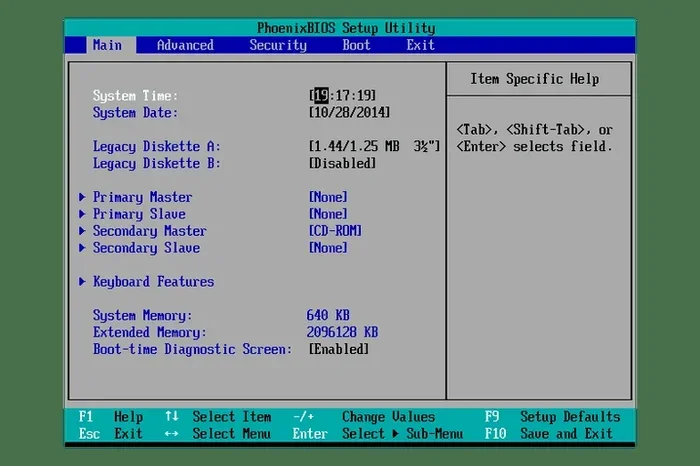
Once you successfully enter BIOS, you will see a screen with various tabs and options. The layout depends on your motherboard manufacturer and PC brand. Some BIOS interfaces look modern and colorful, while others still use the classic blue or black screen. Either way, the basic sections are similar across most systems.
Here are the main sections you will typically find inside BIOS:
- Main or Info: Shows basic system information like model name, BIOS version, CPU, and memory.
- Boot: Controls the boot order and startup behavior. This is where you set which drive Windows loads from.
- Advanced: Contains deeper hardware settings like CPU configuration, memory timings, and virtualization options.
- Security: Manages Secure Boot, passwords, and TPM settings.
- Exit: Lets you save changes, discard changes, or restore defaults.
When you first enter BIOS, take a moment to look around. Do not change anything you do not understand. BIOS settings can affect how your PC starts and runs. If you accidentally change something important, you can always restore defaults. Look for a button or tab labeled Load Defaults or Restore Defaults. This resets all settings to their factory values.
Navigating BIOS with Your Keyboard
BIOS is controlled entirely with your keyboard. You cannot use a mouse in most BIOS interfaces. Use the arrow keys to move between options. The Enter key selects an item, and Esc goes back. Some BIOS versions use the + and – keys or F5 and F6 to change values. Always look for on-screen hints at the bottom of the BIOS screen. They tell you which keys to use for navigation and saving.
One important thing to remember is that you must save your changes before exiting. Look for the Save and Exit option or press F10 in many BIOS versions. If you do not save, your changes will not take effect when Windows starts up.
Common BIOS Settings You Might Need to Change
Now that you know how to enter BIOS and what to expect inside, let us look at some of the most common settings people change. These settings can help you troubleshoot issues, improve performance, or set up new hardware.
| Setting | What It Does | When to Change It |
|---|---|---|
| Boot Order | Determines which drive Windows starts from | When installing a new drive or booting from USB |
| Secure Boot | Blocks untrusted operating systems from loading | When installing Linux or troubleshooting boot errors |
| TPM | Manages security chip for encryption | When enabling BitLocker or upgrading Windows |
| Fast Boot | Skips hardware checks during startup | When you want faster boot times |
| Virtualization | Enables hardware support for virtual machines | When using VirtualBox, VMware, or WSL |
| SATA Mode | Sets how storage drives communicate with the system | When switching between AHCI and RAID modes |
Each of these settings plays an important role in how your PC operates. If you are ever unsure about a setting, write it down before you change it. This way, you can easily revert back if something goes wrong.
Tips for Navigating BIOS Like a Pro
Entering BIOS is only half the battle. Navigating it efficiently saves time and prevents mistakes. Here are some practical tips to help you get the most out of your BIOS experience.
Take a Photo Before You Change Anything. This sounds simple, but it is incredibly helpful. If you need to revert a setting, you will know exactly what it looked like before. Use your phone to snap a quick picture of the screen.
Read the On-Screen Help. Most BIOS screens have a help section or a Help button. Pressing it gives you a quick explanation of what each setting does. This is especially useful for advanced options you have never seen before.
Do Not Rush. BIOS moves slowly compared to Windows. Take your time reading each option. If you accidentally press the wrong key, you can usually back out without consequences.
Keep Your BIOS Updated. Motherboard manufacturers release BIOS updates to fix bugs and improve compatibility. Check your PC or motherboard manufacturer’s website for the latest version. Updating BIOS is straightforward but should be done carefully. Never turn off your PC during a BIOS update.
Use the Search Function. Some modern UEFI BIOS interfaces include a search bar. If you are looking for a specific setting like Secure Boot or TPM, type it in the search box. This saves you from hunting through menus.
Troubleshooting: When You Cannot Enter BIOS
Sometimes things do not go as planned. You might try to enter BIOS but run into problems. Here are the most common issues and how to fix them.
Fast Startup Is Blocking Access
Windows 11 has a feature called Fast Startup. It saves your system state to a file so your PC boots faster next time. The problem is that Fast Startup can prevent you from accessing BIOS. When your PC is in this saved state, the traditional key-press method does not work.
To fix this, disable Fast Startup first:
- Open Control Panel and go to Power Options.
- Click Choose what the power buttons do.
- Click Change settings that are currently unavailable.
- Uncheck Turn on fast startup.
- Save changes and try entering BIOS again.
Disabling Fast Startup is one of the most common fixes for BIOS access issues. Once you have turned it off, you should be able to enter BIOS using the key-press method without any problems.
Keyboard Not Responding in BIOS
Sometimes your keyboard does not work when you try to enter BIOS. This usually happens with wireless or Bluetooth keyboards. BIOS needs a wired or USB-connected keyboard to register key presses during startup.
If your wireless keyboard is not working, try plugging in a USB keyboard temporarily. You can also check your BIOS settings for USB legacy support and enable it. This allows older USB devices to work during the boot process.
PC Boots Too Fast to Catch the Key
On some fast-booting PCs, you do not have enough time to press the BIOS key. The screen flashes too quickly, and Windows loads before you can react. In this case, use the Settings app or Shift + Restart method instead. These methods bypass the startup screen entirely and take you straight to BIOS.
If you are using an HP laptop or any brand with very fast boot times, the Settings app method is your best bet. It works reliably regardless of how fast your PC starts.
Expert Insights on BIOS and Windows 11
Many users wonder whether they really need to access BIOS in Windows 11. The answer depends on what you are trying to accomplish. For everyday tasks like browsing the web or using office applications, you rarely need to touch BIOS. But for hardware upgrades, troubleshooting, and security configuration, BIOS is essential.
One thing many people overlook is the relationship between BIOS and checking your RAM. When you enter BIOS, you can often see how much memory your system has detected. If you recently installed new RAM and it is not showing up, checking the BIOS settings is a great first step. You might need to enable XMP profiles or adjust memory frequency settings for your new modules to work properly.
Another expert tip is to always note your BIOS version before making changes. If something goes wrong, knowing your BIOS version helps you find the right fix or rollback procedure. You can find this information in the Main or Info section of your BIOS.
Finally, remember that BIOS settings are not permanent in the way you might think. You can always reset them to defaults if you make a mistake. This safety net gives you the freedom to experiment and learn how your system firmware works. Do not be afraid to explore. Just be intentional about what you change and why.
Conclusion
Now you know how to enter BIOS in Windows 11 using multiple methods. Whether you use the Settings app, Shift + Restart, a function key during startup, or the command line, you have everything you need to access your system firmware. Each method has its strengths, and the best one depends on your situation and comfort level.
BIOS might seem intimidating at first, but it is really just a tool. It gives you control over your hardware settings and helps you troubleshoot startup issues. With the tips and methods in this guide, you can confidently navigate BIOS and make the changes your PC needs. Start with the simplest method and work your way up as you become more comfortable.
Remember to save your changes, take notes, and never be afraid to reset to defaults if something goes wrong. Your BIOS is there to help you get the most out of your computer. Use it wisely, and your Windows 11 experience will be smoother and more reliable.
Frequently Asked Questions
What is the shortcut key to enter BIOS in Windows 11?
The shortcut key depends on your PC manufacturer. Common keys include F2, F10, F12, Del, and Esc. You need to press the key repeatedly right after turning on your PC, before Windows starts loading. If you miss the timing, simply restart and try again.
Can I enter BIOS from the Windows 11 Settings app?
Yes, you can. Open Settings, go to System, select Recovery, and click Restart now under Advanced startup. Then navigate to Troubleshoot, Advanced options, and UEFI Firmware Settings. Your PC will restart directly into BIOS.
Why can I not enter BIOS on my Windows 11 PC?
The most common reason is Fast Startup being enabled. It puts your PC in a hibernation-like state that skips the BIOS screen. Disable Fast Startup in Power Options and try again. If that does not work, use the Shift + Restart method or check if your keyboard is properly connected.
Is BIOS the same as UEFI in Windows 11?
They are closely related. UEFI is the modern version of BIOS. Most Windows 11 PCs use UEFI firmware, but people still call it BIOS out of habit. The interface and features are more advanced in UEFI compared to the old legacy BIOS.
What should I do if I accidentally changed a BIOS setting?
Do not panic. Most BIOS interfaces have a Load Defaults or Restore Defaults option. You can find it in the Exit tab or under a Settings menu. Clicking it will reset all settings to their factory values and restore normal operation.
Do I need to know technical jargon to use BIOS?
Not at all. You only need to know the settings relevant to what you are trying to do. For most users, changing the boot order or toggling Secure Boot is all you need. The on-screen help in BIOS explains each option in simple terms. Take your time and explore at your own pace.
=== CONCLUSION ===
Accessing BIOS in Windows 11 is simpler than it looks once you know the right method. The Settings app approach is the most beginner-friendly, while the Shift + Restart and key-press methods work great for quick access. Understanding what to do inside BIOS empowers you to take control of your hardware, troubleshoot startup problems, and configure your PC exactly the way you want it.