Why Your Computer Wont Make a Sound and How to Fix It
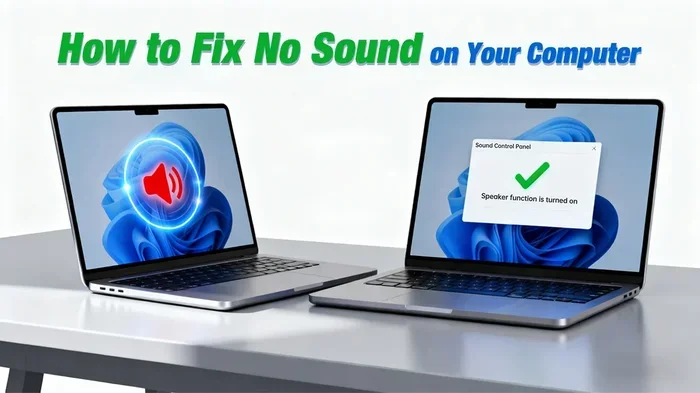
When your computer wont make a sound, it can be frustrating and disruptive. Whether the issue stems from muted settings, outdated drivers, or faulty hardware, most sound problems are easy to fix at home. This guide walks you through every major cause and solution so you can get your audio back fast.
There is nothing worse than sitting down to watch a movie, join a meeting, or listen to music, and your computer just goes completely silent. You click every button, check every setting, and still nothing plays. A computer that wont make a sound can ruin your entire day. But here is the good news. In most cases, the fix is simple and takes just a few minutes.
This guide covers every major reason your computer lost its audio. It also gives you clear, step-by-step solutions that anyone can follow. Whether you use a desktop or a laptop, Windows or Mac, you will find the answers you need right here.
Key Takeaways
- Check your volume and mute settings first: This is the most common and easiest fix.
- Outdated or corrupted audio drivers are a top cause: Updating or reinstalling them often solves the problem.
- Faulty speakers or cables can block all sound: Inspect your connections and test with different hardware.
- Wrong default audio output device can mute your PC: Make sure your system is routing sound to the right place.
- Software conflicts and Windows updates can break audio: Rolling back or updating your OS may help.
- Most fixes are free and take under 15 minutes: You rarely need professional help.
- Prevention keeps your sound working: Regular driver updates and careful handling go a long way.
📑 Table of Contents
Why Your Computer Wont Make a Sound
Before you start fixing anything, it helps to understand what went wrong. Sound problems on a computer usually come from one of a few common sources. Sometimes it is a simple setting you accidentally changed. Other times, it is a deeper software or hardware issue.
Muted or Low Volume Settings
This is the number one reason people panic about no sound. Your computer might be muted at the system level, or the volume could be turned all the way down. Check the taskbar volume icon first. Make sure it is not on mute. Then drag the slider up and test again.
Also check your keyboard. Many laptops have a dedicated mute key or volume keys on the top row. Press the volume up button a few times. It sounds too simple, but you would be surprised how often this is the fix.
Wrong Default Audio Output Device
Your computer might be sending sound to the wrong place. For example, if you previously used a Bluetooth speaker or external monitor with speakers, your PC may still be trying to output audio there. Go to your sound settings and check which device is set as the default output. Select your computer speakers or headphones and see if sound returns.
Outdated or Corrupted Audio Drivers
Audio drivers are the software that lets your computer communicate with your sound hardware. When these drivers become outdated or corrupted, your computer will not produce any sound. This is one of the most common causes of sudden audio loss. Updating or reinstalling your audio driver often fixes the problem completely.
Common Reasons Your Computer Has No Sound
Several issues can cause your computer to lose audio all at once. Let us break down the most frequent culprits so you can narrow down the cause quickly.
Hardware Connection Problems
Loose cables are a sneaky cause of no sound. If you use external speakers or headphones, unplug them and plug them back in firmly. Check that the cable is fully inserted into the correct port. A port that looks connected but is slightly loose will not transmit audio.
Also inspect the cable itself. Frayed or damaged wires can break the audio signal. If you have a spare cable, try swapping it out to see if that restores your sound.
Windows or macOS Audio Service Stopped
Sometimes the audio service running in the background simply stops. This can happen after a system update or a random glitch. On Windows, you can restart the Windows Audio service through the Services app. On Mac, restarting the core audio process through Terminal can bring sound back.
Software Conflicts
New software or recent updates can sometimes conflict with your audio system. Antivirus programs, audio enhancement software, or even a recent Windows update might interfere with sound output. Think about any recent changes you made to your system. If the no sound problem started right after, that new software might be the cause.
Blown or Damaged Speakers
Over time, speakers can wear out or get damaged. If you have been using them at high volumes for a long time, the internal components may have burned out. Knowing if your speakers are blown is an important step in diagnosing sound issues. Common signs include crackling noises, distorted sound, or complete silence even when the volume is turned up.
If your speakers are physically damaged, no software fix will help. You may need to replace them or seek professional repair. The cost to fix or replace speakers varies widely depending on the type and brand.
How to Fix Computer Sound Problems Step by Step
Now that you know the common causes, let us walk through the fixes. Follow these steps in order. Most people find their sound back by step three or four.
Step 1: Check Volume and Mute Settings
Start with the basics. Click the speaker icon in your taskbar or menu bar. Make sure the volume is up and not muted. If you are using external speakers, check the volume knob on the speaker itself. Some speakers have a separate mute button that can be easy to bump accidentally.
Also check your browser volume. If you are trying to play audio in a web browser, the browser might have its own volume control that is turned down or muted.
Step 2: Verify the Correct Output Device
Go to your sound settings. On Windows, right-click the speaker icon and select Sound Settings. On Mac, go to System Settings and click Sound. Look at the output section. Make sure the correct device is selected. If you see multiple options, try switching between them to see which one produces sound.
Step 3: Run the Built-In Audio Troubleshooter
Both Windows and Mac have built-in tools that can automatically detect and fix common audio problems. On Windows, go to Settings, then System, then Sound, and click the troubleshoot button. The tool will scan for issues and suggest fixes. It is a great first step before diving into manual solutions.
Step 4: Update or Reinstall Audio Drivers
Outdated drivers are a leading cause of audio problems. To update your drivers on Windows, open Device Manager, expand the Sound, video and game controllers section, right-click your audio device, and select Update Driver. You can also visit your sound card manufacturer’s website to download the latest driver manually.
If updating does not work, try uninstalling the driver and restarting your computer. Windows will automatically reinstall a fresh copy of the driver during boot. This often resolves deep driver conflicts.
Step 5: Check for Windows or macOS Updates
Sometimes a system update is what broke your sound in the first place. Other times, a new update includes a fix for known audio bugs. Check for any pending updates and install them. After updating, restart your computer and test your audio again.
Step 6: Check Your Physical Hardware
If software fixes did not work, the problem might be with your hardware. Try plugging in a different pair of headphones or speakers. If those work, your original speakers may be the issue. If nothing produces sound, the problem could be with your computer’s built-in audio jack or sound card.
For external speakers, speaker repair costs can vary, but many basic speaker issues are inexpensive to fix. If you are dealing with rattling or distorted sound from your speakers, fixing rattling speakers often involves tightening loose components or replacing damaged parts.
When Your Speakers Are the Problem
Sometimes the issue is not with your computer at all. It is with the speakers themselves. Here is how to tell if your speakers are the source of the problem.
First, test your computer with a different pair of speakers or headphones. If sound works with the new device, your original speakers are likely the culprit. Next, inspect the speaker connections. Make sure the audio cable is plugged into the correct port. A green-colored port on a desktop computer is usually the line-out or speaker jack.
If your speakers are old or have been dropped, the internal drivers may be damaged. No amount of software troubleshooting will fix physical damage. In these cases, replacement is the best option. When shopping for new speakers, consider factors like compatibility, power output, and connection type.
It is also worth noting that matching speakers and amplifiers properly ensures the best audio performance. Mismatched equipment can lead to poor sound quality or even damage over time.
Software and Driver Fixes for No Sound
Software issues are the trickiest category of audio problems because they are not always obvious. Here are some advanced fixes you can try if the basic steps did not work.
Roll Back a Recent Driver Update
If your sound stopped working right after a driver update, rolling back to the previous version might fix it. Open Device Manager, find your audio device, right-click it, and select Properties. Go to the Driver tab and click Roll Back Driver. This option only appears if a previous driver version is available.
Disable Audio Enhancements
Windows includes audio enhancements that can sometimes interfere with normal playback. To disable them, right-click the speaker icon, select Sounds, and go to the Playback tab. Click on your default device, then click Properties. Under the Enhancements tab, check the box that says Disable All Enhancements. Click Apply and test your sound.
Check Audio Format Settings
Sometimes the audio format setting on your computer can cause compatibility issues. In the same Playback Properties window, go to the Advanced tab. Try changing the default format to a different sample rate and bit depth. For example, switching from 24-bit to 16-bit at 44100 Hz often resolves strange audio issues.
Uninstall Recent Software Updates
If a recent Windows update caused your sound to stop, you can try uninstalling it. Go to Settings, then Update and Security, then Windows Update. Click View Update History, then Uninstall Updates. Find the most recent update and remove it. Restart your computer and check if sound returns.
Preventing Future Sound Problems
Once you get your computer sound working again, you want to keep it that way. A few simple habits can prevent future audio issues.
- Keep your drivers updated: Set a monthly reminder to check for driver updates. This prevents many common audio problems before they start.
- Handle cables with care: Avoid yanking cords from the port. Pull gently to prevent internal wire damage.
- Use a surge protector: Power surges can damage your speakers and audio hardware. A surge protector adds a layer of protection.
- Keep your system updated: Regular OS updates often include bug fixes for audio issues.
- Avoid extreme volumes: Playing audio at maximum volume for long periods can wear out speakers faster.
Taking these small steps can save you a lot of frustration down the road. Prevention is always easier than troubleshooting.
When to Seek Professional Help
Most sound problems are easy to fix on your own. But there are times when professional help makes sense. If you have tried every step in this guide and still have no sound, the issue might be a hardware failure on your motherboard or sound card. These repairs require specialized tools and expertise.
Also, if your computer is under warranty, contact the manufacturer before attempting any hardware fixes. Opening up your computer might void the warranty. A certified technician can diagnose the problem safely and often at no extra cost.
Remember, why your computer wont make a sound is almost always a solvable problem. Start with the simple fixes, work your way up, and you will likely have your audio back in no time.
Frequently Asked Questions
Why does my computer have no sound all of a sudden?
Sudden sound loss is usually caused by a muted setting, a changed default audio output device, or an updated driver that is not working properly. Check your volume settings first, then move on to driver updates and output device selection. Most sudden audio issues are easy to fix without professional help.
How do I know if my computer speakers are blown?
Signs of blown speakers include crackling sounds, distortion at low volumes, or complete silence even when the volume is turned up. Try connecting a different pair of speakers to your computer. If those work fine, your original speakers are likely damaged and need replacement or repair.
Can a Windows update cause my computer to lose sound?
Yes, Windows updates can sometimes break audio by installing incompatible drivers or changing system settings. If your sound stopped after an update, try rolling back the update or updating your audio driver. Running the built-in audio troubleshooter can also help resolve update-related sound issues.
Do I need to buy new speakers if my computer has no sound?
Not necessarily. Many sound problems are caused by software issues, loose cables, or wrong settings rather than damaged speakers. Try all the software fixes first before concluding your speakers are the problem. Only replace them if you have confirmed they are physically damaged.
How much does it cost to fix computer speakers?
Repair costs depend on the type and extent of the damage. Simple fixes like cable replacement are very affordable. More complex issues like blown internal drivers may require full speaker replacement. For more detailed cost estimates on speaker repairs, you can check general speaker repair pricing guides.
What should I do if my headphones work but my computer speakers do not?
This usually means your computer’s audio output is working fine, but the speaker connection or the speakers themselves have an issue. Check the cable connecting your speakers to the computer. Try a different cable or port. If the speakers still do not work with a different setup, the speaker unit itself may need repair or replacement.
=== CONCLUSION ===
A computer that wont make a sound can feel like a disaster, especially when you need audio for work or entertainment. But as this guide has shown, most sound problems have straightforward solutions. Start with the simple checks like volume and mute settings. Move on to driver updates and output device verification. Only then should you dig into deeper hardware diagnostics.
The key takeaway is this. Do not panic. Follow the steps in order, and you will likely find the fix without spending a dime. Keep your drivers updated, handle your cables with care, and your audio system will serve you well for years to come. Now go ahead and enjoy your sound again.