How to Check Motherboard on Pc What Are the Most Common Issues How to Fix Them a Guide to Checking and Fixing Motherboard Issues
Checking your motherboard on a PC is easier than most people think. This guide walks you through the most common motherboard issues, from beep codes and freezing to physical damage and power failures. You will learn how to diagnose problems, apply proven fixes, and decide when a motherboard replacement is the right move.
Your PC’s motherboard is the backbone of everything. It connects your processor, memory, storage, and expansion cards into one working system. When something goes wrong with the motherboard, your entire computer can suffer. Problems can range from minor glitches to complete system failure, and they often show up in confusing ways.
In this guide, we will walk you through exactly how to check motherboard on PC, identify the most common issues, and fix them step by step. Whether your computer keeps freezing, refuses to turn on, or throws strange error codes, this article has you covered. We will keep things simple and practical so anyone can follow along.
Many people panic when they suspect a motherboard problem. The truth is that most issues have clear causes and straightforward solutions. You do not need to be a tech expert to get started. Let us dive in and take control of your PC’s health.
Key Takeaways
- Visual Inspection First: Always start by physically examining your motherboard for bulging capacitors, burn marks, and loose connections before running software diagnostics.
- Listen for Beep Codes: PC beep patterns during startup are your motherboard’s way of telling you exactly what is wrong, making them a powerful free diagnostic tool.
- BIOS and Software Tools Help: Using built-in BIOS menus and free diagnostic software can reveal hidden motherboard issues without opening your case.
- Common Issues Have Simple Fixes: Many problems like overheating, loose cables, and outdated BIOS can be resolved without professional help.
- Know When to Replace: Some motherboard damage is irreversible, and recognizing the signs early saves time and money.
- Prevention Beats Repair: Regular cleaning, proper ventilation, and surge protection dramatically extend motherboard lifespan.
📑 Table of Contents
How to Check Motherboard on PC
Checking your motherboard does not require expensive tools or specialized training. You can start with simple visual and software methods right at your desk. Here is a clear roadmap to follow.
Step 1: Perform a Visual Inspection
Start by turning off your PC and unplugging it from the wall. Open the case and look at the motherboard carefully. Use a flashlight if needed. Here is what to look for:
- Bulging or leaking capacitors — These small cylinder-shaped components should be flat on top. If they are swollen or have a brown residue, they have failed.
- Burn marks or discoloration — Dark spots on the board indicate overheating or electrical damage.
- Cracked traces — Look for any visible cracks in the green circuit board material.
- Loose connections — Check that the 24-pin power connector, CPU power cable, and RAM modules are firmly seated.
- Dust buildup — Excessive dust can cause overheating and short circuits over time.
A quick visual check solves many mysteries. Often the problem is something simple like a loose cable or dust accumulation that you can fix in minutes.
Step 2: Listen for Beep Codes
When you power on your PC, the motherboard sends out a series of beeps if it detects a problem. These PC beep codes are like a language. Each pattern means something different:
- One short beep — Everything is working normally.
- Continuous beeping — Usually a memory or RAM issue.
- Repeating short beeps — Often points to a power supply problem.
- One long and two short beeps — Could indicate a graphics card failure.
Check your motherboard manual for the exact beep code meanings. Different manufacturers use different patterns. This free diagnostic method gives you immediate clues about what is wrong.
Step 3: Check Your BIOS
The BIOS (Basic Input Output System) is built into your motherboard. You can access it by pressing a key like F2, Delete, or Esc during startup. Once inside:
- Check the system temperature readings for your CPU and motherboard.
- Look for any error messages or hardware warnings.
- Verify that all connected components are detected properly.
- Check the BIOS version and see if an update is available.
The BIOS gives you a real-time view of your motherboard’s health. Many hidden issues show up here before they cause obvious problems.
Step 4: Use Diagnostic Software
Several free tools can help you test your motherboard without opening the case. These programs check voltages, temperatures, and component health:
- HWMonitor — Tracks temperatures and voltages across all components.
- CPU-Z — Provides detailed information about your motherboard model, chipset, and memory.
- HWiNFO — A comprehensive hardware monitoring tool that reads sensor data directly from the motherboard.
Running these tools takes just a few minutes. They can uncover issues that are invisible to the naked eye, such as voltage irregularities or overheating components.
Most Common Motherboard Issues and Their Symptoms
Motherboard problems come in many forms. Understanding the symptoms helps you pinpoint the issue faster. Here are the most common problems PC users face.
PC Freezing and Unexpected Shutdowns
If your computer freezes randomly or shuts off without warning, the motherboard could be the culprit. This often happens when the motherboard cannot deliver stable power to the CPU or other components. Overheating, failing capacitors, or a weak power delivery section can all cause this behavior. Sometimes these symptoms overlap with other issues, so it is important to rule out software problems first.
Many users notice that freezing gets worse under heavy load, such as when gaming or running multiple programs. This is a strong indicator of a hardware-level power delivery issue on the motherboard itself.
PC Won’t Turn On at All
A completely dead PC with no fans spinning and no lights is alarming. This can happen for several motherboard-related reasons:
- A blown fuse on the motherboard.
- A failed power delivery circuit.
- A short circuit caused by a loose screw or standoff touching the board.
- Dead CMOS battery causing the BIOS to fail to initialize.
Before assuming the worst, try removing the CMOS battery for 30 seconds and putting it back in. This simple reset often brings a dead motherboard back to life.
Blue Screen of Death (BSOD)
The blue screen is Windows way of saying something serious went wrong. While BSODs can come from software or drivers, frequent blue screens with codes like CRITICAL_PROCESS_DIED or SYSTEM_THREAD_EXCEPTION_NOT_HANDLED can point to failing motherboard hardware. If the crashes happen randomly and increase over time, the motherboard may be deteriorating.
USB Ports and Peripherals Stopping Working
When USB ports suddenly stop responding or your keyboard and mouse disconnect randomly, the motherboard’s USB controller might be failing. This is a common issue, especially on older boards. It can also happen when the motherboard chipset overheats or when a BIOS update goes wrong.
Overheating Without Reason
The motherboard has its own temperature sensors. If your board runs hotter than normal even with good case airflow, something is wrong. This could be a failing voltage regulator module (VRM), a short circuit, or degraded thermal pads. Overheating motherboard components degrade quickly and can spread damage to nearby parts.
How to Diagnose Motherboard Problems
Diagnosis is the most important step. Jumping to conclusions can lead to wasted money and unnecessary part replacements. Here is how to properly diagnose your motherboard issues.
Isolate the Problem
Start by removing everything unnecessary from your PC. Disconnect all USB devices, extra hard drives, and expansion cards. Boot with only the essentials: motherboard, CPU, one RAM stick, and power supply. If the PC works in this stripped-down state, add components back one at a time until the problem returns. This method identifies the exact cause quickly.
Check for Physical Damage Again
Sometimes damage is subtle and hard to spot. Shine a bright light at an angle across the board. Look for tiny cracks, lifted solder joints, or components that are slightly out of place. A magnifying glass can help you see small details you might otherwise miss.
Test with Known Good Components
If you suspect the motherboard is bad, swap in a known working power supply or RAM stick. If the problem follows the new component, the issue is not the motherboard. This swap method saves you from replacing parts that are actually fine.
Check for Motherboard Compatibility Issues
Sometimes the problem started after a new component was added. A CPU that is not compatible with the motherboard chipset, or RAM that runs at the wrong speed, can cause all sorts of strange behavior. Always double-check compatibility before assuming a hardware failure.
Update or Reset BIOS
A corrupted BIOS can mimic many serious hardware problems. Try resetting the BIOS to default settings first. If that does not work, check the motherboard manufacturer’s website for a BIOS update. Updating the BIOS can fix stability issues, improve compatibility, and resolve mysterious errors.
How to Fix Common Motherboard Issues
Once you have identified the problem, it is time to apply the fix. Some solutions are simple and free, while others require more effort or investment.
Fix 1: Reseat Connections and Components
This fixes more problems than people realize. Power off the PC, unplug it, and carefully remove and reinsert the following:
- The 24-pin motherboard power connector.
- The CPU 4-pin or 8-pin power cable.
- The RAM modules — remove them and put them back in firmly.
- The GPU if you have one installed.
- The front panel header cables (power button, reset button).
Loose connections are one of the most overlooked causes of motherboard issues. A simple reseat can restore full functionality instantly.
Fix 2: Clean the Motherboard Properly
Dust buildup traps heat and can cause electrical issues. Use compressed air to blow dust out of the board gently. For stubborn grime, use a cotton swab lightly dampened with isopropyl alcohol. Never use water or household cleaners. Let the board dry completely before powering it back on.
Fix 3: Replace Failing Capacitors
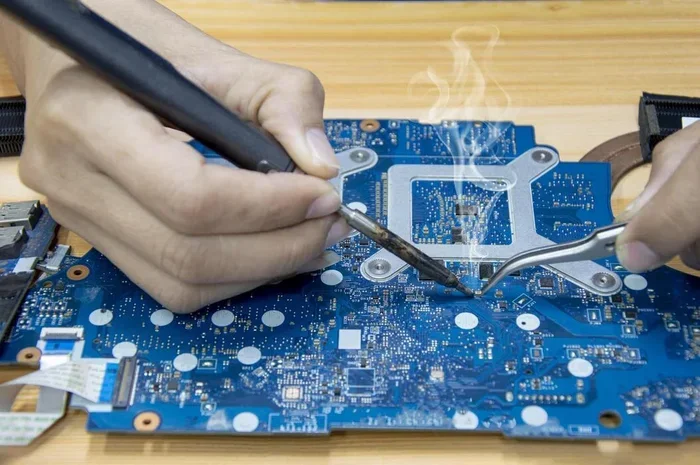
If you spot bulging or leaking capacitors, they need to be replaced. This requires a soldering iron and some basic electronics skills. If you are not comfortable doing this yourself, take the board to a repair shop. Replacing capacitors is much cheaper than replacing the entire motherboard.
Fix 4: Update the BIOS
An outdated BIOS can cause compatibility problems and instability. Visit your motherboard manufacturer’s support page, find your exact model, and download the latest BIOS file. Follow their instructions carefully to flash the update. Always ensure your PC has stable power during a BIOS update, as a power loss during flashing can permanently damage the board.
Fix 5: Replace the CMOS Battery
The small coin-cell battery on the motherboard keeps your BIOS settings alive when the PC is off. When this battery dies, your PC may fail to start or lose its settings constantly. Replacing it costs just a few dollars and takes seconds. Just pop in a new CR2032 battery.
Fix 6: Address Overheating with Better Cooling
If your motherboard is running hot, improve your case airflow. Add more fans, clean existing fans, and replace dried-out thermal paste on the CPU. Some motherboards also have VRM heatsinks that can be added or replaced to improve cooling on the power delivery components.
When to Replace Your Motherboard
Not every motherboard problem can be fixed. Knowing when to replace saves you from wasting time on a lost cause. Here are clear signs that replacement is the right choice.
- Physical damage is severe — Multiple burnt components or cracked traces usually cannot be repaired at home.
- The board keeps failing after repairs — If you have replaced capacitors and the problem persists, the board itself is failing.
- The board is outdated — If your motherboard cannot support newer CPUs or RAM, upgrading the board may be more practical than repeated repairs.
- Repair costs exceed replacement costs — Get a quote from a repair shop. If the repair costs more than half the price of a new board, replacement makes more sense.
Before replacing, consider whether your other components still work with a new board. You may need a new CPU if the socket changed, or new RAM if the generation changed. Planning your full upgrade path saves money in the long run.
Preventing Future Motherboard Problems
Prevention is always better than cure. A few simple habits can keep your motherboard healthy for years.
- Keep your PC clean — Dust the interior every 3 to 6 months. Use compressed air and avoid vacuum cleaners that generate static.
- Ensure proper ventilation — Make sure your case has enough fans and that airflow is not blocked. Overheating kills electronics faster than almost anything else.
- Use a surge protector — Power spikes can fry your motherboard in an instant. A good surge protector or UPS (Uninterruptible Power Supply) adds a valuable layer of protection.
- Keep BIOS updated — Manufacturers release updates that fix bugs and improve stability. Check for updates once or twice a year.
- Avoid overclocking beyond safe limits — Pushing components too hard generates excess heat and stress on the motherboard’s power delivery system.
- Handle components with care — Always ground yourself before touching the motherboard. Static electricity can damage sensitive components without you even noticing.
Following these simple steps dramatically reduces the chance of motherboard problems. Your PC will run cooler, more stable, and last much longer.
Conclusion
Learning how to check motherboard on PC and fix common issues puts you in control of your computer’s health. You do not need expensive tools or professional training. Start with a visual inspection, listen for beep codes, check the BIOS, and use free diagnostic software. Most common problems like loose connections, dust buildup, outdated BIOS, and overheating have simple and affordable fixes.
When the damage is too severe, knowing the signs of a failing motherboard helps you make the right call on replacement. And by following basic prevention habits, you can protect your motherboard from future problems. Your PC works hard for you every day. Taking the time to care for its most important component pays off in reliability, performance, and peace of mind.
Start checking your motherboard today. You might be surprised at how easy it is to diagnose and solve problems that once seemed intimidating. With the knowledge in this guide, you are well equipped to handle whatever your motherboard throws at you.
Frequently Asked Questions
How can I tell if my motherboard is failing?
Common signs include frequent PC freezing, random shutdowns, blue screens, USB ports stopping working, and the computer refusing to turn on. Physical signs like bulging capacitors or burn marks on the board are also clear indicators. If you notice multiple symptoms happening together, your motherboard may be on its way out.
Can a dead motherboard be repaired?
It depends on the damage. Simple issues like a dead CMOS battery, loose connections, or a single failed capacitor can often be repaired cheaply. However, severe damage like burned traces or multiple fried components may make replacement the better option. A professional repair shop can assess whether repair is worthwhile.
What causes motherboard overheating?
Overheating is usually caused by poor case airflow, dust buildup on the board, failing fans, or dried-out thermal paste. Voltage regulator modules (VRMs) can also overheat when the system is pushed hard. Regular cleaning and good ventilation prevent most overheating issues.
How often should I update my motherboard BIOS?
There is no set schedule. Check for BIOS updates once or twice a year, or whenever you experience stability issues or new CPU compatibility problems. Always read the release notes before updating, and never interrupt a BIOS update once it has started.
Is it safe to clean a motherboard with alcohol?
Yes, isopropyl alcohol (90% or higher) is safe and commonly used for cleaning motherboards. It evaporates quickly and leaves no residue. Use a cotton swab or soft brush, and make sure the board is completely dry before powering it back on. Never use water or household cleaning products.
What should I do if my PC beeps but won’t start?
Beep codes tell you what the motherboard is struggling with. Continuous beeping often means a RAM issue, so try reseating your memory sticks. If the beeps persist after reseating, try testing with one RAM stick at a time. Check your motherboard manual for the exact meaning of your beep pattern to narrow down the cause.