Can I Upgrade Ram in a Mini Pc
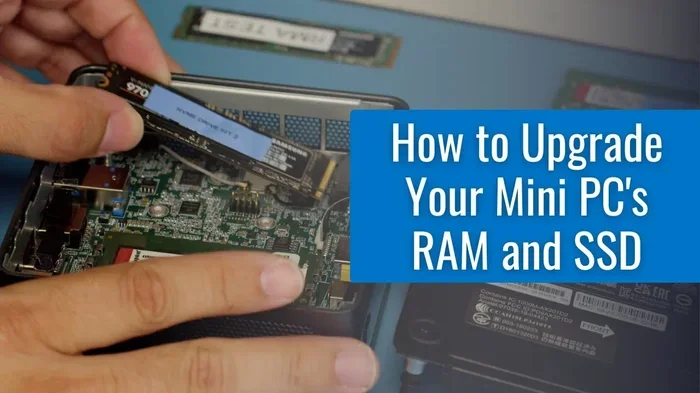
Yes, you can upgrade RAM in many mini PCs, but it depends on your model and design. Some mini PCs come with soldered memory that cannot be changed, while others have open slots for easy upgrades. This guide walks you through everything you need to know about mini PC ram upgrade, from checking compatibility to picking the right memory modules.
Can I upgrade RAM in a mini PC? That is a question many people ask when they buy a compact computer and later realize it needs more memory. Mini PCs are small, efficient, and great for everyday tasks. But when your machine starts slowing down, the idea of adding more memory becomes very tempting.
The short answer is yes, in many cases you can. However, the real answer depends on your specific mini PC model. Some mini PCs let you swap out memory easily. Others have the RAM soldered right onto the motherboard, which means no upgrades are possible. This guide will help you figure out exactly where your mini PC stands.
Whether you use your mini PC for work, streaming, or light gaming, understanding your memory options is essential. A mini PC ram upgrade can breathe new life into an older machine. It can also help you get more out of a newer system without spending money on a whole new computer. Let us dive into everything you need to know.
Key Takeaways
- Not all mini PCs allow RAM upgrades: Some models have soldered memory, while others feature accessible slots.
- SODIMM modules are standard: Most mini PCs use smaller RAM sticks called SODIMMs, not full-size desktop sticks.
- Check your max RAM capacity first: Every mini PC has a limit on how much memory it can support.
- Compatibility matters: You need the right type, speed, and generation of RAM for your specific mini PC.
- Upgrading RAM is one of the easiest upgrades: It requires no special tools and takes just minutes.
- Dual-channel setup boosts performance: Using two matching sticks can significantly improve speed and multitasking.
- Always check your mini PC’s manual: The manufacturer’s documentation tells you exactly what RAM your system supports.
📑 Table of Contents
- Understanding Mini PC Memory Architecture
- Can You Upgrade RAM in a Mini PC?
- How Much RAM Do You Really Need?
- How to Check Your Mini PC’s RAM Compatibility
- How to Upgrade RAM in a Mini PC
- Common Mistakes to Avoid When Upgrading Mini PC RAM
- Benefits of Upgrading RAM in a Mini PC
- When a Mini PC RAM Upgrade Is Not Possible
- Final Thoughts on Mini PC RAM Upgrades
Understanding Mini PC Memory Architecture
Before you try to upgrade anything, you need to understand how memory works inside a mini PC. These small machines are designed to be compact, which means every component is carefully chosen to save space. That design choice affects whether you can upgrade your RAM or not.
Soldered vs. Socketed RAM
Mini PCs generally fall into two categories. The first category has soldered RAM. This means the memory chips are permanently attached to the motherboard. You cannot remove or replace them. Many ultra-compact mini PCs use this design to save as much space as possible.
The second category has socketed RAM. This means the memory sticks plug into slots on the motherboard. You can remove them and insert new ones. Most mini PCs in the mid-range and higher-end categories use socketed memory. This gives you the freedom to upgrade later.
How do you know which type your mini PC has? Check the manufacturer’s specifications online. Look for terms like “memory soldered” or “memory socket.” You can also open the case and look for visible RAM slots. If you see slots, you can upgrade. If the RAM looks like it is directly attached to the board with no slots in sight, it is soldered.
SODIMM vs. Standard DIMM
Another important detail is the type of RAM stick used. Desktop computers use full-size DIMMs. Mini PCs use smaller sticks called SODIMMs. These are about half the size of desktop RAM but work the same way. Make sure you buy the correct type when shopping for upgrades.
If you are coming from a desktop background, this distinction matters a lot. You cannot use a standard desktop RAM stick in a mini PC. The physical size simply will not fit. Always look for SODIMM modules when buying RAM for a mini PC.
Can You Upgrade RAM in a Mini PC?
The answer to this question comes down to your specific machine. Let us break it down by common mini PC types so you know what to expect.
Intel NUC and Similar Barebone Kits
Intel NUC kits and similar barebone mini PCs often allow RAM upgrades. Many of these systems come with empty RAM slots or one stick already installed. You can add more memory by purchasing compatible SODIMM modules. Check the Intel NUC specification page for your exact model to find the supported RAM type and maximum capacity.
Branded Mini PCs (Dell, HP, Lenovo, etc.)
Branded mini PCs vary widely. Some models, like certain Dell OptiPlex Micro systems, have accessible RAM slots. Others, especially the newest ultra-compact designs, solder the memory in place. Always check the service manual for your specific model number before purchasing RAM.
Raspberry Pi and Single-Board Computers
Single-board computers like the Raspberry Pi are a different story entirely. These devices have RAM soldered directly onto the board. There is no way to upgrade the memory on a Raspberry Pi. You must choose the right amount of RAM when you buy the board. If you need more memory for a project, you will need to buy a different board with more RAM built in.
How Much RAM Do You Really Need?
This is one of the most common questions people ask before upgrading. The answer depends entirely on what you plan to do with your mini PC. Different tasks require different amounts of memory.
For basic tasks like web browsing, email, and document editing, 8GB of RAM is usually enough. Most modern mini PCs come with 8GB as a standard configuration. If you find your system slowing down with just a browser and a few apps open, you might benefit from an upgrade.
For multitasking, photo editing, or light video work, 16GB is a much better target. This gives you room to run several applications at once without slowdowns. If you are wondering how much memory you need in a laptop or similar device, the same guidelines apply closely to mini PCs.
For heavy tasks like video editing, 3D rendering, or running virtual machines, 32GB or more may be necessary. However, keep in mind that many mini PCs have a maximum RAM limit. You cannot simply keep adding memory forever. Check your system’s specifications to find the cap.
If you want a more detailed guide on memory requirements, you can read our article on How Much RAM Do I Need In A Laptop for helpful benchmarks.
How to Check Your Mini PC’s RAM Compatibility
Before you buy any RAM, you need to verify compatibility. Using the wrong type of memory can cause problems or simply not work at all. Here is how you can check everything you need to know.
Step 1: Find Your Mini PC Model Number
Look on the bottom of the device or check the original box. The model number is usually printed on a sticker or engraved on the chassis. Write it down. You will need it to look up the exact specifications.
Step 2: Check the Maximum RAM Supported
Search for your mini PC model on the manufacturer’s website. Look for the memory or specifications section. You will find the maximum amount of RAM the system can handle. Some mini PCs support up to 16GB, while others can handle 32GB or even 64GB.
Step 3: Identify the RAM Type and Speed
Pay attention to the RAM type. Most mini PCs use DDR4 SODIMMs. Some older models use DDR3. Newer high-performance models may support DDR5. The speed rating also matters. For example, if your system supports 3200MHz RAM, buying faster memory will not give you any benefit. The system will simply run it at the slower supported speed.
If you are curious about mixing different RAM speeds, check out our guide on Can I Use 3200Mhz RAM In 2400Mhz Laptop for practical advice.
Step 4: Check the Number of Available Slots
Find out how many RAM slots your mini PC has. If it has two slots and one is already filled with 8GB, you can add another 8GB stick for a total of 16GB. If both slots are filled, you would need to replace both sticks with higher-capacity ones to increase memory.
How to Upgrade RAM in a Mini PC
If your mini PC supports RAM upgrades, the actual process is straightforward. You do not need to be a tech expert to do it. Here is a step-by-step guide to help you through it.
What You Will Need
- The correct SODIMM RAM modules for your system
- A small Phillips-head screwdriver
- A clean, flat workspace
- An anti-static wrist strap (optional but recommended)
Step-by-Step Process
First, power off your mini PC completely. Unplug all cables and peripherals. Place the device on a clean, flat surface. Use the screwdriver to remove the side panel or bottom cover. The exact method varies by model, so refer to your manual if needed.
Once the case is open, locate the RAM slots. They are long, thin slots with small clips on each end. If a RAM stick is already installed, gently press down on the clips at both ends. The stick will pop up at an angle. Carefully pull it straight out.
Now take your new SODIMM module. Align the notch on the bottom of the stick with the ridge in the slot. Insert the stick at a 45-degree angle. Press it down firmly until the clips on both sides click into place. The stick should sit flat and feel secure.
Replace the case cover, plug everything back in, and power on your mini PC. The system should recognize the new memory automatically. You can verify this by checking your system settings or using a tool like Task Manager on Windows.
If you want a more detailed walkthrough for laptop RAM upgrades (which follows similar principles), you can check out How To Upgrade Ram In A Laptop.
Common Mistakes to Avoid When Upgrading Mini PC RAM
Upgrading RAM is simple, but mistakes can happen. Here are some common errors to watch out for.
- Buying the wrong RAM type: DDR3 and DDR4 are not interchangeable. Always double-check the generation before purchasing.
- Mixing RAM speeds: If you pair a 2400MHz stick with a 3200MHz stick, both will run at the slower speed. Buy matching modules for the best results.
- Forgetting about capacity limits: Even if a slot is empty, the motherboard may not support more than a certain total amount of RAM.
- Not seating the RAM properly: If the clips do not click, the stick is not fully inserted. This can cause boot failures or error messages.
- Ignoring dual-channel configuration: For the best performance, install matching pairs of RAM in the correct slots. Check your manual for the proper slot configuration.
Avoiding these mistakes will save you time, money, and frustration. A little research before you buy goes a long way.
Benefits of Upgrading RAM in a Mini PC
If your mini PC supports upgrades, adding more memory can make a noticeable difference. Here are the key benefits you can expect.
- Faster multitasking: More RAM means your system can handle more open apps at once without slowing down.
- Smoother browsing: Modern web browsers use a lot of memory, especially with many tabs open. Upgraded RAM keeps browsing smooth.
- Better performance in creative apps: Photo and video editing software thrives with extra memory.
- Longer lifespan for your device: Instead of replacing an old mini PC, a simple RAM upgrade can extend its useful life by several years.
- Cost-effective upgrade: RAM is relatively inexpensive compared to buying a whole new computer. You get a big performance boost for a small investment.
When a Mini PC RAM Upgrade Is Not Possible
Sometimes upgrading RAM simply is not an option. As mentioned earlier, some mini PCs have soldered memory. In these cases, you cannot add or replace RAM. If you find yourself in this situation, there are still things you can do to improve performance.
First, make sure your storage is an SSD rather than an old hard drive. An SSD dramatically improves boot times and application loading. Second, close unnecessary background programs to free up the memory you already have. Third, consider using lightweight operating system versions or browser tabs extensions to reduce memory usage.
If your mini PC cannot be upgraded and it no longer meets your needs, it might be time to consider a new device. Look for models with upgradeable RAM if future flexibility matters to you.
For those wondering about adding memory to different systems, you might also find our article on Can I Add Ram To A Laptop helpful for understanding general memory upgrade principles.
Final Thoughts on Mini PC RAM Upgrades
Upgrading RAM in a mini PC is one of the simplest and most rewarding hardware improvements you can make. It costs relatively little, takes just minutes, and delivers real performance gains. The key is knowing whether your specific mini PC supports upgrades before you buy anything.
Start by checking your model’s specifications. Look for socketed RAM slots, maximum capacity, and supported RAM type. Once you have that information, buying the right SODIMM modules is easy. Follow the installation steps carefully, and you will have your mini PC running faster in no time.
Remember, not every mini PC allows RAM upgrades. Some have soldered memory that cannot be changed. In those cases, focus on other optimizations like SSD storage and software management to get the best performance possible. Whether you upgrade or not, understanding your system’s memory capabilities always puts you in a better position.
A mini PC ram upgrade is worth exploring for anyone who wants more from their compact computer. Do your research, pick the right memory, and enjoy a faster, more responsive machine.
Frequently Asked Questions
Can all mini PCs have their RAM upgraded?
No, not all mini PCs support RAM upgrades. Some models have the memory soldered directly onto the motherboard, which means it cannot be removed or replaced. Always check your specific model’s specifications before assuming an upgrade is possible.
What type of RAM do mini PCs use?
Most mini PCs use SODIMM (Small Outline Dual In-Line Memory Module) RAM. These are smaller than standard desktop DIMMs. They typically use DDR4 technology, though older models may use DDR3 and newer ones may support DDR5.
How much does it cost to upgrade RAM in a mini PC?
A single SODIMM RAM stick typically costs between $20 and $60 depending on capacity and speed. A full upgrade using two sticks usually ranges from $40 to $100. This makes it one of the most affordable PC upgrades available.
Can I mix different brands of RAM in my mini PC?
Yes, you can mix RAM brands, but it is not always ideal. For the best performance and stability, use matching RAM sticks from the same brand, speed, and capacity. Mixing different speeds will cause all modules to run at the slowest speed supported.
How do I know if my mini PC RAM upgrade worked?
After installing new RAM and powering on your mini PC, check your system settings. On Windows, open Task Manager and go to the Performance tab. On macOS, click the Apple menu and select About This Mac. The total memory listed should reflect your new RAM capacity.
Will upgrading RAM make my mini PC faster?
Yes, upgrading RAM can make your mini PC noticeably faster, especially during multitasking and when running memory-heavy applications. However, if your system already has enough RAM for your workload, adding more may not provide a significant speed boost.
=== CONCLUSION ===
A mini PC ram upgrade is a smart move for anyone looking to squeeze more performance out of a compact computer. Whether you use your mini PC for work, entertainment, or creative projects, adding more memory can make a real difference. Just remember to check compatibility first, choose the right type of RAM, and follow proper installation steps. With the right upgrade, your mini PC can feel faster and more capable for years to come.