How to Turn on Ray Tracing in Minecraft
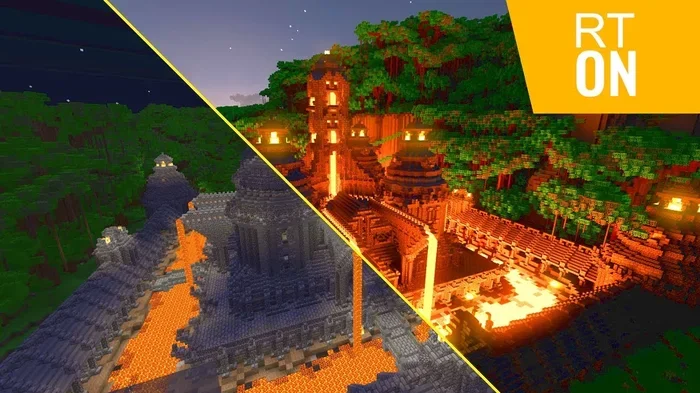
Ray tracing in Minecraft brings stunning real-time lighting, reflections, and shadows to your world. This guide walks you through exactly how to enable ray tracing in both Minecraft Java and Bedrock editions. You will learn the system requirements, step-by-step setup, and tips to get the best performance.
Minecraft has come a long way since its early days of blocky pixels and basic lighting. Today, players can experience breathtaking visuals through ray tracing in Minecraft. This technology brings real-time lighting, realistic reflections, and stunning shadows to an already beloved game. If you have ever wondered how to turn on ray tracing in Minecraft, you are in the right place. This guide covers everything you need to know, from requirements to setup to performance tips.
Ray tracing changes the way light behaves in the Minecraft world. Instead of pre-baked lighting, the game calculates light rays in real time. The result is a dramatic improvement in visual quality. Water becomes reflective, shadows feel natural, and torches cast warm, realistic glow. Whether you are building a castle or exploring caves, Minecraft ray tracing makes every moment more immersive.
Key Takeaways
- Ray tracing transforms Minecraft visuals with realistic lighting, shadows, and water reflections.
- You need an NVIDIA RTX GPU and sufficient RAM to run ray tracing smoothly.
- Enabling ray tracing is simple through the Video Settings menu in Minecraft.
- Performance tips can help you maintain good FPS while enjoying enhanced graphics.
- Both Java and Bedrock editions support ray tracing, but the setup differs slightly.
- Shader packs and resource packs work alongside ray tracing for even better visuals.
- Troubleshooting common issues ensures a smooth and enjoyable experience.
📑 Table of Contents
What Is Ray Tracing in Minecraft?
Ray tracing is a rendering technique that simulates how light interacts with objects in a 3D environment. In traditional Minecraft, light sources are faked using baked lighting maps. With ray tracing, the game actually traces the path of light rays as they bounce off surfaces. This creates incredibly realistic lighting effects in Minecraft.
When you enable Minecraft RTX, several visual upgrades kick in immediately:
- Real-time reflections on water and shiny blocks like glass and ice.
- Accurate shadows that change based on light source position and time of day.
- Global illumination which means light bounces naturally between surfaces.
- Improved water transparency with light filtering through at realistic angles.
- Better torch and glowstone lighting that feels warm and natural.
These effects make Minecraft look like a completely different game. The blocky style remains, but the depth and realism are unmatched. Many players say ray tracing Minecraft is the best way to experience the game visually.
System Requirements for Ray Tracing
Before you dive into enabling ray tracing, you need to make sure your system can handle it. Minecraft ray tracing is demanding on hardware. Not every computer or laptop can run it smoothly. Here is what you need to know.
GPU Requirements
The most important piece of hardware for ray tracing in Minecraft is your graphics card. Currently, only NVIDIA RTX series GPUs support this feature. You will need one of the following:
- NVIDIA GeForce RTX 2060 or higher
- NVIDIA GeForce RTX 3050 or higher
- NVIDIA GeForce RTX 4000 series
- NVIDIA RTX laptop GPUs (GTX 1650 Ti does NOT work)
AMD and Intel GPUs do not support Minecraft ray tracing at this time. If you have an older NVIDIA card without RTX, you will not be able to use this feature. Make sure your GPU drivers are up to date before starting.
RAM and Storage
Minecraft already uses a fair amount of memory. With ray tracing enabled, the game needs even more. You should have at least 8 GB of RAM, though 16 GB is recommended for the best experience. If you want to check your current RAM, you can check your RAM on your laptop easily.
Storage also matters. Minecraft worlds with ray tracing textures can take up more space. If your laptop still uses a traditional hard drive, consider upgrading to a faster M.2 NVMe SSD. This will reduce load times and improve overall performance in Minecraft.
Operating System and Edition
Ray tracing in Minecraft is available on the following platforms:
- Minecraft Java Edition (Windows only)
- Minecraft Bedrock Edition (Windows 10/11)
Mac and Linux users currently cannot access ray tracing features. You also need to be running Windows 10 or Windows 11 for the best compatibility.
How to Enable Ray Tracing in Minecraft
Now for the fun part. Enabling ray tracing in Minecraft is straightforward once you have the right setup. Follow these steps carefully to get started.
For Minecraft Java Edition
The Java Edition requires a few extra steps compared to Bedrock. Here is the full process:
- Make sure you have an NVIDIA RTX GPU installed and updated.
- Download the Minecraft RTX patch from the official Minecraft website or Microsoft Store.
- Install the ray tracing support by running the installer. This adds the necessary rendering engine.
- Open Minecraft and go to your world or create a new one.
- Press the Escape key to open the menu, then click Video Settings.
- Look for the Ray Tracing option and toggle it to On.
- Restart the game if prompted. The new lighting engine will take effect.
Once ray tracing is on, you will notice the difference immediately. The game may take a moment to adjust the lighting in your world. Be patient. The first load with ray tracing can be slower than usual.
For Minecraft Bedrock Edition
The Bedrock Edition makes the process even simpler:
- Open Minecraft Bedrock on your Windows 10 or 11 device.
- Go to Settings and select the Video tab.
- Find the Ray Tracing toggle and switch it on.
- Adjust the ray tracing quality if your settings menu offers options like Low, Medium, or High.
- Enter a world and enjoy the enhanced visuals.
Bedrock Edition also supports Minecraft RTX texture packs. These packs replace standard textures with ray tracing-friendly versions that look much better with the new lighting engine. You can download them for free from the Minecraft Marketplace.
Optimizing Performance with Ray Tracing
Ray tracing looks incredible, but it can impact your Minecraft FPS. If your game runs slowly, do not worry. There are several ways to balance visual quality and performance.
Adjust Ray Tracing Quality Settings
Minecraft lets you control how intensive ray tracing is. Lower settings still look great but run faster:
- Ray Tracing Quality: Set to Medium or Low if you experience lag.
- Reflection Quality: Reduce this to improve frame rates.
- Shadow Quality: Lower shadows can significantly boost performance.
- Global Illumination: Turning this off helps on weaker systems.
Experiment with these settings to find the right balance for your hardware. Every system is different, so what works for one player may not work for another.
Use a Mouse for Better Control
If you are playing Minecraft on a laptop, using a mouse can make a big difference. Many players struggle with trackpads when navigating complex worlds with ray tracing enabled. Learning how to use a mouse on a laptop gives you more precise control and a much better gaming experience. A wireless mouse is especially convenient for long building sessions.
Close Background Applications
Ray tracing already uses a lot of your GPU and CPU. Close any unnecessary programs before playing. Browser tabs, streaming apps, and background downloads all steal valuable resources. This simple step can improve your Minecraft performance significantly.
Keep Your Drivers Updated
NVIDIA regularly releases driver updates that improve ray tracing performance. Make sure your GPU drivers are current. You can use the NVIDIA GeForce Experience app to check for updates automatically. Updated drivers often include optimizations for new games and features.
Common Issues and How to Fix Them
Sometimes things do not go smoothly when you first try ray tracing in Minecraft. Here are the most common problems and their solutions.
Ray Tracing Option Is Grayed Out
If you cannot find the ray tracing option in your settings, the most likely cause is that your GPU is not supported. Only NVIDIA RTX GPUs work with this feature. Check your GPU model to confirm compatibility. Also make sure you have installed the Minecraft RTX patch if you are on Java Edition.
Game Runs Very Slowly
Slow performance is the most common complaint with Minecraft ray tracing. Try these fixes:
- Lower the ray tracing quality to Medium or Low.
- Reduce render distance in Video Settings.
- Turn off fancy graphics and clouds.
- Close background apps to free up system resources.
- Make sure your GPU drivers are fully updated.
Visual Glitches or Missing Textures
If you see strange lighting or missing textures, your resource packs may not be ray tracing compatible. Remove any non-RTX texture packs and use official Minecraft RTX packs instead. Restarting the game after making changes often resolves these issues.
Ray Tracing Keeps Turning Off
If ray tracing resets every time you launch the game, your settings may not be saving properly. Check that you have write permissions for the Minecraft directory. Also verify that your game is fully updated to the latest version.
Enhancing Your Minecraft Ray Tracing Experience
Once you have ray tracing enabled, you can take your experience even further. Here are some ways to get the most out of this feature.
Download RTX Texture Packs
Official Minecraft RTX texture packs are free and designed specifically for ray tracing. They add subtle details to blocks that look amazing with real-time lighting. Blocks that were once flat and simple now have depth and character. Water textures become translucent, and metal surfaces gain realistic reflections.
Build in Well-Lit Areas
Ray tracing truly shines in builds with lots of light sources. Create indoor spaces with windows, torches, and glowstone. Watch how the light bounces off walls and floors. Build near water and see the reflections come to life. The combination of Minecraft ray tracing and thoughtful building creates scenes that look almost cinematic.
Explore at Night
Nighttime in Minecraft with ray tracing is a completely different experience. Shadows stretch across the landscape. Moonlight reflects off water surfaces. Torches create pools of warm light that feel incredibly realistic. Exploring dark caves with real-time lighting in Minecraft is both beautiful and atmospheric.
Share Your Worlds
If you create something stunning with ray tracing, share it with the community. Many players showcase their ray-traced builds on social media and Minecraft forums. The visual quality of ray-traced worlds often impresses viewers who have never seen the feature before.
Final Thoughts on Ray Tracing in Minecraft
Turning on ray tracing in Minecraft is one of the easiest ways to transform your gaming experience. The improved lighting, reflections, and shadows breathe new life into a game you have likely played for years. Whether you are a builder, explorer, or redstone engineer, the visual upgrade is hard to ignore.
Make sure your system meets the requirements before enabling this feature. Follow the step-by-step setup instructions for your edition, and do not be afraid to adjust settings for the best performance. With the right setup, Minecraft ray tracing delivers an experience that is truly next level.
Take some time to explore your worlds with this feature enabled. The difference is night and day, quite literally. You will wonder how you ever played without it. Happy crafting!
Frequently Asked Questions
Can I use ray tracing in Minecraft on a Mac?
No, Minecraft ray tracing currently only works on Windows devices with NVIDIA RTX GPUs. Mac and Linux users cannot access this feature at this time. If you want to try it, you will need to run Windows on a compatible PC or laptop.
Do I need a special edition of Minecraft to use ray tracing?
You do not need a separate edition. Both Minecraft Java Edition and Bedrock Edition support ray tracing through free updates and patches. You just need an NVIDIA RTX GPU and to enable the feature in your video settings.
Will ray tracing make Minecraft run slower?
Yes, ray tracing is demanding on your GPU and can reduce your FPS. However, you can lower the ray tracing quality settings to improve performance. Many players find a good balance between visual quality and smooth gameplay by using Medium ray tracing settings.
Can I use shader packs with Minecraft ray tracing?
Minecraft RTX uses its own built-in ray tracing system, so traditional shader packs are not needed. In fact, using non-RTX shader packs alongside ray tracing can cause conflicts and visual glitches. Stick with official Minecraft RTX texture packs for the best results.
What is the difference between Minecraft RTX and regular shaders?
Minecraft RTX uses real-time ray tracing to calculate lighting, reflections, and shadows naturally. Regular shader packs fake these effects using pre-programmed scripts. RTX lighting is more realistic and dynamic because it responds to changes in the environment instantly.
Can I turn off ray tracing once I have enabled it?
Yes, you can turn off ray tracing anytime by going to Video Settings and toggling the Ray Tracing option to Off. Your world will return to the standard Minecraft lighting. You can switch between modes as often as you like without losing any progress.