Forgot Ssd Password What You Can Do and What You Cant
Forgetting your SSD password can be stressful, but there are real solutions available. This guide covers everything you can do to recover access to your locked drive, including BIOS resets, software tools, and manufacturer options. We also explain what you cant do, so you avoid wasting time on dead ends.
Key Takeaways
- You can reset SSD passwords through BIOS settings, software tools, or manufacturer support in most cases.
- ATA passwords and user passwords work differently, and knowing which type you have matters for recovery.
- Data recovery is possible even after a forgotten password, but some methods require professional help.
- You cannot bypass all SSD passwords without the correct credentials, and some drives make recovery very difficult.
- Prevention is the best strategy — always keep backup passwords and recovery keys stored safely.
📑 Table of Contents
- Forgot Ssd Password What You Can Do and What You Cant
- Understanding SSD Password Types
- What You Can Do to Recover Your SSD Password
- What You Cant Do (And Why It Matters)
- How to Prevent Getting Locked Out Again
- SSD Password Recovery for Popular Brands
- When to Replace the SSD Instead of Recovering
- Final Thoughts on Forgot Ssd Password Recovery
Forgot Ssd Password What You Can Do and What You Cant
You sit down at your computer ready to work. Then it hits you. Your SSD password is locked and you have no idea what it is. Panic sets in fast. Can you still get your data back? The short answer is yes, in most cases. But there are limits to what you can do, and knowing those limits saves you time and frustration.
This guide walks you through every option for SSD password recovery. We cover what works, what does not work, and how to avoid making things worse. Whether you have a SATA SSD or an NVMe drive, the steps below apply. We also explain how SSD password reset differs from regular hard drive recovery. If you have ever searched for “forgot SSD password” at 2 AM, this article is for you.
Understanding the type of password on your drive is the first step. Not all SSD locks work the same way. Some are built into the firmware. Others sit at the BIOS level. And some come from encryption software like BitLocker. Each type needs a different approach. Let us break it all down so you can take action right away.
Understanding SSD Password Types
Before you try anything, you need to know what kind of lock is on your drive. Different passwords serve different purposes. Mixing them up leads to wasted effort and sometimes permanent data loss. Here are the main types you will encounter.
ATA Password (User Password and Master Password)
An ATA password is built directly into the SSD firmware. When you set this password, the drive locks itself at the hardware level. Every time the drive powers on, it asks for the password before allowing any data access. This type of lock is very common in laptops and external drives.
The ATA password has two levels. The User Password is what you set yourself. The Master Password is a backdoor set by the manufacturer. In theory, the Master Password can unlock any drive of the same model. In practice, finding the Master Password for your specific drive is not always easy.
BIOS/UEFI Password
A BIOS password locks the entire computer, not just the SSD. When you turn on your machine, the BIOS asks for a password before it even tries to boot. This means your drive stays completely hidden until you enter the correct credentials. Many people confuse this with an SSD password, but they are different.
If your laptop has a BIOS lock, the drive itself is not damaged. You can often remove the BIOS password by clearing the CMOS. This is done by removing the motherboard battery or using a jumper on the board. We will cover this method in detail later.
Software Encryption Password (BitLocker, VeraCrypt)
Some SSD passwords come from encryption software rather than the drive itself. BitLocker is the most common example on Windows machines. When BitLocker encrypts your drive, it asks for a password or recovery key every time you start the computer.
The good news is that software encryption passwords are much easier to recover than hardware-level locks. If you have your BitLocker recovery key saved somewhere, you can unlock the drive quickly. If you do not, recovery becomes much harder. This is why storing your recovery keys safely matters so much.
What You Can Do to Recover Your SSD Password
Now that you understand the different password types, let us look at what actually works. These methods are proven and tested. They cover most scenarios you will face with a locked SSD.
Method 1: Clear the BIOS/CMOS Settings
This is the most common fix for a forgotten drive password. Clearing the CMOS resets all BIOS settings back to factory defaults. This includes any password that was set at the BIOS level.
Here is how to do it step by step:
- Turn off your computer completely and unplug it from the wall.
- Open the computer case or laptop back panel. On laptops, this usually requires a screwdriver.
- Locate the CMOS battery on the motherboard. It looks like a small silver coin cell.
- Carefully remove the battery and wait 5 to 10 minutes.
- Put the battery back in and power on the computer.
- Enter the BIOS and check if the password has been cleared.
Quick Tip: Some laptops have a special reset pinhole on the bottom or side. Look for a tiny hole labeled “CMOS reset.” Use a paperclip to press it for 10 seconds. This avoids opening the entire case.
Method 2: Use the Manufacturer Master Password
Many SSD manufacturers maintain a list of Master Passwords for their drives. You can use these to unlock a drive that has a forgotten ATA password. The process varies by brand.
For Samsung SSDs, you can contact Samsung support directly. They may provide a Master Password if you can prove ownership of the drive. For Crucial and Kingston drives, the process is similar. You typically need the drive model number and serial number ready.
Here is what you will need before contacting the manufacturer:
- The exact SSD model name and number
- The serial number printed on the drive
- Proof of purchase or ownership
- A description of the password type you set
Expert Insight: Not all manufacturers provide Master Passwords anymore. Some have stopped supporting this feature due to security concerns. Always check with the manufacturer first before trying other methods.
Method 3: Use Password Recovery Software
Several software tools can help you recover or reset SSD passwords. These tools work by exploiting known vulnerabilities in the drive firmware or by resetting the password at the software level.
Popular options include:
- Hiren’s Boot CD — contains multiple password recovery tools in one package
- PCUnlocker — specifically designed for Windows password and drive lock removal
- Ophcrack — a free tool that uses rainbow tables to crack passwords
- Kon-Boot — boots a temporary system that bypasses password checks
These tools work best on software-level locks like BitLocker or Windows account passwords. They are less effective on hardware-level ATA passwords. Always download software from the official website to avoid malware.
Method 4: Contact a Professional Data Recovery Service
If none of the DIY methods work, a professional data recovery service may be your last resort. These companies have specialized tools and clean room facilities to access locked drives at the hardware level.
Professional recovery can be expensive. Costs typically range from $300 to $1,500 depending on the complexity of the lock. However, if your drive contains irreplaceable data, it may be worth the investment. Look for services that have experience specifically with SSD password recovery.
Important: Always choose a reputable service. Check reviews and ask about their success rate with locked SSDs before handing over your drive.
What You Cant Do (And Why It Matters)
Knowing what does not work is just as important as knowing what does. Many people waste hours trying methods that will never succeed. Worse, some methods can permanently destroy your data. Here are the things you should avoid.
You Cannot Simply Guess the Password
SSD passwords are not like Wi-Fi passwords. You cannot just try random combinations until one works. Most modern SSDs have a lockout mechanism. After a certain number of failed attempts, the drive permanently locks itself. Once this happens, even the manufacturer may not be able to help.
Some drives allow only 3 to 5 incorrect attempts before locking forever. This is called a “brute force protection” feature. It is there for your security, but it also means guessing is not a viable strategy.
You Cannot Remove an ATA Password by Formatting the Drive
Formatting the drive does not remove an ATA password. The password lives in the drive’s firmware, not in the data area. Formatting erases the data on the drive, but the password lock remains. You would then have an empty but still locked drive.
This is a common mistake. Many people think wiping the drive will clear the password. It does not. The firmware-level lock stays in place regardless of what data is stored on the drive.
You Cannot Use a Different Computer to Bypass the Lock
Plugging your locked SSD into a different computer will not help. The password is stored on the drive itself. Any computer that tries to read the drive will be asked for the password. The lock follows the drive, not the computer.
This applies even if you use a USB-to-SATA adapter or an external enclosure. The drive will still demand its password before allowing any access to the data inside.
You Cannot Always Recover Data from a Permanently Locked Drive
If the drive has entered a permanent lockout state, data recovery may be impossible. This is the harshest reality of SSD password recovery. Some drives are designed to destroy their encryption keys after too many failed attempts. Without those keys, the data is gone forever.
This is why prevention matters so much. If you have an encrypted SSD and you forget the password, the data may be truly unrecoverable. Always keep your recovery keys in a safe place.
How to Prevent Getting Locked Out Again
The best way to deal with a forgotten SSD password is to never have this problem in the first place. Prevention takes just a few minutes but saves hours of stress later.
Store Your Recovery Keys Safely
If you use BitLocker or any encryption software, save the recovery key in multiple locations. Store a copy in your cloud storage, on a USB drive kept in a safe place, and printed out in a secure location. Never rely on just one copy.
Use a Password Manager
A password manager is the safest way to store your SSD passwords. Tools like LastPass, 1Password, or Bitwarden keep your credentials encrypted and accessible from any device. If you forget a password, you can retrieve it from the manager instantly.
Document Your Passwords in a Secure Notebook
Sometimes old-fashioned methods work best. A physical notebook kept in a safe or lockbox can store your SSD passwords securely. Make sure the notebook is not easily accessible to others but is easy for you to find when needed.
Set a Password Hint on Your Drive
Some SSD management tools allow you to set a password hint. This is not a full recovery option, but it can jog your memory when you forget. Use hints that are meaningful to you but not obvious to others.
SSD Password Recovery for Popular Brands
Different SSD brands have different recovery processes. Here is a quick look at what to expect from the most popular manufacturers.
| Brand | Recovery Option | Success Rate |
|---|---|---|
| Samsung | Contact Samsung support for Master Password | High |
| Crucial | Contact Micron support with proof of ownership | Medium |
| Kingston | Use Kingston SSD Manager tool or contact support | Medium |
| SanDisk | Contact SanDisk support with drive details | Medium |
| Western Digital | Use WD Dashboard or contact WD support | Medium |
| Generic/No-Name | Professional recovery or replacement | Low |
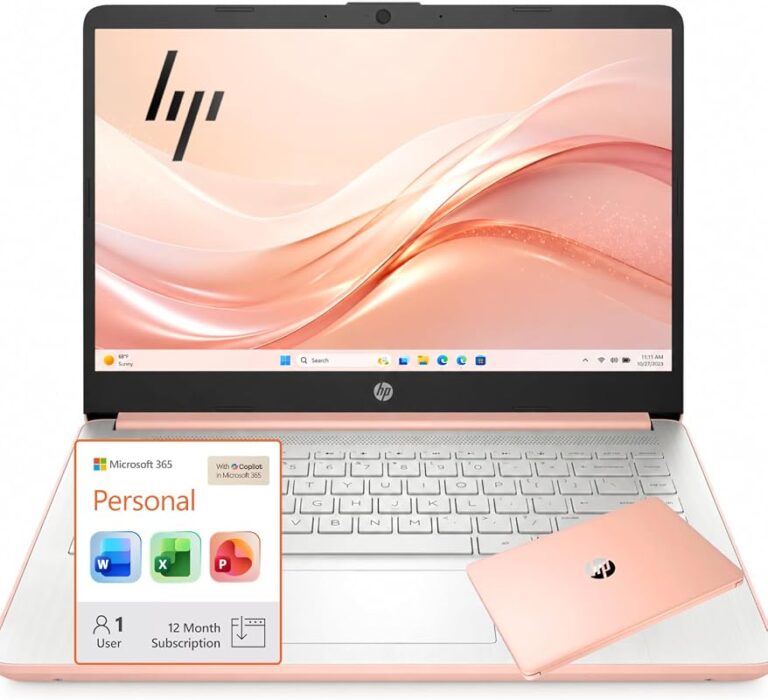
When choosing a new drive, consider how the brand handles password recovery. If you are shopping for a laptop with an SSD already installed, check the specs carefully. Many laptops with 16GB RAM and SSD configurations come with drive encryption enabled by default. Understanding this before you buy can save you headaches later.
Similarly, if you are building or upgrading a system, knowing the difference between SSD and NVMe helps you understand where password locks might apply. NVMe drives can have firmware-level locks just like SATA SSDs, but the recovery process may differ. Always check the manufacturer’s support page for your specific model.
For those with older systems, you might find yourself working with a laptop with SSD and 16GB RAM that has an outdated firmware version. Updating the firmware through the manufacturer’s tool can sometimes resolve password issues before they start. Keep your SSD firmware up to date as part of regular maintenance.
When to Replace the SSD Instead of Recovering
Sometimes the smartest choice is to accept the loss and move forward. If the data on the locked SSD is not critical, replacing the drive may be the most practical option. New SSD prices have dropped significantly. A basic 500GB SATA SSD costs very little today.
Before replacing the drive, make sure you have wiped it properly if it ever gets unlocked later. Simply throwing away a locked drive is a security risk. Use a secure erase tool or physically destroy the drive if it contains sensitive information.
When you buy a replacement drive, choose one that fits your needs. If you need maximum speed, look at the biggest NVMe SSD options available for your system. If you need reliable storage for everyday tasks, a standard SATA SSD works perfectly. For those shopping for a complete system, a laptop with i5 processor and 16GB RAM 512GB SSD offers a great balance of performance and value.
Upgrading your storage also gives you a chance to set up better password management from day one. Use a strong but memorable password. Write it down and store it somewhere safe. Enable any recovery options the drive manufacturer provides. These simple steps prevent you from ever facing the same frustration again.
Final Thoughts on Forgot Ssd Password Recovery
Forgetting your SSD password is a frustrating experience, but it is not the end of the world. You have multiple paths to recovery, from simple BIOS resets to professional data recovery services. The key is staying calm and working through the options methodically.
Start with the easiest methods first. Clear the CMOS. Try the manufacturer Master Password. Use recovery software. Only move to professional services if the simpler options fail. And above all, avoid methods that could permanently damage your drive or data.
Going forward, take steps to prevent this from happening again. Store your passwords securely, keep recovery keys safe, and update your SSD firmware regularly. A little preparation goes a long way toward keeping your data accessible and your drives unlocked.
Remember that not every locked SSD can be recovered. Some drives are designed to be permanently secure, and that is by design. But for most people, the methods in this guide will help you regain access to your data and get back to work quickly.
Frequently Asked Questions
Can I unlock my SSD password without losing data?
In most cases, yes. Methods like clearing the CMOS or using the manufacturer Master Password do not erase your data. However, if the drive has entered a permanent lockout state, data recovery may not be possible. Always try the least destructive methods first.
How many password attempts can I make before the SSD locks permanently?
Most SSDs allow 3 to 5 incorrect attempts before locking permanently. This varies by manufacturer and model. Check your specific drive’s documentation for the exact limit. Once the drive locks permanently, even the manufacturer may not be able to help.
Is it safe to use password recovery software on my SSD?
Yes, as long as you download the software from the official website. Avoid third-party download sites that may bundle malware with the tool. Always scan any downloaded file with antivirus software before running it on your system.
Can I remove an SSD password by replacing the drive?
Replacing the drive removes the problem entirely, but it does not recover the data on the old drive. If the data is important, use a recovery method first. If the data is not important, replacing the drive is a clean and simple solution.
Why does my SSD ask for a password even though I never set one?
Some laptops and systems enable drive encryption by default during setup. The password may have been set automatically during the operating system installation. Check your system settings or contact the manufacturer to confirm whether drive encryption is enabled on your device.
Can I recover my SSD password if I have a different computer?
No, the password is stored on the SSD itself and follows the drive to any computer. Plugging the locked SSD into a different machine will still trigger the password prompt. The recovery methods described in this article work regardless of which computer you use.