Crystaldiskinfo Guide Decode Ssd Health Before Reinstall
Before you reinstall your operating system, checking your SSD health is essential to avoid data loss and performance issues. This Crystaldiskinfo guide walks you through decoding SMART data, understanding wear levels, and knowing when your drive needs replacement.
Key Takeaways
- CrystalDiskInfo gives you a clear health score that tells you if your SSD is failing or still running strong.
- SMART attributes like wear leveling and temperature reveal hidden problems before they become big issues.
- Checking SSD health before reinstalling Windows saves you from losing data or dealing with a corrupted drive.
- Understanding read/write error counts helps you decide if your drive needs immediate attention.
- Free tools like CrystalDiskInfo make SSD monitoring simple and accessible for every laptop user.
- A healthy SSD before reinstallation ensures a smooth, error-free setup process.
📑 Table of Contents
- Why You Should Check SSD Health Before Reinstalling
- What Is CrystalDiskInfo and Why Does It Matter
- Key SMART Attributes to Decode
- Step-by-Step: Using CrystalDiskInfo Before Reinstall
- Common Warning Signs Your SSD Is Failing
- What to Do If Your SSD Shows Poor Health
- Expert Tips for Maintaining SSD Health
- When to Reinstall vs. When to Replace
- Final Thoughts
Why You Should Check SSD Health Before Reinstalling
Reinstalling your operating system feels like a fresh start. But what if your SSD is quietly dying? You could spend hours setting up Windows only to face crashes, freezes, or complete data loss a few days later. That is why decoding your SSD health before reinstalling is one of the smartest things you can do.
Using CrystalDiskInfo takes the guesswork out of the process. This free tool reads your drive’s SMART data and gives you a clear picture of its condition. Whether you have a WD Black SN850P NVMe SSD or a Samsung 980 Pro NVMe SSD, the process works the same way. You just need to know what to look for.
In this guide, we will walk you through every step. You will learn how to read the numbers, understand what they mean, and decide if your drive is ready for a fresh install. Let us get started.
What Is CrystalDiskInfo and Why Does It Matter
CrystalDiskInfo is a lightweight, free utility that monitors your storage drives. It reads SMART (Self-Monitoring, Analysis, and Reporting Technology) data directly from your SSD or HDD. Think of it as a health report card for your drive.
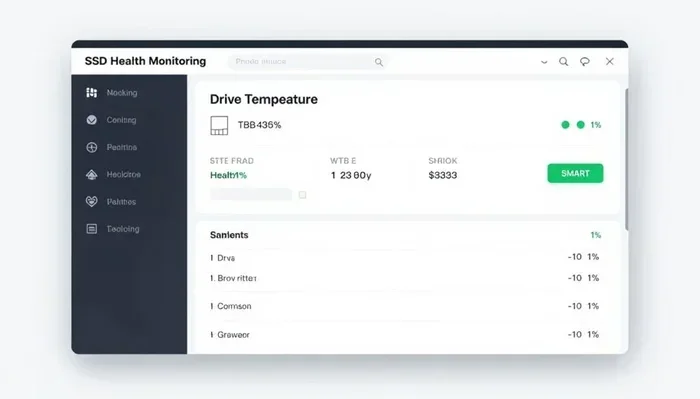
Unlike complex diagnostic tools, CrystalDiskInfo keeps things simple. It shows you a clear health status — usually “Good,” “Caution,” or “Bad.” You do not need to be a tech expert to understand the basics. The color-coded interface makes it easy for anyone to check their drive quickly.
Here is why this matters before reinstalling:
- Prevents data loss: A failing drive can lose files during the reinstall process.
- Saves time: You avoid the frustration of reinstalling on a dying drive.
- Helps you plan: If your SSD is near the end of its life, you can replace it first.
- Gives peace of mind: Knowing your drive is healthy makes the whole process smoother.
How CrystalDiskInfo Reads SMART Data
Every modern SSD stores SMART attributes internally. These are tiny data points that track wear, errors, and performance over time. CrystalDiskInfo pulls this data and translates it into easy-to-read values.
For example, it shows your drive’s temperature, total bytes written, and read error rate. Some attributes are more important than others, and we will cover those next.
Key SMART Attributes to Decode
Not all SMART data is equally important. Some attributes directly impact your SSD’s reliability. Here are the ones you should focus on when using CrystalDiskInfo before reinstalling your system.
1. Health Status
This is the first thing you see when you open CrystalDiskInfo. It gives you an overall summary. If it says “Good,” your drive is likely fine. If it shows “Caution” or “Bad,” you should take action immediately.
A “Caution” status does not always mean your drive is about to fail. It could indicate early signs of wear. Still, you should back up your data and consider replacing the drive before reinstalling.
2. Wear Leveling Count
Every SSD has a limited number of write cycles. The wear leveling count tells you how much of that lifespan you have used. A lower percentage means more life remaining. A high percentage (above 80%) means your drive is getting older.
For example, if your wear leveling shows 75%, you still have some life left. But if it is at 95%, you should seriously consider a replacement, especially before a fresh install.
3. Reallocated Sector Count
This attribute tracks bad sectors that the drive has moved to a backup area. Any non-zero value here is a red flag. It means your SSD is already losing storage cells and compensating for them.
If you see a reallocated sector count above zero, do not reinstall your OS yet. Back up everything and plan for a new drive.
4. Temperature
Overheating can shorten your SSD’s lifespan. CrystalDiskInfo shows your current and average drive temperature. Most NVMe SSDs run between 30°C and 60°C under normal load. If your drive regularly hits 70°C or above, you may need better cooling.
Before reinstalling, check that your drive is running at a safe temperature. A hot drive during a fresh install can cause errors and instability.
5. Power-On Hours
This tells you how long your SSD has been running. Most consumer SSDs last around 5 to 7 years of regular use. If your power-on hours exceed 20,000, your drive is aging and may show more wear-related issues.
This does not mean you must replace it immediately. But it is good information to have when deciding whether to reinstall or upgrade.
Step-by-Step: Using CrystalDiskInfo Before Reinstall
Now that you know what to look for, here is a simple step-by-step process to follow. This will help you decode your SSD health properly before you even think about reinstalling Windows.
Step 1: Download and Install CrystalDiskInfo
Visit the official CrystalDiskInfo website and download the free version. It is a small, portable tool that does not require installation. Simply extract the file and run it. The interface opens immediately and shows your connected drives.
Step 2: Identify Your SSD
CrystalDiskInfo lists all drives connected to your system. Find your main SSD — this is the drive where Windows is installed. Check the model name to confirm it is the correct one. If you are unsure, compare it with your drive specifications.
Step 3: Review the Health Status
Look at the overall health indicator first. Green means good. Yellow means caution. Red means bad. This gives you a quick snapshot of your drive’s condition.
Step 4: Check Key SMART Values
Scroll down to see the detailed SMART attributes. Focus on the wear leveling count, reallocated sector count, power-on hours, and temperature. Write down any values that seem unusual.
Step 5: Decide Whether to Proceed
If all values look healthy, you are good to reinstall. If you see warning signs, back up your data first. Consider replacing the drive or running further diagnostics using tools specific to your SSD brand.
Common Warning Signs Your SSD Is Failing
Sometimes the numbers do not tell the whole story. Your SSD might show subtle signs of trouble before CrystalDiskInfo flags anything serious. Here are common warning signs to watch for.
- Frequent blue screens: If you see BSOD errors related to storage, your drive could be failing.
- Slow boot times: A healthy SSD should boot Windows in under 15 seconds. If it takes over a minute, something is wrong.
- Missing files: Files disappearing or becoming corrupted is a serious red flag.
- Unusual clicking or grinding sounds: This mostly applies to HDDs but can occur with failing SSDs in certain enclosures.
- Drive not recognized: If your system sometimes fails to detect the SSD, the internal components may be degrading.
If you notice any of these signs, do not attempt a reinstall. Focus on recovering your data first. You can learn more about recovering data from NVMe SSDs if you need guidance on that process.
What to Do If Your SSD Shows Poor Health
Finding poor health on your SSD can be stressful. But it does not always mean disaster. Here is what you should do step by step.
1. Back Up Everything Immediately
Copy all important files to an external drive or cloud storage. Do not wait. A failing drive can stop working without warning.
2. Run a Full Diagnostic
Most SSD manufacturers offer free diagnostic tools. Samsung Magician, WD Dashboard, and Crucial Storage Executive can run deeper tests than CrystalDiskInfo. These tools can confirm whether your drive is truly failing.
3. Consider Replacement
If the diagnostic confirms poor health, replacing the SSD is the safest option. Modern NVMe drives like the WD Black 4TB SN850X or a Samsung 970 EVO Plus offer excellent performance and reliability for most users.
4. Reinstall on the New Drive
Once you have a new drive, you can proceed with a fresh Windows installation with confidence. Your new M.2 NVMe SSD for laptop will give you a clean, fast, and reliable storage experience.
Expert Tips for Maintaining SSD Health
Prevention is always better than cure. Here are some expert tips to keep your SSD healthy for years to come.
- Keep your firmware updated: SSD manufacturers release firmware updates that improve stability and performance.
- Avoid filling your drive completely: Leave at least 10-15% of your SSD free for wear leveling and performance.
- Monitor temperature regularly: Use CrystalDiskInfo periodically to check that your drive is not overheating.
- Enable TRIM: TRIM helps your SSD manage deleted files efficiently and maintains long-term performance.
- Use a surge protector: Power surges can damage your SSD. A simple surge protector adds a layer of protection.
Following these tips will extend your SSD’s lifespan and keep it running smoothly through many reinstall cycles and updates.
When to Reinstall vs. When to Replace
Not every problem requires a reinstall. Sometimes the real fix is replacing the drive entirely. Here is a simple way to decide.
| Situation | Action |
|---|---|
| Health status is “Good” | Proceed with reinstall |
| Wear level is below 70% | Reinstall and monitor closely |
| Reallocated sectors are zero | Safe to reinstall |
| Health status is “Caution” | Back up data and consider replacement |
| Reallocated sectors are above zero | Replace the drive immediately |
| Temperature regularly above 70°C | Improve cooling before reinstalling |
This table gives you a quick reference guide. Use it before every reinstall to make an informed decision about your drive’s condition.
Final Thoughts
Checking your SSD health before reinstalling your operating system takes only a few minutes. It can save you hours of frustration and protect your valuable data. CrystalDiskInfo makes this process simple and accessible for everyone, from beginners to advanced users.
Remember, your SSD is the heart of your laptop’s storage system. Treat it well, monitor it regularly, and replace it when needed. A healthy drive means a smooth reinstall and a faster, more reliable computer afterward.
Take a few minutes today. Open CrystalDiskInfo, decode your SSD health, and make an informed decision. Your future self will thank you when everything goes smoothly during your next reinstall.
Frequently Asked Questions
What does CrystalDiskInfo show about my SSD?
CrystalDiskInfo displays your SSD’s health status, temperature, wear level, and key SMART attributes. It gives you a simple color-coded overview — green for good, yellow for caution, and red for bad — so you can quickly understand your drive’s condition.
Is CrystalDiskInfo safe to use on my laptop?
Yes, CrystalDiskInfo is completely safe. It is a read-only tool that does not modify any data on your drive. It simply reads the SMART data stored on your SSD to give you a health report without touching your files or settings.
How often should I check my SSD health?
Checking your SSD health once a month is a good habit. If you notice any performance issues or unusual behavior, run a check immediately. Before reinstalling Windows, always verify your drive health to avoid potential problems during the setup process.
Can I reinstall Windows if my SSD shows “Caution” status?
You can, but it is not recommended. A caution status means your drive has early signs of wear or errors. Reinstalling on a questionable drive risks data loss. Back up your files first, and consider replacing the drive if the caution status persists.
What is a normal wear leveling percentage for an SSD?
A wear leveling percentage below 50% is excellent for most SSDs. Between 50% and 80% is still healthy. Above 80% means your drive is aging and may need replacement soon. Keep in mind that usage patterns vary, so compare your numbers with your drive’s rated lifespan.
Do NVMe SSDs need different monitoring than SATA SSDs?
The monitoring process is the same. CrystalDiskInfo works with both NVMe and SATA SSDs. However, NVMe drives tend to run hotter, so pay extra attention to temperature readings. Good airflow and cooling pads can help maintain safe temperatures for your NVMe drive.