What Is a Frame Buffer
A frame buffer is a dedicated area of memory that stores the complete image data your laptop screen displays each moment. It acts like a staging area where your graphics card prepares every pixel before sending it to your monitor. Understanding frame buffer basics helps you choose better graphics memory and troubleshoot display issues on your laptop.
If you have ever wondered why some laptop screens look buttery smooth while others stutter and lag, the answer often starts with something called a frame buffer. It is one of those behind-the-scenes components that does a lot of heavy lifting but rarely gets the attention it deserves. Whether you are gaming, editing video, or just browsing the web, your laptop relies on this small but mighty piece of memory to deliver every image you see.
In this guide, we will break down the frame buffer definition in plain language. You will learn how it works, why it matters for your laptop, and what to look for when choosing a machine with strong graphics performance. Let us dive in.
Key Takeaways
- Frame buffer stores the full image: It holds every pixel’s color and brightness data before it reaches your screen.
- VRAM is the frame buffer’s home: Dedicated graphics memory (VRAM) keeps frame buffer data fast and accessible.
- Larger frame buffers handle higher resolutions: 4K displays need much more frame buffer space than 1080p screens.
- Frame rate depends on buffer speed: A fast frame buffer helps your laptop render smooth motion in games and video.
- Insufficient frame buffer causes stuttering: Low graphics memory leads to lag, tearing, and poor image quality.
- Integrated vs. dedicated GPUs differ: Laptops with dedicated GPUs have larger, faster frame buffers than integrated graphics.
📑 Table of Contents
What Is a Frame Buffer?
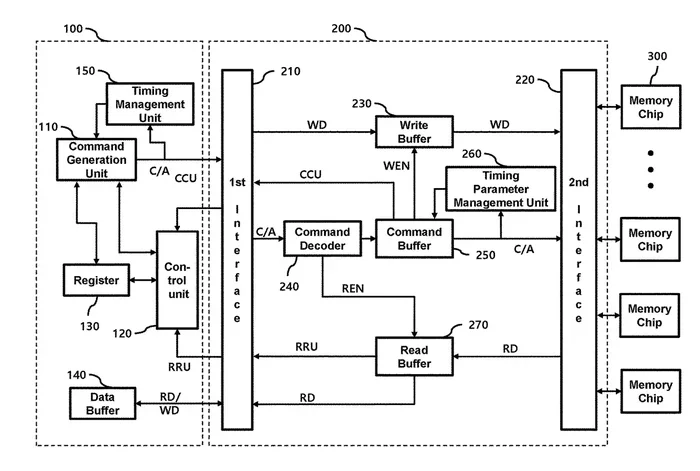
A frame buffer is a block of memory that holds the complete image data for one full screen frame. Think of it like a digital canvas. Before your laptop paints anything on the display, it first stores all the pixel information in this buffer. Then the display reads that data and lights up your screen.
Every time your screen refreshes, the frame buffer updates with a new image. This happens many times per second. The speed and size of your frame buffer directly impact how smooth and clear everything looks on your laptop.
Here is a simple way to picture it. When you open a webpage, your graphics processing unit (GPU) figures out what every pixel should look like. It writes that information into the frame buffer. Your monitor then pulls that data and shows it to you. This whole process happens in milliseconds.
How Does a Frame Buffer Work?
The frame buffer works by storing pixel values in a specific format. Each pixel gets a set of numbers that describe its color and brightness. For most modern displays, each pixel uses 24 or 32 bits of data. That means a single 1080p frame takes up about 6 to 8 megabytes of memory. A 4K frame? That jumps to roughly 33 megabytes.
Your GPU writes to the frame buffer, and the display controller reads from it. This back-and-forth happens continuously. The faster the memory allocation and data transfer, the smoother your visual experience.
When you move your mouse or scroll a page, the GPU recalculates the new frame and writes it to the buffer again. This cycle repeats dozens or even hundreds of times every second. That is why a fast, well-sized buffer makes such a big difference in how your laptop feels during daily use.
Why Frame Buffer Matters for Laptops
On a laptop, every component is compact and shared. Your graphics card does not have unlimited space or power. The frame buffer sits right at the heart of this trade-off. A larger or faster buffer means your laptop can handle heavier visual tasks without breaking a sweat.
For casual users, a basic frame buffer handles email, streaming, and office work just fine. But if you game, edit photos, or run design software, you need a beefier setup. The display adapter in your laptop pulls double duty, and the frame buffer is where the real magic happens.
Frame Buffer and Resolution
Screen resolution is one of the biggest factors that determines how much frame buffer space you need. A higher resolution means more pixels, which means more data to store in the buffer at any given moment. Here is a quick look at how resolution affects buffer size:
- 720p (HD): Roughly 1.5 MB per frame
- 1080p (Full HD): Roughly 6 MB per frame
- 1440p (QHD): Roughly 12 MB per frame
- 4K (Ultra HD): Roughly 33 MB per frame
As you can see, pushing a 4K display demands a lot more from your frame buffer than a standard HD screen. This is why high-resolution laptops often come with more dedicated video memory built in.
Frame Buffer and Frame Rate
Your screen refreshes at a certain rate, usually 60 times per second (60Hz). Each refresh pulls a new frame from the buffer. If your GPU cannot fill the buffer fast enough, you get stuttering or dropped frames. A larger or faster buffer helps your laptop maintain a steady frame rate during demanding tasks.
Gamers especially feel this difference. A smooth 60 frames per second requires the GPU to update the buffer 60 times every single second. If the buffer is too small or too slow, the experience drops. That is why serious gamers look for laptops with generous VRAM and fast pixel buffer architecture.
Frame Buffer vs VRAM: What Is the Difference?
People often use the terms frame buffer and VRAM interchangeably, but they are not exactly the same thing. Understanding the difference helps you make smarter choices about your laptop.
VRAM (Video RAM) is the physical memory chip on your graphics card. It is the hardware. The frame buffer is a specific region or portion of that VRAM where one complete frame of image data is stored at any given time. Think of VRAM as the entire desk and the frame buffer as the workspace where you are actively working on a document.
Most modern laptops with dedicated GPUs allocate a portion of their VRAM specifically for the frame buffer. The rest is used for textures, shaders, and other graphics pipeline tasks. When you run a demanding game or video editing software, all of these areas work together. But the frame buffer is the final stop before the image reaches your eyes.
Laptops with integrated graphics share system RAM for this task instead of having dedicated VRAM. This is where the RAM in your laptop steps in. You can learn more about what RAM is good for in a laptop to understand how shared memory affects your overall graphics performance.
Types of Frame Buffers in Laptops
Not all frame buffers are created equal. The type your laptop uses depends on its graphics hardware and design. Here are the main types you will encounter.
Integrated Graphics Frame Buffer
Laptops with integrated graphics use a portion of your main system RAM as the frame buffer. This setup works well for everyday tasks like web browsing, word processing, and watching videos. However, it has limits. Since system RAM is slower than dedicated graphics memory, integrated setups can struggle with high resolutions or fast motion.
If your laptop uses integrated graphics, you might notice lag when scrolling through heavy webpages or watching 4K video. This is often a frame buffer bottleneck. The shared memory simply cannot keep up with the data demands.
Dedicated GPU Frame Buffer
Laptops with dedicated graphics cards have their own separate VRAM, which includes a dedicated frame buffer. This setup is much faster because the memory sits right next to the GPU chip. Data does not need to travel back and forth across the motherboard.
These laptops handle gaming, 3D rendering, and video editing with ease. The frame buffer in a dedicated GPU setup is larger and significantly faster. If you are shopping for a laptop for creative work or gaming, this is the way to go.
Double Buffering and Triple Buffering
Some advanced laptops use a technique called double buffering. This means there are two frame buffers working at the same time. While one buffer displays the current frame, the other prepares the next one. This prevents screen tearing and keeps motion looking smooth.
Triple buffering adds a third buffer into the mix. It gives the GPU even more time to prepare the next frame, which can boost performance in demanding games. Not all laptops support these techniques, but they are worth knowing about if you care about display quality.
How to Check Your Laptop Frame Buffer Size
Wondering how much frame buffer memory your laptop has? Checking is easier than you might think. Here are a few simple ways to find out.
- Check your GPU specs. Look up your laptop’s graphics card model online. The VRAM size is usually listed there, and a portion of that is dedicated to the frame buffer.
- Use built-in Windows tools. Right-click your desktop, select Display Settings, then Advanced Display Settings. This shows your current display adapter and its memory.
- Use GPU monitoring software. Tools like GPU-Z or HWiNFO show detailed information about your graphics memory and buffer allocation in real time.
Knowing your frame buffer size helps you understand what your laptop can handle. If you are constantly running into stuttering or low frame rates, your buffer might be the culprit. This is especially true if you are pushing high resolutions or playing modern games.
For more on how memory affects laptop performance, check out our guide on what the RAM in a laptop does and how it impacts your daily tasks.
Common Frame Buffer Problems and How to Fix Them
Even the best laptops can run into frame buffer issues. Here are the most common problems and what you can do about them.
Screen Tearing
Screen tearing happens when your display shows parts of two different frames at the same time. It looks like a horizontal line splitting the image. This usually means your frame buffer and your display are out of sync. Enabling V-Sync or using a laptop with adaptive sync technology can fix this.
Stuttering and Lag
If your laptop stutters during games or video playback, the frame buffer might not be getting filled fast enough. This can happen when the GPU is overloaded or when the buffer size is too small for your resolution. Lowering the resolution or closing background apps can help.
Low Image Quality
A frame buffer that is too small may compress or drop pixel data. This leads to blurry or pixelated images, especially at higher resolutions. Upgrading to a laptop with more video memory or reducing your display resolution can improve this.
Overheating
Heavy frame buffer usage generates heat. If your laptop gets hot during graphics-intensive tasks, it might be throttling performance. Keeping your laptop well-ventilated and cleaning the fans regularly helps maintain a steady frame rate.
If you are dealing with GPU-related heat issues, you might want to read about what a good idle GPU temperature is to make sure your laptop is running safely.
Tips to Get the Most Out of Your Frame Buffer
Want your laptop to deliver the best visuals possible? These practical tips help you optimize your frame buffer performance.
- Match your resolution to your GPU. A high-resolution display needs a large buffer. Make sure your graphics card can keep up.
- Keep your GPU drivers updated. New drivers often improve how the GPU manages the buffer and allocates memory efficiently.
- Close unnecessary apps. Background programs eat into available VRAM and can starve your frame buffer of resources.
- Use hardware acceleration. Let your GPU handle video decoding and rendering instead of relying on the CPU.
- Monitor your temperatures. Overheating slows down the GPU and affects how quickly it can update the buffer.
Following these simple steps keeps your laptop running smoothly and your visuals crisp. Whether you are working or playing, a well-optimized frame buffer makes everything feel faster and more responsive.
For those wondering how much RAM is ideal for a laptop that handles both graphics and everyday tasks, our article on is 8GB of RAM good for a laptop offers great insights on finding the right balance.
Conclusion
The frame buffer is a fundamental part of how your laptop displays images. It stores every pixel of every frame before it reaches your screen, and its size and speed directly impact your visual experience. From smooth gaming to crisp video playback, this small block of memory does a lot of heavy lifting behind the scenes.
Understanding the frame buffer meaning helps you make smarter decisions when buying a laptop or troubleshooting display issues. Whether you have integrated graphics or a powerful dedicated GPU, your frame buffer plays a central role in delivering the images you see every day. Keep your drivers updated, match your resolution to your hardware, and monitor your temperatures. With these habits, your laptop will deliver stunning visuals for years to come.
If you want to learn more about how graphics memory and GPU performance affect your laptop experience, explore our other resources on laptop hardware and display technology. A little knowledge goes a long way toward getting the most out of your machine.
Frequently Asked Questions
What is a frame buffer in simple terms?
A frame buffer is a small area of memory that stores the complete image data for one screen frame. Your GPU fills it with pixel information, and your monitor reads from it to display the picture. Think of it as a digital snapshot of everything on your screen at any given moment.
How much frame buffer memory do I need?
For everyday tasks like browsing and office work, a small frame buffer is fine. For 1080p gaming and video editing, aim for at least 4 to 6 GB of dedicated VRAM. If you work with 4K content, you will want 8 GB or more for a smooth experience.
Can a frame buffer be too small?
Yes. A frame buffer that is too small for your resolution or workload causes stuttering, screen tearing, and low frame rates. Your GPU struggles to fit all the pixel data into limited space, which creates a bottleneck in the graphics pipeline.
Does frame buffer affect battery life on a laptop?
It can. A larger or more active frame buffer uses more power. If you are running demanding graphics tasks, your GPU works harder to update the buffer, which drains your battery faster. Switching to lower resolutions or using power-saving modes helps.
What is the difference between a frame buffer and a render buffer?
A frame buffer holds the final image that gets sent to your display. A render buffer stores intermediate data during the image rendering process. The GPU uses the render buffer to build the image, then copies the finished result into the frame buffer for display.
Is frame buffer the same as VRAM?
Not exactly. VRAM is the total dedicated memory on your graphics card. The frame buffer is a specific portion of that VRAM where one complete frame of image data is stored at a time. They work together but serve different roles in the display adapter process.