What Is Windows X86
Windows X86 is a 32-bit computing architecture that powers many older and budget laptops. It forms the foundation of how your processor handles data and runs software. Understanding what Windows X86 means helps you choose the right software, drivers, and upgrades for your machine.
Windows X86 is a term you will see often when shopping for laptops, downloading software, or troubleshooting your PC. But what does it actually mean? In simple terms, Windows X86 refers to the 32-bit version of the Windows operating system that runs on processors using the x86 instruction set. This architecture has been around for decades and still plays a role in the laptop world today.
Whether you are using an older machine or trying to figure out why a certain program will not install, understanding Windows X86 can save you a lot of frustration. This guide breaks everything down in plain language. You will learn what it is, how it compares to 64-bit systems, and why it still matters in 2025 and beyond.
Key Takeaways
- Windows X86 is the 32-bit version of the Windows operating system built on the x86 processor architecture.
- It limits RAM usage to about 4GB, which affects how many programs you can run smoothly at once.
- Most modern laptops use x64 (64-bit) systems, but x86 is still found in older and budget-friendly devices.
- Checking your system type is easy through Windows settings and takes just a few clicks.
- Many older programs and games still work best or only run on Windows X86 systems.
- Upgrading from X86 to X64 requires a clean install and compatible hardware.
📑 Table of Contents
What Is Windows X86?
The term X86 refers to a family of processor architectures that started with Intel’s 8086 chip back in 1978. Over the years, this architecture evolved through the 80286, 80386, and 80486 processors. The name stuck even as technology advanced. When you see Windows X86, it means the operating system is built to run on 32-bit processors using this architecture.
A 32-bit system processes data in 32-bit chunks. This affects how much memory your system can use, how fast it processes certain tasks, and which software it can run. Windows X86 is essentially the 32-bit version of Windows, designed for older hardware and specific use cases where 64-bit support is not available.
Why Is It Called X86?
The name comes from the “86” in the original Intel 8086 processor. Each new chip in the family added a number or letter. The pattern continued through 80186, 80286, 80386, and so on. The “x” in X86 is a wildcard that represents any number in the sequence. So X86 became the shorthand for this entire family of compatible processors.
Today, when people say Windows X86, they almost always mean a 32-bit Windows installation. The architecture itself is still alive in millions of devices around the world, especially in budget laptops and embedded systems.
How Does Windows X86 Work?
At its core, Windows X86 works by translating your clicks, keystrokes, and commands into instructions the processor understands. The 32-bit architecture limits the size of data the processor can handle at one time. This might sound like a small detail, but it has big implications for performance and compatibility.
Here is how the system handles key tasks:
- Memory management: A 32-bit system can address up to 4GB of RAM. This is a hard limit that cannot be bypassed easily.
- Software execution: Programs compiled for X86 run natively on this system. They are optimized for 32-bit processing.
- Driver compatibility: Hardware drivers must also be 32-bit to work with Windows X86.
- System calls: The operating system uses 32-bit memory addresses to communicate with hardware components.
Because of these limitations, Windows X86 systems are best suited for basic tasks like web browsing, document editing, and light media consumption. If you try to run demanding software or games, you will quickly run into performance bottlenecks.
The Role of the Processor
Your processor is the brain of your laptop. In a Windows X86 system, the CPU must support 32-bit instructions. Most modern Intel and AMD processors still include backward compatibility with 32-bit code, even if they are 64-bit chips. This means they can run X86 software without any issues.
However, a 64-bit processor running a 32-bit version of Windows will not perform any better than a true 32-bit system. The operating system is the bottleneck, not the processor. So even if you have a powerful chip, Windows X86 will hold it back.
Windows X86 vs Windows x64
The most common comparison people make is between Windows X86 and Windows x64. The x64 version is the 64-bit counterpart that dominates the modern laptop market. Understanding the differences helps you make informed decisions about your system.
Key Differences at a Glance
| Feature | Windows X86 (32-bit) | Windows x64 (64-bit) |
|---|---|---|
| Maximum RAM | 4GB | 128GB or more |
| Software Compatibility | 32-bit apps only | Both 32-bit and 64-bit apps |
| Performance | Good for basic tasks | Better for heavy workloads |
| Driver Support | Limited modern support | Widely supported |
| Security Features | Basic | Advanced (NX bit, ASLR) |
| Typical Use Case | Legacy systems, old laptops | Modern laptops, gaming PCs |
The table above makes it clear why most users today prefer Windows x64. It offers better performance, more memory support, and wider software compatibility. But that does not mean Windows X86 is obsolete. Many older laptops and budget devices still run on 32-bit systems, and they serve their users well for everyday tasks.
Can You Run 64-bit Software on X86?
The short answer is no. Windows X86 cannot run 64-bit applications natively. If you try to install a 64-bit program on a 32-bit system, you will get an error message. The reverse is true as well: 64-bit Windows can run most 32-bit software through a compatibility layer called WoW64.
This is an important consideration if you are planning to upgrade your system or install new software. Always check the system requirements before downloading anything.
Who Still Uses Windows X86?
You might wonder who still uses Windows X86 in today’s world. The answer is more people than you think. Several groups of users still rely on 32-bit systems for their daily computing needs.
Budget Laptop Users
Many affordable laptops, especially those sold in developing markets or for educational purposes, come with Windows X86 preinstalled. These machines typically have 2GB to 4GB of RAM and basic processors. They are perfect for students and casual users who need to browse the web, write documents, and watch videos.
Legacy Software and Industrial Systems
Some businesses and organizations run specialized software that only works on 32-bit systems. This includes legacy point-of-sale systems, older accounting software, and industrial control machines. Windows X86 keeps these systems running without the need for costly upgrades.
Retro Gamers and Hobbyists
Retro gamers who want to play classic PC games from the 1990s and early 2000s often prefer Windows X86. Many of these games were built for 32-bit systems and run more authentically on them. Emulators and legacy game collections also tend to work best on 32-bit environments.
Embedded Systems and IoT Devices
Beyond laptops, Windows X86 is still used in embedded systems, single-board computers, and Internet of Things (IoT) devices. These systems do not need massive amounts of RAM or advanced processing power, making 32-bit Windows a practical choice.
How to Check If You Have Windows X86
Not sure what system you are running? Checking your Windows version is quick and easy. You do not need to be a tech expert to find this information.
Method 1: Through Settings
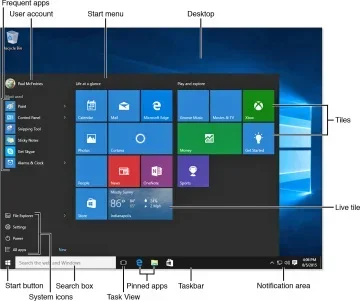
- Click the Start menu and open Settings.
- Go to System and then click About.
- Look for the System type entry.
- If it says 32-bit operating system, you are running Windows X86.
Method 2: Through Control Panel
- Open the Control Panel from the Start menu.
- Click on System and Security.
- Select System.
- Check the System type field for 32-bit or 64-bit information.
Method 3: Using the Run Command
- Press Windows Key + R to open the Run dialog.
- Type msinfo32 and press Enter.
- Look for the System Type line.
- If it shows x86-based PC, you have Windows X86.
Knowing your system type is essential before downloading drivers or software. Always match your system architecture to avoid compatibility issues.
Is Windows X86 Still Relevant in 2025?
The short answer is yes, but with caveats. Windows X86 is still relevant for specific use cases, but it is no longer the primary choice for most users. Microsoft has shifted its focus to 64-bit systems, and modern software development increasingly targets x64 architecture.
However, 32-bit Windows still serves a purpose. Budget laptops, legacy systems, and specialized applications keep Windows X86 alive in 2025. If you are buying a new laptop today, you should almost certainly choose a 64-bit system. But if you already own a 32-bit machine, there is no urgent need to replace it for basic tasks.
When to Upgrade from X86
You should consider upgrading from Windows X86 to a 64-bit system if you experience any of these issues:
- Your laptop has less than 4GB of RAM and you need more.
- Modern software or games refuse to install on your 32-bit system.
- You are running outdated drivers that no longer receive security updates.
- Your system feels slow even for basic everyday tasks.
- You want to take advantage of modern security features available only in 64-bit Windows.
Upgrading means doing a clean install of a 64-bit version of Windows. Make sure to back up your files first and check that your hardware supports a 64-bit operating system. Most laptops made after 2007 support x64, but it is always worth verifying before you start.
How X86 Relates to Laptop RAM and Storage
One of the biggest limitations of Windows X86 is the 4GB RAM ceiling. If you want to improve your laptop’s performance, adding more memory is the first step. However, on a 32-bit system, extra RAM beyond 4GB will not be recognized. This is why understanding your system architecture matters before you invest in upgrades.
If you are looking to improve your laptop’s memory, check out our guide on what the RAM on a laptop means and how it affects performance. For those with older machines, knowing how to know what RAM is compatible with your laptop can help you get the most out of your current setup.
The Future of X86 Architecture
The X86 architecture continues to evolve even as the industry moves toward ARM-based processors. Intel and AMD are still investing in X86 for laptops and desktops. However, the rise of Apple Silicon and ARM-based Windows laptops signals a shift in the broader computing landscape. Windows X86 may eventually fade as a mainstream option, but it will remain relevant in legacy and niche applications for years to come.
For most laptop users, the practical takeaway is simple. If your machine runs Windows X86 and meets your needs, keep using it. If you need more power, more memory, or modern software features, it is time to move to a 64-bit system.
When investing in a new laptop, consider what will give you the best long-term value. A 64-bit system with sufficient RAM and a solid-state drive is the smartest choice for most people today. To learn more about making smart PC investments, check out our article on what is the best investment for the lifespan of your PC.
Common Mistakes People Make with Windows X86
There are several pitfalls that users encounter when working with Windows X86 systems. Avoiding these mistakes can save you time, money, and frustration.
- Downloading 64-bit drivers: Always check that your drivers match your system architecture. A 64-bit driver will not work on a 32-bit system.
- Assuming more RAM helps: Adding RAM beyond 4GB on a Windows X86 system will not improve performance. The OS simply cannot use it.
- Ignoring software requirements: Many modern apps are 64-bit only. Always check system requirements before purchasing or downloading software.
- Skipping security updates: Older 32-bit systems may not receive the latest security patches. Stay vigilant about your online safety.
- Confusing X86 with X64: The naming can be confusing. X86 is 32-bit, and x64 is 64-bit. Keep this distinction clear when troubleshooting.
By being aware of these common mistakes, you can get the most out of your Windows X86 system and avoid unnecessary headaches.
Quick Tips for Windows X86 Users
Tip 1: Keep Your System Lean
Since Windows X86 systems have limited RAM, run fewer programs at the same time. This keeps your laptop responsive and prevents slowdowns.
Tip 2: Use Lightweight Software
Choose lightweight, 32-bit-compatible applications whenever possible. Browsers like older versions of Firefox and lightweight office suites work great on X86 systems.
Tip 3: Stay Updated Where Possible
Even if Microsoft no longer provides feature updates for 32-bit Windows, keep your security patches current. Use a reputable antivirus program for added protection.
Tip 4: Back Up Regularly
Older systems are more prone to hardware failures. Regular backups protect your important files and documents from data loss.
Tip 5: Know When to Move On
If your Windows X86 laptop struggles with basic tasks, it might be time to consider an upgrade. A modern 64-bit laptop does not have to be expensive these days.
Final Thoughts
Windows X86 is the 32-bit foundation of countless laptops around the world. It may not be the flashiest topic, but understanding it gives you real power as a user. You will make better decisions about software, upgrades, and troubleshooting when you know how your system works under the hood.
While the industry has largely moved to 64-bit computing, Windows X86 still has a place in budget devices, legacy systems, and niche applications. Whether you are a student using an affordable laptop, a business running specialized software, or a retro gamer chasing classic experiences, knowing what Windows X86 means helps you get the most from your machine.
The key takeaway is simple. Know your system, match your software to your architecture, and upgrade when your needs outgrow what Windows X86 can deliver. With the right knowledge, you can keep any laptop running smoothly, no matter how old or new it is.
Frequently Asked Questions
Is Windows X86 the same as 32-bit Windows?
Yes, Windows X86 is simply another name for the 32-bit version of Windows. The X86 refers to the processor architecture it runs on, while 32-bit describes how the system processes data. Both terms mean the same thing in everyday use.
Can I upgrade from Windows X86 to Windows x64 without losing my files?
No, upgrading from 32-bit to 64-bit Windows requires a clean installation. This means you will need to back up all your files first and then reinstall Windows. Make sure to save your important data on an external drive before starting the process.
Will my old 32-bit programs work on Windows X86?
Yes, Windows X86 is designed to run 32-bit programs natively. Most older applications built for 32-bit systems will work perfectly fine on a Windows X86 installation. This is one of the main reasons people still use 32-bit Windows today.
How much RAM can Windows X86 use?
A 32-bit system like Windows X86 can address a maximum of 4GB of RAM. In practice, you will see slightly less than 4GB available because some memory is reserved for system processes. This is the biggest limitation of the X86 architecture.
Are new laptops still sold with Windows X86?
It is very rare to find new laptops with Windows X86 in 2025. Most manufacturers now ship 64-bit operating systems. However, some very budget-friendly or refurbished laptops may still come with 32-bit Windows, especially in emerging markets.
What is the difference between X86 and ARM architecture?
X86 is an Intel-originated architecture used in most Windows laptops and desktops. ARM is a different architecture commonly found in smartphones and tablets. Windows X86 runs on traditional PC processors, while Windows on ARM runs on energy-efficient mobile-style chips.