Fix Black Horizontal Lines on Laptop Screen
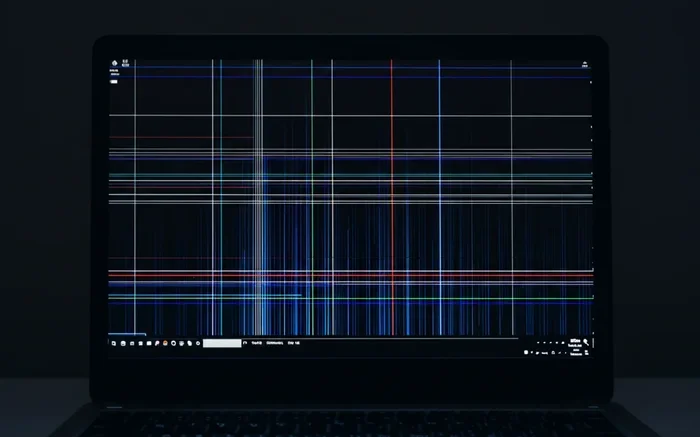
Black horizontal lines on a laptop screen can be frustrating, but they are often fixable with simple steps. This guide walks you through the most common causes and proven solutions to restore your display. Whether the issue stems from a loose cable, a software glitch, or a damaged panel, you will find clear, actionable steps to fix black horizontal lines on laptop screen problems right at home.
There is nothing worse than sitting down to work or watch something on your laptop, only to see black horizontal lines cutting across your screen. These lines can appear as thin streaks, thick bands, or even a grid of dark bars that make your display nearly useless. The good news is that you do not have to panic or rush out to buy a new laptop just yet. In most cases, the problem has a clear cause and a fix you can handle yourself.
This guide covers everything you need to know about fixing black horizontal lines on your laptop screen. We will look at the most common reasons these lines show up, the tools and steps you need to try each fix, and the moments when it is smart to hand the job over to a professional. By the end, you will have a clear plan to get your display back to normal.
Before you dive into the fixes, it helps to understand what you are dealing with. Black horizontal lines on a laptop screen can range from a single thin line to multiple thick bands. They may stay in one place or shift around when you move the screen. Sometimes they appear right after you turn on the laptop, and other times they pop up randomly while you are working. Each pattern can point to a different cause, which is why we break down the solutions step by step.
Key Takeaways
- Loose or damaged display cables are the most common cause of black horizontal lines on laptop screens.
- Simple DIY fixes like reseating cables and updating drivers can resolve the issue in many cases.
- Software and driver updates often fix display glitches without any hardware work.
- Physical damage to the screen may require professional repair or full replacement.
- Overheating and GPU stress can trigger horizontal line artifacts on your display.
- Knowing when to seek help saves time and prevents further damage to your laptop.
📑 Table of Contents
What Causes Black Horizontal Lines on a Laptop Screen?
Understanding the root cause is the first step toward a fix. Several factors can trigger these annoying lines, and they range from simple connection issues to serious hardware damage.
Loose or Damaged Display Cable
The most common reason for black horizontal lines is a loose or damaged display cable. Your laptop screen connects to the main board through a thin flat cable that runs through the hinge. Over time, this cable can wear out, especially if you frequently open and close your laptop. A loose connection or a pinched cable can interrupt the signal to your screen, causing those frustrating lines to appear.
Graphics Card or GPU Issues
Your laptop’s graphics card handles everything that appears on your screen. When the GPU is under heavy stress or has a driver problem, it can produce visual artifacts, including horizontal lines. This is especially common when you are running demanding tasks like gaming or video editing. If the lines appear during heavy use and disappear when you rest the laptop, your GPU might be the culprit.
Software and Driver Problems
Sometimes the issue is not physical at all. Outdated or corrupted display drivers can cause all sorts of screen glitches. A recent Windows update might also conflict with your graphics driver, leading to horizontal lines on your laptop display. Before you assume the worst, always check your software first.
Physical Damage to the Screen Panel
If you have dropped your laptop or put pressure on the screen, the LCD or LED panel itself may be damaged. Cracks or pressure points on the panel can create permanent black lines. In these cases, the fix usually involves replacing the entire screen panel.
Overheating
Laptops generate a lot of heat, and when they overheat, components can behave unpredictably. The display cable and the GPU are both sensitive to temperature. If your laptop tends to run hot, overheating could be causing intermittent lines on your screen.
How to Diagnose the Problem
Not all horizontal lines are the same, and diagnosing the cause correctly saves you time and effort. Here are some simple steps to figure out what is going on with your display.
Check if the Lines Change When You Move the Screen
Gently open and close your laptop while watching the screen. If the lines appear, disappear, or change shape when you move the screen, the display cable is likely the issue. A cable that works intermittently will show lines that come and go with movement.
Run Your Laptop on External Display
Connect your laptop to an external monitor or TV. If the external display shows a clear image without any lines, the problem is with your laptop screen or its cable, not the graphics card. If the lines appear on the external display too, your GPU or driver is more likely to blame.
Boot into Safe Mode
Safe Mode loads only the essential drivers and software. If you boot into Safe Mode and the lines disappear, a software or driver conflict is probably causing the issue. This is a quick way to rule out hardware problems.
How to Fix Black Horizontal Lines on Laptop Screen
Now that you have a better idea of what might be causing the lines, let us walk through the fixes. Start with the simplest solutions and work your way down the list.
Fix 1: Reseat the Display Cable
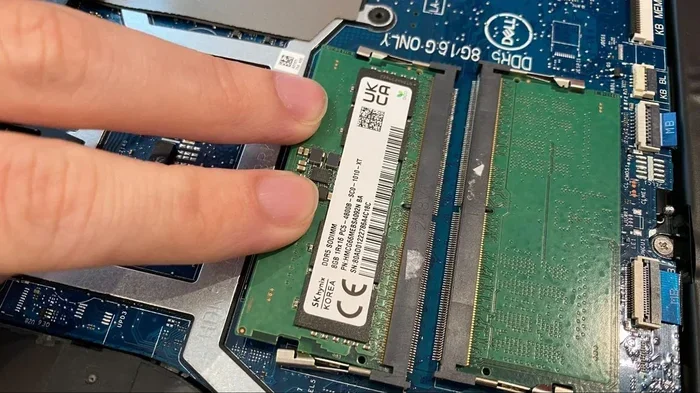
If you suspect a loose cable, reseating it can often solve the problem. You will need to open the back of your laptop and locate the display cable connected to the screen. Carefully disconnect it and plug it back in firmly. Make sure the connector is seated properly and the lock tab is clicked into place. This simple step fixes many cases of black horizontal lines on laptop screen issues.
Quick Tip: Before you open your laptop, make sure it is powered off and unplugged. Working on a charged battery reduces the risk of electrical damage.
Fix 2: Update or Reinstall Display Drivers
Outdated drivers are a leading cause of display problems. Head to your laptop manufacturer’s website or the GPU manufacturer’s site and download the latest display drivers. If you already have the latest drivers, try uninstalling them and then reinstalling them fresh. This process clears out any corrupted files that might be causing the lines.
- Open Device Manager by right-clicking the Start button.
- Expand the Display adapters section.
- Right-click your GPU and select Uninstall device.
- Restart your laptop and let Windows reinstall the driver automatically.
Fix 3: Adjust Screen Resolution and Refresh Rate
Sometimes the lines appear because your screen resolution or refresh rate is set to an unsupported value. Right-click on your desktop and select Display settings. Make sure your resolution is set to the recommended value for your laptop model. Then go to Advanced display settings and check the refresh rate. Setting it to the standard 60 Hz often eliminates display artifacts.
Fix 4: Check for Overheating
If your laptop runs hot, cooling it down can reduce or eliminate screen lines. Use a can of compressed air to clean the vents and fans. You can also use a laptop cooling pad to improve airflow. If the lines only appear when your laptop is hot, cooling solutions may be all you need.
Fix 5: Perform a System Restore
If the lines started appearing after a recent update or software change, a system restore can undo those changes. Search for Create a restore point in the Windows search bar, open System Restore, and pick a date before the lines appeared. This rolls back your system settings without affecting your personal files.
Fix 6: Replace the Display Cable
If reseating the cable does not work, the cable itself may be damaged and need replacement. Display cables are relatively inexpensive, but replacing them requires opening your laptop and working with delicate components. If you are not comfortable doing this yourself, take your laptop to a repair shop. A professional can swap out the cable quickly and safely.
Fix 7: Replace the Screen Panel
When the lines are caused by physical damage to the panel, the only real fix is to replace the screen. You can order a replacement panel online that matches your laptop model. Replacement screens typically cost between 50 and 200 dollars, depending on your laptop brand and size. If you prefer not to DIY, a repair technician can handle the swap for you.
Preventing Black Horizontal Lines in the Future
Once you have fixed the lines, you will want to keep them from coming back. A few simple habits can protect your laptop display for years to come.
- Handle your laptop with care. Avoid pressing on the screen or closing the lid with objects on the keyboard. Pressure on the panel is one of the top causes of permanent screen damage.
- Keep your laptop cool. Use it on hard, flat surfaces rather than beds or couches. Clean the vents regularly to prevent dust buildup.
- Update your drivers regularly. Set a reminder to check for driver updates once a month. Fresh drivers prevent many display glitches before they start.
- Use a surge protector. Power surges can damage your laptop’s internal components, including the display cable and GPU.
- Avoid extreme temperatures. Using your laptop in very hot or very cold environments can stress the screen panel and internal components.
These habits are simple but effective. They cost nothing and can save you from the hassle of dealing with screen problems again.
When to Seek Professional Help
Not every fix is a DIY project. Some situations call for a professional touch, and knowing when to ask for help can save you from making things worse.
If you have tried all the software fixes and the lines are still there, the problem is likely hardware-related. A damaged screen panel or a faulty cable that is hard to access may need a technician’s expertise. Similarly, if your laptop is still under warranty, opening it up yourself could void the coverage. In that case, contact the manufacturer or an authorized service center first.
Another sign that you need professional help is if the lines are accompanied by other symptoms, like flickering, color distortion, or a completely blank screen. These could point to a deeper issue with the motherboard or GPU that requires specialized diagnostic tools. A repair shop can run proper tests and give you an honest assessment of what needs to be fixed.
Comparing DIY Fixes vs Professional Repair
Deciding whether to fix the issue yourself or pay for professional help depends on the cause and your comfort level with technology.
| Factor | DIY Fix | Professional Repair |
|---|---|---|
| Cost | Low to free (tools you already have) | 50 to 300 dollars depending on the issue |
| Time | 30 minutes to 2 hours | 1 to 5 days (including wait time) |
| Skill Level | Basic computer knowledge needed | None required |
| Risk | Risk of further damage if done incorrectly | Low risk with trained technicians |
| Warranty | May void warranty if you open the laptop | Preserves warranty if done by authorized center |
As you can see, DIY fixes save money and time when the issue is simple. But for complex hardware problems, paying a professional is often the safer choice.
Final Thoughts
Seeing black horizontal lines on your laptop screen can feel alarming, but the problem is usually fixable. Start with the simplest solutions like updating drivers and checking your cable connection. If those do not work, move on to more involved fixes like replacing the display cable or the screen panel. Remember to prevent future issues by handling your laptop gently and keeping it cool.
If you have a touch screen laptop and notice lines affecting the touch response, you may also want to look into fixing touch mouse issues that can accompany display problems. Similarly, if your touch screen laptop with 16 GB RAM is showing display artifacts, check that your RAM and GPU are not being overloaded, as this can contribute to screen glitches. Also, if your touchpad is acting up along with the screen lines, checking how to fix touchpad mouse problems might help you address multiple issues at once.
Take your time with each step, and do not be afraid to ask for help when you need it. With the right approach, you can get your laptop screen working perfectly again.
Frequently Asked Questions
Can I fix black horizontal lines on my laptop screen at home?
Yes, many cases of black horizontal lines can be fixed at home with simple steps. Start by updating your display drivers, reseating the display cable, and adjusting your screen resolution. These DIY fixes resolve the issue in a large number of cases without any special tools or expertise.
Are black horizontal lines on a laptop screen a sign of a serious problem?
Not always. Often, the cause is a loose cable or a driver glitch, both of which are easy to fix. However, if the lines are accompanied by flickering, color distortion, or a blank screen, it could indicate a more serious hardware issue that needs professional attention.
How much does it cost to repair a laptop screen with horizontal lines?
The cost depends on the cause. Reseating a cable or updating drivers costs nothing. Replacing a display cable typically runs 30 to 80 dollars, while a full screen panel replacement can range from 50 to 200 dollars. Professional labor charges may add another 50 to 150 dollars depending on your location.
Can overheating cause horizontal lines on a laptop screen?
Yes, overheating can cause intermittent display artifacts, including horizontal lines. When your laptop runs too hot, the GPU and display cable can behave unpredictably. Keeping your laptop cool with proper ventilation and regular cleaning can help prevent these issues.
Will a laptop screen with black horizontal lines get worse over time?
It depends on the cause. If the lines are caused by a loose cable, they may come and go and could even resolve on their own. However, if the panel is physically damaged, the lines will likely spread and worsen over time. Addressing the problem early gives you the best chance of a simple fix.
How do I know if I need to replace my laptop screen?
If you have tried all software fixes and cable reseating without success, and the lines are clearly visible on the external display test, the panel itself is likely the issue. A professional diagnosis can confirm this. If the lines are permanent and do not change with movement or software adjustments, screen replacement is usually the recommended solution.