What Is Ctrl Shift N
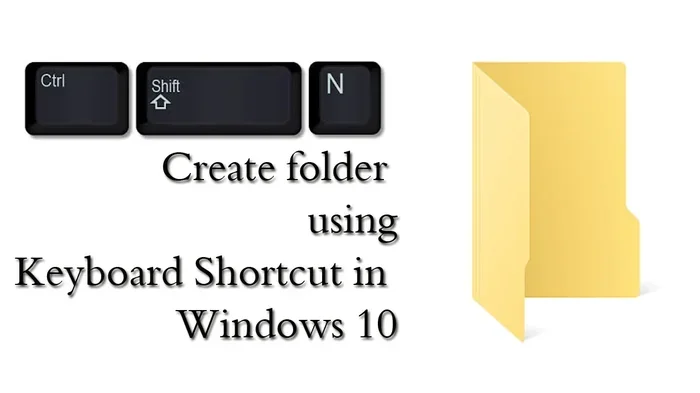
Ctrl Shift N is a handy keyboard shortcut that performs different actions depending on the app you use. In Google Chrome, it opens a new incognito window for private browsing. In Windows File Explorer, it creates a new folder instantly. This shortcut boosts productivity and saves time on any laptop.
Have you ever pressed a bunch of keys at once and something cool happened on your screen? That is the magic of keyboard shortcuts. One of the most useful combos you can learn is Ctrl Shift N. Whether you are browsing the web or organizing files, this shortcut does something helpful every time. Once you start using it, you will wonder how you ever worked without it.
Keyboard shortcuts like Ctrl Shift N are a game changer for anyone who spends time on a laptop. They let you skip the mouse and keep your hands on the keyboard. This means faster work, fewer distractions, and a smoother experience overall. In this guide, we will break down exactly what Ctrl Shift N does in different apps. You will learn how to use it in Chrome, File Explorer, and beyond. Let us dive in.
Key Takeaways
- Chrome Incognito Mode: Ctrl Shift N opens a private browsing window in Google Chrome.
- New Folder Shortcut: In Windows File Explorer, this combo creates a new folder instantly.
- Laptop Productivity Boost: Mastering this shortcut helps you work faster without touching the mouse.
- Easy to Remember: The N stands for “New,” making it simple to recall.
- Works Across Apps: Different programs use this shortcut for different useful functions.
- Pair With Other Shortcuts: Combine Ctrl Shift N with other keys for even faster workflows.
📑 Table of Contents
What Does Ctrl Shift N Do?
The Ctrl Shift N shortcut is a multi-purpose key combo. Its main job depends on which program you are using. In most cases, the N stands for “New,” which gives you a hint about what happens. The shortcut creates something new or opens a new private window. It is one of those rare shortcuts that works in more than one app.
Here is a quick look at where Ctrl Shift N comes in handy:
- Google Chrome: Opens a new incognito window for private browsing.
- Windows File Explorer: Creates a new folder right away.
- Other Apps: Some programs use it for their own new functions.
The beauty of this shortcut is its simplicity. You press three keys at the same time, and something useful appears on your screen. No menus to click through. No searching for the right option. Just one quick combo and you are done. If you use a laptop often, learning this shortcut is a no-brainer. It pairs well with other essentials like knowing what the ram on a laptop does for performance, or understanding how to navigate your system efficiently.
Ctrl Shift N in Google Chrome
Opening an Incognito Window
The most popular use of Ctrl Shift N is in Google Chrome. When you press this combo, Chrome opens a new incognito window. This is a private browsing mode that does not save your history, cookies, or site data. It is perfect when you want to search something without leaving a trace.
Think about times when you shop for gifts online. You do not want your partner to see the search history, right? Or maybe you need to log into a second account on a website without signing out of your main one. The incognito window handles both situations perfectly.
Here is how it works in practice:
- Open Google Chrome on your laptop.
- Press Ctrl Shift N at the same time.
- A new dark-themed window appears. That is your incognito window.
- Browse privately. When you close the window, all session data disappears.
One thing to keep in mind is that incognito mode does not make you invisible online. Your internet service provider and the websites you visit can still track your activity. It just keeps your local browsing history clean. For more tips on keeping your browser running smooth, check out how to manage your ram for laptop to ensure fast browsing performance.
Why Incognito Mode Matters
Private browsing is not just about hiding things. It also helps with testing websites, checking search results without personalized bias, and avoiding targeted ads. Many web developers use incognito mode to test their sites in a clean environment. Students use it to research topics without previous search results skewing their findings.
Using Ctrl Shift N for incognito mode is also great for shared computers. If you are using a family laptop or a work computer, you do not want your login sessions saved. The incognito window protects your privacy in those situations. It is a small shortcut that makes a big difference in your digital security.
Ctrl Shift N in Windows File Explorer
Creating a New Folder Instantly
Another powerful use of Ctrl Shift N happens inside Windows File Explorer. When you are organizing files and folders on your laptop, creating a new folder the traditional way takes several clicks. You right-click, hover over “New,” and then click “Folder.” With Ctrl Shift N, you skip all that.
Just open File Explorer, navigate to where you want the new folder, and press Ctrl Shift N. A new folder appears instantly, ready for you to name it. This is incredibly useful when you are sorting through downloads, organizing project files, or cleaning up your desktop.
Here is a simple workflow to try:
- Open File Explorer and go to your target location.
- Press Ctrl Shift N.
- Type the folder name immediately.
- Press Enter to save it.
That is it. Four quick steps and your folder is ready. Over time, this shortcut saves you minutes every day. Those minutes add up to hours over weeks and months. If you want to keep your laptop running fast so these shortcuts feel snappy, make sure your system has enough memory. Learning what is good ram for laptop can help you understand the specs that keep everything running smoothly.
Boosting File Organization Skills
Organizing files is a skill that pays off in both work and personal life. When you use Ctrl Shift N to create folders quickly, you are more likely to keep things tidy. The friction of creating a folder drops to almost zero. You just create it as soon as you need it.
Try this habit: every time you download a file, create a folder for it right away using Ctrl Shift N. Name the folder by the date or project name. Within a week, your file system will feel much more organized. You will spend less time searching for files and more time doing actual work. This kind of productivity hack works hand in hand with understanding your laptop’s full capabilities, from its ram size for laptop to its shortcut keys.
Other Uses of Ctrl Shift N
While Chrome and File Explorer are the main apps for Ctrl Shift N, other programs use this shortcut too. The exact function depends on the software you are working with. Let us explore a few other places where this combo shows up.
In some file management tools and third-party apps, Ctrl Shift N triggers a “new” action similar to what it does in File Explorer. The shortcut follows a common design pattern in software. The N almost always means “New.” This makes the shortcut easier to remember across different programs.
Here are some additional contexts where you might encounter Ctrl Shift N:
- Photoshop and Design Tools: May create a new layer or new document depending on the app.
- Code Editors: Sometimes opens a new file or new tab.
- File Managers: Similar to File Explorer, it creates a new folder or directory.
- Email Clients: In some apps, it opens a new message window.
The key takeaway is that Ctrl Shift N follows a universal pattern. It almost always creates something new. Once you understand this pattern, you can guess the shortcut’s function in most apps. This kind of pattern recognition helps you learn shortcuts faster. It also connects to broader laptop skills, like knowing how to use what the laptop mouse is called and when to use keyboard shortcuts instead.
How to Remember Keyboard Shortcuts Like Ctrl Shift N
The Memory Trick
Remembering keyboard shortcuts can feel tricky at first. But there is a simple trick that makes it easy. Just break down the keys and assign meaning to each one. For Ctrl Shift N, think of it this way:
- Ctrl: The control key. It means you are controlling an action.
- Shift: This modifies the action. It makes it do something different than Ctrl N alone.
- N: N stands for New. That is what the shortcut creates.
Once you associate each key with a meaning, the shortcut sticks in your memory. You do not need to memorize a random combination of letters and symbols. You just remember: Control plus Shift plus New. It is that simple.
Practice is the other half of the equation. Use Ctrl Shift N every day for at least a week. Whether you are opening an incognito window or creating a new folder, repetition builds muscle memory. After a few days, your fingers will go to the shortcut automatically. You will not even have to think about it. For overall laptop performance that supports smooth shortcut use, consider how what the best cpu cooler keeps your system running without lag.
Building a Shortcut Habit
Building a habit around keyboard shortcuts takes a bit of intention at first. Start by picking just one or two shortcuts to use daily. Ctrl Shift N is a perfect starting point because it has clear, visible results. Every time you press it, something happens right in front of you.
Here are some tips to build your shortcut habit:
- Post a sticky note near your laptop with the shortcut.
- Use the shortcut at least three times every day.
- Try replacing a mouse action with the shortcut whenever possible.
- Gradually add new shortcuts to your routine each week.
Over time, you will build a library of shortcuts that make your laptop experience much faster. Many people find that using shortcuts like Ctrl Shift N changes the way they interact with their entire system. It shifts them from passive clicking to active controlling. This sense of mastery feels great and makes you more efficient.
Tips for Using Ctrl Shift N Effectively
Now that you know what Ctrl Shift N does, here are some practical tips to get the most out of it. These tips apply whether you use the shortcut in Chrome, File Explorer, or any other app.
First, make sure you are pressing the keys at the same time. If you press them one after another, the shortcut will not work. You need all three keys pressed together in one motion. This can feel awkward at first, but your fingers adjust quickly with practice.
Second, use Ctrl Shift N in combination with other shortcuts. For example, after opening an incognito window, you can use Ctrl T to open a new tab inside it. Or after creating a folder with Ctrl Shift N, you can press F2 to rename it immediately. These combinations multiply your speed.
Third, do not be afraid to experiment. Try Ctrl Shift N in different apps and see what happens. You might discover a new use for the shortcut that you did not know about. Exploration is how you unlock the full power of keyboard shortcuts.
Finally, keep your laptop in good shape so shortcuts work without delay. A slow system can make even the simplest shortcuts feel frustrating. Regular maintenance, proper ram size for laptop settings, and a clean operating system all contribute to a responsive experience. When your laptop runs fast, shortcuts like Ctrl Shift N feel instant and satisfying.
Common Mistakes People Make With Ctrl Shift N
Even though Ctrl Shift N is simple, people sometimes make mistakes when using it. Being aware of these pitfalls helps you avoid frustration.
The most common mistake is pressing the keys in sequence instead of simultaneously. If you press Ctrl, then Shift, then N one at a time, nothing will happen. You must press all three keys together. Think of it as one single action, not three separate ones.
Another mistake is forgetting what app you are in. Ctrl Shift N does different things depending on the active program. If you press it while Chrome is focused, you get an incognito window. If you press it in File Explorer, you get a new folder. Always check which app is active before pressing the shortcut.
Some users also confuse Ctrl Shift N with similar shortcuts. For example, Ctrl N opens a new window in many apps, but it does not open an incognito window. And Ctrl Shift T reopens a closed tab in Chrome. Each shortcut has its own purpose. Learning the differences helps you use the right one at the right time.
If you ever accidentally press Ctrl Shift N and something unexpected happens, do not worry. The action is almost always easy to undo. In File Explorer, you can rename or delete the unwanted folder. In Chrome, you can simply close the incognito window. There is no permanent damage from pressing the wrong shortcut.
Conclusion
Ctrl Shift N is one of those small shortcuts that makes a huge difference in your daily laptop use. Whether you are opening a private browsing window in Chrome or creating a new folder in File Explorer, this combo saves you time and effort. It is easy to learn, easy to remember, and works in multiple apps.
The key to mastering Ctrl Shift N is practice. Use it every day until it becomes second nature. Pair it with other shortcuts to build a fast, efficient workflow. And remember, the N stands for New, which gives you a built-in memory aid every time you need it.
Keyboard shortcuts like this one are what separate casual laptop users from power users. Once you start using them, you will wonder how you ever got things done without them. So go ahead, press Ctrl Shift N right now. Open a new incognito window or create a new folder. Feel the difference it makes. Your future self will thank you for taking the time to learn this simple but powerful shortcut.
Frequently Asked Questions
What happens when you press Ctrl Shift N in Chrome?
Pressing Ctrl Shift N in Google Chrome opens a new incognito window. This window does not save your browsing history, cookies, or site data after you close it. It is a great way to browse privately on your laptop.
Can I use Ctrl Shift N to create a new folder anywhere?
Yes, you can use Ctrl Shift N in Windows File Explorer to create a new folder. Just navigate to the location where you want the folder, press the shortcut, and type the folder name. It works in any folder or directory on your laptop.
Does Ctrl Shift N work in browsers other than Chrome?
Ctrl Shift N works primarily in Chrome for incognito mode. Other browsers use different shortcuts for private browsing. For example, Firefox uses Ctrl Shift P for private windows. Always check the specific shortcut for your browser.
Is Ctrl Shift N the same as Ctrl N?
No, they are different. Ctrl N opens a new regular window or tab, while Ctrl Shift N opens a new incognito window in Chrome or creates a new folder in File Explorer. The Shift key changes the function of the shortcut.
Why is Ctrl Shift N not working on my laptop?
If Ctrl Shift N is not working, make sure you are pressing all three keys at the same time. Also check that you are in the right app, since the shortcut behaves differently in different programs. Some apps may not support this shortcut at all.
Can I customize what Ctrl Shift N does on my laptop?
Some apps allow you to customize keyboard shortcuts, including Ctrl Shift N. However, in Chrome and Windows File Explorer, the function is fixed. You can use third-party tools to remap shortcuts if you want different behavior.