Laptop Screen Discoloration
Laptop screen discoloration is a common issue that affects many users over time. This guide covers the main causes, practical fixes, and prevention tips to help you restore your display. You will learn how to identify the problem and take action before it gets worse.
Laptop screen discoloration is a frustrating problem that can make your device look old and worn out. Whether you notice yellowing, fading, or strange color patches, it can affect how you work and enjoy your laptop. Many people assume they need to buy a new device, but that is not always the case. This guide walks you through everything you need to know about laptop screen discoloration. You will learn what causes it, how to fix it, and how to stop it from happening again.
Your laptop display is one of the most important parts of your device. You use it every day for work, entertainment, and communication. When the screen starts to look dull or discolored, it can really ruin your experience. The good news is that most causes of screen discoloration are fixable. Some solutions are simple and free, while others may require a small investment. Let us dive into the details and help you bring your screen back to life.
Before we get into the fixes, it helps to understand what laptop screen discoloration actually means. It refers to any change in the normal colors or brightness of your display. This can show up as yellow tinting, white patches, dark spots, or uneven coloring across the screen. Some issues are mild and only noticeable on bright backgrounds. Others are severe and make the laptop hard to use. Whatever the case, identifying the cause is the first step toward a solution.
Key Takeaways
- Screen discoloration can result from aging backlights, physical damage, or overheating.
- Software fixes like color calibration can resolve mild display issues quickly.
- Regular cleaning and proper care extend your screen’s lifespan significantly.
- Overheating is a leading cause of display problems in laptops.
- Replacing the screen is often the best fix for severe discoloration.
- Using a screen protector helps prevent physical damage and fading.
📑 Table of Contents
What Causes Laptop Screen Discoloration?
There are many reasons why your laptop screen might start to discolor. Some causes are linked to everyday use, while others come from accidents or environmental factors. Understanding the root cause helps you choose the right fix. Below are the most common reasons people experience screen discoloration on their laptops.
Backlight Degradation and Aging
Every laptop screen relies on a backlight to produce images. Over time, this backlight naturally weakens. As it ages, the colors may shift toward yellow or red. This is especially common in older laptops or devices that have been used for thousands of hours. The LCD screen or LED display starts to lose its original vibrancy. You might notice that whites look more cream-colored or that the overall image looks dimmer. This type of screen fading is gradual and happens to almost every laptop eventually.
If your laptop is more than three to five years old, backlight wear is a likely culprit. Unfortunately, there is no software fix for this. The backlight is a physical component that cannot be restored to its original state. However, you can adjust the color temperature settings to make the screen look better temporarily. This does not solve the problem, but it can make your display more comfortable to look at during long work sessions.
Physical Damage and Pressure
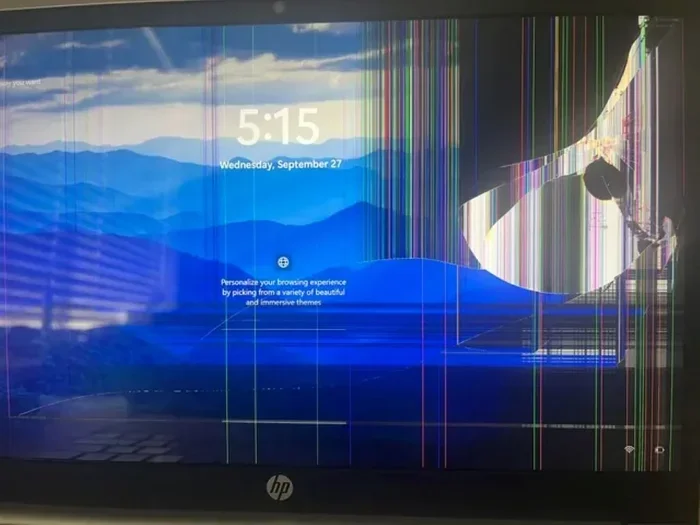
Laptop screens are delicate, and they do not handle pressure well. Pressing on the screen with your finger, closing the lid too hard, or bumping the laptop can all cause color distortion. The liquid crystal layer inside the display can shift or get damaged. This leads to dark spots, lines, or uneven coloring across the panel.
Even small amounts of pressure over time can cause problems. For example, placing heavy objects on top of a closed laptop can slowly damage the display. This is why it is important to keep your laptop in a padded bag and avoid putting anything heavy on it. If you own one of the best laptops with touch screens, you should be extra careful because touchscreen layers add another surface that can be affected by pressure and impact.
Overheating and Heat Damage
Heat is one of the biggest enemies of your laptop display. When your laptop overheats, the internal components expand. This can affect the LCD screen and cause discoloration. People who use their laptops on beds, couches, or pillows are at higher risk because the vents get blocked. The laptop overheating damages not just the screen but also other internal parts like the battery and motherboard.
Some users notice that their laptop display problems seem to get worse during heavy use. Gaming, video editing, and 3D rendering all push the laptop hard and generate a lot of heat. If your screen color changes after running demanding programs, overheating is probably the cause. Using a cooling pad and keeping your vents clean can help prevent this issue. Regular maintenance of your fans and heat sinks also reduces the risk of heat-related display issues.
Software and Display Settings Issues
Not all discoloration is physical. Sometimes the problem comes from your software settings. Wrong color calibration, incorrect brightness levels, or enabled night light features can make your screen look different than it should. Windows and macOS both have built-in features that adjust colors to reduce eye strain, but these can also cause unexpected tinting.
For example, the Night Light feature on Windows adds a warm yellow tone to the screen. This is great for late-night use, but if it stays on all the time, it can make everything look yellow. Similarly, some touchscreen laptop models have display settings that can accidentally get changed. Checking your display settings is always the first step when you notice color changes. A quick look at your settings can save you from unnecessary worry and expense.
Dead Pixels and Backlight Bleeding
Dead pixels are tiny spots on the screen that do not light up. They appear as small black, white, or colored dots. While a single dead pixel is not a big deal, clusters of them can create noticeable color distortion. Backlight bleeding is another common issue where light leaks from the edges of the screen. This creates uneven brightness and can make parts of the display look washed out.
Both dead pixels and backlight bleeding are manufacturing defects in many cases. However, they can also develop over time due to wear and pressure. If you see these issues, try gently massaging the area around the dead pixel. This sometimes works, but it is not a guaranteed fix. For persistent screen burn-in or bleeding, you may need professional laptop repair. Always handle your screen gently and avoid pressing on it to minimize the risk of these problems.
How to Fix Laptop Screen Discoloration
Now that you know the causes, let us look at how to fix laptop screen discoloration. The right fix depends on what is causing the problem. Some solutions are quick and easy, while others require more effort or money. Here are the most effective ways to restore your display.
Adjust Color Calibration Settings
The first thing you should try is adjusting your color calibration. Both Windows and macOS have built-in tools for this. On Windows, go to Settings, then Display, and look for Color Management. On macOS, go to System Preferences, then Displays, and use the Color tab. These tools let you adjust the color temperature and tint of your screen.
You can also use third-party calibration tools for more precise results. These tools help you match the colors on your screen to industry standards. This is especially useful for people who do photo editing or graphic design. A simple calibration can often fix mild screen yellowing and make your display look much better. It is a free and easy first step that everyone should try before exploring more expensive options.
Update Display Drivers
Outdated display drivers can cause all sorts of visual problems. Your graphics card driver controls how colors are rendered on your screen. If it is outdated, you might see incorrect colors, flickering, or color distortion. Updating your drivers is free and easy. Go to your laptop manufacturer’s website or use Windows Update to find the latest drivers for your model.
For users with a laptop with i7 processor and 16gb ram touchscreen, keeping drivers up to date is especially important. High-performance machines often have advanced display hardware that needs regular driver updates. A simple restart after updating can also help apply the changes properly. Make it a habit to check for driver updates once a month to keep your display running smoothly.
Clean Your Screen Properly
Dust, fingerprints, and grime can build up on your screen over time. This buildup can make colors look dull and faded. Many people do not realize that how they clean their screen matters a lot. Using the wrong materials can scratch the surface and make screen discoloration worse.
The best way to clean your laptop screen is to use a soft microfiber cloth. Never use paper towels or rough fabrics because they can scratch the coating. If you need to remove stubborn marks, lightly dampen the cloth with distilled water. Avoid using household cleaners or alcohol-based solutions because they can damage the anti-glare coating on your display.
Make it a habit to clean your screen once a week. This simple routine prevents buildup and keeps your colors looking vibrant. It is one of the easiest ways to maintain your laptop screen and extend its life. A clean screen also makes it easier to spot early signs of discoloration so you can act fast.
Replace the Screen
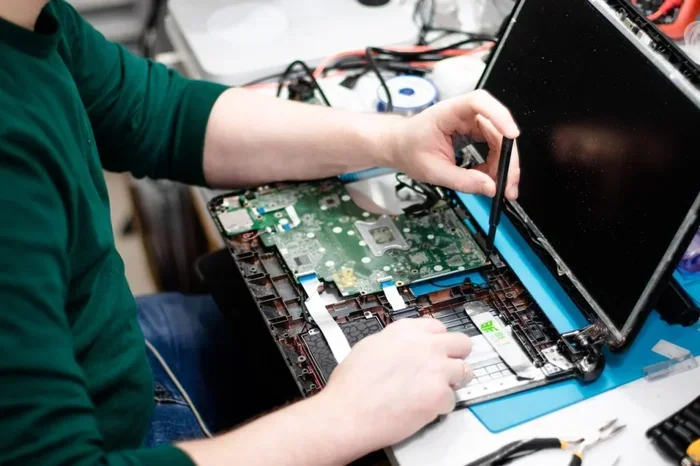
When the discoloration is caused by physical damage or severe backlight wear, software fixes will not help. In these cases, you need to replace the screen. The screen repair cost varies depending on your laptop model. For some budget laptops, a replacement panel costs between $50 and $150. For premium devices, the price can go up to $300 or more.
Replacing a laptop screen is not as hard as it sounds. Many people do it themselves with just a screwdriver and a YouTube tutorial. If you are not comfortable doing it yourself, a local repair shop can handle it for you. Before ordering a new screen, make sure to check the exact model number of your current display. This ensures you buy the right replacement panel and avoid wasting money.
How to Prevent Laptop Screen Discoloration
Prevention is always better than cure, and this is true for laptop screen discoloration too. A few simple habits can keep your display looking great for years. Here are the best ways to protect your screen from damage and fading.
Use a Screen Protector
A good screen protector adds a layer of defense against scratches, pressure, and dust. Screen protectors are inexpensive and easy to apply. They absorb the impact of small bumps and prevent direct contact with the screen surface. For touchscreen laptops, a matte screen protector can also reduce glare and make the display easier to read in bright light.
When choosing a screen protector, look for one that is designed for your specific laptop model. A perfect fit ensures full coverage and does not interfere with touch functionality. Replacing the protector every six to twelve months keeps it effective. This small investment can save you from costly laptop repair bills down the road.
Manage Heat and Ventilation
Keeping your laptop cool is one of the best things you can do for the display. Make sure the vents are not blocked when you are using the device. Avoid using your laptop on soft surfaces like beds or pillows because they trap heat. A cooling pad is a great investment if you use your laptop for long hours or run demanding applications.
You should also clean the internal fans and vents regularly. Dust buildup inside the laptop restricts airflow and causes overheating. If you are comfortable opening your laptop, you can clean the fans with compressed air. This simple maintenance step protects both your screen and your overall system performance. Good ventilation also helps your LED display last longer by reducing thermal stress on the panel.
Adjust Brightness and Use Dark Mode
Running your screen at maximum brightness all the time puts extra strain on the backlight. Over time, this accelerates wear and can lead to screen fading. Try to keep the brightness at a comfortable level that matches your environment. Most laptops have automatic brightness adjustment features that help with this.
Using dark mode or dark themes also reduces the workload on your display. This is especially helpful for LED display panels. Dark mode uses less power and generates less heat, which in turn helps your screen last longer. Many users report that their displays look better and last longer when they use dark mode regularly. It is a simple setting change that makes a real difference over time.
When Should You Replace Your Laptop Screen?
Knowing when to replace the screen is important. Sometimes repair is not worth the cost, and sometimes the damage is too severe for any other fix. Here are clear signs that it is time for a replacement.
- Severe yellowing or tinting that does not improve with calibration or settings changes.
- Large patches of discoloration that cover a significant portion of the screen.
- Backlight bleeding that is visible even in normal lighting conditions.
- Cracks or physical damage that affect the display quality.
- Multiple dead pixels that appear in clusters and do not go away.
- Flickering or dimming that happens consistently and gets worse over time.
If you notice any of these signs, it is probably time to invest in a new screen. The good news is that replacing a screen is often much cheaper than buying a whole new laptop. A fresh display can make even an older laptop feel like new again. Before you buy a replacement, check if your laptop is still under warranty. Many manufacturers cover display defects for one to three years.
If your laptop is still covered, you might get a free or discounted replacement. Contact the manufacturer’s support team and explain the issue. They can guide you through the warranty claim process. This can save you a significant amount of money and hassle. Do not overlook your warranty as a resource for laptop repair and display fixes.
In the end, dealing with laptop screen discoloration does not have to be stressful. With the right knowledge and a little patience, you can fix most issues and keep your display looking great. Whether it is a simple calibration tweak or a full screen replacement, the solution is almost always within reach. Take action early, and your screen will thank you for it.
Frequently Asked Questions
What are the first signs of laptop screen discoloration?
The earliest signs include a yellowish tint, faded colors, or uneven brightness across the screen. You might also notice white areas looking cream-colored or dark spots appearing in certain zones. Catching these signs early helps you address the problem before it gets worse.
Can laptop screen discoloration be fixed without replacing the screen?
Yes, in many cases. Software fixes like color calibration and driver updates can resolve mild discoloration caused by settings issues. Cleaning the screen properly and managing heat can also improve the appearance. However, physical damage or severe backlight wear usually requires a screen replacement.
How much does it cost to fix a discolored laptop screen?
The cost depends on your laptop model and the extent of the damage. Basic replacement panels range from $50 to $150 for budget laptops. Premium or touchscreen models can cost $200 to $400 or more. Always check your warranty first, as it may cover the repair at no cost.
Does using a touchscreen laptop increase the risk of screen discoloration?
Touchscreen laptops have an extra layer that can be vulnerable to pressure and scratches. However, discoloration is not more common in touchscreens if you handle them carefully. Using a screen protector and avoiding direct pressure on the display helps prevent issues in any laptop type.
Can overheating really damage a laptop screen?
Yes, prolonged overheating can cause discoloration and other display problems. Heat affects the liquid crystal layer and the backlight, leading to yellowing, fading, or uneven coloring. Keeping your laptop cool with proper ventilation and regular cleaning helps protect your screen from heat damage.
How can I prevent my laptop screen from discoloring over time?
Use a screen protector, clean your screen regularly with a microfiber cloth, and avoid using your laptop on surfaces that block ventilation. Adjust brightness to comfortable levels, use dark mode when possible, and keep your display drivers updated. These simple habits go a long way in preserving your screen quality.
=== CONCLUSION ===
Laptop screen discoloration is a common but manageable problem. Whether it is caused by aging backlights, physical damage, overheating, or software settings, there is almost always a solution. Start with simple fixes like calibration and cleaning before moving on to more involved solutions like screen replacement.
Taking preventive steps now can save you time and money in the future. A screen protector, good ventilation habits, and regular maintenance keep your display looking vibrant for years. Do not ignore early signs of screen discoloration because acting quickly can prevent more serious damage.
Your laptop screen works hard for you every day. Give it the care it deserves, and it will keep showing you beautiful, accurate colors for a long time to come.