What Is Sharepoint Forms Integration
SharePoint Forms Integration is a powerful way to connect digital forms with your SharePoint lists and workflows. It lets teams collect data, automate tasks, and streamline business processes without writing code. This guide covers everything from setup to real-world use cases so you can get started quickly.
If you have ever filled out a digital form at work, there is a good chance it was connected to SharePoint Forms Integration. This tool connects simple online forms with powerful data storage systems inside Microsoft SharePoint. The result? Teams spend less time on manual paperwork and more time on actual work.
Whether you are managing employee requests, collecting feedback, or tracking project updates, SharePoint Forms Integration makes the process smoother. You do not need to be a tech expert to set it up. In this guide, we will walk you through everything you need to know. Let us break it down piece by piece.
Key Takeaways
- Easy Data Collection: SharePoint Forms Integration lets you build and share forms that automatically save responses to SharePoint lists.
- No Coding Required: You can set up forms and workflows using built-in tools like Microsoft Forms and Power Automate.
- Works With Microsoft 365: The integration fits naturally into the Microsoft ecosystem, making it familiar for most users.
- Boosts Team Productivity: Automating form-based tasks saves time and reduces manual data entry errors.
- Flexible Use Cases: From employee onboarding to survey collection, SharePoint forms handle many business needs.
- Secure and Scalable: Data stays within your organization’s SharePoint environment with built-in permissions.
📑 Table of Contents
What Is SharePoint Forms Integration?
SharePoint Forms Integration is the process of linking digital forms to a SharePoint list or library. When someone fills out a form, the responses are stored directly in SharePoint. This means your data lives in one place, easy to find and manage.
Think of it like a digital filing cabinet. A form is the front door where people drop in information. SharePoint is the cabinet that holds everything neatly organized. The integration is the connection between the two.
Microsoft offers several tools that work with this setup. Microsoft Forms is the most common one. It lets you create surveys, quizzes, and data collection forms quickly. When you connect Microsoft Forms to SharePoint, every response flows straight into a list. From there, you can view, sort, and analyze the data.
Other tools like Power Apps and Power Automate also play a role. Power Apps lets you build custom forms with more features. Power Automate connects your forms to other apps and services. Together, these tools create a full form integration ecosystem.
If you are curious about how cloud-based platforms like this compare to other web tools, you might enjoy learning about What Is Webflow to see how different platforms approach web building and data handling.
Why Does It Matter?
Most businesses still rely on email, spreadsheets, or paper forms to collect information. These methods are slow and error-prone. SharePoint Forms Integration solves these problems by centralizing data collection. Everyone submits responses to the same place, and nothing gets lost.
Here is why it matters for everyday work:
- Single Source of Truth: All form data lives in one SharePoint list. No more scattered Excel files.
- Real-Time Updates: Responses appear instantly. Team members can see new submissions right away.
- Easy Collaboration: Multiple people can access and work with the data simultaneously.
- Built-In Security: SharePoint permissions control who can view or edit the data.
How SharePoint Forms Integration Works
The mechanics behind SharePoint Forms Integration are simpler than you might think. Let us walk through the basic setup step by step.
Step 1: Create a SharePoint List
Every form needs a place to store responses. A SharePoint list works perfectly for this. You can create a list directly from the SharePoint homepage. Choose a template or build a custom list with the columns you need.
For example, if you are collecting employee feedback, your list might have columns like Name, Department, Rating, and Comments. Each column corresponds to a question on your form.
Step 2: Build Your Form
Next, open Microsoft Forms and create a new form. Add your questions one by one. You can choose from multiple question types, including multiple choice, text, rating scales, and date pickers.
Once your form is ready, click the “Share” button and look for the option to connect it to your SharePoint list. This is where the form integration happens. Microsoft Forms will automatically map each question to the matching column in your list.
Step 3: Share the Form
After connecting the form to SharePoint, you can share it with your team. You get a link that you can send via email, Teams, or any other communication tool. Anyone with the link can fill out the form, and their responses flow directly into the SharePoint list.
Step 4: Automate Follow-Up Actions
This is where things get really powerful. Using Power Automate, you can set up triggers based on form responses. For example, when a new response is submitted, Power Automate can send a confirmation email, create a task in Planner, or update a dashboard.
Want to see how workflow automation fits into broader business processes? Check out our guide on What Is Project Management to understand how tools like SharePoint integrate with project workflows.
Key Features of SharePoint Forms Integration
SharePoint Forms Integration comes packed with features that make data collection and management easier. Here are the standout capabilities:
Seamless Microsoft 365 Connectivity
Since SharePoint is part of the Microsoft 365 suite, the integration works naturally with other Microsoft tools. Your forms connect to Outlook for notifications, Teams for sharing, and Excel for reporting. Everything lives inside the same ecosystem.
Customizable Form Templates
You are not stuck with basic forms. Microsoft Forms offers templates for common scenarios like event registration, feedback surveys, and request forms. You can also save your own templates for reuse across teams.
Conditional Logic
Conditional branching lets you show or hide questions based on previous answers. For example, if someone selects “Yes” to a question, a follow-up question appears. This keeps forms short and relevant for each respondent.
Response Analytics
Microsoft Forms includes built-in charts and graphs for viewing response data. You can see trends and patterns without leaving the app. For deeper analysis, you can export the data to Excel or connect it to Power BI.
Mobile-Friendly Design
Forms created with Microsoft Forms are responsive. They look good and work well on phones and tablets. This is especially useful for teams that collect data in the field.
Common Use Cases
SharePoint Forms Integration is versatile. Teams across different departments find creative ways to use it. Here are some of the most common scenarios:
Employee Onboarding
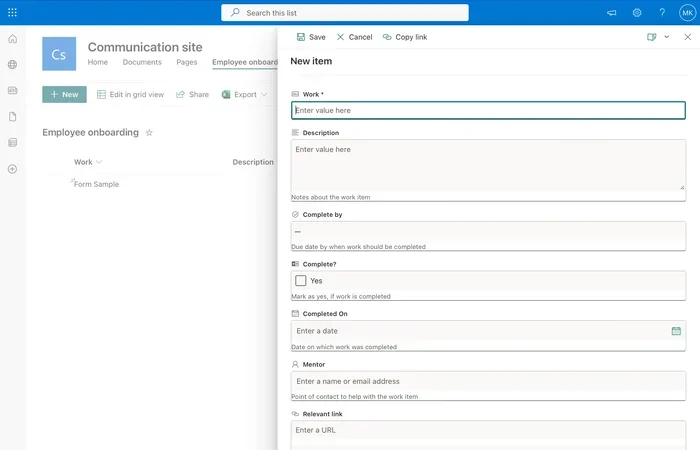
HR teams can create an onboarding form that collects new hire information. The form connects to a SharePoint list where managers can review and approve details. Power Automate can then trigger welcome emails and equipment request workflows.
Event Registration
Planning a company event? Create a registration form that captures attendee names, dietary preferences, and session choices. All responses go into a SharePoint list that you can use to generate headcounts and seating charts.
Feedback and Surveys
Collecting feedback from customers or employees is a breeze. Create a survey form, share the link, and watch responses populate your SharePoint list. Use the built-in analytics to spot trends quickly.
Request and Approval Workflows
Need a way to handle purchase requests or leave approvals? Build a form that submits requests to a SharePoint list. Set up Power Automate to route each request to the right approver and track the status automatically.
For more on how these digital tools fit into broader enterprise systems, you might want to explore what a What Is A Saas Environment looks like, since SharePoint operates within that cloud-based model.
Benefits of Using SharePoint Forms Integration
Switching to SharePoint Forms Integration offers real advantages for teams and organizations. Let us look at the biggest benefits:
| Benefit | Description |
|---|---|
| Time Savings | Automates data collection and reduces manual entry. |
| Accuracy | Responses go directly into SharePoint, reducing errors from copy-paste. |
| Accessibility | Forms can be filled out from any device with a browser. |
| Centralized Data | All responses live in one SharePoint list, easy to manage. |
| Scalability | Works for small teams and large enterprises alike. |
| Cost Efficiency | Uses tools already included in Microsoft 365 subscriptions. |
Each of these benefits adds up. Over time, teams that adopt form integration see noticeable improvements in how they handle data. Tasks that used to take hours can now be completed in minutes.
Common Mistakes to Avoid
Even though SharePoint Forms Integration is user-friendly, some pitfalls can cause problems. Here are mistakes to watch out for:
- Skipping List Design: Do not build a form before planning your SharePoint list. Design the list first, then build the form to match.
- Ignoring Permissions: Make sure you set the right permissions on your SharePoint list. Not everyone needs edit access.
- Overcomplicating Forms: Keep forms short and focused. Long forms lead to incomplete responses.
- Forgetting to Test: Always test your form before sharing it. Check that responses flow correctly into the SharePoint list.
- Not Using Power Automate: If you skip automation, you are missing out on the biggest benefit of integration.
Avoiding these mistakes will save you time and frustration. A little planning goes a long way.
Quick Tips for Getting Started
Ready to try SharePoint Forms Integration? Here are some quick tips to help you succeed:
- Start Small: Pick one simple use case, like a team feedback form. Get comfortable before tackling more complex workflows.
- Use Templates: Microsoft Forms offers pre-built templates. They save time and give you a great starting point.
- Name Your Columns Clearly: Use descriptive column names in your SharePoint list. This makes the data easier to understand later.
- Share the Form Link in Teams: If your team uses Microsoft Teams, post the form link in a relevant channel for easy access.
- Review Responses Weekly: Build a habit of checking your SharePoint list regularly. This keeps your data fresh and actionable.
- Explore Power Automate Templates: Microsoft provides ready-made automation templates. They can jump-start your workflow setup.
Final Thoughts
SharePoint Forms Integration is one of the most practical tools available for teams that want to modernize their data collection. It is simple to set up, powerful in capability, and included in most Microsoft 365 plans. Whether you are handling HR tasks, gathering feedback, or managing approvals, this integration delivers real value.
The best part? You do not need to be a developer to make it work. With basic SharePoint knowledge and a willingness to explore, anyone can build effective forms and workflows. Start with a small project, learn as you go, and watch your team’s productivity grow.
SharePoint Forms Integration is not just a technical feature. It is a way to work smarter, not harder. Give it a try, and you will wonder how you ever managed without it.
Frequently Asked Questions
What tools are needed for SharePoint Forms Integration?
You need a Microsoft 365 subscription, SharePoint Online, and Microsoft Forms. Power Automate is optional but highly recommended for automation. All these tools work together seamlessly within the Microsoft ecosystem.
Can I use SharePoint Forms Integration with custom forms?
Yes. While Microsoft Forms is the most common tool, you can also use Power Apps to build custom forms with advanced features. These custom forms connect to SharePoint lists just like standard Microsoft Forms.
Is SharePoint Forms Integration secure?
Absolutely. Data stays within your organization’s SharePoint environment. You can set permissions to control who can view, edit, or submit responses. Microsoft also handles security updates and compliance standards.
Can I integrate SharePoint forms with other apps outside Microsoft 365?
Yes. Power Automate supports connections to hundreds of third-party apps. You can send form data to Salesforce, Google Sheets, Slack, and many other services. This makes form integration flexible beyond the Microsoft ecosystem.
How many responses can a SharePoint form handle?
There is no hard limit. SharePoint lists can handle large volumes of data. However, for best performance, keep your lists well-organized and consider archiving old data periodically.
Do I need coding skills to set up SharePoint Forms Integration?
No. The basic setup requires no coding at all. Microsoft Forms and SharePoint lists are designed for non-technical users. Power Automate also offers a visual drag-and-drop interface for building workflows.