Green Dots on Laptop Screen
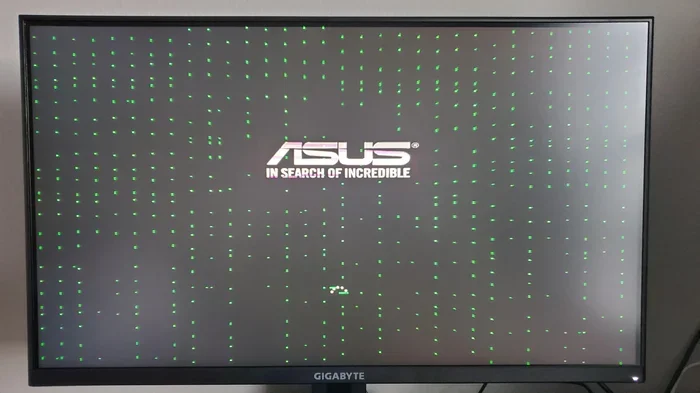
Green dots on a laptop screen can be annoying, but they are usually fixable with simple steps. This guide covers the main causes, from stuck pixels to pressure damage, and gives you clear solutions to restore your display. Whether you handle it yourself or visit a pro, you will know exactly what to do.
Have you ever looked at your laptop screen and noticed a tiny green dot staring back at you? That little green spot can be incredibly distracting, especially when you are working on something important. Green dots on laptop screen issues are more common than most people think, and they can appear for a variety of reasons.
The good news is that you do not need to panic. In most cases, these green dots are harmless and can be fixed with simple methods. This guide walks you through everything you need to know about green dots on laptop screen problems, from causes to fixes and prevention. Let us get started.
Key Takeaways
- Green dots often result from stuck pixels, pressure damage, or loose connections that disrupt normal screen display.
- Simple fixes like pixel massage and screen massage techniques can resolve minor green dot issues without spending money.
- Updating your graphics drivers and adjusting display settings sometimes eliminates green spots caused by software glitches.
- Professional repair or screen replacement becomes necessary when green dots spread or worsen over time.
- Regular care and proper handling of your laptop can prevent green dots from appearing on your screen in the first place.
- Checking your warranty coverage before paying for repairs can save you significant money on display fixes.
📑 Table of Contents
What Are Green Dots on a Laptop Screen?
A green dot on your laptop screen is simply a pixel that is stuck displaying the green color. Your laptop screen is made up of millions of tiny pixels, and each pixel contains red, green, and blue sub-pixels. When one of these sub-pixels gets stuck in the “on” position, it creates a bright green spot that disrupts the image on your display.
These green dots are different from dead pixels, which remain black, and bright pixels, which stay white. A stuck green pixel only shows green, and it tends to be very noticeable against dark or neutral backgrounds. You might first notice it when you open a blank document or browse a white webpage.
Stuck pixels are a common laptop screen issue that affects displays of all brands and sizes. They can appear on older laptops and brand-new machines alike. Understanding what causes them is the first step toward fixing the green dots on laptop screen problem.
Are Green Dots the Same as Dead Pixels?
Many people confuse green dots with dead pixels, but they are not the same thing. A dead pixel is completely black because the sub-pixel is permanently off. A stuck green pixel, on the other hand, is constantly lit in green. In some cases, a stuck pixel can be revived, while a dead pixel is usually permanent.
There is also a third type called a bright pixel, which stays white or very bright. Each type requires a different approach to fix. Green dots fall into the stuck pixel category, which gives you the best chance of recovery. Knowing the difference helps you choose the right fix.
Common Causes of Green Dots on Your Screen
Several factors can lead to green dots appearing on your laptop display. Knowing the cause helps you choose the right fix. Here are the most common reasons this laptop screen issue happens.
Pressure Damage to the Screen
One of the leading causes of green dots is pressure on the screen. If you press too hard on your laptop display, or if something heavy presses against it, the delicate layers inside the screen can shift. This misalignment can cause individual pixels to malfunction and display the wrong color.
This often happens when you close your laptop with a pen, earphones, or a small object sitting on the keyboard. The pressure transfers directly to the screen and can damage specific pixels. Always make sure your laptop is completely clear before closing the lid to avoid this LCD display problem.
Loose or Damaged Connections
Your laptop screen connects to the motherboard through a thin cable called the display ribbon cable. Over time, this connection can become loose, especially if you frequently open and close your laptop. A loose connection can cause random pixels to display incorrect colors, including green.
In some cases, the cable itself gets damaged from wear and tear. If you notice green dots appearing after dropping your laptop or opening and closing it roughly, a connection issue might be the culprit. This type of display anomaly is common in older laptops that have been opened thousands of times.
Software and Driver Issues
Not all green dots are hardware-related. Sometimes, outdated or corrupted graphics drivers can cause display problems, including green spots on your screen. Your graphics card sends visual data to your display, and if the driver is not working correctly, pixels can malfunction.
Software glitches can also cause temporary green dots. A buggy Windows update or a conflict between applications might trigger a green spot that disappears after a restart. Always rule out software issues before assuming the worst about your screen.
Manufacturing Defects
Sometimes green dots are simply a manufacturing defect. Even with strict quality control, a small number of pixels can be defective right out of the box. If you notice a green dot within the first few weeks of buying your laptop, it is likely a factory defect covered by your laptop warranty claim. Always check your warranty before assuming the problem is your fault.
How to Fix Green Dots on Your Laptop Screen
Now that you know what causes green dots, let us look at how to fix them. Try these solutions in order, starting with the simplest methods. Each approach targets a different possible cause.
| Method | Difficulty | Cost | Best For |
|---|---|---|---|
| Restart Laptop | Easy | Free | Software glitches |
| Update Graphics Drivers | Easy | Free | Driver conflicts |
| Pixel Massage | Medium | Free | Stuck pixels |
| Pixel Fixer Tool | Easy | Free | New stuck pixels |
| Reseat Display Cable | Hard | Free | Loose connections |
| Professional Repair | Varies | $50-$300+ | Hardware damage |
Method 1: Restart Your Laptop
Before trying anything complicated, start with the basics. A simple restart can clear temporary software glitches that cause green dots. Save your work, shut down your laptop completely, wait a few seconds, and turn it back on. Check if the green dot is still there after the reboot.
Method 2: Update Your Graphics Drivers
Outdated drivers are a common cause of display problems. Visit your laptop manufacturer’s website or use Windows Update to download the latest graphics drivers. After installing, restart your laptop and check your screen. This simple step fixes green dots on laptop screen issues caused by driver conflicts more often than you might expect.
Method 3: The Pixel Massage Technique
This method might sound strange, but it works for many people. Turn off your laptop and gently massage the area around the green dot with a soft microfiber cloth. Use very light pressure and make small circular motions. The idea is to stimulate the stuck pixel and encourage it to reset.
Do not press too hard. You do not want to cause more damage. Just apply gentle, steady pressure for about 30 seconds. Turn your laptop back on and check the result. Some people also use a soft eraser to lightly tap around the stuck pixel.
Method 4: Use a Pixel Fixer Tool
Several free software tools can help fix stuck pixels. These tools rapidly flash colors on your screen to stimulate the malfunctioning pixel. Popular options include JScreenFix and UDPixel. Simply download the tool, run it, and let it work for 10 to 20 minutes.
These tools are safe and will not harm your display. They work best on newer stuck pixels that have not been stuck for a long time. Many users report success with this approach for resolving green dots on laptop screen issues caused by pixel fatigue.
Method 5: Check Your Screen Connection
If the green dot persists, the display ribbon cable might need reseating. This method requires opening your laptop, so it is best for users who feel comfortable working with internal components. Disconnect your laptop from power, remove the battery if possible, and carefully open the back panel.
Locate the display cable and gently disconnect and reconnect it. This often fixes green dots caused by loose connections. If you are not confident doing this yourself, skip to the professional repair section below.
Quick Tips for Fixing Green Dots
- Never press directly on the green dot. Use circular motions around it instead.
- Always use a soft cloth. Avoid rough materials that can scratch your screen.
- Try multiple methods. One fix might not work, but combining approaches often does.
- Be patient. Some stuck pixels take several attempts to resolve.
When to Seek Professional Repair
Not every green dot can be fixed at home. Knowing when to seek professional help saves you time and prevents further damage to your display.
Signs You Need Professional Help
You should consider professional repair if the green dot spreads across your screen. A single stuck pixel is usually harmless, but multiple green dots or a growing green area could signal a serious LCD display problem. Other warning signs include flickering, color distortion, or lines appearing alongside the green dot.
If your laptop is still under warranty, contact the manufacturer first. Many brands cover display defects, and you might get a free repair or replacement. Avoid opening your laptop yourself if it is still under warranty, as this can void your coverage and turn a simple fix into an expensive problem.
Cost of Screen Repair
Professional screen repair costs vary depending on your laptop model and the extent of the damage. A simple stuck pixel fix might cost little to nothing if covered by warranty. Full screen replacement can range from $100 to $300 or more for high-end models.
Before committing to a repair, get a quote from a trusted technician. Compare the cost against the price of a new laptop. Sometimes replacing the entire machine makes more financial sense, especially if your laptop is older and you are also considering upgrades. If you are already thinking about improving performance, check whether your model supports a RAM upgrade. Many laptops allow you to upgrade your RAM easily, which can breathe new life into an older machine while you address the screen issue.
How to Prevent Green Dots on Your Laptop Screen
Prevention is always better than cure. Follow these simple habits to keep your laptop screen free from green dots and other display issues.
- Never place objects on your keyboard before closing the lid. Even small items like pens or earbuds can press on the screen and cause pixel damage.
- Close your laptop gently. Avoid slamming the lid shut. Slow and steady pressure protects the display layers inside your machine.
- Use a padded laptop sleeve when carrying your computer. This absorbs shocks and prevents pressure damage during transport.
- Keep your graphics drivers updated. Regular updates prevent software-related display glitches that can lead to stuck pixels over time.
- Avoid extreme temperatures. Heat and cold can damage the delicate components inside your laptop screen. Use your laptop in a temperature-controlled environment whenever possible.
- Clean your screen regularly with a microfiber cloth. Dust buildup can create pressure points over time if left unaddressed.
Taking these small precautions can save you from the frustration of dealing with green dots on laptop screen problems. A little care goes a long way toward keeping your display looking pristine for years.
Should You Replace Your Laptop or Repair It?
This is a tough question, and the answer depends on several factors. If your laptop is relatively new and the green dot is the only issue, repair is usually the better choice. A screen replacement or even a simple pixel fix can restore your display to normal without breaking the bank.
However, if your laptop is several years old and you are already experiencing slow performance, a screen repair might not be worth the investment. In such cases, you might want to explore upgrading to a new machine. Many modern laptops come with excellent displays that are less prone to stuck pixels and other defects.
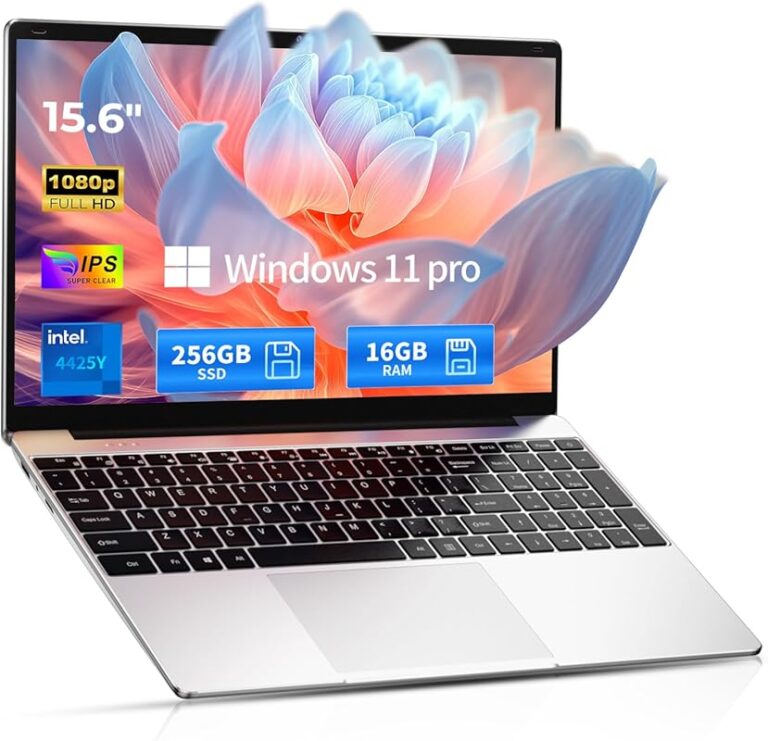
If you are in the market for a new laptop, consider models with strong performance specs and good warranty coverage. A 16GB RAM touch screen laptop offers a great balance of display quality, performance, and multitasking ability. These machines are designed for productivity and entertainment, and they often come with better warranty coverage for display issues.
Before making a decision, assess your needs. If you mainly use your laptop for browsing, office work, and media consumption, even a mid-range model will serve you well. The key is to choose a machine that fits your budget and workflow.
Ultimately, green dots on laptop screen problems do not have to be a permanent headache. With the right knowledge and a little patience, you can fix the issue or make an informed decision about your next steps. Your laptop screen works hard for you every day, and it deserves proper care and attention.
Conclusion
Green dots on laptop screen issues are frustrating but usually manageable. You now know the main causes, from stuck pixels and pressure damage to software glitches and loose connections. You also have a clear set of fixes to try, ranging from simple restarts to professional repair options.
Start with the easiest methods and work your way up. Most green dots respond well to pixel massage tools or driver updates. If the problem persists or spreads, do not hesitate to seek professional help or check your warranty coverage. And remember, prevention through careful handling is your best long-term strategy.
Your laptop screen is one of the most important parts of your daily workflow. Taking action quickly when you notice green dots can save you time, money, and a lot of frustration in the long run.
Frequently Asked Questions
Can green dots on a laptop screen spread over time?
In most cases, a single stuck green pixel stays in one place and does not spread. However, if the underlying cause is a hardware defect or pressure damage, additional dots may appear over time. If you notice more green dots forming, it is best to address the issue quickly before it worsens.
Is it safe to use a laptop with green dots on the screen?
Yes, a green dot is generally harmless and does not affect your laptop’s performance or safety. The issue is purely cosmetic and relates to a single pixel malfunction. You can continue using your laptop normally while working on fixing the stuck pixel.
Can software updates fix green dots on a laptop screen?
Software updates can sometimes fix green dots if the cause is a driver conflict or display glitch. Updating your graphics drivers through Windows Update or your manufacturer’s website is a good first step. However, if the green dot is caused by physical damage, software updates will not resolve it.
How much does it cost to fix a green dot on a laptop screen?
The cost depends on the cause and your warranty coverage. If it is a simple stuck pixel, DIY fixes like pixel massage tools cost nothing. Professional repair for a single stuck pixel might be free under warranty. Full screen replacement can range from $100 to $300 or more for premium laptops.
Do green dots mean my laptop screen is dying?
A single green dot does not mean your screen is dying. Stuck pixels are a common and usually minor issue. However, if multiple green dots appear or the dot grows larger, it could indicate a more serious display problem. Watch for additional symptoms like flickering or color distortion.
Can a green dot disappear on its own?
Yes, some stuck green pixels resolve on their own after a few days. Restarting your laptop, updating drivers, or simply giving the screen some rest can sometimes fix the issue. If the dot persists for more than a week, try the pixel massage technique or a pixel fixer tool for a more targeted approach.