What Is Windows Location History
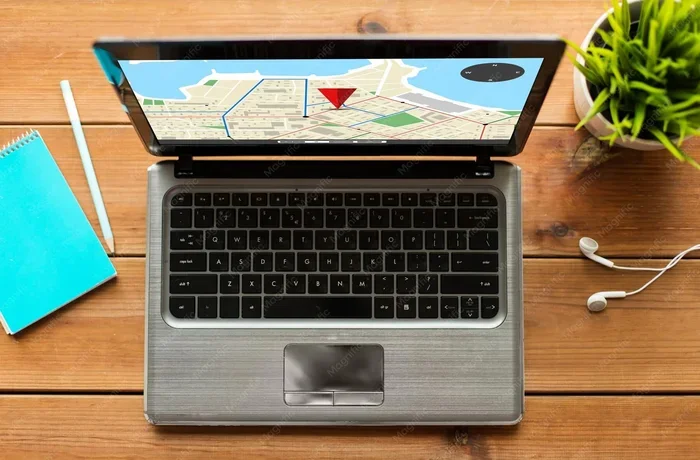
Windows Location History is a feature that saves the places you go on your device, helping apps and services offer location-based recommendations. It can be useful for navigation and reminders but raises privacy concerns for many users. You can view, manage, and delete your location history through simple settings in Windows 10 or 11.
This is a comprehensive guide about What Is Windows Location History.
Key Takeaways
- What It Is: Windows Location History tracks and stores the places you visit on your device.
- How It Works: It uses GPS, Wi-Fi, and IP data to build a timeline of your locations.
- Privacy Impact: Stored data can be accessed by apps and potentially shared with Microsoft.
- Easy to Control: You can turn it off, clear it, or manage permissions in just a few clicks.
- Why It Matters: Understanding this feature helps you stay in control of your personal data.
[FEATURED_IMAGE_PLACEHOLDER]
What Is Windows Location History?
Windows Location History is a built-in feature in Windows 10 and Windows 11 that keeps a record of the places you go. Your laptop or PC uses GPS, Wi-Fi networks, and IP addresses to figure out where you are. Then it saves that information over time. This creates a timeline of your movements.
The feature is designed to help apps give you better suggestions. For example, your weather app might show you the forecast for your current area. Or your maps app might remember places you visit often. But behind the scenes, your device is quietly logging a lot of data about your daily routine.
Many people don’t realize this feature is turned on by default. It works silently in the background. That’s why it’s important to understand what Windows Location History does and how it affects your privacy. Once you know how it works, you can decide if you want to keep it or turn it off.
Managing your location data is part of good digital hygiene. Just like you clean up files or clear your browser history, you should also know how to handle your location history. Let’s break down exactly how this feature works and what you can do about it.
How Does Windows Location History Work?
Your laptop or PC uses several methods to determine your location. These methods work together to build a detailed picture of where you go throughout the day.
GPS and Wi-Fi Tracking
If your device has a GPS chip, it uses satellite signals to pinpoint your exact location. Most modern laptops don’t have built-in GPS. Instead, they rely on Wi-Fi networks and IP addresses to estimate where you are. This method is less precise than GPS but still quite accurate in most cases.
When you connect to a Wi-Fi network, your device notes the network’s location. Over time, Windows builds a database of these locations. This is how your PC can tell you’re at home, at a coffee shop, or at the office.
The Timeline Feature
Windows stores your location data in a timeline. You can view this timeline in the Settings app. It shows a map with pins marking the places you’ve been. Each pin includes the date and time you were there. Some users find this helpful for remembering where they went. Others find it a bit creepy.
The timeline is tied to your Microsoft account. This means your location history syncs across devices if you use the same account. So your phone, tablet, and laptop might all share location data with each other.
Which Apps Use Location Data?
Many apps on your Windows device can request access to your location. Maps, weather, and navigation apps are the most common users. But other apps might also ask for location access. Some use it to show you local news or nearby restaurants. Others might use it for targeted advertising.
You can check which apps have permission to use your location in the Settings app. It’s a good idea to review this list regularly. Remove permissions for apps you don’t trust or don’t use often.
Why Does Windows Location History Matter for Privacy?
Your location data is personal. It reveals where you live, work, shop, and spend your free time. When this data is stored, it creates a detailed profile of your daily habits. This is why Windows Location History matters so much for your privacy.
Microsoft states that it uses location data to improve its services. But the company also shares some data with partners. This means your location history could be used for targeted ads or shared with third-party apps. For many users, this is a real concern.
There’s also the risk of data breaches. If someone gains unauthorized access to your Microsoft account, they could see your location history. This could reveal sensitive information about your routines and habits. That’s why it’s so important to take control of your location data.
Good news is, you have full control. You can turn off location tracking, delete past data, and limit which apps can see where you are. It just takes a few minutes to set up.
How to Check Your Windows Location History
Before you make any changes, it’s helpful to see what data Windows has already collected. Checking your location history is simple and takes just a few steps.
- Open the Settings app on your laptop or PC.
- Click on Privacy & Security.
- Select Location from the left sidebar.
- Scroll down to the Location History section.
- Click on the link to view your location data on your Microsoft account dashboard.
Once you’re on the dashboard, you’ll see a map with your location history. You can zoom in and out to see different time periods. Each entry shows the date, time, and approximate location. It’s a good way to see just how much data Windows has been collecting about you.
If you’re surprised by what you see, you’re not alone. Many users don’t realize how detailed their location history is. But seeing it firsthand can help you make informed decisions about your privacy settings.
How to Turn Off Windows Location History
Turning off Windows Location History is straightforward. Here’s how to do it step by step:
- Open the Settings app.
- Go to Privacy & Security.
- Click on Location.
- Toggle off the option for Location History.
- You can also toggle off Location Services entirely to stop all apps from accessing your location.
Once you turn it off, Windows stops saving new location data. But your past data stays saved until you delete it manually. So be sure to clear your old history if you want a clean slate.
If you use a laptop, you might also want to check your browser settings. Some browsers track your location too. Turning off browser location tracking adds another layer of privacy protection. For more on keeping your laptop running smoothly, check out what is best investment for lifespan of PC to ensure your hardware supports your privacy needs.
How to Delete Your Windows Location History
Deleting your location history removes all past records from your Microsoft account. Here’s how to do it:
- Go to your Microsoft account dashboard in a web browser.
- Navigate to the Privacy dashboard.
- Find the Location activity section.
- Click on Clear all location activity.
- Confirm your choice.
After you delete your history, Windows won’t bring back old data. But it will start a fresh timeline if you turn location tracking back on. So make sure you really want to disable it before deleting everything.
It’s a good habit to clear your location history regularly. Just like clearing your browser cache, this helps protect your privacy. It also keeps your Microsoft account lean and organized.
Should You Keep or Disable Windows Location History?
Whether you keep or disable Windows Location History depends on your needs and comfort level. Here are some factors to consider:
Reasons to Keep It
- You use maps or navigation apps often and want accurate suggestions.
- You like getting location-based reminders and alerts.
- You want your weather app to show the right forecast automatically.
- You don’t mind sharing your data with Microsoft and its partners.
Reasons to Turn It Off
- You value your privacy and don’t want your movements tracked.
- You don’t use location-based apps frequently.
- You’re concerned about data breaches or third-party access.
- You want to reduce the amount of personal data stored online.
Most experts recommend turning off location history if you don’t actively need it. The privacy benefits outweigh the convenience for most users. But the choice is ultimately yours.
If you’re also thinking about upgrading your laptop’s memory to improve performance, check out what is good ram for laptop for helpful guidance. And if you’re curious about how your device’s temperature affects performance, learn about what is a good idle gpu temperature to keep your system running smoothly.
Common Mistakes People Make with Location Settings
Many users make avoidable mistakes when it comes to location privacy. Here are some common ones to watch out for:
- Ignoring default settings: Windows turns on location history by default. Always review your settings after setting up a new device.
- Not checking app permissions: Apps can request location access without you noticing. Review permissions regularly.
- Forgetting to delete old data: Even after turning off tracking, old data remains. Always clear past history.
- Using public Wi-Fi without protection: Public networks can expose your location data. Use a VPN when on public Wi-Fi.
- Not linking privacy settings across devices: If you use multiple devices, make sure all of them have consistent privacy settings.
Avoiding these mistakes helps you stay in control of your location data. It takes just a few minutes to review and update your settings. But it makes a big difference for your privacy.
Expert Tips for Managing Location Privacy
Privacy experts recommend a proactive approach to managing your location data. Here are some tips that really work:
- Set a monthly reminder to review your location settings.
- Use a VPN to mask your IP address when browsing.
- Turn off location services when you don’t need them.
- Use Windows Defender and other security tools to protect your account.
- Read app permissions carefully before granting access.
- Consider using a local account instead of a Microsoft account for better privacy control.
These small steps add up over time. They help you enjoy the benefits of Windows without sacrificing your privacy. And they give you peace of mind knowing your location history is under your control.
Conclusion
Windows Location History is a powerful feature that can be helpful or harmful depending on how you use it. It offers convenience and personalized experiences. But it also collects a lot of personal data that could put your privacy at risk. The good news is that you have full control. You can turn it off, delete your history, and manage app permissions anytime. Take a few minutes today to review your location settings. Your future self will thank you for it.
FAQs
What is Windows Location History used for?
Windows Location History helps apps provide location-based services like maps, weather updates, and local recommendations. It creates a timeline of where you’ve been using GPS, Wi-Fi, and IP data.
Can I see my full location history on Windows?
Yes, you can view your complete location history through the Microsoft account privacy dashboard. It shows a map with timestamps for each location visit.
Is Windows Location History turned on by default?
Yes, location tracking is enabled by default on most Windows devices. You need to manually turn it off if you don’t want your data collected.
Does turning off location history delete old data?
No, turning it off only stops new data from being saved. You need to manually delete old location history through your Microsoft account settings.
Can apps still track me if I turn off location history?
Some apps may still access your location if you’ve granted them permission. Go to Settings > Privacy & Security > Location to review and revoke app permissions.
Is it safe to use location services on a laptop?
It’s generally safe if you manage your permissions carefully and keep your system updated. Using a VPN and reviewing your privacy settings regularly adds extra protection.
Frequently Asked Questions
What is What Is Windows Location History?
What Is Windows Location History is an important topic with many practical applications.