Toshiba Laptop Touchpad Not Working
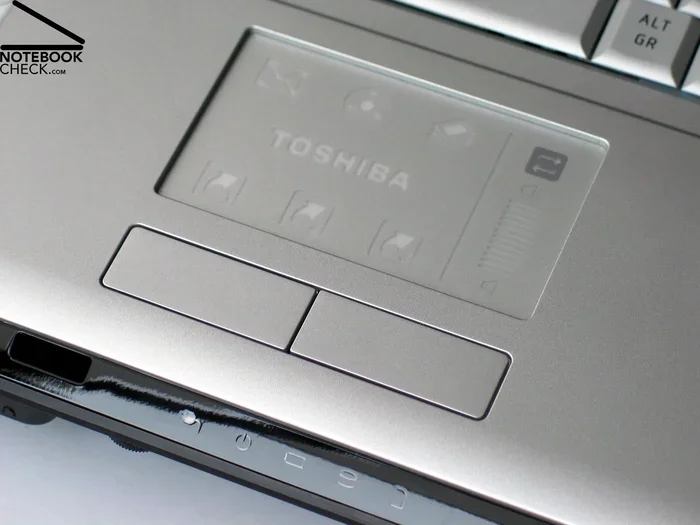
When your Toshiba laptop touchpad stops working, it can bring your productivity to a sudden halt. Fortunately, the issue is often caused by a simple software glitch or disabled setting that you can fix in minutes. This guide provides clear, step-by-step solutions to restore your Toshiba touchpad functionality and get you back on track.
Toshiba Laptop Touchpad Not Working can turn a simple computing task into a frustrating experience. You sit down to get work done, and suddenly your cursor won’t move or respond to your taps. This guide walks you through every fix that actually works. We cover driver issues, Windows settings, hardware checks, and quick tricks you can try right now.
Whether you own a Toshiba Satellite, Toshiba Tecra, or any other Toshiba model, the solutions here apply to most setups. The Toshiba Laptop Touchpad Not Working problem is more common than you think. It affects older models and newer ones alike. The good news? Most fixes take just a few minutes.
By the end of this article, you will know exactly what to do. You will understand why the touchpad stops working in the first place. You will have a clear list of steps to follow. And you will feel confident that your Toshiba laptop touchpad is back up and running. Let us get started.
Key Takeaways
- Restart your Toshiba laptop first. This often fixes temporary software glitches causing the touchpad to stop responding.
- Update your touchpad drivers regularly. Outdated drivers are a common cause of unresponsive Toshiba touchpad issues.
- Check for physical damage or debris. Clean the touchpad gently and inspect for cracks or liquid damage.
- Disable external USB mice temporarily. Windows may automatically disable the internal touchpad when an external mouse is detected.
- Run the Windows Hardware Troubleshooter. This built-in tool can detect and fix touchpad configuration problems automatically.
- Perform a system restore if needed. Reverting to a previous restore point can undo recent changes that broke the touchpad.
📑 Table of Contents
- Why Your Toshiba Laptop Touchpad Might Stop Working
- Quick Fixes You Can Try Right Now
- Updating or Reinstalling Touchpad Drivers
- Checking Windows Settings That Affect the Touchpad
- Hardware Issues and When to Seek Help
- Preventing Touchpad Problems in the Future
- Quick Reference Table: Common Fixes for Toshiba Touchpad Issues
- Final Thoughts on Fixing Your Toshiba Laptop Touchpad
Why Your Toshiba Laptop Touchpad Might Stop Working
Understanding the root cause makes fixing the problem much easier. Several things can cause your Toshiba Laptop Touchpad Not Working issue. Let us look at the most common reasons.
Driver Problems
The touchpad needs a driver to talk to your operating system. If that driver gets corrupted or outdated, the touchpad simply stops responding. This is the number one cause of touchpad failures on Toshiba machines. Windows updates sometimes overwrite or break existing drivers too.
Windows Settings Changes
A simple setting change can disable your touchpad without you noticing. Windows 10 and Windows 11 both have built-in options to turn off the touchpad. You might have accidentally pressed a function key that toggled it off. Or a recent update reset your preferences.
Hardware Damage
Spills, drops, and wear and tear can damage the touchpad hardware. If the ribbon cable inside the laptop gets loose, the touchpad will not work at all. This type of issue needs physical inspection and sometimes a replacement part.
Software Conflicts
New software or antivirus programs can conflict with touchpad drivers. Sometimes a background app blocks the touchpad from functioning. These conflicts are tricky but easy to resolve once you know what to look for.
Quick Fixes You Can Try Right Now
Before diving into complex solutions, try these quick fixes. Many users solve the Toshiba Laptop Touchpad Not Working problem with one of these simple steps.
- Restart your laptop. A simple reboot clears temporary glitches. Hold the power button and restart. Check if the touchpad works after the boot.
- Check the touchpad toggle. Many Toshiba laptops use a function key combo to enable or disable the touchpad. Press Fn + F5 or Fn + F9 (varies by model) to toggle it back on.
- Plug in a USB mouse. If the touchpad is completely unresponsive, use an external mouse to navigate. This lets you continue working while you troubleshoot.
- Clean the touchpad surface. Dirt and moisture can interfere with touch sensitivity. Wipe the touchpad gently with a dry microfiber cloth.
These steps take less than five minutes combined. If none of them work, move on to the next section where we dig deeper into driver solutions.
Updating or Reinstalling Touchpad Drivers
Driver issues are the most common culprit behind a Toshiba Laptop Touchpad Not Working situation. Updating or reinstalling the driver often fixes the problem completely.
How to Update the Touchpad Driver
Follow these steps to update your touchpad driver through Device Manager:
- Right-click the Start button and select Device Manager.
- Expand the Mice and other pointing devices section.
- Right-click your touchpad device (it may say Synaptics, ELAN, or Toshiba).
- Select Update driver and choose Search automatically for drivers.
- Follow the on-screen prompts to complete the update.
- Restart your laptop and test the touchpad.
How to Reinstall the Touchpad Driver
If updating does not help, try a clean reinstall:
- Open Device Manager again.
- Right-click the touchpad device and select Uninstall device.
- Check the box that says Delete the driver software for this device.
- Click Uninstall and restart your laptop.
- Windows will automatically reinstall the driver on boot.
You can also visit the Toshiba support website and download the latest touchpad driver for your specific model. This ensures you get the correct version. If you are dealing with a similar issue on other brands, you can check our guide on touchpad mouse not working on laptop for additional tips.
When to Use a Third-Party Driver Tool
If you are not comfortable manually updating drivers, a trusted third-party tool can help. These tools scan your system and find the right drivers automatically. Just make sure to download from a reputable source. Always create a restore point before making driver changes.
Checking Windows Settings That Affect the Touchpad
Windows settings can silently disable your touchpad. Checking these settings is a crucial step when your Toshiba Laptop Touchpad Not Working problem persists.
Touchpad Settings in Windows 10
Open Settings and go to Devices > Touchpad. Make sure the touchpad toggle is set to On. You can also adjust sensitivity levels here. If the touchpad is set to “Leave touchpad on when a mouse is connected,” plugging in a USB mouse might disable it automatically.
Touchpad Settings in Windows 11
In Windows 11, go to Settings > Bluetooth & Devices > Touchpad. The interface is slightly different but the options are similar. Toggle the touchpad on, adjust the sensitivity, and check if tap-to-click is enabled.
Check for Disabled Devices in Device Manager
Sometimes the touchpad appears as disabled in Device Manager. Look for a down-arrow icon next to the device name. Right-click and select Enable device to turn it back on. This simple step solves the problem for many users.
For more details on Windows touchpad settings, you can also refer to our article on why is my mouse pad not working on my laptop which covers common Windows configuration issues.
Hardware Issues and When to Seek Help
Not every touchpad problem is software-related. Sometimes the hardware itself needs attention. Knowing the difference saves you time and frustration.
Signs of Hardware Failure
- The touchpad does not respond at all, even after driver reinstalls.
- You see visible damage like cracks or liquid stains on the touchpad.
- The cursor moves erratically or jumps around randomly.
- The touchpad works intermittently, sometimes responding and sometimes not.
- You hear a faint clicking sound from inside the laptop when pressing the touchpad.
Basic Hardware Checks You Can Do
Before taking your laptop to a repair shop, try these checks:
- Check the ribbon cable. Open the laptop bottom panel (if you are comfortable doing so) and reseat the ribbon cable connected to the touchpad. A loose connection often causes the Toshiba Laptop Touchpad Not Working issue.
- Test with an external mouse. If an external USB mouse works perfectly, the problem is likely isolated to the touchpad itself.
- Inspect for physical damage. Look closely at the touchpad surface and edges. Any cracks or signs of impact point to hardware damage.
If these checks do not reveal the problem, it is best to consult a professional technician. Toshiba authorized service centers can diagnose hardware faults accurately. For related input device issues, you might also want to check our article on laptop mouse touchpad not working which covers broader troubleshooting steps.
Preventing Touchpad Problems in the Future
Prevention is always better than cure. A few simple habits can keep your Toshiba laptop touchpad working smoothly for years.
Keep Drivers Updated
Set a monthly reminder to check for driver updates. Windows Update handles most of this automatically, but a manual check never hurts. Outdated drivers are the leading cause of touchpad issues.
Protect Your Laptop from Spills
Liquid damage is one of the top causes of touchpad failure. Keep drinks away from your laptop. If a spill happens, power off the laptop immediately and let it dry completely before turning it back on.
Avoid Excessive Pressure
Pressing too hard on the touchpad can damage the sensor underneath. Use gentle, light taps instead. This small habit extends the life of your touchpad significantly.
Use a Protective Sleeve
A padded laptop sleeve protects against drops and bumps. These minor impacts can loosen internal connections over time. A good sleeve is a small investment that pays off.
Regular Cleaning
Dust and grime build up on the touchpad surface over time. Wipe it down weekly with a microfiber cloth. Avoid using harsh chemicals that can damage the touchpad coating.
Quick Reference Table: Common Fixes for Toshiba Touchpad Issues
| Problem | Likely Cause | Fix |
|---|---|---|
| Touchpad does not respond at all | Driver missing or corrupted | Reinstall touchpad driver |
| Touchpad works intermittently | Loose ribbon cable | Reseat the ribbon cable |
| Cursor jumps randomly | Touchpad sensitivity too high | Adjust sensitivity in settings |
| Taps do not register as clicks | Tap-to-click disabled | Enable tap-to-click in settings |
| Touchpad disabled after Windows update | Settings reset during update | Re-enable touchpad in settings |
| Touchpad stops after connecting USB mouse | Auto-disable setting enabled | Turn off auto-disable in settings |
Final Thoughts on Fixing Your Toshiba Laptop Touchpad
Dealing with a Toshiba Laptop Touchpad Not Working issue is frustrating, but it is almost always fixable. Start with the simple solutions. Restart your laptop. Check the function key toggle. Clean the surface. Most of the time, one of these quick steps does the trick.
If the problem persists, move to driver updates and Windows settings checks. These steps resolve the majority of software-related touchpad issues. And if none of that works, consider hardware checks or professional help.
The key is to act quickly. Ignoring a touchpad problem can lead to bigger issues down the road. A loose ribbon cable can worsen over time. An outdated driver can cause conflicts with other system components. The sooner you address the problem, the easier it is to fix.
Remember that your Toshiba laptop touchpad is a vital input device. It controls your cursor, your clicks, and your gestures. Keeping it in good shape means a smoother, more productive computing experience. Follow the tips in this guide, and your touchpad should be back to normal in no time.
Frequently Asked Questions
Why is my Toshiba laptop touchpad not working?
There are several reasons your Toshiba laptop touchpad might stop responding. It could be a disabled setting in Windows, an outdated or corrupted driver, or a hardware issue. Restarting your laptop or checking the touchpad toggle key on the keyboard often resolves the problem quickly.
How do I fix the Toshiba laptop touchpad not working issue?
Start by restarting your laptop and checking if the touchpad toggle key (usually Fn + F5 or F9) is accidentally pressed. If that doesn’t work, go to Device Manager, find your touchpad driver, and try updating or reinstalling it. This simple step fixes the problem for most users.
Can I use an external mouse when my Toshiba laptop touchpad is not working?
Yes, you can easily connect a USB mouse to keep working while you troubleshoot the touchpad. Simply plug it in, and Windows will usually recognize it right away. This gives you time to update drivers or check settings without losing productivity.
Why did my Toshiba laptop touchpad stop working suddenly?
Sudden touchpad failure often happens after a Windows update, a driver conflict, or an accidental disable through a function key. Sometimes malware or a corrupted system file can also cause this issue. Running a virus scan and checking for recent system changes can help you pinpoint the cause.
How do I update the touchpad driver on my Toshiba laptop?
Open Device Manager by right-clicking the Start menu, then expand the “Mice and other pointing devices” section. Right-click your touchpad device, select “Update driver,” and choose “Search automatically for drivers.” Windows will look for the latest driver and install it if available.
How do I re-enable the touchpad on my Toshiba laptop?
Press the touchpad disable key on your keyboard, which is usually a combination of Fn and one of the F-row keys. You can also go to Settings > Bluetooth & Devices > Touchpad and make sure the touchpad is turned on. If it still won’t enable, try uninstalling the driver in Device Manager and restarting your laptop to let Windows reinstall it automatically.