What Is Realtek Hd Audio Universal Service
Realtek HD Audio Universal Service is a background process that manages audio on laptops and desktops running Windows. It handles sound playback, recording, and audio device communication. Understanding this service helps you fix common audio problems and improve your laptop’s sound quality.
Key Takeaways
- What It Does: Realtek HD Audio Universal Service manages all audio input and output on your laptop.
- Why It Matters: Without it, your speakers, headphones, and microphone may not work properly.
- Common Issues: Users often face no sound, crackling audio, or missing playback devices due to this service.
- Easy Fixes: Most problems can be solved by updating drivers or restarting the service.
- Related Settings: Your frequency response and ohm settings in speakers connect directly to this service.
- Laptop Performance: Having enough good RAM for laptop systems helps audio processes run smoothly.
📑 Table of Contents
- What Is Realtek HD Audio Universal Service?
- How Realtek HD Audio Universal Service Works
- Common Problems with Realtek HD Audio Universal Service
- How to Fix Realtek HD Audio Issues
- Realtek HD Audio and Your Laptop’s Overall Performance
- When to Reinstall Realtek HD Audio Drivers
- Key Takeaways
- Conclusion
What Is Realtek HD Audio Universal Service?
If you have ever wondered why your laptop makes sound when you play a video or why your microphone picks up your voice during a call, there is a good chance that Realtek HD Audio Universal Service is working behind the scenes. This is a small but powerful process that runs on your computer and handles everything related to audio. It acts as the bridge between your hardware and your operating system.
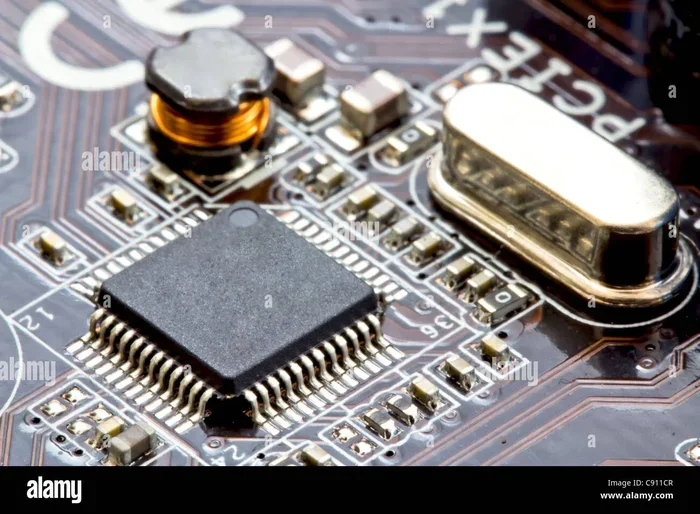
Most laptops come with Realtek audio codecs built right into the motherboard. These codecs are tiny chips that convert digital audio signals into analog sound you can hear through speakers or headphones. The Universal Service part of the name means it works across many different devices and Windows versions. It is designed to be a one-size-fits-all solution for audio management.
Think of this service as the conductor of an orchestra. It does not make the music itself, but it makes sure every instrument plays at the right time and in the right volume. Without it, your audio system would be a mess of disconnected parts. Whether you are listening to music, watching a movie, or joining a video call, this service keeps everything running smoothly.
Many users never notice this service because it works quietly in the background. But when something goes wrong, it can cause big problems. No sound from your speakers, crackling noise during playback, or a microphone that suddenly stops working. These are all signs that the Realtek HD Audio Universal Service might need attention.
How Realtek HD Audio Universal Service Works
The service operates at a system level. It starts automatically when you boot your laptop and runs as long as your computer is on. It communicates with the audio codec chip on your motherboard and translates software commands into audio output.
The Role of the Audio Codec
Your laptop’s audio codec is the physical hardware that processes sound. Realtek makes most of these chips for consumer laptops. The Universal Service acts as the software layer that talks to this hardware. It tells the codec what format to use, what sample rate to apply, and how to route audio to different outputs.
For example, when you plug in headphones, the service detects the change. It then redirects the audio signal from the speakers to the headphone jack. This happens almost instantly because the service is always running and monitoring your audio devices.
Managing Playback and Recording
The service handles both playback and recording tasks. When you play a YouTube video, it sends the audio data to your speakers or headphones. When you record a voice memo, it captures the input from your laptop’s built-in microphone or an external mic. It manages the default playback device settings and ensures the right device is active at the right time.
You can check these settings in Windows by right-clicking the speaker icon in your taskbar. The Sound Settings panel shows you all available input and output devices. The Universal Service controls which device is currently active and manages the volume levels for each.
Common Problems with Realtek HD Audio Universal Service
Even though this service is reliable, it is not perfect. Many laptop users run into audio issues at some point. These problems can range from minor annoyances to complete audio failure. Let us look at the most common issues people face.
No Sound at All
This is the most frustrating problem. You open a video or a music file and hear nothing. The first thing to check is whether the Realtek HD Audio Universal Service is actually running. Sometimes a Windows update or a system restart can stop the service from starting automatically.
To check, open the Task Manager and look for the service in the Processes tab. If it is not running, you can start it manually through the Services app. Simply search for “Services” in the Windows search bar, find the Realtek service, and click Start.
Crackling or Distorted Audio
Another common issue is audio that sounds scratchy or distorted. This often happens when the audio driver is outdated. Realtek releases driver updates regularly to fix bugs and improve performance. An old driver can cause conflicts with newer versions of Windows, leading to poor sound quality.
Updating your driver is usually simple. Go to the Realtek website or use your laptop manufacturer’s support page. Download the latest driver for your specific model. Install it and restart your computer. In most cases, this fixes the crackling problem right away.
Microphone Not Working
If your microphone stops picking up sound during calls or recordings, the Universal Service might be the cause. The service manages all audio input channels. If it encounters an error, your mic may not register as an active device. Check your privacy settings in Windows to make sure apps have permission to access the microphone. Also, verify that the correct recording device is selected in your audio settings.
Missing Audio Devices
Sometimes your laptop does not recognize headphones or external speakers when you plug them in. This can happen if the service has stopped responding. A quick fix is to restart the service or reinstall the Realtek audio driver. Restarting your laptop can also resolve temporary detection issues.
How to Fix Realtek HD Audio Issues
Fixing audio problems on your laptop does not require advanced technical skills. Most solutions are simple and take just a few minutes. Here are the steps you can follow to resolve common Realtek HD Audio issues.
Step 1: Restart the Service
The simplest fix is to restart the Universal Service. Open the Run dialog by pressing Windows Key + R. Type “services.msc” and press Enter. Scroll down to find “Realtek HD Audio Universal Service.” Right-click it and select Restart. This refreshes the connection between the software and your audio hardware.
Step 2: Update Your Audio Driver
Outdated drivers are the number one cause of audio problems. Visit the Realtek website or your laptop brand’s support page. Search for your exact model number. Download the latest audio driver package. Run the installer and follow the on-screen prompts. Restart your laptop when prompted.
You can also use Windows Device Manager to update your driver. Right-click the Start button and select Device Manager. Expand the “Sound, video and game controllers” section. Right-click your Realtek device and select “Update driver.” Choose “Search automatically for drivers.”
Step 3: Check Windows Audio Settings
Sometimes the problem is not with the service itself but with your system settings. Make sure your default playback device is set correctly. Right-click the speaker icon in your taskbar and select “Open Sound Settings.” Under Output, choose the correct device from the dropdown menu.
Also check the audio format settings. Right-click the speaker icon and select “Sounds.” Go to the Playback tab. Double-click your default device and navigate to the Advanced tab. Try different sample rates and bit depths. Sometimes changing from 24-bit to 16-bit resolves static and crackling issues.
Step 4: Run the Audio Troubleshooter
Windows has a built-in audio troubleshooter that can automatically detect and fix common problems. Go to Settings > System > Sound > Troubleshoot. Follow the on-screen instructions. The troubleshooter will check your drivers, services, and device connections. It often finds and fixes issues you might not even notice.
Realtek HD Audio and Your Laptop’s Overall Performance
While the Realtek HD Audio Universal Service is not a resource-heavy process, it does rely on your laptop’s overall health. A system with low memory or an overloaded processor may struggle with audio tasks. This is especially true when running multiple audio applications at once.
For example, if you are streaming a video while downloading files and running background apps, your system needs enough memory to handle everything. Having good RAM for laptop performance ensures that audio processes get the resources they need without interruption. If your laptop has less than 8GB of RAM, you might notice audio stuttering during heavy multitasking.
Similarly, your laptop’s GPU temperature and overall thermal management can affect audio quality indirectly. When your system overheats, it may throttle performance, which can cause audio glitches or delays. Keeping your laptop cool with proper ventilation and a good CPU cooler helps maintain consistent audio performance.
The Connection Between Audio Quality and Hardware
Good audio output depends on more than just software. The quality of your speakers or headphones matters a lot. If you are using external speakers, understanding concepts like frequency response and ohm ratings can help you choose better equipment. A speaker with a wider frequency response produces clearer highs and deeper lows. The ohm rating tells you how much power the speaker needs from your audio output.
When you pair quality hardware with a well-functioning Realtek HD Audio service, you get the best possible sound experience from your laptop. It is like having a great sound system but using old, damaged cables. Both parts need to work well together for the best results.
When to Reinstall Realtek HD Audio Drivers
Sometimes updating the driver is not enough. You may need to completely remove and reinstall the Realtek audio drivers. This is especially true after a major Windows update or when the service becomes corrupted.
To reinstall, open Device Manager. Find your Realtek HD Audio device under Sound, video and game controllers. Right-click it and select “Uninstall device.” Check the box that says “Delete the driver software for this device.” Restart your laptop. Windows will attempt to reinstall a fresh driver. If this does not work, download the latest driver from Realtek’s official site and install it manually.
After reinstalling, check that the Universal Service starts automatically. Open the Services app and verify the startup type is set to “Automatic.” This ensures the service will always run when you turn on your laptop.
Key Takeaways
- What It Does: Realtek HD Audio Universal Service manages all audio input and output on your laptop.
- Why It Matters: Without it, your speakers, headphones, and microphone may not work properly.
- Common Issues: Users often face no sound, crackling audio, or missing playback devices due to this service.
- Easy Fixes: Most problems can be solved by updating drivers or restarting the service.
- Related Settings: Your frequency response and ohm settings in speakers connect directly to this service.
- Laptop Performance: Having enough good RAM for laptop systems helps audio processes run smoothly.
Conclusion
The Realtek HD Audio Universal Service is an essential part of your laptop’s audio system. It works silently in the background to make sure you can hear sound, record voice, and switch between devices without any hassle. Most of the time, you will never even notice it is there. But when problems arise, knowing how this service works can save you a lot of frustration.
Whether you are dealing with no sound, crackling audio, or a microphone that refuses to work, the fixes are usually straightforward. Update your drivers, restart the service, or check your system settings. These simple steps resolve the vast majority of audio issues on laptops.
Remember that your laptop’s overall health also plays a role in audio performance. Good RAM, proper cooling, and quality speakers all contribute to a better listening experience. Take care of your system, keep your drivers up to date, and your sound will continue to work flawlessly. Realtek HD Audio Universal Service is your laptop’s audio heart, and with a little maintenance, it will keep beating strong for years to come.
Frequently Asked Questions
Is Realtek HD Audio Universal Service a virus or malware?
No, it is a legitimate Windows service developed by Realtek Semiconductor. It is a safe and essential part of your laptop’s audio system. However, always make sure you download drivers only from the official Realtek website or your laptop manufacturer’s support page to avoid fake files.
Can I disable Realtek HD Audio Universal Service?
You can disable it through the Services app, but you should not. Disabling it will stop all audio output and input on your laptop. You will lose the ability to hear sound from speakers, headphones, or any connected audio device. It is best to keep it running at all times.
Why does the Realtek HD Audio service keep stopping?
This usually happens due to outdated drivers, Windows update conflicts, or corrupted system files. Updating your audio driver and running the Windows audio troubleshooter can fix this. If the problem persists, try reinstalling the Realtek drivers completely.
How do I find my Realtek audio driver version?
Open Device Manager, expand Sound, video and game controllers, and right-click your Realtek device. Select Properties and go to the Driver tab. Here you will see the driver version, date, and signer information. Compare this with the latest version on the Realtek website.
Does Realtek HD Audio Universal Service affect gaming audio?
Yes, it does. The service manages all audio output, including game sound effects, music, and voice chat. If the service is not working properly, you may experience audio lag, crackling, or missing sound in games. Keeping drivers updated ensures the best gaming audio experience.
Can I use external speakers with Realtek HD Audio Universal Service?
Absolutely. The service supports all standard audio output devices including external speakers, headphones, and soundbars. Just plug in your device and make sure it is selected as the default playback device in Windows Sound Settings. The service will automatically detect and configure the new device.