What Is F5 on a Keyboard

The F5 key on a keyboard is one of the most-used function keys, mainly known for refreshing web pages and browsers. On laptops, the F5 key can also control media playback, adjust brightness, or trigger special shortcuts depending on your device and settings. Understanding the F5 key function helps you work faster and navigate your computer with ease.
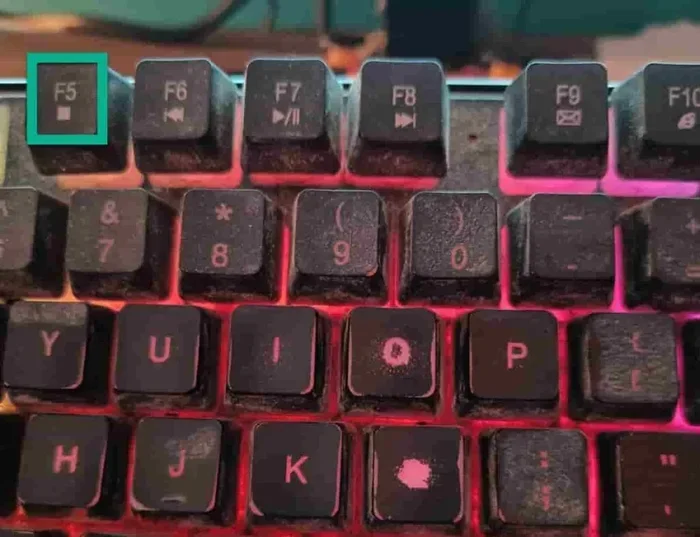
If you have ever stared at a web page and hit the F5 key to reload it, you have already used one of the most common functions on any keyboard. The F5 key on a keyboard sits at the top row of your laptop or desktop keyboard, sitting between F4 and F6. It is a small key with a big role, and many people do not fully understand all the things it can do.
Whether you are browsing the internet, giving a presentation, or working through a spreadsheet, the F5 key function can save you time and effort. In this guide, we will walk through everything the F5 key does, how it works on different laptops, and what to do when it stops working. By the end, you will know the F5 key inside and out.
Key Takeaways
- Refresh Function: The primary job of the F5 key is to refresh web pages and browsers on your laptop.
- Multiple Uses: F5 works differently in apps like PowerPoint, Excel, Word, and Windows Media Player.
- Laptop Variations: On some laptops, you need to hold the Fn key with F5 to access the standard function.
- Customizable Shortcut: You can remap or change what F5 does through keyboard settings.
- Troubleshooting Matters: If F5 is not working, it could be a driver, setting, or hardware issue that is easy to fix.
📑 Table of Contents
- What Is the F5 Key on a Keyboard?
- What Does F5 Do in a Web Browser?
- F5 Key Functions in Microsoft Office and Productivity Apps
- F5 Key on Laptops: Special Considerations
- Common F5 Key Problems and How to Fix Them
- Expert Tips for Using the F5 Key Effectively
- How F5 Compares to Other Function Keys
- Final Thoughts
What Is the F5 Key on a Keyboard?
The F5 key is part of the function key row found at the top of most keyboards. Function keys are labeled F1 through F12, and each one has a default purpose. The F5 key is most commonly known for refreshing web pages and content in browsers. However, its role goes far beyond just hitting refresh.
On a standard desktop keyboard, F5 works right out of the box. But on laptops, things get a little more interesting. Many laptop manufacturers share the F5 key with other functions, like adjusting screen brightness or controlling volume. This means you may need to hold down the Fn key along with F5 to get the standard refresh behavior.
Why Does the F5 Key Matter?
The F5 key matters because it is a keyboard shortcut that speeds up your daily tasks. Instead of moving your mouse to a browser button and clicking refresh, one tap on F5 does the same thing instantly. Over time, these small shortcuts add up and make you a faster, more efficient computer user.
The F5 key function also extends into productivity software and system tools. Learning what F5 does in different programs can seriously boost your workflow. Let us break down the main uses below.
What Does F5 Do in a Web Browser?
The most well-known use of the F5 key is refreshing web pages. When you press F5 in any browser like Chrome, Firefox, Edge, or Safari, the browser reloads the current page. This is handy when a page is not loading properly or when you want to see the latest version of a site.
Here are some common browser tasks the F5 key handles:
- Page Refresh: Reloads the current web page to show updated content.
- Hard Refresh: Holding Ctrl and F5 forces a full reload, bypassing cached data.
- Developer Tools: In some browsers, F5 opens or refreshes the developer tools panel.
- Address Bar Focus: On certain browsers, F5 can move your cursor to the address bar.
If you are working on a laptop and the F5 key is shared with another function, hold the Fn key and then press F5. This forces the keyboard to send the standard F5 signal to the browser instead of a media or brightness command.
F5 Key Functions in Microsoft Office and Productivity Apps
The F5 key is a powerful tool inside Microsoft Office programs. Each app uses F5 in a slightly different way, and learning these shortcuts can make you much more productive.
F5 in PowerPoint
In PowerPoint, pressing F5 starts a presentation from the very first slide. This is one of the most used shortcuts for anyone who gives presentations regularly. You do not need to click through menus or use the mouse. Just hit F5, and your slideshow begins immediately.
If you want to start from the current slide instead, you can use Shift and F5. This is a great trick to remember when you need to resume a presentation from where you left off.
F5 in Excel
In Excel, the F5 key opens the Go To dialog box. This lets you jump to a specific cell or range quickly. For example, if you need to move to cell Z500 in a large spreadsheet, pressing F5, typing Z500, and hitting Enter gets you there instantly.
This is especially useful when working with large data sets or complex workbooks. It saves a lot of scrolling and searching through rows and columns.
F5 in Word and Other Apps
In Microsoft Word, F5 opens the Find and Replace dialog box. This makes it easy to search for specific text or replace words throughout a document. Other programs also use F5 for various refresh or navigation tasks, so it is always worth checking the shortcut list for any app you use often.
F5 Key on Laptops: Special Considerations
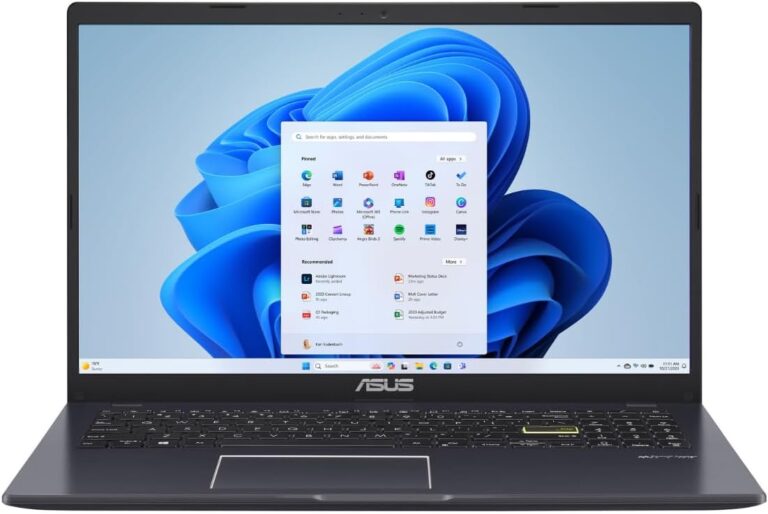
Laptop keyboards are different from full-size desktop keyboards in a few important ways. One major difference is that many laptop keys share double duties. The F5 key on a keyboard on a laptop might control screen brightness, speaker volume, or mute sound by default. This is because laptop keyboards are smaller and every key needs to pull double weight.
To use the standard F5 refresh function on a laptop, you typically need to hold the Fn key and press F5 at the same time. Some laptops let you change this behavior in the BIOS or through a dedicated Fn lock key. Look for a key labeled Fn Lock or Esc on your keyboard, and press it together with Fn to toggle between the two modes.
When you are learning about your laptop keyboard shortcuts, it helps to understand how the function row works. The top row of keys on your laptop is designed to be flexible, and the F5 key is a great example of this versatility.
How to Check Your F5 Key Behavior
If you are not sure whether your F5 key is set to the standard function or a media shortcut, try pressing F5 in a web browser. If the page refreshes, your F5 is set to the default function key mode. If nothing happens or your screen brightness changes, you need to hold the Fn key along with F5.
You can also check your laptop manufacturer’s settings. Brands like Dell, HP, Lenovo, and ASUS all have specific utility software that lets you customize function key behavior. This software is often pre-installed on your laptop or available for free download from the manufacturer’s website.
Common F5 Key Problems and How to Fix Them
Like any key on your keyboard, the F5 key can sometimes stop working or behave unexpectedly. This can be frustrating, especially when you rely on it for daily tasks. Here are the most common F5 key issues and simple fixes.
F5 Key Not Working at All
If the F5 key does nothing when you press it, the first thing to check is whether the Fn lock is active. Try holding Fn and pressing F5. If that does not work, restart your laptop and try again. Sometimes a simple reboot fixes temporary software glitches that affect keyboard shortcuts.
If the problem persists, check your keyboard drivers. Go to your laptop manufacturer’s support page and download the latest keyboard or input driver. Updating drivers often resolves F5 key issues and improves overall keyboard performance.
F5 Triggers the Wrong Function
If pressing F5 changes your screen brightness or volume instead of refreshing a page, your laptop is in media key mode. To fix this, look for the Fn Lock key on your keyboard. It is usually located near the bottom left corner, often sharing a key with Esc or Shift.
Press Fn and Fn Lock together to toggle the mode. After that, F5 should work as a standard function key without needing to hold Fn every time.
F5 Works in Some Apps but Not Others
Sometimes F5 works in your browser but does nothing in a specific app. This usually happens because the app has its own shortcut mapped to F5. For example, in some media players, F5 opens a file or loads a playlist. Check the app’s keyboard shortcut settings to see what F5 is assigned to.
In rare cases, background software or macro tools may override the default F5 behavior. If you have installed any keyboard customization software, check its settings to make sure F5 is not remapped.
Expert Tips for Using the F5 Key Effectively
Getting the most out of the F5 key is about combining it with other keys and understanding its role across different tasks. Here are some expert tips to help you use F5 like a pro.
- Combine with Ctrl: Press Ctrl and F5 together in a browser for a hard refresh that clears cached data and loads a fresh copy of the page.
- Use in Presentations: Memorize the F5 and Shift+F5 shortcuts in PowerPoint to start your slideshow from the beginning or the current slide.
- Navigate Large Documents: In Excel, use F5 to jump to distant cells without scrolling through thousands of rows.
- Check for Updates: In some software, F5 can be used to check for updates or sync data with a server.
- Customize Your Shortcuts: Many laptops allow you to remap function keys through built-in settings or third-party tools. If you rarely use the media functions, you can switch F5 to always act as a refresh key.
These tips work across different laptop brands and models. Whether you use a Dell, HP, Lenovo, or any other brand, the F5 key on a keyboard follows the same basic principles. The small variations in behavior come from the laptop’s function key settings, which you can always adjust to suit your preferences.
How F5 Compares to Other Function Keys
While F5 is one of the most useful function keys, it helps to understand how it compares to the other keys in the row. Each function key has a primary role, and knowing what each one does gives you a complete picture of laptop keyboard shortcuts.
F1 is typically the help key, F2 is for renaming files, F3 opens search, F4 repeats actions, F5 refreshes, F6 moves between panes, F7 checks spelling, F8 boots into safe mode, F9 sends emails in Outlook, F10 activates the menu bar, and F11 toggles full screen. Together, these keys form a powerful toolkit for efficient computing.
The F5 key stands out because of its versatility. It works in browsers, office apps, media players, and system tools. No other single function key is as broadly useful across so many different programs and tasks.
For those who want to dive deeper into laptop hardware and performance, understanding how components like memory and storage work alongside keyboard functions can give you a more complete picture of your device. If you are curious about how much RAM is good on a laptop, check out our guide on the best RAM configurations for different use cases. Similarly, learning about what is good RAM on a laptop helps you understand the full system that your keyboard interacts with every day.
Another great resource is our article on how to change RAM on a laptop, which covers the physical upgrades that can improve your overall computing experience. And if you are wondering about can I upgrade RAM on a laptop, we have detailed answers there too. These topics connect to the F5 key because both keyboard shortcuts and hardware upgrades are part of getting the most out of your laptop.
Final Thoughts
The F5 key on a keyboard is a small but mighty tool that can make your daily computer tasks much easier. From refreshing web pages to starting PowerPoint presentations and jumping to specific cells in Excel, F5 is a shortcut that pays for itself many times over. Once you start using it regularly, you will wonder how you ever managed without it.
Remember that laptop keyboards may require the Fn key to access the standard F5 function, and that is completely normal. Take a few minutes to test your F5 key in different apps and settings. Once you know how it works on your specific device, you will be able to use it confidently and efficiently.
The best part about learning the F5 key is that it opens the door to exploring other keyboard shortcuts that can transform how you work. Start with F5, master it, and then move on to other function keys. Your productivity will thank you.
Frequently Asked Questions
What happens when you press F5 on a laptop?
On most laptops, pressing F5 refreshes the current web page or window. However, on some laptops, F5 is shared with a media or brightness function. In that case, you need to hold the Fn key and press F5 to get the standard refresh behavior.
Why is my F5 key not working?
Your F5 key might not be working because the Fn lock is active, the keyboard driver needs updating, or the key is set to a different function in your laptop settings. Try holding Fn with F5, restarting your laptop, or updating your keyboard driver to fix the issue.
Can I change what the F5 key does on my laptop?
Yes, you can change what F5 does through your laptop’s keyboard settings or function key configuration software. Many laptop brands offer utility apps that let you remap function keys. You can also use third-party keyboard customization tools for more advanced remapping options.
Does F5 work the same way on all laptops?
F5 works the same way in most software applications, but the hardware behavior can vary between laptops. Some laptops treat F5 as a standard function key by default, while others require you to hold the Fn key. Check your laptop’s manual or settings to confirm your specific model’s behavior.
What is the difference between F5 and Ctrl+F5?
F5 refreshes the current page using cached data when available, which makes it faster. Ctrl+F5 performs a hard refresh, which forces the browser to bypass the cache and load a completely fresh copy of the page from the server. Use Ctrl+F5 when a page is not loading correctly or when you need the latest version.
Is the F5 key the same on desktop and laptop keyboards?
The F5 key serves the same basic function on both desktop and laptop keyboards, but the physical layout and default behavior can differ. Desktop keyboards usually have F5 as a standard function key, while many laptop keyboards share F5 with other functions like media controls or brightness adjustment.
=== CONCLUSION ===
The F5 key on a keyboard is one of the most versatile and frequently used keys on any laptop or desktop keyboard. Whether you are refreshing a web page, starting a slideshow, or jumping to a specific cell in a spreadsheet, F5 helps you work smarter and faster. Understanding its full range of functions and how it behaves on your specific laptop gives you a real advantage in daily computing.
Take the time to explore the F5 key in your favorite apps, adjust your function key settings if needed, and combine F5 with other shortcuts for maximum efficiency. Once you make F5 a part of your regular workflow, you will wonder how you ever managed without it. Keep practicing, keep exploring, and let the F5 key become one of your go-to tools for getting things done.