What Is a Windows System Tray

The Windows System Tray is a small area on the taskbar that shows quick-status icons for things like Wi-Fi, sound, battery, and clock. It also houses the notification center and hidden icons for background apps. Understanding how to use and customize it makes your laptop experience much smoother.
If you use a Windows laptop every day, you have probably glanced at the bottom-right corner of your screen a hundred times. That little strip of icons next to the clock? That is the Windows System Tray. It may look small and simple, but it does a lot of heavy lifting behind the scenes. In this guide, we will break down everything you need to know about the System Tray, from what it does to how you can customize it to work better for you.
Whether you are a student, a remote worker, or just someone who uses a laptop for everyday tasks, the System Tray is one of those features you interact with constantly without really thinking about it. It shows your Wi-Fi signal, your battery level, your sound volume, and much more. By the end of this article, you will understand exactly what the System Tray is, why it matters, and how to get the most out of it.
Key Takeaways
- The System Tray lives on the right side of the taskbar and shows real-time status for your most-used features.
- You can hide, show, and rearrange icons to keep the tray clean and useful.
- The Notification Center is built into the System Tray and keeps you updated on alerts.
- Common icons include Wi-Fi, volume, battery, and clock, plus app-specific indicators.
- Troubleshooting the System Tray is simple and often just requires a quick restart or settings check.
📑 Table of Contents
- What Is the Windows System Tray?
- Key Icons You Will Find in the System Tray
- How the System Tray Works with Background Apps
- How to Customize Your System Tray
- System Tray vs. Notification Area: What Is the Difference?
- Common System Tray Problems and How to Fix Them
- Tips for Getting the Most Out of Your System Tray
- Final Thoughts
What Is the Windows System Tray?
The Windows System Tray is a section of the taskbar located on the right side of your screen. It is also sometimes called the notification area or the status area. This small but important region gives you instant access to system-level information and quick settings without needing to open full applications.
Think of the System Tray as your laptop’s dashboard. Just like a car dashboard shows you your speed, fuel level, and engine status, the System Tray shows you the health and status of your computer’s key functions. It runs quietly in the background and updates in real time, so you always know what is going on with your device.
Where Exactly Is the System Tray?
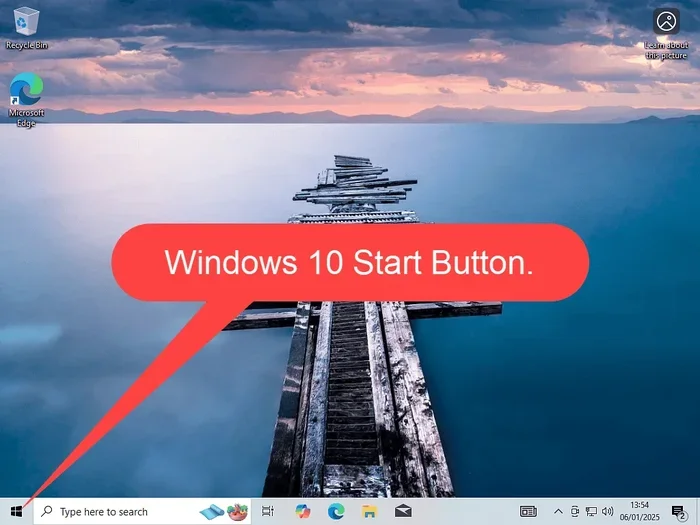
On most Windows laptops, the System Tray sits in the bottom-right corner of the screen, right next to the clock. It is part of the broader taskbar, which stretches across the bottom of your display. The left side of the taskbar holds your Start menu and pinned apps, while the System Tray handles status icons and notifications.
In Windows 11, Microsoft redesigned the taskbar slightly. The System Tray now sits on the right side by default, and the clock is centered at the top. But the core function remains the same. You still get quick access to Wi-Fi, sound, battery, and network status right from the Windows System Tray.
Key Icons You Will Find in the System Tray
The System Tray is home to a variety of small icons. Each one serves a specific purpose and gives you instant information at a glance. Here are the most common icons you will see:
Wi-Fi and Network Icons
The Wi-Fi icon is one of the first things you look at when you sit down at your laptop. It shows whether you are connected to a network and how strong the signal is. If you see a small globe icon instead, it usually means you are connected to a network but do not have internet access. The network icon also lets you quickly turn Wi-Fi on or off and open your network settings.
Volume and Sound Icons
The speaker icon lets you control your laptop’s volume with a single click. You can mute your sound, adjust the level, or switch between different audio output devices like headphones or Bluetooth speakers. If you care about audio quality, checking your speaker frequency response can help you understand what your laptop speakers are capable of producing.
Battery Icon
The battery icon is essential for anyone who uses a laptop away from a power outlet. It shows your remaining charge and whether your laptop is currently charging. Hovering over it or clicking it usually gives you a more detailed breakdown of which apps are draining the most power.
Clock and Date
The clock is the most prominent element in the System Tray. It shows the current time and date. Clicking on it opens a calendar view where you can see upcoming events if you have them synced. The clock also serves as a quick launchpad for other tray icons when you need to access them.
Hidden Icons
Windows gives you a tiny upward-pointing arrow at the far right of the System Tray. Clicking this arrow reveals hidden icons. These are background apps and system tools that are running but do not need constant visibility. You can drag icons in and out of this hidden area to control what stays visible and what stays tucked away.
How the System Tray Works with Background Apps
Many apps you install on your laptop run quietly in the background. Some of these apps place an icon in the System Tray so you can monitor or control them without opening the full program. For example, music players, cloud storage apps, and communication tools like messaging apps often live in the System Tray.
Background apps use your laptop’s system resources, including your RAM and processor. If your laptop feels slow, too many tray apps running in the background could be a factor. Understanding what lives in your System Tray helps you manage these resources better. You can learn more about how RAM affects your laptop’s performance in our guide on what RAM is good for in a laptop.
Why Do Apps Use the System Tray?
Apps use the System Tray because it gives them a constant, visible presence without taking up space on your desktop or taskbar. It is a great way for apps to stay accessible while staying out of your way. For instance, a VPN app might sit in the System Tray so you can quickly toggle your connection on or off. A weather app might show you today’s forecast right from the tray.
How to Customize Your System Tray
One of the best things about the Windows System Tray is that you can customize it. You are not stuck with whatever icons Windows decides to show you. Here is how you can take control:
Turning System Tray Icons On or Off
You can choose which icons appear in the System Tray by going to Settings > Personalization > Taskbar > Notification Area. From there, you can toggle individual icons on or off. This is perfect for hiding apps you rarely use and keeping your tray clean and organized.
Adding New Icons
To add a new icon, you usually need to open the app and look for a setting that says “Show icon in notification area” or something similar. Not all apps support this, but many popular ones do. Once enabled, the icon will appear in the System Tray the next time you launch the app.
Removing Unwanted Icons
If an app keeps adding an icon you do not want, you can right-click the icon and look for a settings or preferences option within the app itself. Many apps let you disable the tray icon from their own settings menu. You can also use the Task Manager to stop background apps from running altogether.
Using the Hidden Icons Arrow
The hidden icons arrow is your best friend for keeping the System Tray tidy. You can drag icons between the visible tray and the hidden section whenever you want. This gives you full control over what you see at a glance and what you can access with one click.
System Tray vs. Notification Area: What Is the Difference?
You may hear people use the terms “System Tray” and “Notification Area” interchangeably. While they refer to the same general area on your taskbar, there is a slight distinction. The System Tray technically refers to the system-level icons like Wi-Fi, sound, and battery. The Notification Area includes both the System Tray icons and the notification bell where alerts pop up.
In everyday use, the difference does not matter much. Most people use both terms to describe the same part of the taskbar. But if you are reading official Microsoft documentation, you will notice they tend to use “Notification Area” as the formal term.
Common System Tray Problems and How to Fix Them
Sometimes the System Tray does not behave as expected. Icons might disappear, notifications might stop working, or the tray might not respond at all. Here are some common issues and quick fixes:
Icons Disappearing from the Tray
If icons vanish from your System Tray, the first thing to try is restarting your laptop. Sometimes Windows needs a fresh start to reload tray icons properly. If that does not work, check your notification area settings to make sure the icons are not accidentally turned off.
Notifications Not Showing Up
If you stop getting notifications, go to Settings > System > Notifications and make sure notifications are enabled for the apps you care about. You can also check if Focus Assist or Do Not Disturb mode is turned on, as these modes silence notifications.
System Tray Not Responding
A frozen System Tray can be frustrating. Try restarting the Windows Explorer process through Task Manager. Simply find Windows Explorer, right-click it, and select Restart. This refreshes the taskbar and the System Tray without needing to reboot your whole laptop.
Too Many Icons Cluttering the Tray
If your System Tray is overflowing with icons, it is time to clean up. Go through your hidden icons and remove anything you do not need. Uninstall apps you no longer use, and check your background app settings to stop unnecessary apps from running in the tray.
Tips for Getting the Most Out of Your System Tray
Here are some practical tips to help you use the System Tray more effectively on your laptop:
- Keep it minimal. Only show icons for apps you use daily. A cluttered tray makes it harder to find what you need.
- Check your GPU temperature. If you use your laptop for gaming or creative work, consider adding a GPU temperature monitor to your tray. You can learn about ideal GPU temperatures in our guide on what is a good idle GPU temperature.
- Use the Quick Settings panel. In Windows 11, clicking the Wi-Fi, sound, or battery icon in the System Tray opens a Quick Settings panel with even more options.
- Monitor your laptop’s mouse and touchpad settings. The System Tray gives you quick access to mouse-related features. If you want to learn more about the different input devices on your laptop, check out our article on what the mouse on a laptop is called.
- Regularly review hidden icons. Every few weeks, click the hidden icons arrow and remove anything you no longer use.
Final Thoughts
The Windows System Tray might be small, but it is one of the most useful features on your laptop. It gives you a quick window into your system’s status without interrupting your workflow. From Wi-Fi and sound to battery and notifications, the System Tray keeps you informed and in control.
Taking a few minutes to customize and organize your System Tray can make a big difference in how smoothly your laptop runs. You will spend less time hunting for icons and more time getting things done. So go ahead, explore your tray settings, and make the System Tray work harder for you.
Remember, every icon in the tray serves a purpose. Whether it is showing you that your battery is low or letting you adjust your volume with a single click, the System Tray is always working in the background to keep you connected and informed.
Frequently Asked Questions
What is the Windows System Tray used for?
The Windows System Tray displays real-time status icons for Wi-Fi, sound, battery, and network connectivity. It also houses the notification center and provides quick access to system settings without opening full applications.
Where is the System Tray located on a Windows laptop?
The System Tray is located on the right side of the taskbar at the bottom of your screen, next to the clock. In Windows 11, the clock is centered, but the System Tray icons remain on the right side.
Can I remove icons from the Windows System Tray?
Yes, you can. Go to Settings > Personalization > Taskbar > Notification Area and toggle off the icons you do not want. You can also right-click individual tray icons for additional removal options.
Why are some icons hidden in the System Tray?
Windows automatically hides icons that it deems less important to keep the tray clean. You can access hidden icons by clicking the upward-pointing arrow at the far right of the System Tray. You can also drag icons between the visible area and the hidden section.
What is the difference between the System Tray and the Notification Area?
The System Tray refers specifically to the system-level status icons like Wi-Fi, sound, and battery. The Notification Area is a broader term that includes both the System Tray icons and the notification bell where alerts appear. In everyday use, both terms refer to the same area.
How do I fix a frozen or unresponsive System Tray?
Try restarting the Windows Explorer process through Task Manager. Find Windows Explorer in the list, right-click it, and select Restart. This refreshes the taskbar and tray without needing to reboot your entire laptop.