What Is the Start Button in Windows
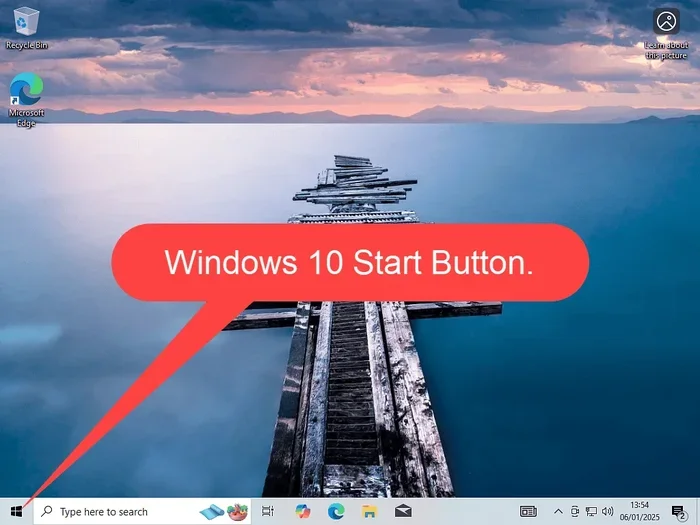
The Start button in Windows is the small icon located on the taskbar that gives you quick access to apps, settings, and power options. It has been a core part of the Windows operating system since Windows 95 and remains essential for daily laptop use. Understanding how to use the Start menu effectively can save you time and make navigating your PC much easier.
The Start button in Windows is one of the most recognizable features on any Windows PC. Whether you are a student, a professional, or just someone who uses a laptop for everyday tasks, you interact with this small but powerful button every single day. It sits quietly on your taskbar, waiting for you to click it and unlock a world of apps, settings, and shortcuts.
But have you ever stopped to think about what the Start button actually does? Why is it so important? And how has it changed over the years? In this guide, we will walk you through everything you need to know about the Start button in Windows. We will cover what it does, how to use it, and why it remains a key part of the Windows experience.
Whether you are using Windows 10 or Windows 11, the Start button is your starting point. Think of it as the front door to your computer. Every time you want to open an app, change a setting, or shut down your laptop, the Start button is there to help. Let us dive in and explore it in detail.
Key Takeaways
- The Start button is the gateway to your Windows PC: It opens the Start menu where you can find apps, settings, and power controls.
- It has evolved over decades: From the Start orb in Windows Vista to the Start menu in Windows 10 and 11, its design has changed but its purpose stays the same.
- You can customize it: Pin your favorite apps, resize the menu, and add tiles to make it work for you.
- The Start button works with your mouse or trackpad: If you are unsure what your laptop pointing device is called, check out what the laptop mouse is called.
- It gives you fast access to system tools: Settings, file explorer, and power options are all just one click away.
📑 Table of Contents
- What Is the Start Button in Windows?
- How to Use the Start Button on Your Laptop
- Why the Start Button Matters for Laptop Users
- Customizing the Start Button and Start Menu
- Common Start Button Problems and How to Fix Them
- Start Button vs. Other Navigation Methods
- The Future of the Start Button in Windows
- Final Thoughts
What Is the Start Button in Windows?
The Start button is a small icon on the taskbar of your Windows PC. In older versions of Windows, it looked like a round orb. In Windows 10, it shows the Windows logo. In Windows 11, it sits in the center of the taskbar with a clean, modern design. No matter the version, its job has always been the same: to give you quick access to everything on your computer.
When you click the Start button, it opens the Start menu. The Start menu is a panel that displays your installed apps, a search bar, power options, and shortcuts to important tools like File Explorer and Settings. It is the central hub of your Windows experience.
The Windows taskbar is the long bar usually found at the bottom of your screen. The Start button sits on the far left (or center in Windows 11). Next to it, you will see your pinned apps and the system tray. Together, these elements make up the Windows desktop interface that you interact with every day.
A Brief History of the Start Button
The Start button first appeared in Windows 95, released in 1995. Before that, Windows users had no easy way to access their apps or system settings. The Start button changed everything. It gave people a simple, visual way to navigate their computer.
Over the years, Microsoft has tweaked the design. Windows Vista introduced the glossy Start orb. Windows 8 actually removed the Start button entirely, which caused a lot of frustration. Windows 10 brought it back, and Windows 11 refined it further. Through all these changes, the core purpose has stayed the same.
How to Use the Start Button on Your Laptop
Using the Start button is simple, but there is more to it than just clicking it. Let us walk through the basics and some helpful tips.
Opening the Start Menu
To open the Start menu, just click the Start button on your taskbar. On a laptop, you can also press the Windows key on your keyboard. This is one of the fastest ways to access your apps and settings. If you use a trackpad, you can also set up gestures to open the menu quickly.
Once the Start menu opens, you will see several sections:
- The search bar: Type the name of any app, file, or setting to find it instantly.
- Pinned apps: These are the apps you choose to keep visible for quick access.
- All apps: A full list of every application installed on your laptop.
- Power options: Shut down, restart, sleep, or hibernate your PC.
- User profile: Access your account settings and lock your screen.
Using the Search Feature
The search bar inside the Start menu is one of the most powerful tools in Windows. You can type almost anything to find what you need. Looking for a specific document? Type its name. Want to open a setting you cannot find? Search for it. The Windows search feature indexes your entire system, so results appear almost instantly.
Pro tip: You can also use the search bar to run commands. Type “cmd” to open Command Prompt or “settings” to jump straight to the Settings app. This saves you from digging through folders and menus.
Why the Start Button Matters for Laptop Users
The Start button is not just a pretty icon. It plays a real role in how efficiently you use your laptop. Here is why it matters:
Quick app access: Instead of scrolling through folders, you can click the Start button and find any app in seconds. This is especially helpful on laptops where screen space is limited.
System control: The Start button gives you instant access to power options and system settings. You do not need to dig through the control panel or settings app just to shut down or restart your PC.
Keyboard shortcuts: Pressing the Windows key opens the Start menu. This is a quick shortcut that makes navigating your laptop faster and more efficient. If you are curious about other laptop shortcuts and navigation tools, learning about what the laptop mouse is called can also help you understand your pointing device better.
Customization: You can pin your most-used apps to the Start menu. This means your favorites are always just one click away. Over time, this small habit can save you a lot of frustration and wasted time.
Start Button and System Performance
While the Start button itself does not use much RAM or processing power, the apps and features it connects to do. Your laptop’s memory plays a role in how quickly the Start menu opens and how smoothly it runs. If your laptop feels slow when opening the Start menu, it might be worth checking your RAM usage. Understanding what your RAM does can help you figure out if your system needs an upgrade.
For example, if you have many apps running in the background, your laptop performance can drop. The Start menu might take longer to load or respond. Keeping your system resources managed helps the Start button work at its best.
Customizing the Start Button and Start Menu
One of the best things about the Start button in Windows is that you can customize it to fit your workflow. Here is how to make it work for you.
Pinning Your Favorite Apps
Right-click any app in the Start menu and select “Pin to Start.” This adds a tile to the menu so you can access it quickly. You can also drag and drop apps to rearrange them. Group similar apps together for a cleaner look.
Resizing the Start Menu
In Windows 10, you can resize the Start menu by hovering over the edge and dragging. In Windows 11, the Start menu opens as a centered panel. You can adjust the size of the recommended section and the pinned apps area.
Choosing What Appears on the Start Menu
Go to Settings > Personalization > Start to control what shows up. You can toggle options like showing recent apps, showing more tiles, or using the Start menu in full-screen mode. These small changes can make a big difference in how you interact with your PC.
Common Start Button Problems and How to Fix Them
Even though the Start button is a core Windows feature, it can sometimes act up. Here are a few common issues and simple fixes.
Start Button Not Responding
If the Start button does not open the menu when you click it, try restarting your PC first. If that does not work, you can run the Windows troubleshooter. Go to Settings > Update & Security > Troubleshoot > Windows Store Apps. This can often fix glitches with the Start menu.
Start Menu Opens Slowly
A slow Start menu is often caused by too many startup apps or low system memory. Check your running processes in Task Manager and close any apps you do not need. If your laptop has limited RAM, consider upgrading. The amount of RAM in your laptop directly affects how smoothly the Start menu and other features run.
Search Bar Not Working
If the search bar inside the Start menu stops working, try restarting the Windows Search service. You can also reset the Start menu through PowerShell. These fixes are simple and usually resolve the issue quickly.
Start Button vs. Other Navigation Methods
The Start button is not the only way to navigate Windows. Let us compare it to other methods so you can decide what works best for you.
| Navigation Method | Best For | Speed | Ease of Use |
|---|---|---|---|
| Start Button | Opening apps, accessing settings | Fast | Very Easy |
| Keyboard Shortcuts | Power users, quick commands | Very Fast | Moderate |
| Taskbar Icons | Pinned apps | Fast | Very Easy |
| File Explorer | Finding files and folders | Moderate | Easy |
| Touchpad Gestures | Laptop users | Fast | Easy |
Each method has its strengths. The Start button is the most versatile because it combines app launching, search, and system controls in one place. Keyboard shortcuts are faster for power users, but they require memorization. The taskbar is great for pinned apps, but it does not offer the same depth of access.
If you are new to Windows or just want a more organized workflow, the Start button is your best friend. It gives you everything in one spot without needing to memorize complex shortcuts.
The Future of the Start Button in Windows
Microsoft continues to evolve the Windows user interface with each new version. The Start button has adapted to these changes. In Windows 11, the Start menu is more streamlined and focused. It removes live tiles and emphasizes a cleaner design with pinned apps and recommended files.
Looking ahead, we can expect the Start button to become even more integrated with AI and voice commands. Microsoft is already investing in features like Copilot, which could change how you interact with the Start menu. The button might become a voice-activated hub rather than just a clickable icon.
For now, the Start button remains an essential part of the Windows experience. Whether you are a casual user or a power user, understanding how to use it effectively will make your laptop experience better.
Final Thoughts
The Start button in Windows is more than just a small icon on your taskbar. It is the heart of your Windows navigation system. From opening apps to accessing settings and power options, it handles some of the most important tasks you perform on your laptop every day.
Taking a few minutes to learn how to use the Start button effectively can save you a lot of time and frustration. Customize it, explore its features, and make it work for your workflow. A well-organized Start menu turns a cluttered PC into a smooth, efficient machine.
So the next time you sit down at your laptop, take a moment to appreciate that little Windows icon. It is doing a lot more work than you might think. And if you ever want to dive deeper into how your laptop works, understanding your RAM and other hardware components is a great next step. Check out what RAM does in a laptop to learn more about how your system powers through daily tasks.
Frequently Asked Questions
What does the Start button do in Windows?
The Start button opens the Start menu, which gives you access to all your installed apps, the search bar, power options, and system settings. It is the main navigation hub of your Windows PC.
Where is the Start button located on Windows?
In Windows 10, the Start button is on the far left of the taskbar. In Windows 11, it is centered on the taskbar. You can also press the Windows key on your keyboard to open the Start menu.
Can I customize the Start button on my laptop?
Yes, you can pin your favorite apps, resize the Start menu, and choose what appears on it. Go to Settings > Personalization > Start to adjust these options on your Windows laptop.
Why is my Start button not working in Windows?
This can happen due to software glitches or low system resources. Try restarting your PC first. If the issue persists, run the Windows troubleshooter or check your RAM and system performance.
How is the Start button different in Windows 10 and Windows 11?
In Windows 10, the Start menu is on the left side with live tiles and a full app list. In Windows 11, the Start menu is centered, more minimal, and focuses on pinned apps and recommended files without live tiles.
Does the Start button use a lot of my laptop’s resources?
No, the Start button itself uses very little memory or processing power. However, if your laptop has low RAM or is running many background apps, the Start menu may open slowly. Keeping your system resources in check helps it run smoothly.
=== CONCLUSION ===
The Start button in Windows is a small but mighty feature that connects you to everything on your PC. It has been a part of Windows for nearly three decades, and for good reason. It makes navigating your laptop simple, fast, and intuitive. From opening apps to shutting down your system, the Start button handles it all.
Now that you understand what the Start button does and how to get the most out of it, you can use your Windows PC with more confidence. Take a few minutes to customize your Start menu, explore the search features, and keep your system running smoothly. A little effort goes a long way in making your daily laptop experience better and more productive.