What Is Black Screen of Death
The Black Screen of Death is a frustrating laptop error where your screen goes completely dark while the system may still be running. It can stem from GPU failures, driver conflicts, loose connections, or power issues. This guide walks you through easy fixes, prevention tips, and when to seek professional help.
Your laptop was working fine one moment. Then, suddenly, the screen goes completely black. The power light is on. The fans are spinning. But nothing appears on the display. This is the dreaded Black Screen of Death, and it can panic anyone.
If you have ever experienced this, you know how stressful it feels. You might think your laptop is dead forever. But here is the good news. In most cases, the Black Screen of Death is fixable at home. You do not need to be a tech expert. This guide will walk you through everything you need to know. We will cover what causes it, how to fix it, and how to prevent it from happening again.
Let us dive right in and bring your screen back to life.
Key Takeaways
- Point 1: The Black Screen of Death is a common laptop issue where the display goes black but the system may still be powered on.
- Point 2: Common causes include GPU failures, driver conflicts, loose display cables, and software glitches.
- Point 3: Simple fixes like a hard reset, updating drivers, or checking cable connections often resolve the problem.
- Point 4: Preventive measures such as regular updates and proper ventilation reduce the risk of future black screen errors.
- Point 5: Knowing when to seek professional repair can save you time and money.
- Point 6: Checking your RAM and display settings can also help diagnose the root cause.
📑 Table of Contents
What Exactly Is the Black Screen of Death?
The Black Screen of Death is a term used to describe a situation where your laptop screen turns completely black and stays that way. The computer itself might still be running. You may hear sounds. The keyboard lights might even work. But the display shows nothing at all.
This issue is different from a simple sleep mode or a turned-off screen. When your laptop goes to sleep, pressing a key or opening the lid wakes it up. With the Black Screen of Death, nothing you do brings the display back. It is a serious error that signals something is wrong with your laptop.
The Black Screen of Death can happen on any laptop brand. Whether you use a Dell, HP, Lenovo, or Apple, this problem does not discriminate. It can strike suddenly during startup or while you are working. Understanding what triggers it is the first step toward a fix.
How It Differs from Other Screen Problems
Not every black screen means the Black Screen of Death. Sometimes your laptop is simply in sleep mode or the brightness is turned all the way down. A dead battery can also make the screen look black. The key difference is that the Black Screen of Death persists even after you try to wake the laptop or charge it.
Another distinction is the behavior of the hardware. If your laptop fans are running and the hard drive is active, the system is likely alive. The problem is isolated to the display. This helps you narrow down the cause and choose the right fix.
Common Causes of the Black Screen of Death
Knowing what causes the Black Screen of Death helps you troubleshoot faster. Several factors can trigger this frustrating error. Let us look at the most common ones.
GPU or Graphics Card Failure
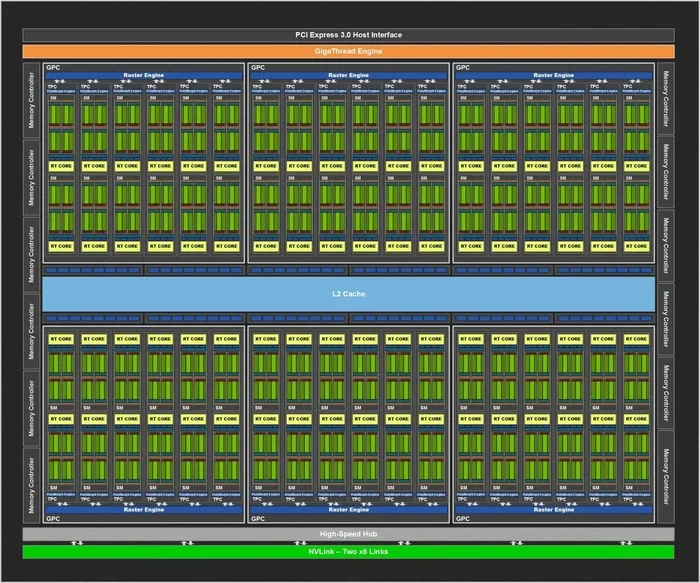
The graphics processing unit, or GPU, handles everything you see on your screen. When the GPU fails, the display goes black. This is one of the most frequent causes of the Black Screen of Death. Overheating, old age, or a manufacturing defect can all lead to GPU failure.
If your laptop is older or has been used heavily for gaming or video editing, the GPU might be wearing out. A failing GPU often causes the Black Screen of Death during startup or while running demanding applications.
Driver Conflicts and Outdated Software
Your laptop relies on drivers to communicate between hardware and software. When a display driver becomes outdated or corrupted, it can cause a black screen. This is especially common after a Windows update or when you install new software.
Driver conflicts happen when two programs try to control the same hardware. The result is often a frozen or black screen. Keeping your drivers updated is one of the best ways to avoid this issue.
Loose or Damaged Display Cable
Inside your laptop, a thin cable connects the motherboard to the screen. If this cable becomes loose or damaged, the screen goes black. This can happen from drops, bumps, or simply wear and tear over time.
A loose display cable is a surprisingly common cause of the Black Screen of Death. If you have dropped your laptop recently, this should be one of the first things you check. Sometimes gently reopening and closing the lid can reseat the cable temporarily.
RAM and Memory Issues
Random Access Memory, or RAM, plays a big role in how your laptop functions. If your RAM is faulty or not seated properly, your laptop may fail to display anything on screen. Insufficient RAM can also cause boot failures that result in a black screen.
For example, running an older laptop with only 8GB of RAM might struggle with modern software demands, leading to crashes and black screen errors. Upgrading your RAM can sometimes resolve these issues entirely.
Power Supply Problems
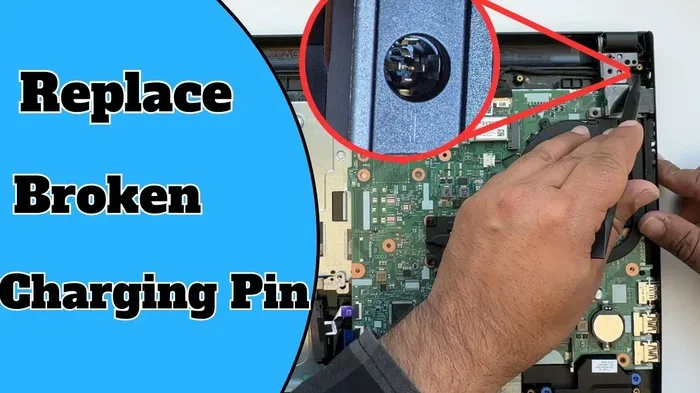
A faulty power adapter or dying battery can also cause a black screen. If your laptop does not receive enough power, the screen may stay black even though the system is trying to boot. This is especially common with older chargers or damaged power ports.
Overheating
Laptops generate a lot of heat. Without proper ventilation, internal components can overheat. When the GPU or CPU gets too hot, the laptop may shut down the display to protect itself. This safety mechanism often shows up as the Black Screen of Death.
Dust buildup in the vents and fans is a leading cause of overheating. Regular cleaning can prevent this problem and keep your laptop running smoothly.
How to Fix the Black Screen of Death
Now that you know the common causes, let us talk about fixes. Most of these steps are simple and do not require advanced technical skills. Try them in order, starting with the easiest solution.
Step 1: Perform a Hard Reset
A hard reset is the simplest and often the most effective fix. It clears temporary glitches and resets the hardware. Here is how to do it:
- Turn off your laptop completely.
- Unplug the power adapter.
- If your battery is removable, take it out.
- Press and hold the power button for 30 seconds.
- Reconnect the battery and power adapter.
- Turn the laptop back on.
This simple trick resolves the Black Screen of Death in many cases. It takes less than a minute and requires no technical knowledge.
Step 2: Check the Display Cable Connection
If the hard reset does not work, the next step is to check the display cable. Open your laptop carefully and look for the cable connecting the screen to the motherboard. Make sure it is firmly seated in its connector.
Warning: Opening your laptop may void the warranty. If your laptop is still under warranty, consider taking it to a professional. For older laptops, this is a safe and easy fix.
Step 3: Boot into Safe Mode
Safe Mode starts your laptop with only the essential drivers and software. If a driver conflict caused the Black Screen of Death, Safe Mode can help you identify and fix it.
To boot into Safe Mode, follow these steps:
- Force your laptop to shut down by holding the power button for 10 seconds.
- Turn it back on and immediately press the power button again to force-shutdown. Repeat this three times.
- On the fourth boot, Windows should enter the Recovery Environment.
- Navigate to Troubleshoot > Advanced Options > Startup Settings > Restart.
- Select Safe Mode from the list.
Once in Safe Mode, you can uninstall recent updates, roll back drivers, or remove problematic software. This is a powerful tool for fixing the Black Screen of Death caused by software issues.
Step 4: Update or Roll Back Display Drivers
Outdated or corrupted display drivers are a leading cause of black screen errors. If you can access your laptop through an external monitor or in Safe Mode, updating the GPU driver often fixes the problem.
Visit the website of your laptop or GPU manufacturer and download the latest display driver. Install it and restart your laptop. This simple step can bring your screen back to life.
Step 5: Check Your RAM
Faulty RAM can prevent your laptop from displaying anything on screen. If you are comfortable opening your laptop, try reseating the RAM sticks. Remove them carefully, clean the contacts, and put them back in firmly.
For laptops with RAM compatibility concerns, always check your manufacturer’s specifications before purchasing new memory modules. Using incompatible RAM can cause boot failures and black screen errors.
Step 6: Connect an External Monitor
If your laptop screen stays black but you suspect the laptop is still running, connect it to an external monitor. Use an HDMI or USB-C cable to link your laptop to a TV or external display.
If the external monitor works, the problem is with your laptop screen or its cable, not the internal hardware. This is a great diagnostic trick that saves time and money.
Preventing the Black Screen of Death
Prevention is always better than cure. Here are some simple habits that reduce the risk of encountering the Black Screen of Death.
- Keep your drivers updated. Regular updates fix bugs and improve compatibility. Set a reminder to check for driver updates once a month.
- Clean your laptop regularly. Dust buildup causes overheating, which damages internal components. Use compressed air to clean vents and fans every few months.
- Avoid overheating. Use your laptop on a hard, flat surface. Never use it on a bed or couch where the vents can get blocked.
- Use a surge protector. Power surges can damage your laptop’s internal hardware. A surge protector is a small investment that saves big repairs.
- Handle your laptop with care. Drops and bumps can loosen the display cable. Treat your laptop gently to avoid physical damage.
- Ensure adequate RAM. Running your laptop with insufficient memory can lead to crashes and black screen errors. If your laptop struggles with modern tasks, consider upgrading your RAM. Check guides like what is good RAM on a laptop to find the right upgrade path.
Quick Tips for Laptop Longevity
Beyond preventing the Black Screen of Death, these tips keep your laptop healthy overall:
- Shut down your laptop properly instead of just closing the lid.
- Avoid installing software from untrusted sources.
- Run regular antivirus scans to catch malware early.
- Keep at least 20% of your disk space free for optimal performance.
When to Seek Professional Help
Most cases of the Black Screen of Death can be fixed at home. But some situations require professional help. If you have tried all the fixes above and the screen remains black, it is time to see a technician.
Here are signs that you need professional repair:
- The laptop makes beeping sounds but shows no display.
- You smell burning or notice unusual heat coming from the device.
- The screen has visible physical damage, such as cracks or discoloration.
- The laptop still shows a black screen after trying Safe Mode and driver updates.
- You suspect a hardware failure in the GPU or motherboard.
A professional technician has the tools and expertise to diagnose deep hardware issues. They can replace faulty components like the GPU, motherboard, or display assembly safely. Do not hesitate to seek help when DIY fixes do not work.
Final Thoughts
The Black Screen of Death is scary, but it is rarely a death sentence for your laptop. In most cases, a simple hard reset, driver update, or cable check solves the problem. Understanding the causes and fixes empowers you to take action quickly and confidently.
Prevention plays a huge role too. Keep your laptop clean, updated, and well-ventilated. Treat it with care, and it will serve you well for years. If the problem persists, do not be afraid to consult a professional. Your laptop is an investment worth protecting.
Now that you know what the Black Screen of Death is and how to handle it, you are better prepared the next time it strikes. Stay calm, follow the steps, and your screen will likely be back in no time.
Frequently Asked Questions
Can a black screen mean my laptop is completely dead?
Not necessarily. The Black Screen of Death often means the laptop is still running but the display is not working. Check if the fans are spinning or if the keyboard lights are on. These signs indicate the system is alive and the issue is likely with the display or cable.
How do I know if my GPU is causing the black screen?
If the black screen happens during startup or while running graphic-intensive tasks, the GPU is likely the culprit. Connecting an external monitor can help confirm this. If the external monitor also shows nothing, the GPU may have failed entirely.
Is the Black Screen of Death covered by warranty?
It depends on your warranty terms and the cause of the issue. Hardware failures like a faulty GPU or display cable are typically covered. Damage from drops or spills usually is not. Check your warranty documentation or contact the manufacturer for details.
Can outdated RAM cause a black screen on a laptop?
Yes. Insufficient or faulty RAM can prevent your laptop from booting properly, resulting in a black screen. Reseating the RAM or upgrading to a higher capacity, such as moving from 4GB to 16GB of RAM, can often resolve these issues.
How long does it take to fix the Black Screen of Death?
Simple fixes like a hard reset or driver update take only a few minutes. More complex issues like replacing a display cable or GPU can take a few hours, especially if you visit a repair shop. The timeline depends entirely on the root cause.
What should I do if the black screen appears right after a Windows update?
Boot into Safe Mode and uninstall the recent update. Windows allows you to roll back to a previous version. You can also boot into Safe Mode and update your display drivers, as the new Windows version may have caused a driver conflict that triggers the Black Screen of Death.