What Is an Azurewave Device on My Wi Fi
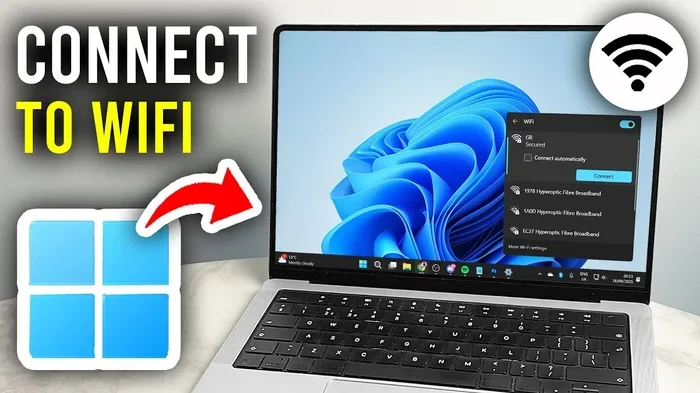
An Azurewave device is a wireless adapter or Wi-Fi card built into many laptops. It handles your wireless internet connection and sometimes Bluetooth too. If you see it showing up on your network or in device manager, it is completely normal. This guide explains what it does, why it matters, and how to keep it running smoothly.
If you have ever opened your network settings or device manager and spotted a device called Azurewave, you are not alone. Many laptop users see this name and wonder what it is, whether it is safe, and if it affects their internet speed. This guide breaks it all down in simple terms so you can understand exactly what is going on with your wireless hardware.
The Azurewave device is a wireless network adapter found in many laptops, especially those from brands like Lenovo, HP, and Dell. It is the small chip or card inside your computer that sends and receives Wi-Fi signals. Think of it as the bridge between your laptop and your wireless router. Without it, your laptop would not be able to connect to any wireless network at all.
Most people never need to think about this component until something goes wrong. Maybe the Wi-Fi drops, or the device shows up with a yellow warning icon. That is when questions start piling up. Let us walk through everything you need to know about the Azurewave device on your Wi-Fi setup.
Key Takeaways
- Azurewave is a wireless adapter: It is the hardware inside your laptop that connects you to Wi-Fi networks.
- It is not a virus or threat: Seeing Azurewave on your network list is perfectly normal and expected.
- Drivers matter: Keeping your Azurewave driver updated ensures stable wireless performance.
- It may also handle Bluetooth: Many Azurewave chips manage both Wi-Fi and Bluetooth connections.
- Laptop hardware works together: Just like what is the RAM on a laptop, the Azurewave chip is one of many components that keep your system running.
- You can troubleshoot it easily: Most connection issues can be fixed with simple driver updates or resets.
📑 Table of Contents
- What Exactly Is an Azurewave Device?
- Why Does Azurewave Show Up on My Network List?
- Is an Azurewave Device Safe?
- How to Manage Your Azurewave Device
- Common Azurewave Device Problems and How to Fix Them
- How Does the Azurewave Device Compare to Other Wireless Adapters?
- Tips for Keeping Your Azurewave Device Running Smoothly
- When Should You Replace the Azurewave Device?
- Final Thoughts
What Exactly Is an Azurewave Device?
Azurewave is a brand name for wireless chipsets and adapters. These are the physical components inside your laptop that handle wireless communication. When you connect to your home Wi-Fi or a public network, the Azurewave chip is doing the heavy lifting behind the scenes.
These devices come in different forms. Some are built directly onto the laptop motherboard. Others are small cards that slot into a dedicated connector. Either way, they serve the same purpose: giving your laptop a way to talk to wireless networks.
How Does It Connect to Your Wi-Fi?
The Azurewave adapter works by picking up radio signals from your wireless router. It translates those signals into data your laptop can understand. It also sends data back out as radio signals so the router can read them. This two-way process happens thousands of times every second.
When you type a web address or open an app that needs internet, the Azurewave device sends that request through the air to your router. The router forwards it to the internet, and the response travels back the same way. All of this happens so fast you do not even notice it is happening.
Does Azurewave Handle Bluetooth Too?
In many laptops, yes. Some Azurewave chips are combo adapters. This means they handle both Wi-Fi and Bluetooth connections. If your laptop connects to wireless headphones, a mouse, or a keyboard without any wires, the Azurewave device might be managing that connection as well.
This is one reason why it is important to keep your drivers updated. A single driver update can improve both your wireless internet and your Bluetooth performance at the same time.
Why Does Azurewave Show Up on My Network List?
If you are browsing your available Wi-Fi networks and see an Azurewave network name, you might feel confused or concerned. Let us clear up what this means and why it appears.
In most cases, Azurewave shows up because it is broadcasting its own network name, also called an SSID. This is normal behavior for many wireless adapters. Your laptop is simply advertising its presence to other devices nearby.
However, there are a few reasons why this might stand out to you:
- It appears in the Wi-Fi list on your phone or another device. This is just your laptop broadcasting its network name.
- It shows up in Device Manager. This is where your computer lists all hardware components, and the Azurewave adapter belongs there.
- It has a yellow triangle icon. This means there is a driver issue that needs attention.
Seeing Azurewave in any of these places is not a sign of trouble. It simply means the wireless hardware is active and working as designed.
Is an Azurewave Device Safe?
Absolutely. The Azurewave device is a legitimate piece of laptop hardware. It is not malware, a virus, or any kind of security threat. It is made by a real company and installed by your laptop manufacturer.
That said, like any hardware component, it can sometimes be exploited if your system is not kept up to date. Outdated drivers can create security vulnerabilities. This is why keeping your drivers current is so important for overall laptop security.
Here are a few quick tips to keep your Azurewave device safe:
- Update your wireless drivers regularly.
- Run Windows Update at least once a week.
- Use a trusted antivirus program.
- Avoid downloading drivers from unofficial websites.
How to Manage Your Azurewave Device
Managing your Azurewave device is straightforward. Whether you want to update drivers, troubleshoot connection issues, or simply check its status, you have several options built right into Windows.
Checking the Device in Device Manager
Open Device Manager by right-clicking the Start button and selecting Device Manager. Look for Network Adapters. You should see the Azurewave device listed there. If it has a yellow icon, that means Windows is having trouble communicating with it.
If the device is working normally, you can right-click it and select Properties. From there, you can check the driver version, update the driver, or roll back to a previous version if a recent update caused problems.
Updating the Azurewave Driver
Outdated drivers are one of the most common causes of Wi-Fi issues. To update your driver, right-click the Azurewave device in Device Manager and choose Update Driver. Windows will search online for the latest version and install it for you.
You can also visit the Azurewave website or your laptop manufacturer’s support page to download the latest driver manually. This is often a better option because the manufacturer-specific driver may include extra features or fixes.
Disabling and Re-enabling the Device
If your Wi-Fi is acting up, sometimes the simplest fix is to disable the Azurewave device and then re-enable it. Right-click the device in Device Manager, choose Disable, wait a few seconds, and then right-click again and choose Enable. This refreshes the connection and often resolves minor glitches.
Common Azurewave Device Problems and How to Fix Them
Even though the Azurewave device is reliable, it can sometimes cause issues. Here are the most common problems and what you can do about them.
Wi-Fi Keeps Disconnecting
If your wireless connection drops frequently, the driver might be outdated. Start by updating the driver through Device Manager. If that does not work, try uninstalling the driver and restarting your laptop. Windows will reinstall a fresh copy automatically.
Azurewave Device Not Recognized
This usually happens after a Windows update or a driver conflict. Open Device Manager and look for the device under Other Devices if it has a yellow mark. Right-click it and choose Update Driver. If that fails, try rolling back to the previous driver version.
Slow Wi-Fi Speeds
A slow connection is not always the Azurewave device’s fault. Your router placement, network congestion, and even your laptop’s RAM can affect overall performance. But if you have ruled out those factors, updating the wireless driver is a great next step.
Bluetooth Not Working Alongside Wi-Fi
Since many Azurewave chips handle both Wi-Fi and Bluetooth, a problem with one can affect the other. Check Device Manager to see if both the wireless and Bluetooth entries are working. Updating the combo driver usually fixes this issue.
How Does the Azurewave Device Compare to Other Wireless Adapters?
There are many wireless adapters on the market. Some are built into laptops like the Azurewave chip. Others are USB dongles or PCIe cards that you add yourself. Here is how they compare.
| Feature | Azurewave (Built-in) | USB Wi-Fi Dongle | PCIe Wireless Card |
|---|---|---|---|
| Installation | Already installed | Plug and play | Requires opening laptop |
| Speed | Good to excellent | Moderate | Excellent |
| Portability | Built into laptop | Very portable | Not portable |
| Bluetooth Support | Often included | Sometimes included | Rarely included |
| Driver Updates | Through manufacturer | Through manufacturer | Through manufacturer |
The built-in Azurewave adapter is the most convenient option for most users. You do not need to plug anything in or install extra hardware. It is always there and ready to go. USB dongles and PCIe cards are better choices when you need a replacement for a broken internal adapter or when you want a performance boost.
If you ever need to upgrade other laptop components alongside managing your wireless hardware, knowing how do I upgrade RAM on my laptop can help you get the most out of your system. A well-maintained laptop with updated hardware components simply works better overall.
Tips for Keeping Your Azurewave Device Running Smoothly
Taking care of your wireless adapter does not require a lot of effort. A few simple habits can keep everything running without issues.
- Update drivers monthly. Set a reminder to check for driver updates once a month. This keeps your wireless performance stable.
- Restart your laptop regularly. A simple restart clears temporary glitches and refreshes your network connections.
- Keep Windows updated. Windows updates often include driver improvements and security patches that protect your Azurewave device.
- Avoid cheap USB extensions. If you ever use a USB dongle alongside your built-in adapter, a low-quality extension can cause signal interference.
- Scan for malware regularly. Malware can hijack your network adapter and cause strange behavior. A good antivirus scan keeps your system clean.
When Should You Replace the Azurewave Device?
Most of the time, you do not need to replace the Azurewave chip. It is built to last the life of your laptop. However, there are a few situations where replacement might make sense.
If your laptop is several years old and the wireless standard is outdated, you might struggle with modern Wi-Fi speeds. Newer routers use standards like Wi-Fi 6 and Wi-Fi 6E, which require compatible hardware. An older Azurewave chip may only support Wi-Fi 5 or earlier.
In these cases, you can replace the internal wireless card with a newer one. Just make sure the new card is compatible with your laptop model. Checking how to know what RAM is compatible with my laptop uses similar research steps. You need to check your laptop model, connector type, and supported standards before buying a replacement.
For most users, however, the built-in Azurewave adapter will work just fine for years. Regular driver updates and basic maintenance are all you need to keep it running smoothly.
Final Thoughts
The Azurewave device on your Wi-Fi is nothing to worry about. It is simply the wireless adapter that gives your laptop the ability to connect to wireless networks. Whether it handles Wi-Fi only or both Wi-Fi and Bluetooth, it plays a vital role in your daily computing experience.
Keep your drivers updated, monitor Device Manager for any warning signs, and treat your wireless hardware with the same care you give the rest of your laptop. With a little attention, your Azurewave adapter will keep you connected reliably for years to come.
Frequently Asked Questions
What is an Azurewave device on my laptop?
An Azurewave device is a wireless network adapter built into your laptop. It handles your Wi-Fi connection and, in many cases, your Bluetooth connection too. It is a normal and essential piece of laptop hardware.
Is the Azurewave device a virus or malware?
No, it is not. The Azurewave device is a legitimate wireless chip made by a real hardware company. It comes pre-installed on many laptops and is completely safe to use.
Why does Azurewave keep showing up in my Wi-Fi list?
It shows up because your laptop broadcasts its wireless adapter name. This is standard behavior for most wireless adapters. You can hide it by disabling SSID broadcasting in your network settings if it bothers you.
How do I update the Azurewave driver?
Open Device Manager, find the Azurewave device under Network Adapters, right-click it, and select Update Driver. You can also download the latest driver from the Azurewave website or your laptop manufacturer’s support page.
Can I disable the Azurewave device if I do not need Wi-Fi?
Yes, you can. Open Device Manager, right-click the Azurewave device, and choose Disable. Keep in mind that this will turn off your wireless internet connection until you re-enable it.
Does the Azurewave device affect my internet speed?
It can, indirectly. An outdated or malfunctioning driver can slow down your connection. A well-maintained Azurewave adapter with updated drivers will help you get the best possible wireless speeds from your router.
=== CONCLUSION ===
The Azurewave device is a key part of your laptop’s wireless hardware. Understanding what it does and how to manage it can save you time and frustration when connection issues arise. Keep your drivers current, monitor your Device Manager, and treat your wireless adapter with the same care you give the rest of your system. With these simple steps, you will enjoy a fast, stable, and reliable Wi-Fi experience every day.