What Is Laptop Screen Resolution
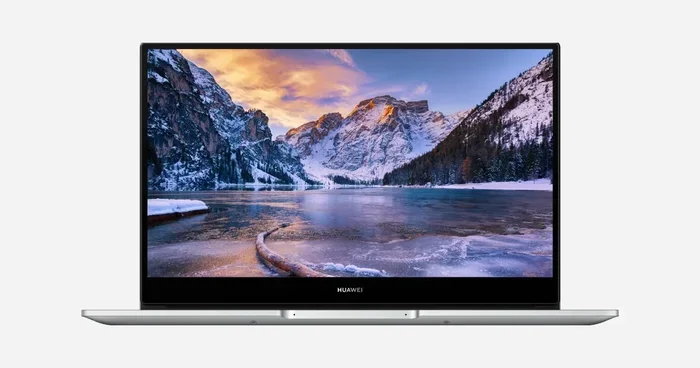
Laptop screen resolution refers to the number of pixels displayed on your screen, determining how sharp and clear your image looks. Whether you need HD, Full HD, or 4K resolution, choosing the right one impacts everything from work productivity to entertainment. This guide breaks down all the key details in simple terms.
Have you ever looked at a laptop screen and wondered why some images look crystal clear while others look blurry? The answer lies in laptop screen resolution. It is one of the most important specs that determines how your display looks and feels. Whether you are browsing the web, watching movies, or editing photos, your screen resolution plays a huge role in your experience.
In this guide, we will break down everything you need to know about laptop display resolution. You will learn what resolution means, the different types available, and how to pick the right one for your needs. We will keep things simple and practical so you can make an informed decision without any confusion.
So let us dive right in and explore the world of laptop screens. By the end of this article, you will know exactly what to look for when choosing a laptop based on its display quality.
Key Takeaways
- Resolution defines image sharpness: More pixels mean a clearer, sharper picture on your laptop display.
- Common resolution types include HD, Full HD, and 4K: Each offers a different level of detail and visual quality.
- Screen size matters: The same resolution looks different on a 13-inch screen versus a 17-inch screen.
- Pixel density affects clarity: A higher pixel density means sharper text and images, especially on smaller screens.
- Your usage determines the best choice: Gaming, video editing, and casual browsing each call for different resolution levels.
- Touch screen laptops often come in high resolution: Models like touch screen laptop 16 gb ram typically feature sharp displays.
📑 Table of Contents
What Is Laptop Screen Resolution?
Laptop screen resolution refers to the number of tiny dots, called pixels, that make up the image on your screen. These pixels are arranged in a grid pattern. The more pixels your screen has, the sharper and more detailed the image will look. Think of it like a mosaic the more tiles you use, the clearer the picture becomes.
Resolution is written as two numbers, like 1920 x 1080. The first number tells you how many pixels run horizontally across the screen. The second number tells you how many pixels run vertically. Multiply those two numbers together and you get the total pixel count on your display.
When people talk about display resolution, they are usually referring to this pixel count. A higher number means more detail. But more pixels do not always mean a better screen. The size of your laptop screen matters too. A 1920 x 1080 resolution on a 15-inch screen looks very different from the same resolution on a 17-inch screen.
How Pixels Create the Image
Every image you see on your laptop is made up of thousands or even millions of pixels. Each pixel is a tiny colored dot. When these dots are packed tightly together, they create the illusion of a smooth, continuous picture. Your laptop screen refreshes these dots many times per second to create the motion you see in videos and animations.
The pixel density of a screen measures how many pixels fit into each inch of the display. This is often measured in PPI, or pixels per inch. A higher PPI means the pixels are closer together, which makes the image look sharper and more detailed. This is why a smaller laptop with the same resolution as a larger one can actually look clearer.
Common Laptop Screen Resolution Types
There are several standard resolution types you will encounter when shopping for a laptop. Each one offers a different level of detail and is suited for different tasks. Let us walk through the most common ones.
HD Resolution (1366 x 768)
HD resolution, also called HD Ready, is the most basic resolution you will find on budget laptops. It has a resolution of 1366 x 768 pixels. This gives you about 1 million pixels on your screen. The image quality is acceptable for everyday tasks like web browsing and document editing. But if you watch a lot of videos or work with images, you may notice that things look a bit fuzzy or lack detail.
HD screens are still common on entry-level laptops and smaller models. They work fine for basic use. But if you want a sharper picture, you should look for a higher resolution option.
Full HD Resolution (1920 x 1080)
Full HD, often called FHD or 1080p, is the most popular resolution for laptops today. It offers 1920 x 1080 pixels, which gives you about 2 million pixels on your screen. This is double the pixel count of HD resolution. The result is a much sharper, clearer image that looks great for both work and entertainment.
Most mid-range and premium laptops come with Full HD displays. It is the sweet spot for many users because it balances image quality with performance. A Full HD laptop handles everything from office work to casual gaming with ease. If you are not sure what to pick, Full HD is a safe and reliable choice.
Quad HD Resolution (2560 x 1440)
Quad HD, also called QHD or 1440p, takes image quality a step further. It has 2560 x 1440 pixels, giving you about 3.7 million pixels. This resolution is becoming more popular on high-end laptops, especially those designed for creative professionals and gamers. Text looks razor sharp, and images have excellent detail.
QHD screens are great for tasks that require precision, like photo editing or graphic design. They also make gaming more immersive because the higher pixel count creates a more detailed and lifelike picture. The tradeoff is that QHD screens can use more battery power and require a stronger graphics card to run smoothly.
4K Resolution (3840 x 2160)
4K resolution, also called Ultra HD or UHD, is the highest resolution commonly found on laptops. It has 3840 x 2160 pixels, which gives you about 8.3 million pixels. That is four times the pixel count of Full HD. The image quality is stunningly sharp and detailed.
4K screens are ideal for professionals who work with high-resolution images or video. They are also fantastic for watching movies and consuming media. However, 4K laptops tend to be more expensive and use more battery. They also require powerful hardware to run games and demanding applications smoothly. For most everyday users, Full HD is more than enough.
How Screen Size Affects Resolution
Resolution and screen size go hand in hand. The same resolution can look very different depending on the size of the screen. This is where the concept of pixel density comes back into play.
Understanding Pixel Density
Pixel density measures how tightly packed the pixels are on your screen. A 15-inch laptop with Full HD resolution has a pixel density of about 141 PPI. The same Full HD resolution on a 13-inch laptop gives you about 166 PPI. The smaller screen packs more pixels into the same space, making the image look sharper.
This is why some people prefer smaller laptops for tasks that require fine detail, like reading or photo editing. The higher pixel density on a smaller screen can actually make the image look better than a larger screen with the same resolution.
Choosing the Right Resolution for Your Screen Size
Here is a simple guide to help you match resolution with screen size:
- 13 to 14 inches: Full HD is ideal. It provides excellent sharpness for a portable screen.
- 15 to 16 inches: Full HD or Quad HD work well. QHD looks especially sharp at this size.
- 17 inches and above: Quad HD or 4K is recommended. These larger screens need more pixels to maintain sharpness.
Keep in mind that a touch screen laptop often comes in high resolution to make the display look its best. Many models in the touch screen laptop 8gb ram category offer Full HD or higher resolution displays.
Resolution and Your Laptop Usage
The best resolution for your laptop depends on what you plan to use it for. Different tasks have different demands. Let us look at how resolution connects to common laptop uses.
For Work and Productivity
If you use your laptop for office work, email, and web browsing, Full HD is more than enough. Text will look crisp, and you will have plenty of screen space to work with. A higher resolution like QHD can be nice for multitasking, but it is not essential for most office tasks.
Some users prefer higher resolutions because they can fit more content on screen. With a 1440p display, you can have two windows side by side without them feeling cramped. This can boost your productivity if you work with multiple apps at once.
For Gaming
Gamers need to pay close attention to resolution. Higher resolutions make games look more detailed and immersive. But they also require more processing power from your laptop. A laptop i7 32gb ram 1tb ssd touch screen with a high-resolution display can handle modern games with ease.
Here is what to consider when choosing a gaming laptop resolution:
- Full HD (1080p): The most popular choice for gamers. It offers a great balance of visual quality and performance.
- Quad HD (1440p): A step up for gamers who want sharper visuals and have a powerful laptop.
- 4K (2160p): Best for those who want the most detailed image and have a high-end gaming setup.
Keep in mind that running games at 4K requires a very powerful graphics card. Most gamers find that Full HD or Quad HD is the practical sweet spot.
For Creative Work
If you edit photos, design graphics, or work with video, resolution matters a lot. A higher resolution display lets you see more detail in your work. This is critical for color accuracy and precision. Many creative professionals prefer Quad HD or 4K screens for this reason.
When choosing a laptop for creative work, also look for features like accurate color reproduction and wide color gamut. These work together with resolution to give you the best possible display quality.
How to Check and Change Your Laptop Resolution
Sometimes you may want to check your current screen resolution or change it. This is a simple process on both Windows and Mac laptops. Knowing how to adjust your resolution settings can help you get the best picture from your display.
On Windows
To check your resolution on Windows, right-click on your desktop and select Display Settings. Scroll down to the Scale and Layout section. You will see a dropdown menu for Display Resolution. The recommended option is usually the best choice for your screen.
If you want to change your resolution, simply select a different option from the dropdown. Windows will apply the change and ask you to confirm. If the new resolution looks good, keep it. If it looks strange, you can switch back to the previous setting.
On Mac
On a Mac, go to System Settings and click Displays. You will see a list of available resolutions. Select the one that looks best to you. Macs often use scaled resolutions, which means the display shows more or fewer pixels while keeping text and icons at a comfortable size.
Changing your resolution can also affect battery life. A higher resolution uses more power because your laptop has to push more pixels. If you are trying to conserve battery, lowering the resolution slightly can help.
Common Mistakes People Make About Laptop Resolution
There are a few common mistakes that people make when thinking about laptop screen resolution. Avoiding these pitfalls can save you money and frustration.
Assuming Higher Resolution Is Always Better
While a higher resolution does mean a sharper image, it is not always the best choice. A 4K resolution on a small 13-inch laptop may not look much different from Full HD to the naked eye. Plus, it drains your battery faster and can make your laptop cost significantly more. Choose the resolution that matches your needs and budget.
Ignoring the Refresh Rate
Resolution is not the only thing that affects screen quality. The refresh rate, measured in Hertz (Hz), also matters. It determines how many times per second your screen updates the image. A 60Hz screen refreshes 60 times per second, while a 120Hz or 144Hz screen refreshes even more. For smooth motion in videos and games, a higher refresh rate can make a big difference.
Not Considering the Panel Type
The type of panel your laptop uses also affects image quality. IPS panels offer great color accuracy and wide viewing angles. TN panels are faster but have poorer color reproduction. VA panels offer deep blacks but can suffer from slower response times. When choosing a laptop, consider both resolution and panel type for the best display experience.
Final Thoughts on Laptop Screen Resolution
Choosing the right laptop screen resolution is an important part of picking the perfect laptop. It affects how clear and sharp everything on your screen looks, from text to videos to games. The key is to match your resolution choice to your specific needs and how you use your laptop.
For most users, Full HD provides the best balance of image quality, performance, and value. Creative professionals and gamers may want to invest in Quad HD or 4K for the extra detail. And if you are on a tight budget, HD resolution can still get the job done for basic tasks.
Remember that resolution is just one piece of the puzzle. Panel type, brightness, color accuracy, and refresh rate all contribute to your overall display experience. Consider all of these factors together when making your decision. With the right resolution and display features, your laptop can deliver a visual experience that makes everything you do more enjoyable and productive.
Take your time, compare your options, and choose a resolution that fits your lifestyle. Your eyes will thank you every time you open your laptop.
Frequently Asked Questions
What is the best laptop screen resolution for everyday use?
Full HD (1920 x 1080) is the best resolution for most everyday users. It offers sharp text, great image quality, and good performance without draining your battery too quickly. It handles web browsing, office work, and media consumption with ease.
Does higher resolution drain laptop battery faster?
Yes, a higher resolution uses more battery because your laptop has to render more pixels on the screen. If battery life is a concern, Full HD is a good compromise that balances image quality with power efficiency.
Can I change my laptop screen resolution after buying it?
Yes, you can change your resolution through your laptop settings on both Windows and Mac. However, the available options depend on your display hardware. You can only select from the resolutions your screen supports.
Is 4K worth it on a laptop?
4K is worth it if you do creative work like photo or video editing, or if you want the best possible image quality for media consumption. For general use, 4K may be overkill and can reduce battery life and increase cost.
What is the difference between HD and Full HD?
HD resolution is 1366 x 768 pixels, while Full HD is 1920 x 1080 pixels. Full HD has nearly double the pixel count, which makes images and text look significantly sharper and more detailed.
Does screen size affect how resolution looks?
Yes, absolutely. A smaller screen with the same resolution will look sharper because the pixels are packed more tightly together. This is why pixel density matters just as much as the raw resolution number.