What Is Wdcsam64sys
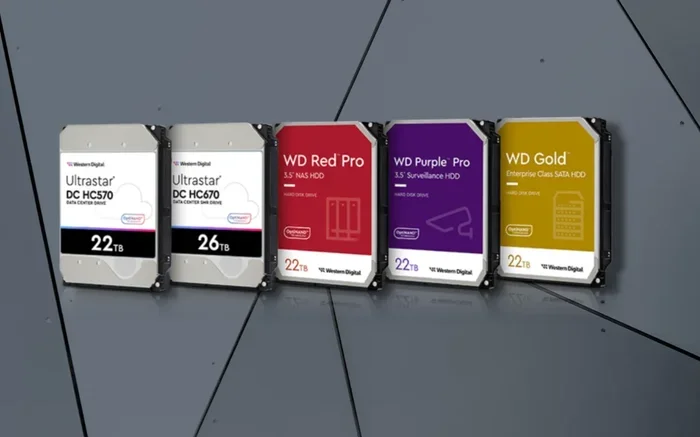
Wdcsam64sys is a legitimate Windows system driver file linked to Western Digital external hard drives and the WD SmartWare backup software. It runs as a background process on laptops and desktops to enable automatic backup and drive management features. While it is generally safe, some users encounter high CPU usage, driver errors, or missing file alerts that need troubleshooting.
If you have ever opened Task Manager on your laptop and spotted a process called wdcsam64sys, you are not alone. Many Windows users come across this file and wonder what it is, whether it is safe, and why it is running on their machine. This guide breaks it all down in plain, simple language.
The wdcsam64sys file is a Windows system driver. It belongs to Western Digital, one of the biggest names in external hard drives and storage solutions. If you own a WD external drive or use WD SmartWare backup software, this file is likely doing important work behind the scenes on your laptop.
Let us dive deep into what wdcsam64sys does, where it comes from, and what to do if it causes problems. Whether you are a casual laptop user or someone who manages a lot of external storage, this article covers everything you need to know.
Key Takeaways
- What it is: Wdcsam64sys is a device driver tied to Western Digital external storage and WD SmartWare backup tools.
- Where it lives: The file typically sits in the Windows System32 or SysWOW64 folder on your laptop.
- Is it safe: Yes, it is a genuine Windows driver, but malware can sometimes disguise itself with the same name.
- Common issues: High CPU usage, missing file errors, and driver conflicts are the top problems users face.
- How to fix it: Updating drivers, running virus scans, and reinstalling WD SmartWare can resolve most issues.
- Can you remove it: You can disable or uninstall it if you do not use WD external drives or backup software.
📑 Table of Contents
What Is Wdcsam64sys?
Wdcsam64sys stands for Western Digital Common Service Driver for AMD 64-bit systems. It is a kernel-mode driver that helps Windows communicate with Western Digital external storage devices. Think of it as a translator between your laptop and the WD drive plugged into your USB port.
This driver is part of the WD SmartWare software package. WD SmartWare is a backup and drive management tool that comes pre-installed on many Western Digital external hard drives. The wdcsam64sys file enables features like automatic backups, drive health monitoring, and real-time file syncing.
Here is what you should know about this file:
- File type: System driver (.sys file)
- Developer: Western Digital Corporation
- Associated software: WD SmartWare, WD Drive Utilities
- Typical location: C:\Windows\System32\drivers or C:\Windows\SysWOW64\drivers
- Runs on: Windows 10, Windows 11, and older 64-bit Windows versions
The file is digitally signed by Microsoft and Western Digital. A valid digital signature means Windows has verified the file as authentic and safe. This is a key reason why wdcsam64sys is generally considered a trustworthy system component.
Why Does Wdcsam64sys Run on Your Laptop?
When you plug in a Western Digital external hard drive, the driver loads automatically. It stays active in the background even when you are not actively copying files. This allows WD SmartWare to perform scheduled backups and monitor drive health without you needing to open the software.
Even if you are not actively using a WD drive, the driver may still appear in Task Manager. Some users keep it installed because it supports future plug-and-play functionality. The driver ensures that when you connect a WD drive next time, Windows recognizes it immediately and starts managing it properly.
Is Wdcsam64sys Safe?
In most cases, wdcsam64sys is completely safe. It is a legitimate driver developed by a reputable company. However, like many system files, it can sometimes be mimicked by malware. Cybercriminals occasionally name malicious files similarly to trusted system files to avoid detection.
Here is how you can confirm the file is genuine:
- Check the file location. The real wdcsam64sys lives in the C:\Windows\System32\drivers folder. If you find it somewhere else, that is a red flag.
- Verify the digital signature. Right-click the file, go to Properties, and check the Digital Signatures tab. It should show Western Digital or Microsoft as the signer.
- Run a full antivirus scan. Use Windows Defender or a trusted third-party antivirus to scan your system. This catches any disguised threats.
- Check file size. The genuine file is typically around 50 to 100 KB. A much larger or smaller file could be suspicious.
Taking these simple steps gives you peace of mind that your laptop is not harboring anything harmful. If everything checks out, you can safely let wdcsam64sys run as part of your system processes.
Common Problems with Wdcsam64sys
While the driver is generally reliable, several issues can pop up. Here are the most common ones that laptop users report.
High CPU Usage
This is the number one complaint. Some users notice that wdcsam64sys uses a surprisingly high amount of CPU resources. When this happens, your laptop may slow down, fans may spin louder, and battery life can drop fast.
The cause is often a conflict between the driver and your operating system. Sometimes a Windows update changes how drivers communicate with the kernel, and the WD SmartWare software has not caught up yet. Other times, the driver gets stuck in a loop trying to connect to a WD drive that is no longer attached.
Missing File Errors
You might see error messages saying that wdcsam64sys is missing or not found. This usually happens after a Windows update, a driver conflict, or if you recently uninstalled WD software. The error can show up when you try to access a Western Digital drive or when the system tries to load the driver at startup.
Missing file errors can also occur if the file gets accidentally deleted during a disk cleanup or if a third-party optimizer tool removes it thinking it is unnecessary.
Driver Conflicts
Sometimes wdcsam64sys conflicts with other storage drivers on your laptop. This is more common if you use multiple external drive brands or have other backup software installed. The conflict can cause your WD drive to disconnect randomly or fail to show up in File Explorer.
How to Fix Wdcsam64sys Errors
If you are dealing with wdcsam64sys problems, do not worry. There are several proven fixes you can try right now. Start with the simplest solution and work your way down the list.
1. Restart Your Laptop
It sounds too simple, but a fresh restart clears temporary glitches that can cause the driver to misbehave. Close all programs, restart, and check if the issue is gone.
2. Update WD SmartWare and Drivers
Outdated software is a leading cause of driver errors. Visit the Western Digital website and download the latest version of WD SmartWare. Also, update your device drivers through Device Manager. Right-click the Start button, open Device Manager, expand the “Disk drives” section, and update any WD entries.
3. Reinstall WD SmartWare
If updating does not work, try a clean reinstall. Uninstall WD SmartWare from your laptop, restart, and then download and install the latest version from the official site. This replaces any corrupted files, including wdcsam64sys.
4. Run System File Checker
Windows has a built-in tool that scans for and repairs corrupted system files. Open Command Prompt as Administrator and type sfc /scannow. The tool will check your system and replace any damaged files automatically.
5. Disable the Driver (If You Do Not Need It)
If you do not use Western Digital drives, you can safely disable wdcsam64sys. Open Device Manager, find the driver under “System devices” or “Non-Plug and Play Drivers,” right-click it, and select Disable. This stops it from running at startup and frees up system resources.
Some users also wonder about their laptop’s overall system resources. If you are curious about how much ram your laptop has or what a good ram size is for your laptop, there are plenty of guides available that break this down clearly.
Should You Remove Wdcsam64sys?
Whether you should remove wdcsam64sys depends on your usage. If you regularly use Western Digital external drives or rely on WD SmartWare for backups, keeping the driver is the smart move. Removing it could break your backup schedule and make your drive harder to manage.
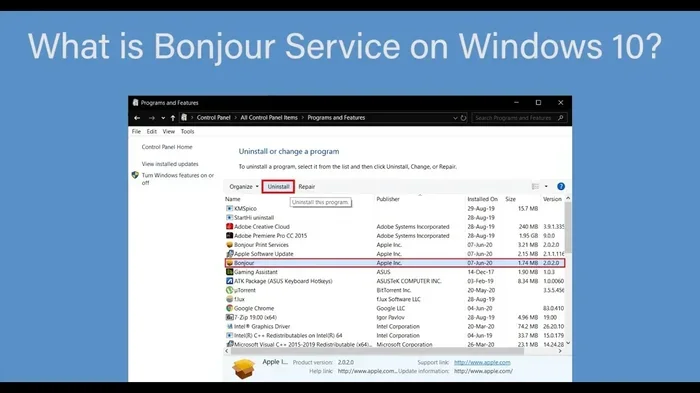
On the other hand, if you never use WD drives and the driver is causing problems like high CPU usage or error pop-ups, removing it makes sense. You can uninstall WD SmartWare through the Control Panel or Settings app. This removes the driver and all associated software.
Remember that investing in proper laptop maintenance, including keeping your drivers up to date, is one of the best things you can do for your PC’s lifespan. A well-maintained laptop runs faster, lasts longer, and avoids frustrating errors like the ones tied to wdcsam64sys.
Wdcsam64sys and Your Laptop’s Performance
One thing many laptop users worry about is how background processes affect performance. The wdcsam64sys driver is lightweight when working correctly. It uses very little memory and CPU in normal operation. Problems only arise when the driver is outdated, corrupted, or conflicting with other software.
If your laptop feels sluggish and you suspect wdcsam64sys is the culprit, check Task Manager. Sort processes by CPU usage and see if the driver is consuming an unusually high percentage. If it is, the fixes listed above should help restore normal performance.
For users who want to optimize their laptop further, understanding your system’s overall specs helps. Knowing how much ram your laptop has or what ram size is ideal can guide decisions about upgrades and maintenance routines.
Preventing Future Wdcsam64sys Issues
Prevention is always easier than fixing problems. Here are a few habits that keep your system running smoothly and reduce the chances of running into wdcsam64sys errors again:
- Keep WD SmartWare updated. Check for software updates at least once a month.
- Run regular virus scans. A weekly full scan catches threats before they can disguise themselves as system files.
- Avoid sketchy third-party optimizers. Some of these tools delete legitimate system files thinking they are junk.
- Update Windows regularly. System updates often include driver compatibility fixes that prevent conflicts.
- Eject drives properly. Always use the “Safely Remove Hardware” option before unplugging your WD drive.
These small habits go a long way in keeping your laptop healthy and your drivers functioning as they should. If you ever need to check what other drivers or system components are running, tools like Device Manager and Task Manager give you full visibility into everything happening on your machine.
Final Thoughts
Wdcsam64sys is a normal, legitimate Windows driver that helps your laptop work smoothly with Western Digital external storage. Most of the time, you will never even notice it is there. But when problems do arise, now you know exactly what the file is, why it matters, and how to fix it.
Whether you choose to keep the driver, update it, or remove it entirely, the decision should be based on how you use your laptop and your Western Digital devices. Stay proactive with updates and scans, and your system will stay clean and efficient.
If you are curious about other system components, drivers, or laptop optimization tips, there is a wealth of information available that can help you get the most out of your machine. Understanding your laptop inside and out is the best investment you can make for its long-term performance and lifespan.
Frequently Asked Questions
What is wdcsam64sys and do I need it?
Wdcsam64sys is a Windows driver for Western Digital external drives and WD SmartWare backup software. You need it if you use WD drives or rely on WD SmartWare for automatic backups. If you do not use any Western Digital products, you can safely disable or remove it.
Is wdcsam64sys a virus or malware?
No, wdcsam64sys is a legitimate system driver made by Western Digital. However, malware can sometimes mimic the same file name. Always verify the file location (should be in System32\drivers) and check the digital signature to confirm it is genuine.
Why is wdcsam64sys using so much CPU?
High CPU usage is usually caused by an outdated driver, a conflict with Windows updates, or a corrupted installation. Try updating WD SmartWare, running the System File Checker tool, or reinstalling the driver to resolve the issue.
Can I delete the wdcsam64sys file?
You can delete or disable it, but only if you do not use Western Digital external drives. Removing the file may cause error messages when you connect a WD drive later. If you do use WD products, it is better to keep the driver or update it instead of deleting it.
How do I update the wdcsam64sys driver?
Visit the Western Digital official website and download the latest version of WD SmartWare or WD Drive Utilities. You can also update the driver through Device Manager by right-clicking the driver entry and selecting “Update driver.”
What happens if I uninstall WD SmartWare?
Uninstalling WD SmartWare removes the wdcsam64sys driver along with all backup and drive management features. Your WD external drive will still work for basic file storage and transfer, but you will lose automatic backup and health monitoring features.