What Is Nvidia Geforce Experience
Nvidia GeForce Experience is a free application that keeps your graphics drivers updated and optimizes your games for the best performance. It offers easy-to-use features like game optimization, ShadowPlay recording, and an in-game overlay. Whether you are a casual gamer or a serious player, this tool can save you time and improve your laptop gaming experience with just a few clicks.
Key Takeaways
- Automatic Driver Updates: Nvidia GeForce Experience keeps your GPU drivers current so your games run smoothly.
- Game Optimization Made Easy: The app tests your system and adjusts game settings for the best balance of quality and speed.
- ShadowPlay Recording: You can capture clips and screenshots without harming performance.
- In-Game Overlay: Access settings, check FPS, and adjust graphics while you play.
- Free to Use: All core features are available at no cost.
- Battery and Performance Modes: Helps you manage power on a laptop for longer gaming sessions.
📑 Table of Contents
- What Is Nvidia GeForce Experience?
- Key Features of Nvidia GeForce Experience
- How to Install and Set Up Nvidia GeForce Experience
- Benefits of Using Nvidia GeForce Experience
- Common Issues and How to Fix Them
- Is Nvidia GeForce Experience Worth It?
- Tips for Getting the Most Out of Nvidia GeForce Experience
- Final Thoughts
What Is Nvidia GeForce Experience?
Nvidia GeForce Experience is a free software application made by Nvidia. It is designed to help you get the most out of your Nvidia graphics card. The app does several things at once. It updates your drivers, optimizes games, and lets you record clips and take screenshots.
If you game on a laptop, this tool can be a real game-changer. It runs in the background and quietly keeps things running well. You do not need to be a tech expert to use it. The interface is clean and simple. Most users set it up once and forget about it.
The software pairs directly with your Nvidia GPU. It communicates with Nvidia servers to find the best settings for each game you play. This means you get a tailored experience every time you launch a title. It is one of the most popular tools among PC gamers.
One of the biggest advantages is the time it saves you. Without this app, you would need to manually check for driver updates. You would also need to tweak game settings yourself. GeForce Experience handles all of that for you. It is especially useful for people who game on laptops where performance matters a lot.
In short, Nvidia GeForce Experience is your all-in-one companion for managing your Nvidia graphics card. It handles driver updates, game optimization, and screen capture in one place. Let us look at each of these features in more detail.
Key Features of Nvidia GeForce Experience
Automatic Driver Updates
One of the core jobs of this app is keeping your GPU drivers up to date. Nvidia releases new drivers regularly. These updates fix bugs, improve stability, and boost performance for new games. Without automatic updates, you might miss important fixes.
GeForce Experience checks for new drivers as soon as they are available. It downloads and installs them for you. You can choose to update immediately or schedule updates for a later time. This feature alone makes the app worth installing.
Keeping your drivers current also helps with laptop GPU health. Outdated drivers can cause crashes, stuttering, and poor performance. The app removes that worry entirely.
Game Optimization
The game optimizer is one of the most popular features. When you launch a game, the app tests your system. It checks your GPU, CPU, and RAM capabilities. Then it suggests the best settings for that game.
You can choose from three presets: Quality, Balanced, and Performance. Quality mode gives you the best visuals. Performance mode prioritizes smooth frame rates. Balanced mode splits the difference. The app picks the right one based on your hardware.
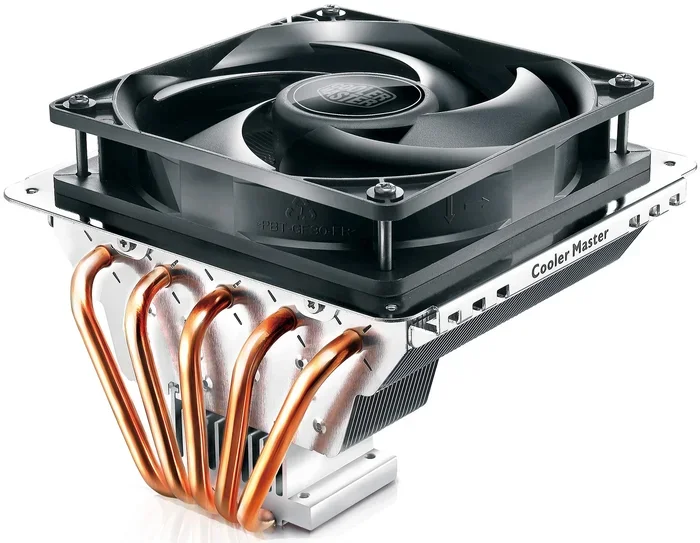
This feature is especially helpful for laptop users. Laptops have limited cooling and power compared to desktops. The optimizer helps you find settings that run well without overheating. If you want to learn more about keeping your laptop cool, check out what the best CPU cooler is for your setup.
ShadowPlay Recording and Screenshots
Nvidia ShadowPlay lets you record gameplay and capture screenshots easily. You can record the last few minutes of your game with a single hotkey. No need to stop and start a recording manually.
The recordings are saved as video files. You can share them directly to social media or save them to your laptop. The impact on game performance is minimal. ShadowPlay uses hardware encoding, so it stays lightweight.
You can also take instant screenshots while gaming. Just press the shortcut key, and the shot is saved. This is great for sharing cool moments with friends or on forums.
In-Game Overlay
The in-game overlay is a handy tool that floats on top of your game. You can access it by pressing a custom key. From the overlay, you can check your frame rate, adjust settings, and open the GeForce Experience menu.
The overlay also shows your FPS in real time. This helps you understand how your laptop is performing. If you notice a drop in frames, you can quickly adjust settings without leaving the game.
The overlay works with most games. It is unobtrusive and easy to customize. You can move it around the screen or hide it when you do not need it.
Battery and Power Management
For laptop users, battery life is always a concern. GeForce Experience includes power management features. It can adjust your GPU settings to save battery when you are not plugged in.
The app can also switch between different performance profiles. When you are on battery, it may reduce the GPU clock speed slightly. This helps extend your gaming time. When you plug in, it returns to full performance mode.
These power features make the app more than just a gaming tool. It helps you manage your entire laptop experience. If you are curious about how much RAM your laptop needs for gaming, read up on what good RAM for a laptop looks like to pair with your GPU.
How to Install and Set Up Nvidia GeForce Experience
Getting started with this app is straightforward. First, you need an Nvidia graphics card. The app does not work with AMD or Intel GPUs. Make sure your laptop has an Nvidia GPU installed.
Visit the Nvidia website and download the GeForce Experience installer. Run the file and follow the on-screen prompts. The installation takes just a few minutes. Once installed, open the app and sign in with your Nvidia account.
After signing in, the app will scan your system. It checks your GPU model, driver version, and installed games. You will see a dashboard with all the available features. From there, you can start updating drivers and optimizing games right away.
The setup process is designed to be beginner-friendly. You do not need any technical knowledge to get started. The app walks you through everything step by step.
Benefits of Using Nvidia GeForce Experience
There are many reasons to use this app. Here are some of the top benefits that make it a must-have for Nvidia laptop users.
- Saves Time: Automatic updates and optimization mean less manual work for you.
- Better Performance: The app finds the best settings for your specific hardware.
- Easy Recording: ShadowPlay makes capturing gameplay simple and quick.
- Improved Stability: Updated drivers reduce crashes and glitches.
- Battery Management: Power features help you game longer on a laptop.
All of these benefits come together to create a smoother gaming experience. Whether you are playing a demanding AAA title or a casual indie game, the app helps you get the most out of every session.
Common Issues and How to Fix Them
Like any software, GeForce Experience can sometimes have issues. Here are a few common problems and simple fixes.
App Won’t Open: Try restarting your laptop. If that does not work, reinstall the app. Make sure your Windows is up to date as well.
Driver Update Fails: Check your internet connection. Sometimes the download gets interrupted. You can also try downloading the driver manually from the Nvidia website.
Game Optimization Not Working: Some games are not supported by the optimizer. Nvidia updates its game database regularly, so check back later. In the meantime, you can manually adjust settings.
Overlay Not Showing: Make sure the overlay is enabled in the app settings. Also check that the game is running in windowed or borderless mode. Fullscreen exclusive mode can sometimes block the overlay.
If you are running into performance issues, your RAM might be a factor. Having a good RAM size for a laptop ensures your system can handle modern games alongside GeForce Experience.
Is Nvidia GeForce Experience Worth It?
The short answer is yes. The app is completely free. It offers real value to anyone with an Nvidia GPU. The automatic driver updates alone justify the installation.
Some users prefer to manage drivers manually. They like the control that comes with it. However, for most people, the convenience of GeForce Experience is hard to beat. It takes the guesswork out of game optimization and driver management.
For laptop users, the app is especially valuable. Laptops have unique challenges like thermal limits and battery constraints. GeForce Experience helps you navigate those challenges with ease. It keeps your system running at its best without requiring deep technical knowledge.
If you are new to PC gaming or just want a simpler setup, this app is a great choice. It handles the technical stuff so you can focus on playing games.
Tips for Getting the Most Out of Nvidia GeForce Experience
Here are some practical tips to help you use the app effectively.
- Keep the App Running in the Background: This ensures you always get the latest driver updates and game optimizations.
- Check for Updates Weekly: Even though the app is automatic, a manual check once a week does not hurt.
- Use ShadowPlay for Clips: Record your best gaming moments without installing extra software.
- Adjust the Overlay Shortcut: Set a hotkey that does not conflict with your games.
- Monitor Your GPU Temperature: The overlay can show you performance data. If your GPU runs hot, consider learning about what a good idle GPU temperature is to keep your laptop healthy.
- Explore the Settings Menu: There are many customization options. Take a few minutes to explore them.
These small habits can make a big difference over time. They help you maintain a smooth and enjoyable gaming setup on your laptop.
Final Thoughts
Nvidia GeForce Experience is a powerful yet simple tool for anyone who games on a laptop. It handles driver updates, game optimization, screen recording, and more. Best of all, it is completely free to use.
The app is designed with regular users in mind. You do not need to be a tech expert to benefit from it. Just install it, let it do its work, and enjoy a better gaming experience. For those looking to improve their overall setup, consider pairing this tool with the right laptop components like sufficient RAM and proper cooling.
If you are still on the fence, give it a try. The worst that can happen is you uninstall it. The best that can happen is a significantly better gaming experience. Nvidia GeForce Experience truly lives up to its reputation as one of the most useful free tools for PC gamers.
Frequently Asked Questions
Do I need Nvidia GeForce Experience if I already have the latest drivers?
Even if you have the latest drivers installed, GeForce Experience still offers game optimization, ShadowPlay recording, and the in-game overlay. These features add real value beyond just driver updates. It is worth keeping the app installed for the extra tools it provides.
Can I use Nvidia GeForce Experience on a desktop PC?
Yes, the app works on both laptops and desktop PCs. It is designed for any system with an Nvidia graphics card. The features are the same regardless of your form factor. The only difference is that laptops benefit more from the battery management features.
Does Nvidia GeForce Experience slow down my laptop?
No, the app is designed to run lightly in the background. It uses minimal system resources. The only time it uses more power is when it is actively updating drivers or optimizing a game. Most users do not notice any performance impact during regular use.
Is Nvidia GeForce Experience safe to use?
Yes, it is an official Nvidia product. It is safe and widely used by millions of gamers worldwide. The app only downloads drivers and settings from Nvidia servers. Always download it from the official Nvidia website to ensure you get the genuine version.
Can GeForce Experience optimize all games?
Most popular games are supported by the optimizer. However, some older or very new titles may not be in the database yet. Nvidia updates the game list regularly. In the meantime, you can always adjust settings manually for unsupported games.
Do I need an internet connection to use Nvidia GeForce Experience?
You need an internet connection for driver updates and game optimization. The app downloads the latest settings and driver files from Nvidia servers. However, once everything is set up, you can still use ShadowPlay and the overlay offline without any issues.
=== CONCLUSION ===
Nvidia GeForce Experience is a must-have tool for anyone who games on a laptop with an Nvidia GPU. It simplifies driver updates, game optimization, and screen recording into one easy-to-use app. The free software delivers real value without requiring any technical expertise. Whether you are a casual player or a dedicated gamer, this app helps you get the best performance from your system. Install it, explore its features, and enjoy a smoother, more optimized gaming experience today.