What Is a Storage Drive
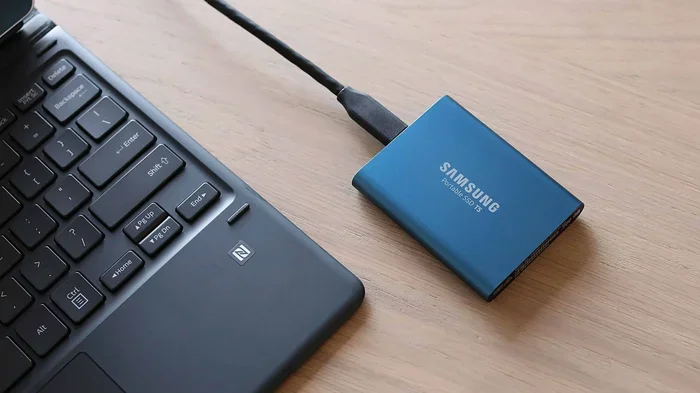
A storage drive is the component in your laptop that holds all your files, apps, and operating system. It comes in two main types: hard disk drives (HDD) and solid-state drives (SSD). Understanding the differences helps you pick the right drive for speed, capacity, and budget.
A storage drive is one of the most important parts of any laptop. Without it, your computer would have no place to keep your photos, documents, apps, or even the operating system that makes everything run. Whether you are buying a new laptop or thinking about upgrading your current one, understanding how storage drives work can save you time, money, and frustration.
In this guide, we will break down everything you need to know about what a storage drive is. We will look at the different types, how they work, and how to pick the right one for your needs. By the end, you will feel confident making the best choice for your laptop.
Key Takeaways
- A storage drive is the heart of your laptop’s memory: It stores everything from your operating system to personal files.
- HDDs offer more space at lower cost: They use spinning disks and are great for bulk storage.
- SSDs are much faster and more durable: They have no moving parts, making them ideal for laptops.
- NVMe drives are the fastest option available: They use the PCIe interface for lightning-quick data transfer.
- Upgrading your storage drive is easy: Most laptops allow you to swap or add a drive yourself.
- Choose based on your needs: Balance speed, capacity, and budget to find the best fit.
📑 Table of Contents
What Is A Storage Drive?
A storage drive is a hardware component inside your laptop that saves and retrieves digital data. Think of it as the digital version of a filing cabinet. Every file you save, every app you install, and every photo you take gets stored on this drive.
When you turn on your laptop, the operating system loads from the storage drive. When you open a document or save a new file, the drive handles that too. It is a constant back-and-forth between your laptop’s processor and the storage drive.
There are two main categories of storage drives used in laptops today. The first is the hard disk drive, commonly known as an HDD. The second is the solid-state drive, or SSD. Each has its own strengths and weaknesses. Let us take a closer look at both.
Why Storage Drives Matter for Laptops
The type of storage drive you have directly affects how fast your laptop feels. A slow drive means long boot times and sluggish app launches. A fast drive makes everything feel snappy and responsive. This is why many people focus on storage speed when comparing laptops.
Storage drives also affect how much you can keep on your laptop. If you work with large files like video projects or photo libraries, you need a drive with plenty of storage capacity. On the other hand, if you mostly browse the web and write documents, a smaller drive may be all you need.
Types Of Storage Drives
Not all storage drives are the same. Let us explore the main types you will find in laptops today.
Hard Disk Drives (HDD)
A hard disk drive is the older and more traditional type of storage. It uses spinning metal disks inside a sealed casing. A tiny arm reads and writes data on these disks, much like a record player. HDDs have been around for decades and are still widely used.
HDDs are great for bulk storage. They offer large capacities at low prices. You can easily find HDDs with 1TB or more of space for a very reasonable cost. This makes them a popular choice for people who need to store lots of files.
However, HDDs have some downsides. Because they have moving parts, they are more fragile. Dropping a laptop with an active HDD can cause damage. They are also slower than newer options. Read and write speeds on an HDD typically range from 80 to 160 megabytes per second.
Solid-State Drives (SSD)
A solid-state drive is a newer type of storage that uses flash memory instead of spinning disks. There are no moving parts inside an SSD. This makes them faster, quieter, and more durable than HDDs.
SSDs are the go-to choice for most modern laptops. They boot up Windows or macOS in seconds. Apps open almost instantly. File transfers happen at speeds of 500 megabytes per second or more. The difference between an HDD and an SSD is something you will notice every single time you use your laptop.
SSDs do tend to cost more per gigabyte than HDDs. But prices have dropped a lot over the years. Today, a 500GB SSD is very affordable and offers a huge upgrade over an HDD.
NVMe Drives
NVMe stands for Non-Volatile Memory Express. It is a type of SSD that connects directly to your laptop’s motherboard through the PCIe interface. This gives it much higher speeds than a standard SATA SSD.
If you want the fastest storage available, look for an NVMe drive. These drives can reach read speeds of 3,500 megabytes per second or more. For comparison, that is over 20 times faster than a typical HDD. People who work with large files, edit video, or play demanding games benefit the most from NVMe storage.
If you are curious about the largest options available, check out our guide on the biggest NVMe SSD on the market today.
eMMC Storage
Some budget laptops use eMMC storage. This stands for embedded MultiMediaCard. It is a type of flash storage soldered directly onto the laptop’s motherboard. You cannot remove or upgrade it.
eMMC is faster than an HDD but slower than a standard SSD. It works fine for basic tasks like web browsing and document editing. However, if you need lots of storage or fast performance, eMMC may not be enough.
How Storage Drives Work
Understanding how a storage drive works helps you appreciate why some drives are faster than others. Let us break it down in simple terms.
In an HDD, the spinning disks are called platters. Each platter is coated with a magnetic material. Data is stored as tiny magnetic charges on these platters. The read/write arm moves across the disk to access different areas. This process takes time, which is why HDDs are slower.
In an SSD, data is stored in memory chips called NAND flash. These chips hold electrical charges that represent data. There is no moving part at all. The drive can access any piece of data almost instantly. This is why SSDs are so much faster.
NVMe drives take this a step further. They use a streamlined communication protocol that reduces delays. The result is even faster data transfer and lower latency. Think of it as a highway with fewer traffic lights.
Read and Write Speeds Explained
Every storage drive has two key speed measurements. Read speed is how fast the drive can pull up a file. Write speed is how fast it can save a new file. Both matter for everyday use.
Here is a quick comparison of typical speeds:
- HDD: Read/write speeds of 80 to 160 MB/s
- SATA SSD: Read/write speeds of 500 to 550 MB/s
- NVMe SSD: Read/write speeds of 3,000 to 7,000 MB/s
- eMMC: Read/write speeds of 200 to 400 MB/s
These numbers show why upgrading from an HDD to an SSD can feel like getting a new laptop. The speed difference is dramatic.
HDD vs SSD: Which Is Better For Your Laptop?
This is the most common question people ask when choosing a storage drive. The answer depends on what you need.
| Feature | HDD | SSD |
|---|---|---|
| Speed | Slow | Fast |
| Price per GB | Low | Medium |
| Durability | Lower (moving parts) | Higher (no moving parts) |
| Noise | Yes, spinning sound | Silent |
| Power Use | Higher | Lower |
| Max Capacity | Up to 20TB | Up to 8TB common |
| Best For | Bulk storage, budget builds | Speed, reliability, laptops |
For most laptop users, an SSD is the clear winner. It makes your laptop feel faster, runs cooler, and handles bumps and drops better. If you need extra space, you can always add a second drive or use external storage.
Keep in mind that your storage drive also works alongside your laptop’s RAM. While the drive stores your files long-term, RAM handles active tasks. If you want to learn more about how much RAM your laptop needs, check out our article on what RAM is good for in a laptop.
How To Choose The Right Storage Drive
Choosing the right storage drive comes down to a few key factors. Let us walk through them.
Consider Your Storage Needs
Think about how much data you actually have. Do you store thousands of photos and videos? Do you install many large games or software? If so, you need a drive with high capacity. A 1TB or 2TB drive gives you plenty of room.
If you mostly use cloud storage or stream media, you may not need as much local space. A 256GB or 512GB SSD could work well for you.
Think About Your Budget
Storage drives come in a wide price range. HDDs are the most affordable option per gigabyte. SSDs cost a bit more but offer much better performance. NVMe drives are the priciest but deliver the fastest speeds.
Set a budget before you shop. Decide what matters most to you. Is it speed? Capacity? Price? Once you know your priorities, the choice becomes much easier.
Check Compatibility With Your Laptop
Not every laptop can use every type of drive. Some laptops have a 2.5-inch drive bay that fits standard HDDs and SATA SSDs. Others use M.2 slots that accept NVMe or SATA M.2 drives.
Before buying a new drive, check your laptop’s manual or look up its specifications online. Make sure the drive type, size, and connector match your laptop’s slot.
Consider the Drive Lifespan
All storage drives wear out over time. HDDs have mechanical parts that can fail after years of use. SSDs have a limited number of write cycles. However, modern SSDs are very durable and can last many years under normal use.
Look for drives with good warranty periods. A longer warranty usually means the manufacturer trusts the drive’s reliability. Most quality SSDs come with warranties of 3 to 5 years.
How To Upgrade Your Laptop Storage
Upgrading your laptop’s storage drive is one of the best ways to breathe new life into an older machine. It is also one of the easiest upgrades you can do yourself.
Start by checking if your laptop has an available drive slot. Many laptops have a second bay or an empty M.2 slot you can use. If your laptop only has one slot, you will need to replace the existing drive.
Before you begin, back up all your important files. Cloning software can copy your entire drive to the new one, making the transition seamless. Once the new drive is installed, you can restore your data and enjoy faster performance.
If you are unsure about the process, many laptop manufacturers offer step-by-step guides online. You can also watch video tutorials that walk you through each step. Upgrading storage is a simple and rewarding project that anyone can do.
Remember that your storage drive works hand in hand with other laptop components. For example, having enough RAM helps your laptop handle multiple tasks at once. If you want to learn more about RAM on a laptop, we have a helpful guide that covers everything you need to know.
Common Storage Drive Mistakes To Avoid
Here are some mistakes people often make when dealing with storage drives:
- Ignoring drive health: Use tools like CrystalDiskInfo to monitor your drive’s condition. Catching problems early can save your data.
- Not backing up data: Even the best drives can fail. Always keep backups of important files.
- Choosing only by price: The cheapest drive is not always the best value. Consider speed and reliability too.
- Overlooking interface compatibility: Make sure your laptop supports the drive type you buy.
- Filling the drive completely: Keeping at least 10 to 15 percent of your drive empty helps maintain performance.
Final Thoughts
A storage drive is a small component that makes a huge difference in how your laptop performs. Whether you choose an HDD for affordable bulk storage or an SSD for blazing speed, the right drive can transform your computing experience.
Take the time to understand your needs. Consider how much space you need, how fast you want your laptop to be, and how much you are willing to spend. With the right knowledge, picking the perfect storage drive becomes simple and straightforward.
Your laptop is only as good as the storage inside it. Make a smart choice, and you will enjoy a faster, more reliable computer for years to come.
Frequently Asked Questions
What is the main purpose of a storage drive?
A storage drive holds all your digital data, including your operating system, apps, photos, documents, and more. It is the permanent memory of your laptop, keeping your files safe even when the computer is turned off.
Can I upgrade my laptop storage drive?
Yes, most laptops allow you to upgrade or replace the storage drive. Check if your laptop has an extra slot or if you can swap the existing drive. Always back up your data before making any changes.
Is an SSD better than an HDD for a laptop?
For most laptop users, an SSD is the better choice. It is faster, more durable, quieter, and uses less power. HDDs are still useful for people who need a lot of storage on a tight budget.
How much storage do I need in a laptop?
It depends on how you use your laptop. For basic tasks, 256GB is usually enough. For gaming, video editing, or storing large files, 512GB or 1TB is recommended. If you work with very large projects, consider 2TB or more.
What is the difference between SATA and NVMe SSDs?
SATA SSDs connect through an older interface and are limited in speed. NVMe SSDs use the PCIe interface and are much faster. NVMe drives can be several times quicker than SATA SSDs, making them ideal for demanding tasks.
How long does a storage drive last?
A good quality SSD can last 5 to 10 years or more under normal use. HDDs tend to last a similar amount of time but are more prone to mechanical failure. Keeping your drive at healthy temperatures and not filling it completely helps extend its lifespan.