What Causes the Slide Unlock Not to Work on an Iphone
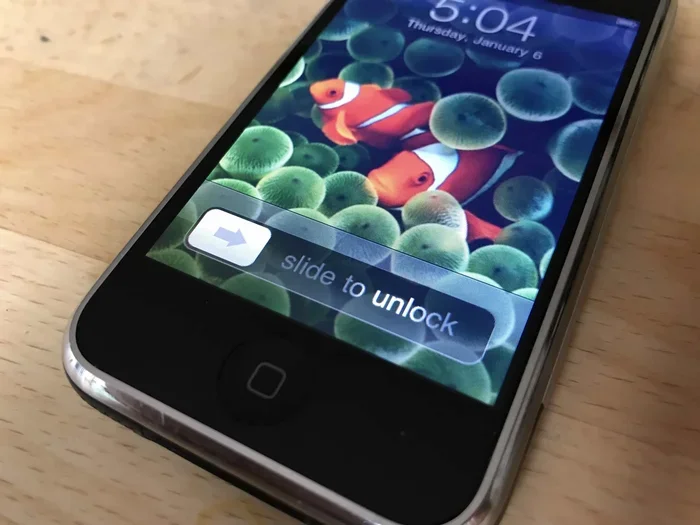
The iPhone slide unlock feature can stop working due to software glitches, frozen screens, or hardware problems. This guide covers the most common causes and practical solutions to restore your slide unlock functionality. You will learn how to restart your device, update iOS, and when to seek professional help.
Your iPhone screen lights up but the slide unlock bar just sits there doing nothing. You swipe left, right, and everywhere in between. Nothing happens. It is frustrating, confusing, and honestly a little scary when your phone suddenly stops responding. You are definitely not alone in dealing with this issue. Thousands of iPhone users face the same slide unlock problem every single day. The good news is that most causes are simple to fix. In this article, we will break down exactly what causes the slide unlock not to work on an iPhone. We will cover software bugs, frozen screens, accessibility settings, and even hardware problems. By the end, you will know exactly what to do to get your phone working again.
The slide unlock mechanism is one of the most basic and essential features of any iPhone. It is the first thing you interact with every time you pick up your device. When it fails, your phone essentially becomes a brick. You cannot check messages, make calls, or use any apps. Understanding why this happens is the first step toward a quick fix. Whether your iPhone is running the latest iOS or an older version, the slide unlock problem can strike at any time. Let us dive into the root causes and solutions so you can get back to using your phone without stress.
Key Takeaways
- Software Glitches: Minor iOS bugs often freeze the slide unlock screen and prevent normal interaction.
- Frozen Screen: A frozen iPhone display can make the slide unlock bar completely unresponsive to touch.
- Accessibility Settings: Misconfigured accessibility features like AssistiveTouch or Touch Accommodations can interfere with slide unlock.
- Hardware Damage: Cracked screens or digitizer issues may physically block the slide unlock gesture from registering.
- iOS Updates: Outdated or buggy software versions are a leading cause of slide unlock failure on iPhones.
- Quick Fixes Work: A simple force restart or iOS reset often resolves slide unlock problems without professional help.
📑 Table of Contents
Common Software Glitches That Break Slide Unlock
Software issues are the number one reason the slide unlock stops working on an iPhone. iOS is a complex operating system and sometimes small bugs creep in. These bugs can freeze the lock screen and make the slide unlock gesture completely unresponsive. A software glitch does not mean your phone is broken. It usually just means something needs a quick refresh or reset.
iOS Bugs and Background Processes
Every iOS update brings new features but occasionally introduces bugs too. Sometimes background processes consume too much memory and the lock screen freezes. The slide unlock bar appears but tapping or swiping does nothing. This is especially common after a major iOS update or when too many apps are running in the background. Your iPhone works hard to keep everything running smoothly. When it gets overloaded, the slide unlock function is often the first thing to suffer.
Another common software issue is a corrupted system file. If a critical file related to the lock screen becomes damaged, your slide unlock may stop working entirely. This can happen after an interrupted update or if your phone unexpectedly shuts down. The system tries to recover but sometimes it needs a little help from you. A simple restart often clears these temporary glitches and restores normal slide unlock function.
App Conflicts and Overloaded Memory
Running too many apps at once can cause conflicts that affect the slide unlock screen. Some apps continue running in the background even after you close them. These background apps consume RAM and can interfere with basic iPhone functions including the lock screen. When memory gets critically low, the system prioritizes essential tasks. Unfortunately, the slide unlock feature sometimes gets deprioritized. This results in a frozen or unresponsive lock screen that refuses your touch inputs.
Frozen Screen and Unresponsive Touch
A frozen iPhone screen is one of the most obvious reasons the slide unlock stops working. The display stays on but does not respond to any touch. You see the lock screen wallpaper and the slide unlock bar but your swipes do nothing. This is different from a black screen because the image is still there. The touch digitizer simply stops communicating with the system.
What Causes the Screen to Freeze?
Several factors can cause your iPhone screen to freeze and block the slide unlock gesture. Overheating is a major culprit. When your phone gets too hot, the touchscreen becomes erratic. The slide unlock bar may appear but your finger does not register on the screen. Leaving your iPhone in direct sunlight or using demanding apps for long periods can trigger overheating. Letting your phone cool down usually fixes the issue and restores slide unlock functionality.
A low battery can also cause the screen to freeze temporarily. When your iPhone drops below a certain charge level, it may enter a power-saving mode that affects touch responsiveness. The slide unlock bar might not work even though the screen is visible. Plugging your phone into a charger often resolves this quickly. Once the battery level stabilizes, your slide unlock should work normally again.
Accessibility Settings Interfering with Slide Unlock
Apple includes powerful accessibility features designed to help users with disabilities. These features are fantastic but they can sometimes interfere with the slide unlock function. If you recently changed an accessibility setting, it might be the reason your slide unlock is not working. The good news is that these settings are easy to check and adjust.
AssistiveTouch and Touch Accommodations
AssistiveTouch creates a floating button on your screen that replaces some gestures. While helpful for many users, it can sometimes conflict with the slide unlock process. The floating overlay may intercept your swipe commands before they reach the lock screen. This makes it seem like the slide unlock bar is not working when really the gesture is being captured elsewhere. Disabling AssistiveTouch temporarily can help you determine if this is the cause.
Touch Accommodations is another setting that changes how your screen responds to touch. It can delay touches, ignore repeat touches, or require a longer press. These adjustments are great for accessibility but they can make the slide unlock gesture unreliable. If your iPhone feels laggy when trying to slide unlock, check your Touch Accommodations settings. Turning them off may immediately solve the problem.
Switch Control and VoiceOver
Switch Control and VoiceOver are advanced accessibility tools. They are designed for users with significant mobility or vision impairments. However, if either is accidentally enabled, it completely changes how your iPhone responds to touch. The slide unlock bar will not work in the normal way because the system is waiting for a different type of input. Navigating to Settings and turning off these features restores the standard slide unlock behavior instantly.
Hardware Problems That Block Slide Unlock
Not all slide unlock problems are software related. Sometimes the issue is physical. Hardware damage can prevent your iPhone from registering any touch input on the lock screen. If you have dropped your phone or exposed it to moisture, the digitizer or screen assembly may be damaged. This directly affects the slide unlock functionality.
Screen Damage and Digitizer Failure
The digitizer is the layer beneath your screen that detects touch. When it gets damaged, the slide unlock bar appears but your swipes do not register. Cracks, pressure points, or water damage can all cause digitizer failure. If you notice dead zones on your screen or areas that do not respond to touch, the digitizer is likely the problem. In these cases, the slide unlock issue is a symptom of broader screen damage that needs professional repair.
A cracked screen does not always mean the digitizer is broken. Sometimes the glass cracks but the touch layer still works. Other times, both layers are damaged. If your slide unlock stopped working right after a drop, inspect your screen carefully. Even small cracks can disrupt the touch grid and prevent the slide unlock gesture from being recognized by the system.
Moisture and Liquid Damage
iPhones are not officially waterproof despite some water resistance ratings. Exposure to moisture can cause internal components to short circuit. The digitizer is particularly vulnerable to liquid damage. If your iPhone got wet and now the slide unlock does not work, moisture may be trapped inside the device. Removing the SIM tray and letting the phone dry thoroughly can sometimes help. However, severe liquid damage usually requires professional servicing to restore the slide unlock function.
Simple Fixes to Restore Slide Unlock
Now that you understand the common causes, let us look at the fixes. Most slide unlock problems can be resolved with a few simple steps. You do not need to be a tech expert to try these solutions. Start with the easiest fix and work your way down the list.
Force Restart Your iPhone
A force restart is the quickest and most effective fix for a frozen slide unlock screen. It clears temporary memory and resets the system without deleting any data. The process varies depending on your iPhone model. For newer models, press and release the volume up button, then press and release the volume down button, and hold the side button until the Apple logo appears. This simple action often restores the slide unlock function immediately.
Update Your iOS
Running an outdated version of iOS is a common reason the slide unlock stops working. Apple regularly releases updates that fix known bugs and improve stability. If your slide unlock problem started after a recent update, a newer patch may already be available. Go to Settings, tap General, then Software Update, and install any available updates. Keeping your iPhone updated prevents many slide unlock issues before they start.
Reset All Settings
If the slide unlock problem persists, resetting all settings can help. This does not delete your data or apps. It simply restores all system settings to their defaults. Go to Settings, tap General, then Transfer or Reset iPhone, and choose Reset All Settings. This clears any misconfigured accessibility options or system preferences that might be blocking the slide unlock gesture. After the reset, you will need to reconfigure some preferences like Wi-Fi passwords and display settings.
Check for Screen Protector Issues
Sometimes the simplest explanation is the right one. A thick or poorly applied screen protector can block touch input in specific areas. If the slide unlock bar is covered or partially obstructed, your swipes will not register. Remove the screen protector and test the slide unlock again. If it works without the protector, replace it with a higher quality option that covers the full screen without interfering with touch responsiveness.
When to Seek Professional Help
Most slide unlock issues resolve with the fixes above. But sometimes the problem is beyond what you can fix at home. If your iPhone has suffered physical damage or liquid exposure, professional repair is the safest option. Attempting to open the device yourself can cause further damage and void your warranty.
Apple Support and authorized service providers can diagnose hardware issues accurately. They have specialized tools and genuine replacement parts. If the slide unlock problem is caused by a faulty digitizer or display assembly, a professional repair will restore full functionality. Do not hesitate to reach out to Apple if your troubleshooting efforts have not resolved the issue. Your data and device deserve proper care.
For general iPhone tips and camera features, you can explore what the flower icon means in the iPhone camera app to learn more about your device. Understanding all the features on your iPhone helps you troubleshoot more effectively when something goes wrong.
Conclusion
The slide unlock not working on your iPhone is almost always fixable. Software glitches, frozen screens, accessibility settings, and hardware damage are the main culprits. By following the steps in this guide, you can identify the cause and apply the right fix. Start with a force restart, check your settings, and update your iOS. Most of the time, these simple steps bring your slide unlock back to life. Remember that patience and systematic troubleshooting go a long way. Your iPhone is a resilient device and with the right approach, you can overcome the slide unlock problem quickly and get back to using your phone with confidence.
Frequently Asked Questions
Why does the slide unlock bar appear but not respond to touch?
This usually happens because of a software glitch or a frozen screen. The lock screen interface loads but the touch digitizer stops communicating with the system. A force restart typically resolves this issue and restores normal slide unlock responsiveness.
Can a screen protector cause the slide unlock to stop working?
Yes, a thick or poorly aligned screen protector can block touch input on the slide unlock bar. The protector may cover the area where you need to swipe. Removing the protector and testing the slide unlock will confirm if it is the cause.
How do I force restart my iPhone to fix slide unlock issues?
For newer iPhone models, press and release the volume up button, then press and release the volume down button, and hold the side button until the Apple logo appears. This clears temporary system errors that commonly cause the slide unlock to freeze or become unresponsive.
Is the slide unlock problem caused by an iOS update?
Sometimes. New iOS updates can introduce bugs that affect the lock screen and slide unlock functionality. If the problem started after an update, check for a newer patch. You can also reset all settings to clear any configuration conflicts caused by the update.
Will resetting all settings delete my data if slide unlock is not working?
No, resetting all settings does not delete your photos, apps, or personal data. It only restores system preferences and settings to their defaults. This is a safe way to fix slide unlock issues caused by misconfigured accessibility options or system settings.
When should I take my iPhone to a professional for slide unlock problems?
If none of the software fixes work and your phone has experienced physical damage or liquid exposure, seek professional help. A damaged digitizer or display assembly requires specialized tools and parts to repair. Apple authorized service providers can diagnose and fix hardware-related slide unlock issues safely.