What Is the Profile in the General Setting on an Iphone
The What Is The Profile In The General Setting On An Iphone option controls configuration files that manage network, security, and device restrictions. It allows users and IT teams to install VPNs, certificates, and APN settings without manual setup. This guide explains how to access, use, and troubleshoot iPhone profiles effectively.
Key Takeaways
- Point 1: The profile setting in General Settings is where all configuration files live on your iPhone.
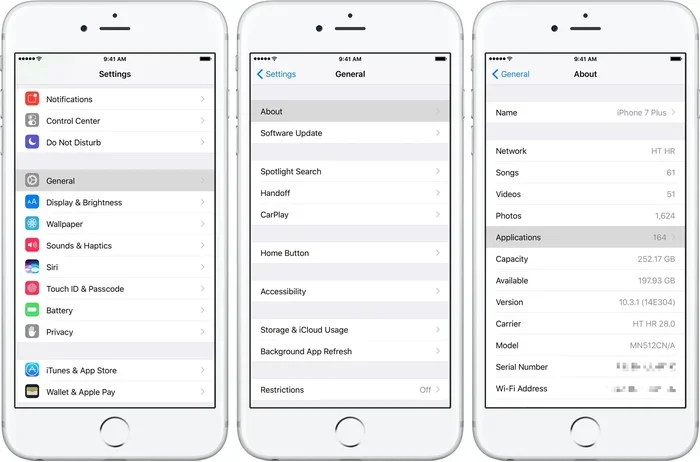
- Point 2: You can access it by going to Settings > General > Profile & Device Management.
- Point 3: Profiles handle VPNs, Wi-Fi credentials, security certificates, and device restrictions automatically.
- Point 4: Only install profiles from trusted sources to avoid security risks.
- Point 5: Removing a profile clears its settings, so be careful with work-related MDM profiles.
- Point 6: Troubleshooting often involves restarting your iPhone or updating iOS.
📑 Table of Contents
What Is The Profile In The General Setting On An Iphone
The What Is The Profile In The General Setting On An Iphone option might seem hidden, but it controls important configuration files that shape how your device connects to networks and manages security. While the flower icon in the iPhone camera can confuse many users, the profile setting is a different kind of mystery. This guide breaks down exactly what the profile does, how to find it, and why it matters for everyday iPhone use. You will learn to install, remove, and troubleshoot these files with confidence.
Many people never touch this setting until something goes wrong. Whether you need to set up a work VPN or fix a stubborn network error, understanding the profile option gives you real power. Think of it as a secret control panel that IT teams and advanced users rely on daily. Let us walk through it step by step.
How to Access the Profile Setting on Your iPhone
Step-by-Step Navigation
Finding the profile in General Settings is simple once you know where to look. Open the Settings app on your iPhone. Scroll down and tap General. Near the bottom of the General menu, you will see Profile & Device Management or just Profile depending on your iOS version. Tap it, and you will see a list of any installed configuration profiles.
If you do not see this option, your iPhone may not have any profiles installed, or your device is supervised by an organization. Unlike the mouse on a laptop, which you can point and click, iPhone relies entirely on touch gestures to navigate these menus. The path is the same for most iPhone models running iOS 15 and later.
What You Will See Inside
Inside the Profile section, you will see a list of installed profiles. Each entry shows the name of the organization or app that created it. You can tap any profile to view details like the profile description, expiration date, and permissions. This screen is your central hub for managing all custom configurations on your device.
What Does the iPhone Profile Actually Do?
Network and VPN Settings
A configuration profile can push VPN settings, Wi-Fi passwords, and cellular APN data to your iPhone without you typing anything. This is incredibly useful for employers who need everyone on the same secure network. The profile handles the background connections so you can focus on your work.
For example, a company might send a VPN profile that automatically connects you to the office network when you are at a coffee shop. You never need to manually enter server addresses or credentials. The What Is The Profile In The General Setting On An Iphone menu simply lists whatever files have been pushed to your device.
Security Certificates and Restrictions
Profiles also install root certificates that let your phone trust custom security systems. They can enforce restrictions like blocking certain apps or preventing changes to your settings. Just as RAM on a laptop handles background tasks, iPhone manages memory for profiles differently, keeping them lightweight and secure.
Certificate profiles are common in enterprise environments where employees need to access internal servers. Without the certificate, your phone would reject the secure connection. The profile installs the trust automatically, saving you from complex manual steps.
Device Management and MDM
Mobile Device Management, or MDM, is the most common reason profiles exist. Companies use MDM to remotely manage company-owned iPhones. They can wipe a lost device, enforce password rules, and push software updates. The profile acts as the communication bridge between your phone and the management server.
MDM profiles are powerful. They can restrict you from uninstalling certain apps or changing your passcode. If you have ever used a work iPhone, there is a good chance an MDM profile is quietly running in the background.
Common Types of iPhone Configuration Profiles
| Profile Type | Purpose | Typical User |
|---|---|---|
| VPN Profile | Sets up secure remote access | Remote workers |
| APN Profile | Configures cellular data settings | Carriers and enterprises |
| Wi-Fi Profile | Installs network credentials automatically | Schools and offices |
| Certificate Profile | Trusts custom security certificates | IT departments |
| Restriction Profile | Locks down device features | Parents and managers |
Each type serves a specific need. A VPN profile, for example, connects you to a corporate network safely. An APN profile tells your phone how to reach the internet through your carrier. The What Is The Profile In The General Setting On An Iphone menu simply lists whatever files have been pushed to your device.
Quick Tips:
- Always read the profile description before installing it.
- If you are unsure about a profile, contact the sender for clarification.
- Keep your iOS updated to ensure profile compatibility.
How to Install and Remove a Profile Safely
Installing a Profile
You usually install a profile by opening a link or email attachment. Your iPhone will warn you that the profile is being downloaded. Read the description carefully. If it looks legitimate, tap Install and enter your passcode. The profile will appear in the Profile & Device Management section immediately.
Common Mistakes to Avoid:
- Installing profiles from unknown websites or pop-up ads.
- Entering your Apple ID password when a profile asks for it.
- Ignoring warning messages about the profile’s origin.
Removing a Profile
To remove a profile, go to Settings > General > Profile & Device Management. Tap the profile you want to delete. Scroll down and tap Remove Profile. You may need to enter your passcode. The profile will disappear from your device, and any associated settings will be cleared.
Expert Insights:
- Always back up your iPhone before removing a profile you are unsure about.
- If a profile is managed by your organization, you may not be able to remove it without IT approval.
- Some profiles expire automatically after a set date, which is a nice security feature.
Troubleshooting Profile-Related Issues on iPhone
Profile Not Showing Up
If you installed a profile but do not see it in General Settings, restart your iPhone. Sometimes the Settings app needs a refresh to display new profiles. You can also check for iOS updates, as older versions may not support newer profile formats. A simple reboot often solves the problem.
Installation Failed Errors
Installation failures often happen due to network issues or an invalid profile file. Make sure you are connected to a stable Wi-Fi network. If the error persists, contact the sender of the profile for a new copy. Avoid downloading profiles from untrusted websites, as they can contain malware or corrupt settings.
When to Seek Help
If you keep seeing the same error or the profile causes your iPhone to freeze, it is time to contact support. Your employer’s IT team can help with work profiles. For personal profiles, a visit to an Apple Store or authorized service provider is a smart move. Do not try to force remove a profile that is causing system instability.
Final Thoughts
The What Is The Profile In The General Setting On An Iphone feature is more than just a hidden menu. It is the gateway to custom configurations that keep your device secure and connected. Whether you are setting up a work VPN, trusting a certificate, or removing an old profile, you now have the knowledge to handle it all. Take a moment today to explore your own profile list and see what is installed.
Remember, the profile setting is a powerful tool. Use it wisely, and your iPhone will stay fast, secure, and exactly how you need it. For more tips on iPhone settings, keep exploring our guides.
Frequently Asked Questions
Can I install a profile without anyone knowing?
Yes, but you should never do that. Installing a profile without your knowledge can give someone remote access to your device. Always review the profile details and ensure it comes from a trusted source like your employer or a known IT provider.
What happens if I delete a work MDM profile?
Deleting a work MDM profile may remove your access to company email, apps, and secure networks. In some cases, it can even lock your device. Always check with your IT department before removing an organizational profile.
Are iPhone profiles safe?
Profiles from trusted sources are safe. They use encrypted connections and are signed by the issuing organization. However, profiles from unknown websites can be dangerous. Stick to official channels and never enter sensitive passwords when a profile prompts you.
How do I know if a profile is still active?
Go to Settings > General > Profile & Device Management. If the profile appears in the list, it is active. Some profiles show an expiration date, after which they will stop working automatically.
Can I have multiple profiles installed at once?
Yes, you can have several profiles installed simultaneously. Each one handles a different task, like one for your company VPN and another for a custom Wi-Fi network. Just be mindful of how many you install, as too many can complicate troubleshooting.
Why does my iPhone ask for a passcode when installing a profile?
The passcode requirement is a security measure. It ensures that only you can authorize the installation of a configuration file. This prevents malicious profiles from being silently installed on your device.