List Of The Four Basic Computer Operations Explained
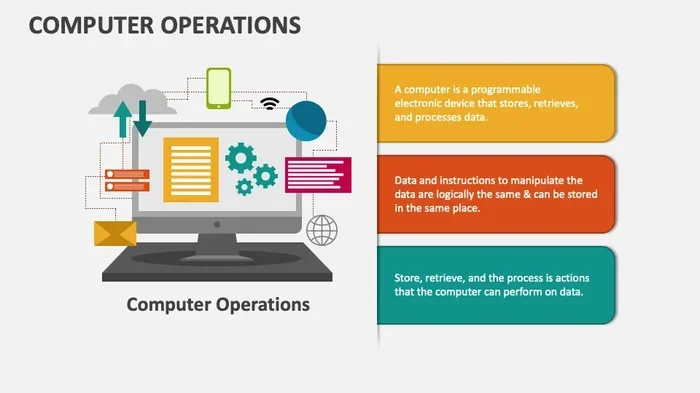
The four basic computer operations are input, processing, output, and storage. These core functions work together every time you use a computer, from simple tasks to complex workflows. Understanding them helps you troubleshoot problems and use your system more effectively.
Every time you open a program, save a file, or browse the web, your computer performs the same four basic operations. These operations form the foundation of how computers work. They have not changed much since the earliest machines. Whether you are using a powerful gaming desktop or a simple budget laptop, these four steps happen millions of times every second.
Understanding the four basic computer operations gives you a clearer picture of what happens inside your machine. It also helps you troubleshoot problems and make smarter buying decisions. In this guide, we break down each operation in plain language. You do not need to be a tech expert to follow along. Let us dive in and explore how your computer really works.
Key Takeaways
- Input: Data enters your computer through devices like keyboards, mice, and scanners.
- Processing: The CPU and RAM work together to transform raw data into useful information.
- Output: Results are displayed through monitors, speakers, printers, and other devices.
- Storage: Hard drives and SSDs keep your data safe for later use.
- All four operations work in a continuous cycle every time you interact with your computer.
- Knowing these basics helps you troubleshoot issues and improve your system’s performance.
- These operations apply to all computers, from laptops to desktops to servers.
📑 Table of Contents
What Are The Four Basic Computer Operations?
Computers might seem complex, but they really only do four things. These computer operations are input, processing, output, and storage. Think of them like a kitchen. Input is like gathering ingredients. Processing is like cooking. Output is serving the finished dish. Storage is putting leftovers in the fridge for later. Each step depends on the one before it.
These operations happen in a continuous loop. Your computer fetches data, processes it, produces results, and saves them. Then it starts again. This cycle is sometimes called the computer cycle or the fetch-decode-execute cycle. It is the heartbeat of every digital device you own.
The beauty of this simple framework is that it applies everywhere. A smartphone follows the same path. A smart TV does too. Even the computer hardware inside your car follows these same four steps. Once you understand this loop, you start seeing it everywhere in technology.
Input: How Data Enters Your Computer
Input is the first of the four basic computer operations. It is the moment data enters your system. Without input, your computer has nothing to work with. Think of input as the gateway between you and the machine. Every click, tap, and keystroke starts here.
Common Input Devices
Input devices come in many shapes and sizes. Here are the most common ones you use every day:
- Keyboard — Lets you type text and commands into the system.
- Mouse — Allows you to point, click, and navigate on screen.
- Microphone — Captures your voice for voice commands or recordings.
- Webcam — Sends video images to the computer for video calls or streaming.
- Scanner — Converts physical documents into digital files.
- Touchscreen — Lets you interact directly with what is on screen.
- Game controller — Sends button presses and movement data to games.
Why Input Matters
Input quality affects everything that follows. A fast keyboard gives you quick commands. A good microphone ensures clear voice recordings. If your input device is slow or broken, the whole chain suffers. For example, if your mouse stops responding, you cannot tell the computer what to do next.
Modern computers also accept input from sensors and network connections. Your laptop’s accelerometer detects when you tilt it. Your Wi-Fi adapter receives data from the internet. All of these count as input. The key idea is simple: input is any data that goes into the system for processing.
Want to learn more about how your computer handles data? Check out our guide on how to check the RAM of a laptop to see how your system manages incoming data in its memory.
Processing: The Brain Of Your Computer
Processing is the second of the four basic computer operations. This is where the magic happens. The computer takes the raw input and transforms it into something meaningful. It is the brain of the operation. Without processing, input would just be data sitting there with no purpose.
The Central Processing Unit (CPU)
The CPU is the main processor in your computer. It performs calculations, makes decisions, and executes instructions. Every program you run depends on the CPU. When you open a web browser, the CPU loads the pages. When you play a game, the CPU handles the game logic. When you edit a photo, the CPU applies filters and adjustments.
The CPU works at incredible speed. A modern processor can execute billions of cycles per second. Each cycle involves fetching an instruction, decoding it, and executing it. This is the famous fetch-decode-execute cycle. It repeats without stopping while your computer is on.
The Role Of RAM In Processing
RAM plays a critical role in processing. It holds data that the CPU needs right now. Without enough RAM, your system slows down because the CPU has to wait. Think of RAM as your computer’s short-term memory. It is fast and temporary. When you close a program, the data leaves RAM.
If you want to understand exactly what RAM does inside your laptop, read our article on what does the RAM do in a laptop. It breaks down how memory supports processing in simple terms.
What Happens During Processing
During processing, the computer does several things at once:
- Arithmetic calculations — Adding, subtracting, multiplying, and dividing numbers.
- Logical comparisons — Deciding if one value is greater than another.
- Data transformation — Converting raw input into a usable format.
- Decision making — Following rules and conditions in your programs.
- Data movement — Shifting information between memory and the CPU.
All of this happens in milliseconds. You never see it happening. But every action you take on your computer triggers this entire process behind the scenes.
Sometimes processing can cause problems. If your computer fan keeps running, it might mean the CPU is working too hard. Check out our guide on why does my computer fan keep running to learn what to do about it.
Output: How Your Computer Shares Results
Output is the third of the four basic computer operations. After the computer processes your data, it needs to show you the results. Output is how the computer communicates back to you. Without output, you would have no way of knowing what your computer did with your input.
Common Output Devices
Output devices take the processed data and present it in a form you can understand. Here are the most common ones:
- Monitor — Displays visual information like text, images, and videos.
- Speakers — Produce sound from audio files or system alerts.
- Printer — Creates physical copies of digital documents.
- Headphones — Deliver private audio output directly to your ears.
- Projector — Displays a large image on a wall or screen.
- Haptic feedback — Vibrates your phone or controller to confirm actions.
The Output Process In Action
Let us walk through a real example. You type a document on your keyboard (input). The CPU processes the keystrokes and formats the text (processing). The formatted text appears on your screen (output). When you save the file, it goes to your hard drive (storage). Then it starts all over again.
Output is not just visual. Sound is a form of output too. When you watch a video, the audio comes through your speakers or headphones. When you get a notification, your phone vibrates. These are all output operations. The computer is constantly sending information back to you.
If you are running into issues where your computer seems to freeze or slow down during output tasks, our guide on how to fix computer running slow and freezing can help you get things running smoothly again.
Storage: Keeping Your Data Safe
Storage is the fourth of the four basic computer operations. It is the final step in the computer cycle. Storage saves data so you can use it later. Without storage, every time you turned off your computer, you would lose everything. Storage gives your computer a long-term memory.
Types Of Storage
Computers use several types of storage devices. Each has its own strengths:
- Hard Disk Drive (HDD) — Uses spinning disks to store data. It offers large capacity at a lower cost.
- Solid State Drive (SSD) — Uses flash memory with no moving parts. It is much faster than an HDD.
- NVMe SSD — The fastest type of SSD. It connects directly to the motherboard for maximum speed.
- USB Flash Drive — A portable storage option you can carry anywhere.
- Cloud Storage — Stores data on remote servers accessed through the internet.
- Optical Discs — CDs, DVDs, and Blu-rays for long-term archival storage.
How Storage Works With The Other Operations
Storage does not work alone. It connects to input, processing, and output in a continuous loop. When you save a file, the processed data moves from RAM to your storage device. When you open that file later, it travels from storage back to RAM for processing. Then the CPU transforms it, and the output devices display it.
The speed of your storage affects everything. A slow hard drive makes your whole system feel sluggish. A fast NVMe SSD makes everything feel instant. If you are looking to upgrade, check out our article on the best NVMe M.2 SSD for top recommendations.
Storage Capacity Matters
How much storage you need depends on what you do. If you only browse the web and write documents, 256 GB might be enough. If you edit videos or play modern games, you will want 1 TB or more. The right amount of storage keeps your system running without constant “disk full” warnings.
Here is a quick comparison of common storage sizes and their best uses:
- 128 GB — Basic tasks, web browsing, and lightweight office work.
- 256 GB — Everyday use with some media files and apps.
- 512 GB — Comfortable for most users with games and media.
- 1 TB — Great for content creators and heavy users.
- 2 TB and above — Ideal for professionals and mass storage needs.
How These Four Operations Work Together
The real power of a computer comes from how these four operations work as a team. They do not happen in isolation. They happen in a continuous, overlapping cycle. Input feeds into processing. Processing creates output. Output can become new input. And storage preserves everything along the way.
Let us look at a complete example. You receive an email (input through your network adapter). The CPU reads and formats the email (processing). You see the email on your screen (output). You save an important attachment to your hard drive (storage). Later, you open that attachment (input). The CPU processes the file (processing). You view the document on screen (output). The whole cycle takes just seconds.
This cycle repeats thousands of times every minute. Your computer handles it all seamlessly. That is what makes modern computing feel so effortless. Behind the scenes, these four basic operations are always at work.
Understanding this cycle also helps you troubleshoot. If your computer seems stuck, one of these four steps might be the bottleneck. Maybe your input device is lagging. Maybe your CPU is overloaded. Maybe your output is frozen. Or maybe your storage is full. Knowing the four operations gives you a clear roadmap for fixing problems.
These operations also explain why upgrading certain parts of your computer helps. More RAM speeds up processing. A faster SSD improves storage access. A better monitor enhances output quality. Every upgrade targets one or more of these four operations. That is why they matter so much when you are buying or building a computer.
When you are shopping for a new machine, pay attention to all four areas. Do not just focus on one. A computer with a fast CPU but slow storage will still feel sluggish. A laptop with great output but poor input devices will frustrate you. Balance across all four operations gives you the best experience.
These fundamentals also apply to learning more advanced topics. Whether you want to understand how to upgrade the RAM of a laptop or explore different computer components, the four operations give you a solid foundation. Everything else in computing builds on these basics.
Final Thoughts
The four basic computer operations — input, processing, output, and storage — are the building blocks of everything your computer does. They are simple, elegant, and powerful. Every click, every keystroke, every save follows this same path. Once you see this pattern, you will never look at your computer the same way again.
Take a moment to think about these operations the next time you use your laptop. Notice how you type (input), how the screen updates (processing and output), and how your file gets saved (storage). It is a beautiful cycle that happens invisibly every single second. Understanding it makes you a smarter, more capable computer user.
Keep exploring, keep learning, and keep building your knowledge. The world of technology becomes much less mysterious when you understand the basics. These four operations are your starting point for a deeper understanding of how the digital world works.
Frequently Asked Questions
What are the four basic computer operations?
The four basic computer operations are input, processing, output, and storage. These operations form a continuous cycle that every computer follows. Input brings data in, processing transforms it, output displays the results, and storage saves data for later use.
Why are the four basic computer operations important?
These operations explain how computers work at a fundamental level. Understanding them helps you troubleshoot problems and make better buying decisions. They also apply to all types of computers, from laptops to servers. Every task you perform involves these four steps working together.
Can the four operations happen at the same time?
Yes, they often overlap. Modern computers handle multiple operations simultaneously. Your CPU might be processing one program while saving data to storage and displaying output on screen. This parallel processing is what makes computers so fast and efficient.
How does RAM fit into these operations?
RAM is critical to the processing operation. It holds data that the CPU needs right now. Without sufficient RAM, processing slows down because the CPU must wait for data. RAM acts as short-term memory that feeds the processor during the cycle.
What happens if one of the four operations fails?
A failure in any operation can cause problems. A broken input device means you cannot send commands. A failing CPU stops processing entirely. A dead output device means you cannot see results. Full storage prevents you from saving new data. Each operation is essential to the complete cycle.
How can I improve my computer’s performance across all four operations?
You can upgrade your RAM for faster processing, switch to an SSD for quicker storage access, use a better monitor for improved output, and replace worn input devices. Balancing upgrades across all four areas gives you the best overall experience. Our guide on can I increase the RAM of my laptop is a great starting point.