How To Connect A Wireless Mouse To iPad Step By Step
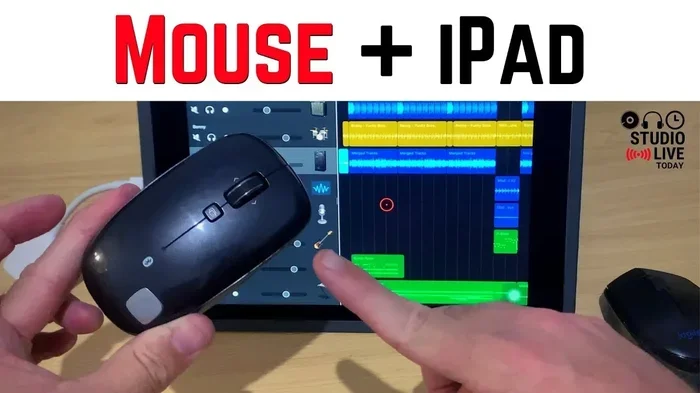
Connecting a wireless mouse to your iPad is simple and fast when you follow the right steps. This guide walks you through the entire process, from enabling Bluetooth to troubleshooting common issues. Whether you use an Apple Magic Mouse or a Logitech wireless mouse, you will get your cursor moving on your iPad in no time.
Key Takeaways
- Easy Bluetooth Pairing: Connecting a wireless mouse to iPad takes just a few taps in the Settings app.
- Wide Compatibility: Most Bluetooth wireless mice work with iPad models running iPadOS 13 or later.
- Quick Troubleshooting: Common connection issues like lag or disconnection can be fixed with simple resets.
- Multiple Mouse Options: You can use the Apple Magic Mouse, Logitech models, or any compatible Bluetooth mouse.
- Customizable Settings: iPadOS lets you adjust cursor speed, right-click behavior, and more for a personalized experience.
- Battery Matters: Keeping your mouse charged ensures a stable and uninterrupted connection.
📑 Table of Contents
Why Connect A Wireless Mouse To Your iPad
Using your iPad with just your fingers works fine for casual browsing. But when you need to work for hours, a wireless mouse makes everything faster and more comfortable. It gives you precision, speed, and a feel that is closer to using a computer.
More and more people are turning to their iPads for real work. Whether you edit documents, design graphics, or manage emails, a mouse helps you get things done efficiently. The good news is that connecting a wireless mouse to iPad is easier than you might think.
Apple has made iPadOS more mouse-friendly over the years. You get a cursor that moves just like a desktop computer. You also get right-click options, scroll gestures, and customizable settings. This means your iPad can feel a lot more like a laptop when paired with the right accessory.
In this guide, we will walk you through every step. You will learn what you need before starting, how to pair your mouse, and how to fix problems if something goes wrong. By the end, you will be clicking and scrolling with confidence on your iPad.
What You Need Before You Start
Before you begin the pairing process, make sure you have everything ready. This saves time and prevents frustration later on.
Compatible Wireless Mice For iPad
Most Bluetooth wireless mice work with the iPad. Here are some popular options:
- Apple Magic Mouse – The official Apple mouse designed for iPad and Mac.
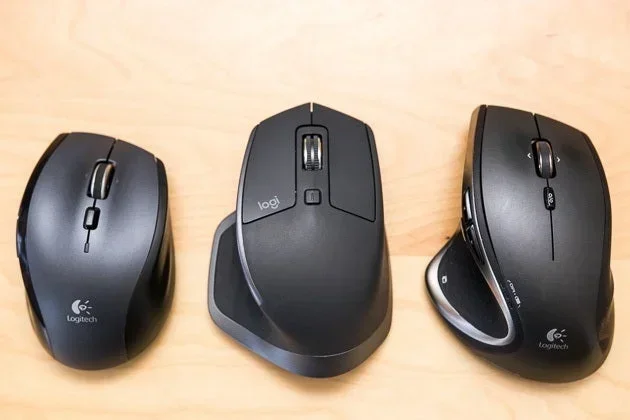
- Logitech wireless mice – Models like the Logitech MX Anywhere and M720 work great.
- Any Bluetooth mouse – As long as it supports Bluetooth connectivity, it should pair with your iPad.
If your mouse uses a USB receiver instead of Bluetooth, you may need an adapter. Some iPads support USB-C adapters for this purpose. This is similar to how you would connect a Bluetooth mouse to a laptop, but with a few iPad-specific steps.
Checking Your iPad Software
Make sure your iPad is running a recent version of iPadOS. Go to Settings, then General, and tap Software Update. If your iPad is on iPadOS 13 or later, you are good to go. Older versions may not support full mouse functionality.
Also, check that your iPad has enough battery. A low battery can sometimes interfere with Bluetooth pairing. Plug your iPad in if the charge is below 20 percent.
How To Connect A Wireless Mouse To iPad Step By Step
Now for the main part. Follow these steps carefully and your mouse will be connected in just a couple of minutes. The process is very similar to connecting a wireless mouse to a laptop, but with iPad-specific settings.
Step 1: Turn On Bluetooth On Your iPad
Open the Settings app on your iPad. Tap Bluetooth at the top of the screen. Toggle the switch to turn Bluetooth on. You will see a spinning animation while your iPad searches for nearby devices.
Make sure your iPad is not in Airplane Mode. Airplane Mode disables all wireless connections including Bluetooth. You can check this by swiping down from the top right corner of your screen and making sure the airplane icon is not highlighted.
Step 2: Put Your Mouse In Pairing Mode
Every wireless mouse has a slightly different way to enter pairing mode. Here are the most common methods:
- Apple Magic Mouse: Slide the power switch to the on position. It will automatically enter pairing mode.
- Logitech wireless mouse: Press and hold the Bluetooth or pairing button on the bottom or side of the mouse for a few seconds.
- Other Bluetooth mice: Look for a small button labeled Pair, Connect, or BT. Press it and hold until a light starts blinking.
The blinking light usually means the mouse is ready to be found. If you are unsure, check your mouse manual or the manufacturer website for specific instructions.
Step 3: Pair The Mouse With Your iPad
Go back to your iPad and the Settings app. Under the Other Devices section, you should see your mouse name listed. Tap on it to pair.
If your mouse does not appear, try these things:
- Make sure the mouse is still in pairing mode.
- Move the mouse closer to your iPad.
- Turn Bluetooth off and back on again.
- Restart your iPad and try again.
Once you tap the mouse name, a checkmark will appear next to it. This means the connection is established. Your cursor should now be visible on the iPad screen.
Step 4: Test Your Connection
Move your mouse around and check if the cursor follows smoothly. Try clicking, scrolling, and right-clicking to make sure everything works. If the cursor moves but clicks do not register, go back to Settings, tap on your mouse name, and check the connection status.
Some users find that the first connection works perfectly but the mouse disconnects later. If this happens, do not worry. We will cover troubleshooting in the next section.
For a broader understanding of Bluetooth mouse pairing across devices, you can also check how to connect a wireless mouse to a laptop as the principles are very similar.
Troubleshooting Common Connection Issues
Even when you follow every step correctly, sometimes things do not work as expected. This is normal and easy to fix. Here are the most common problems and their solutions.
Mouse Not Showing Up In Bluetooth List
If your iPad does not detect the mouse, start with the basics. Make sure Bluetooth is turned on and your mouse is in pairing mode. Some mice only stay in pairing mode for a short time, so you may need to hold the pairing button again.
Try restarting your iPad. A simple reboot refreshes the Bluetooth module and often resolves detection issues. You can also try turning your mouse off and back on before attempting to pair again.
Connection Keeps Dropping
A wireless mouse that keeps disconnecting can be annoying. The most common cause is distance. Bluetooth has a typical range of about 30 feet. If you move too far from your iPad, the connection will drop.
Other causes include interference from other wireless devices, low battery on the mouse, or outdated iPadOS software. Try moving closer to your iPad, replacing the mouse batteries, and updating your iPad software. This is much like fixing a Bluetooth mouse connection on a laptop where distance and interference are also common culprits.
Cursor Movement Is Laggy Or Unresponsive
If your cursor moves slowly or jumps around, the first thing to check is your mouse pad or surface. A glossy or reflective surface can confuse optical sensors. Try using a plain mouse pad.
You can also adjust the tracking speed on your iPad. Go to Settings, then Accessibility, then Pointer Control. From there, you can adjust the pointer speed and motion filtering. Lower speed settings can help if your cursor feels too jumpy.
Best Wireless Mice For iPad
Not all wireless mice are created equal. Some work better with the iPad than others. Here are some top picks based on compatibility, comfort, and performance.
Apple Magic Mouse
The Apple Magic Mouse is the most natural choice for iPad users. It has a sleek design, multi-touch surface, and seamless integration with iPadOS. You get gestures for scrolling, swiping, and more. The downside is that it uses a Lightning connector for charging, and some users find it too flat for comfortable long-term use.
Logitech Wireless Mice
Logitech makes some of the best wireless mice on the market. Models like the Logitech MX Anywhere 3 and the M720 Triathlon work wonderfully with the iPad. They offer ergonomic designs, long battery life, and reliable Bluetooth connectivity. Many users prefer Logitech mice because they feel more like a traditional desktop mouse.
If you already own a Logitech mouse, you may want to check our guide on connecting a Logitech wireless mouse to a laptop for additional pairing tips that also apply to iPad.
Budget-Friendly Options
You do not need to spend a lot to get a good wireless mouse for your iPad. Many affordable Bluetooth mice under $20 work perfectly fine. Look for mice from brands like Anker, Jelly Comb, or VicTsing. These budget options offer solid Bluetooth connectivity and comfortable designs at a fraction of the cost of premium mice.
Tips To Get The Most Out Of Your Wireless Mouse And iPad
Once your mouse is connected, a few extra tweaks can make your experience even better. Here are some tips to help you get the most out of your setup.
Adjusting Mouse Settings On iPad
iPadOS gives you more control over your mouse than you might expect. Go to Settings, then Accessibility, and tap Pointer Control. Here you can:
- Adjust cursor speed to match your preference.
- Enable or disable pointer animations.
- Change the pointer color and size for better visibility.
- Set up custom gestures for quick actions.
These small adjustments make a big difference in how natural the mouse feels on your iPad.
Extending Battery Life
To keep your wireless mouse running longer, turn it off when you are not using it. Most mice have a power switch on the bottom. If your mouse uses disposable batteries, consider using rechargeable ones to save money and reduce waste.
For mice with built-in rechargeable batteries, charge them regularly before they run completely out. A mouse that dies mid-use can sometimes take longer to reconnect.
Using A Bluetooth Adapter If Needed
Some older wireless mice only support a USB receiver and not Bluetooth. In this case, you can use a Bluetooth adapter with your iPad. Plug the adapter into your iPad using a USB-C to USB adapter, and then pair the mouse with the adapter. This works well for mice that would otherwise not connect directly to your iPad.
Conclusion
Connecting a wireless mouse to iPad is a straightforward process that anyone can do. You just need to turn on Bluetooth, put your mouse in pairing mode, and tap to connect. Within a few minutes, you will be navigating your iPad with a cursor that feels familiar and responsive.
If you run into issues, the troubleshooting tips in this guide should help you get back on track quickly. Remember to keep your iPad software updated, your mouse charged, and your Bluetooth settings checked. With the right setup, your iPad becomes an even more powerful and versatile tool.
Whether you use your iPad for work, school, or entertainment, a wireless mouse adds a level of comfort and efficiency that finger navigation simply cannot match. Try it out and see the difference for yourself.
Frequently Asked Questions
Can I connect any wireless mouse to my iPad?
Most Bluetooth wireless mice are compatible with iPad. As long as your mouse supports Bluetooth and your iPad is running iPadOS 13 or later, you should be able to pair them. Mice that only use a USB receiver may need a Bluetooth adapter to work with iPad.
Why won’t my iPad find my wireless mouse?
This usually happens when Bluetooth is turned off, the mouse is not in pairing mode, or the mouse is too far away. Try turning Bluetooth off and back on, restarting your iPad, and making sure your mouse is in pairing mode. Moving closer to your iPad can also help with detection.
Do I need to install drivers for a wireless mouse on iPad?
No, you do not need to install any drivers. iPadOS supports plug-and-play Bluetooth mice. Simply pair the mouse through the Bluetooth settings and it should work right away without any additional software.
Can I use both a Bluetooth keyboard and a wireless mouse at the same time on iPad?
Yes, you can connect both a Bluetooth keyboard and a wireless mouse to your iPad at the same time. iPadOS supports multiple Bluetooth peripherals. Just pair each device through the Bluetooth settings and they will work together seamlessly.
How do I disconnect a wireless mouse from my iPad?
Go to Settings, tap Bluetooth, and find your mouse under My Devices. Tap the info icon next to the mouse name and select Disconnect. To fully remove the mouse, tap Forget This Device. You can always pair it again later when needed.
Is the Apple Magic Mouse worth it for iPad use?
The Apple Magic Mouse works well with iPad and offers a sleek design with multi-touch support. However, it can feel uncomfortable for long typing sessions because it is very flat. If comfort is a priority, consider an ergonomic Bluetooth mouse from Logitech or a similar brand instead.