Everything About How To Do Mouse 3 On Mac Explained
Learning how to do mouse 3 on Mac is simpler than you think. This guide walks you through enabling middle-click, customizing settings, and fixing common issues on your Mac. Whether you use a Magic Mouse, trackpad, or third-party device, you will find clear steps to get mouse 3 working perfectly.
Have you ever wanted to do mouse 3 on Mac and found yourself stuck? You are not alone. Many Mac users discover that middle-click functionality works differently than on Windows. The good news is that once you know how, it opens up a whole new way to navigate your desktop. This guide covers everything you need to know about mouse 3 on Mac, from basic setup to advanced customization.
Mouse 3 refers to the middle mouse button. On most mice, this is the scroll wheel that you can press down. On Macs, the experience depends on your device. Whether you use a Magic Mouse, a standard USB mouse, or your laptop trackpad, there is a way to make mouse 3 work for you. Let us dive in and explore every angle of this useful feature.
Before we get started, it helps to understand why mouse 3 matters. Middle-click lets you open links in new tabs, close tabs in browsers, and perform quick actions in many apps. It is a small feature that saves a lot of time once you get used to it. Below, we break down each method step by step so you can start using mouse 3 on Mac right away.
Key Takeaways
- Mouse 3 means the middle mouse button click: It is also called middle-click and works with scroll wheels or third-party mice on Mac.
- You can enable mouse 3 through System Settings: macOS has built-in options to configure middle-click behavior without extra software.
- Magic Mouse and trackpads support mouse 3 gestures: You can use three-finger taps or force click to replicate middle-click actions.
- Third-party tools unlock advanced mouse 3 features: Apps like BetterTouchTool give you more control over middle-click behavior.
- Troubleshooting is straightforward: Most mouse 3 issues on Mac can be fixed with simple resets or setting adjustments.
📑 Table of Contents
What Is Mouse 3 On Mac And Why Does It Matter
Mouse 3 is the technical name for the middle mouse button click. On a standard two-button mouse, you have button 1 (left click) and button 2 (right click). Button 3 is the middle button, usually the scroll wheel when you press it down. On Mac computers, this button does not always work out of the box, which surprises many users.
Here is why mouse 3 on Mac is worth setting up:
- Open links in new tabs: Middle-click a link in Safari or Chrome to open it in a background tab.
- Close tabs quickly: Click the middle of any open tab in your browser to close it instantly.
- Paste text in terminals: In Terminal or command-line tools, middle-click pastes copied text without using keyboard shortcuts.
- Boost productivity: These small shortcuts add up and make daily tasks faster.
If you are used to a Windows PC, you might already rely on mouse 3 every day. Macs handle it differently, but the functionality is there. You just need to know where to look. The next section shows you exactly how to set it up.
How To Enable Mouse 3 (Middle Click) On Mac
Enabling mouse 3 on Mac depends on what kind of pointing device you use. Apple offers built-in options for Magic Mouse users, and there are separate methods for trackpad and third-party mice. Let us walk through each one.
Using a Magic Mouse
The Magic Mouse is Apple’s wireless mouse that comes with most iMacs and MacBooks. It has a smooth top surface with no visible buttons. By default, it does not support a traditional middle-click. However, you can change this in your settings.
Here is how to set it up:
- Open System Settings (or System Preferences on older macOS versions).
- Click on Mouse in the sidebar.
- Look for the Click on the scroll ball or middle-click option.
- Toggle it on to enable middle-click behavior.
Once enabled, pressing down on the scroll ball area of your Magic Mouse will act as mouse 3. You can now open links in new tabs and close browser tabs with a simple middle press.
Using a Trackpad
If you prefer using your Mac’s built-in trackpad, you can also set up mouse 3 through gestures. The trackpad does not have a physical middle button, but macOS lets you use gestures to replicate the same action.
Follow these steps:
- Go to System Settings and select Trackpad.
- Navigate to the Point & Click section.
- Look for Force Click and haptic feedback or Three Finger Click.
- Enable the option that suits your workflow.
With three-finger click enabled, tapping the trackpad with three fingers acts as a middle-click. This is especially handy if you do not want to buy an external mouse. It keeps everything on your laptop and works seamlessly with macOS.
Using a Third-Party Mouse
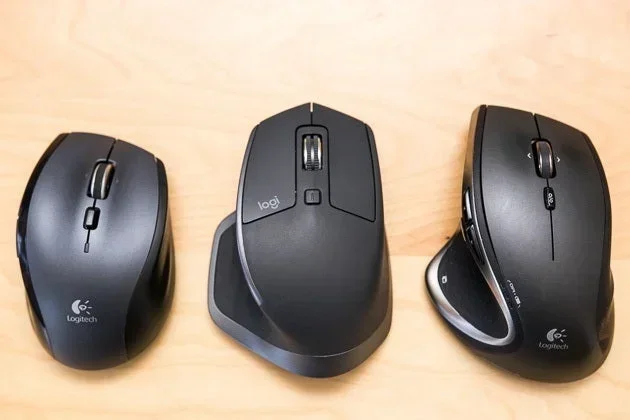
Many users connect USB or Bluetooth mice to their Macs. Popular brands like Logitech, Microsoft, and Razer often have dedicated middle buttons. These mice usually work with mouse 3 right out of the box on Mac.
If your third-party mouse does not respond as expected, you may need to check a few things:
- Make sure the mouse is properly paired or connected via USB.
- Check the mouse manufacturer’s software for Mac-specific drivers.
- Visit System Settings > Mouse to verify that the device is recognized.
- If the mouse stopped working after an update, you might need to turn the mouse back on or reset the connection.
For most third-party mice, mouse 3 on Mac works without any extra configuration. The scroll wheel press registers as a middle-click automatically. If it does not, the manufacturer’s setup utility usually has a Mac compatibility mode you can toggle.
Using Mouse 3 With Different Mac Devices
Not all Macs are the same, and neither is the way mouse 3 behaves on each one. Let us compare how this feature works across different Apple devices.
| Device | Mouse 3 Method | Setup Required |
|---|---|---|
| MacBook Pro / Air (Trackpad) | Three-finger tap or Force Click | Yes, enable in Trackpad settings |
| Magic Mouse | Scroll ball press | Yes, enable in Mouse settings |
| USB / Bluetooth Mouse | Scroll wheel press (built-in) | Usually no setup needed |
| iMac with Magic Mouse | Scroll ball press | Yes, same as Magic Mouse |
| Mac Mini with third-party mouse | Scroll wheel press | Usually no setup needed |
As you can see, the method varies but the result is the same. You get a functional mouse 3 action on every Mac device. The key is knowing which setting to adjust based on your hardware.
If you also use your Mac alongside a laptop setup, you might want to check out how to use a mouse on a laptop for cross-device consistency. Similarly, understanding how to use mouse pad on laptop can help you get the most out of your trackpad when you switch between devices.
Customizing Mouse 3 Settings For Better Productivity
Once mouse 3 is working, you can fine-tune it to match your workflow. macOS offers several customization options that make middle-click even more useful.
Changing Click Speed and Pressure
Some users find that mouse 3 requires too much pressure or is too sensitive. You can adjust this in System Settings:
- Go to System Settings > Mouse or Trackpad.
- Adjust the click pressure slider for Force Touch trackpads.
- For Magic Mouse, adjust the tracking speed to make scrolling and clicking feel more natural.
Small tweaks like these make a big difference. You will notice smoother middle-click responses within minutes of adjusting these settings.
Assigning Custom Actions to Mouse 3
If you want more than just the default middle-click behavior, third-party apps can help. Apps like BetterTouchTool and Karabiner-Elements let you assign custom actions to mouse 3 on Mac. You can set it up to:
- Launch specific applications with a middle-click.
- Switch between desktops or spaces.
- Trigger keyboard shortcuts automatically.
- Perform custom actions in specific apps only.
These tools are powerful but require a bit of setup time. They are best for users who want to squeeze every bit of productivity out of their Mac mouse setup.
Mouse 3 in Browsers
Most modern browsers on Mac support mouse 3 natively. Here is what you can do in popular browsers:
- Safari: Middle-click a link to open it in a new background tab.
- Google Chrome: Same as Safari. Also, middle-click a tab to close it.
- Firefox: Middle-click links open in new tabs. Middle-click tabs close them.
- Edge: Full support for middle-click link and tab actions.
This browser support is one of the biggest reasons people want to enable mouse 3 on Mac. Once it is set up, browsing becomes noticeably faster.
Troubleshooting Mouse 3 Issues On Mac
Sometimes mouse 3 on Mac just does not work, even after you set it up. This section covers the most common problems and their solutions.
Mouse 3 Not Responding
If middle-click does nothing when you press it, try these steps:
- Check that the correct device is selected in System Settings > Mouse or Trackpad.
- Disconnect and reconnect your mouse or trackpad.
- Restart your Mac to refresh the input device drivers.
- Make sure your macOS is up to date, as older versions may have bugs with middle-click support.
In most cases, a simple restart fixes the issue. If the problem persists, check whether your mouse hardware supports Mac-compatible middle-click functionality.
Middle-Click Pastes Instead of Opening Links
This is a common behavior in Terminal and text fields. When you middle-click in a text area, macOS pastes the clipboard content instead of opening a link. This is expected behavior and not a bug. To avoid accidental pastes:
- Be mindful of where you middle-click.
- Use the two-finger right-click on your trackpad for safer link opening.
- Disable Force Click in Trackpad settings if it causes accidental triggers.
Mouse Stopped Working After macOS Update
macOS updates sometimes reset mouse preferences. If your mouse 3 settings disappeared after an update:
- Revisit System Settings > Mouse and re-enable middle-click.
- Check System Settings > Trackpad for any reset gesture settings.
- If using a third-party mouse, reinstall the manufacturer’s Mac driver.
Keeping your mouse drivers updated helps prevent these issues from recurring after future macOS updates.
Pro Tips For Mastering Mouse 3 On Mac
You have mouse 3 working now. Here are some expert tips to help you get the most out of it on your Mac.
First, practice the three-finger tap on your trackpad. It feels awkward at first, but within a few days it becomes second nature. Try using it every time you want to open a link in a new tab. The muscle memory builds fast.
Second, explore your browser’s settings. Some browsers let you customize what happens when you middle-click a tab or a link. Spending five minutes in your browser preferences can unlock a smoother workflow.
Third, consider pairing your Mac mouse setup with general best practices for how to use a mouse on a laptop. Proper wrist positioning and click technique reduce strain and improve accuracy. A comfortable setup makes using mouse 3 feel effortless.
Fourth, if you ever need to disable or re-enable your mouse, you can easily turn the mouse back on through System Settings or by reconnecting Bluetooth devices. This is especially helpful when troubleshooting input issues.
Finally, stay curious. macOS updates frequently add new trackpad and mouse features. Checking your settings after each update ensures you never miss a new capability that could enhance your mouse 3 on Mac experience.
Conclusion
Learning how to do mouse 3 on Mac is a small investment of time that pays off every day. From opening links in new tabs to closing browser tabs with a single click, middle-click makes your workflow faster and more efficient. Whether you use a Magic Mouse, a trackpad, or a third-party mouse, macOS gives you the tools to make it work.
Start with the built-in settings, experiment with customization, and troubleshoot any issues using the steps in this guide. You will wonder how you ever navigated your Mac without mouse 3. The tips and tricks above should give you a solid foundation to build on. Now go ahead and explore your Mac with your newly enabled middle-click. You will not regret it.
Frequently Asked Questions
What does mouse 3 mean on a Mac?
Mouse 3 refers to the middle mouse button click, which is usually the scroll wheel press on a standard mouse. On Mac, it lets you open links in new browser tabs and close tabs quickly. It can also paste text in Terminal and command-line applications.
How do I enable middle-click on a Mac trackpad?
Go to System Settings, select Trackpad, and enable the three-finger click or Force Click option under Point and Click settings. This turns a three-finger tap into a middle-click action that works just like mouse 3 on an external mouse.
Why is mouse 3 not working on my Mac?
This can happen if the middle-click setting is disabled, the mouse driver needs updating, or a recent macOS reset your preferences. Check your Mouse and Trackpad settings, reconnect your device, and restart your Mac to resolve most issues.
Can I customize what mouse 3 does on Mac?
Yes. Built-in macOS settings let you adjust click pressure and tracking speed. For advanced customization, third-party apps like BetterTouchTool allow you to assign specific actions to mouse 3, such as launching apps or triggering keyboard shortcuts.
Does the Magic Mouse support mouse 3?
Yes. The Magic Mouse supports middle-click through its scroll ball area. You need to enable this feature in System Settings under the Mouse section. Once turned on, pressing down on the scroll ball acts as mouse 3.
Is mouse 3 the same on all Mac models?
The functionality is the same, but the method to activate it varies. MacBook trackpads use gestures, Magic Mice use scroll ball presses, and third-party USB or Bluetooth mice usually support it natively. Check your specific device settings for the best experience.