Lenovo Thinkpad E14 Gen 6 Intel Ram SSD Upgrade Guide
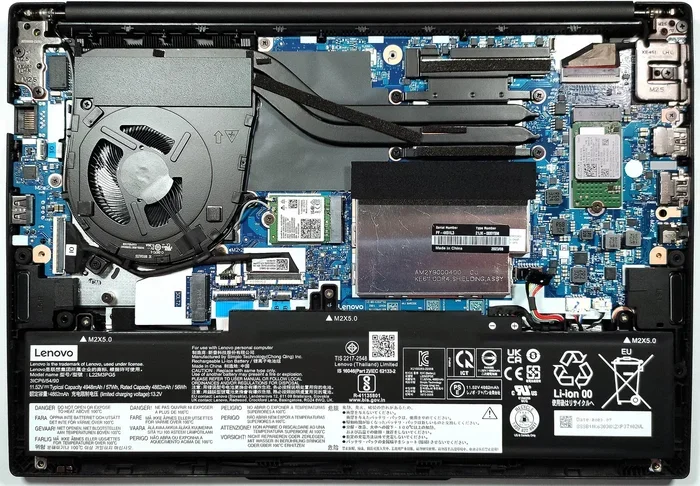
The Lenovo Thinkpad E14 Gen 6 Intel laptop is a solid machine, but upgrading its RAM and SSD can make it feel brand new. This guide walks you through every step, from choosing the right components to installing them safely. Whether you want more memory for multitasking or faster storage for quick boot times, you will find everything you need right here.
The Lenovo Thinkpad E14 Gen 6 Intel laptop has earned a strong reputation among professionals and students alike. It offers reliable performance, a sturdy build, and a clean design that works well in any setting. But over time, you might notice it slowing down. Apps take longer to open, and switching between tasks feels sluggish.
The good news is that upgrading the RAM and SSD on this machine is one of the best ways to breathe new life into it. A Lenovo Thinkpad E14 Gen 6 Intel RAM SSD upgrade can transform a sluggish laptop into a fast, responsive machine. You do not need to be a tech expert to do it either. With the right tools and a little patience, most people finish the job in under an hour.
In this guide, we will cover everything you need to know. From understanding what components work with your laptop to step-by-step installation instructions, you will find all the details here. We will also share tips on avoiding common mistakes and getting the most out of your new hardware.
Key Takeaways
- Easy Upgrade Process: Upgrading RAM and SSD on the Thinkpad E14 Gen 6 is straightforward and does not require advanced technical skills.
- Compatible Components Matter: Using the right DDR5 RAM and M.2 NVMe SSD ensures peak performance and avoids compatibility issues.
- Big Performance Gains: A RAM and SSD upgrade can dramatically improve boot speed, app loading times, and overall multitasking ability.
- Affordable Improvement: Upgrading components costs far less than buying a new laptop while delivering similar speed benefits.
- Backup First: Always back up your data before opening the laptop to prevent any accidental loss during the upgrade.
- Warranty Check: Performing the upgrade yourself may void certain warranty parts, so check Lenovo’s policy first.
📑 Table of Contents
- Why Upgrade the RAM and SSD on Your Thinkpad E14 Gen 6?
- Compatible RAM and SSD Options for the Thinkpad E14 Gen 6
- Tools You Will Need for the Upgrade
- Step-by-Step RAM Upgrade Process
- Step-by-Step SSD Upgrade Process
- Common Mistakes to Avoid During the Upgrade
- Expert Tips for Maximizing Performance After the Upgrade
- How Much Does a Thinkpad E14 Gen 6 Upgrade Cost?
- Final Thoughts
Why Upgrade the RAM and SSD on Your Thinkpad E14 Gen 6?
Before you start buying parts, it helps to understand why these upgrades matter so much. The RAM and SSD are two of the most important components that affect how fast your laptop feels. Upgrading both at the same time gives you the best results.
What Does RAM Do?
RAM, or Random Access Memory, is your laptop’s short-term memory. It holds the data your computer needs right now. When you have many browser tabs open or run several apps at once, your laptop relies heavily on RAM. If your current RAM is full, the system slows down because it has to swap data to the slower storage drive.
The Thinkpad E14 Gen 6 typically comes with 8GB or 16GB of RAM. If you are running 8GB, you will likely notice improvements by moving to 16GB or even 32GB. This is especially true if you use resource-heavy applications like video editors, virtual machines, or multiple coding environments.
What Does the SSD Do?
The SSD, or Solid State Drive, is where your operating system, apps, and files are stored permanently. Unlike older hard drives, SSDs have no moving parts. They load data almost instantly. Upgrading from a standard SATA SSD to a faster NVMe M.2 SSD can cut boot times and file transfers significantly.
If your current drive is a 256GB or 512GB SATA SSD, swapping it for a larger NVMe drive gives you both speed and space. Many users report that an SSD upgrade alone makes their laptop feel like a completely different machine.
Combined Benefits
When you upgrade both RAM and SSD together, the results are even better. Your laptop boots faster, apps launch quicker, and you can keep more programs open without slowdowns. For anyone who uses their Thinkpad for work, study, or creative projects, this combination is a game changer.
If you are looking for inspiration on what a fully upgraded setup looks like, check out this laptop with SSD and 16GB RAM configuration for reference. It shows how these two upgrades work together to maximize performance.
Compatible RAM and SSD Options for the Thinkpad E14 Gen 6
Not all RAM and SSD modules work with every laptop model. The Thinkpad E14 Gen 6 has specific requirements you need to meet. Choosing the right components saves you time, money, and frustration.
RAM Compatibility
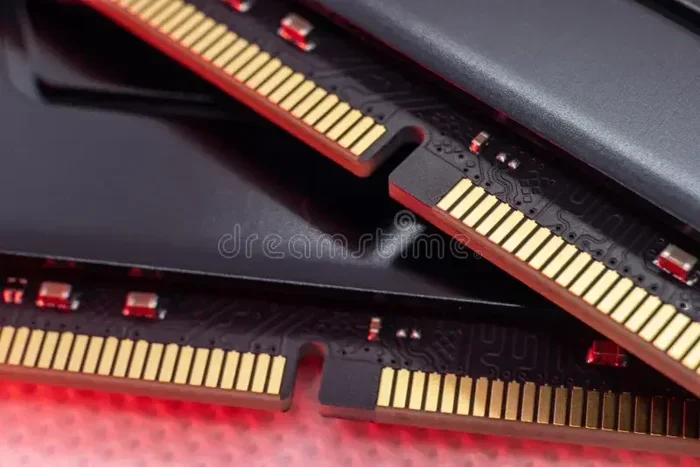
The Thinkpad E14 Gen 6 Intel models use DDR5 SO-DIMM memory modules. Here are the key specs to keep in mind:
- Type: DDR5 SO-DIMM
- Speed: 4800 MHz or 5600 MHz depending on the exact model
- Capacity: 8GB, 16GB, or 32GB per module
- Slots: Usually two slots, allowing for dual-channel configuration
- Maximum: Up to 32GB or 64GB total depending on the variant
For most users, a 16GB or 32GB kit provides excellent performance. If your laptop already has 8GB in one slot, you can add another 16GB stick to reach 24GB total. Just make sure both modules are the same speed and type for the best results.
SSD Compatibility
The Thinkpad E14 Gen 6 supports M.2 NVMe SSDs. Here is what you need to know:
- Form Factor: M.2 2280
- Interface: PCIe NVMe Gen 4 or Gen 3
- Capacity: Available from 256GB up to 2TB
- Key Type: M Key (not B Key)
For most users, a 1TB NVMe SSD strikes the perfect balance between price and storage space. If you work with large files, consider a 2TB drive. Brands like Samsung, Crucial, and WD offer reliable options that work well with this laptop.
When selecting your components, consider a setup like a Intel Core i7 with 16GB RAM and 512GB SSD configuration, which is a proven combination for the Thinkpad E14 series. This gives you a clear benchmark for what your upgraded machine can achieve.
Tools You Will Need for the Upgrade
Gathering your tools before you start makes the process much smoother. You do not need anything fancy, but having the right items on hand prevents delays.
- Small Phillips screwdriver: A size #1 or #0 Phillips head works best for the Thinkpad screws.
- Anti-static wrist strap: This protects your components from static electricity damage.
- Plastic spudger or pry tool: Helps open the bottom case without scratching it.
- Soft cloth or mat: Provides a clean, safe surface to work on.
- Backup drive: For saving your data before the upgrade.
You do not need specialized laptop repair tools. A basic screwdriver set and an anti-static strap are enough. If you do not have an anti-static wrist strap, simply touch a metal surface frequently to discharge any static buildup.
Step-by-Step RAM Upgrade Process
Upgrading the RAM on your Thinkpad E14 Gen 6 is one of the easiest hardware tasks you can do. Follow these steps carefully, and you will be done in minutes.
Step 1: Power Down and Disconnect
Shut down your laptop completely. Unplug the power adapter and remove any connected peripherals like USB drives or external monitors. This ensures safety while you work inside the machine.
Step 2: Back Up Your Data
Before opening the laptop, back up all important files. You can use an external drive, cloud storage, or a USB flash drive. This step takes only a few minutes but saves you from potential data loss.
If you are unsure about the backup process, a simple RAM upgrade for my laptop guide often includes backup tips that apply broadly to Thinkpad models.
Step 3: Remove the Bottom Cover
Flip your laptop over and locate the screws on the bottom panel. Remove all of them carefully and keep them in a small container. Use the plastic spudger to gently pry the cover off. Start at one corner and work your way around.
Step 4: Locate the RAM Slots
Once the cover is off, you will see the RAM slots. The Thinkpad E14 Gen 6 usually has two slots. If one slot is already occupied, you will see the existing module held in place by small clips on each side.
Step 5: Remove the Old RAM (if needed)
Gently push the clips on both sides of the existing RAM module outward. The module will pop up at an angle. Pull it straight out carefully. Do not force it.
Step 6: Install the New RAM
Take your new DDR5 SO-DIMM module and align the notch with the slot. Insert it at a 30-degree angle and press down firmly until the clips click into place. Make sure the module is fully seated and does not wobble.
Step 7: Reassemble and Test
Replace the bottom cover and screw it back in. Plug in the power adapter and turn on the laptop. Enter the BIOS by pressing F1 or F2 during startup to confirm the new RAM is detected. You should see the full upgraded capacity listed.
Step-by-Step SSD Upgrade Process
The SSD upgrade follows a similar process but involves a few extra considerations. Here is how to do it right.
Step 1: Prepare for the Swap
Back up all your data before starting. If you are replacing your main drive, you will need to reinstall the operating system or clone your existing drive to the new SSD.
Step 2: Open the Laptop
Follow the same steps as the RAM upgrade to remove the bottom cover. The SSD is usually located under a metal shield near the center of the laptop.
Step 3: Remove the Old SSD
Locate the M.2 SSD. It is held in place by a small screw. Remove the screw and slide the SSD out at a slight angle. Set the old drive aside safely.
Step 4: Install the New SSD
Take your new NVMe M.2 SSD and insert it at a 30-degree angle into the slot. Press it down gently and secure it with the screw. Make sure it sits flat and firmly in place.
Step 5: Reassemble and Restore
Replace the bottom cover, screw it back in, and power on the laptop. If you cloned your drive, your system should boot normally. If you installed a fresh OS, follow the setup prompts to get everything running.
Common Mistakes to Avoid During the Upgrade
Even with a clear guide, mistakes can happen. Here are the most common ones and how to avoid them.
- Skipping the backup: Always back up your data first. A single slip can cost you important files.
- Using incompatible RAM: DDR4 RAM will not work in a DDR5 slot. Always double-check the type before purchasing.
- Forcing components: If a module or SSD does not slide in easily, stop and check the alignment. Forcing it can damage the slot.
- Forgetting to screw in the SSD: A loose SSD can cause connection issues and data corruption.
- Not updating the BIOS: After a major hardware upgrade, updating the BIOS can help with stability and compatibility.
Taking your time and following each step carefully will save you from these common pitfalls. Rushing through the process is the number one cause of upgrade problems.
Expert Tips for Maximizing Performance After the Upgrade
Once your new RAM and SSD are installed, a few extra steps can help you get the most out of them.
- Enable XMP in BIOS: If your new RAM supports XMP profiles, enable them in the BIOS settings for full speed.
- Update your drivers: Install the latest chipset and storage drivers from Lenovo’s website.
- Check your boot order: Make sure the new SSD is set as the primary boot drive in BIOS.
- Run a disk cleanup: After cloning or installing a fresh OS, remove unnecessary files to keep the drive fast.
- Monitor temperatures: New components can sometimes affect thermal performance. Use a monitoring tool to check that your laptop stays cool under load.
These small steps make a big difference in how smoothly your upgraded Thinkpad runs day to day.
How Much Does a Thinkpad E14 Gen 6 Upgrade Cost?
The cost of upgrading depends on which components you choose. Here is a rough breakdown to help you budget.
- 16GB DDR5 RAM kit: Around $40 to $70
- 32GB DDR5 RAM kit: Around $80 to $130
- 1TB NVMe M.2 SSD: Around $60 to $90
- 2TB NVMe M.2 SSD: Around $120 to $160
Compared to buying a new laptop, these upgrades cost a fraction of the price. For under $200, you can turn an aging Thinkpad into a fast, capable machine that handles modern workloads with ease. This is one of the smartest investments you can make for your productivity.
Final Thoughts
A Lenovo Thinkpad E14 Gen 6 Intel RAM SSD upgrade is one of the most effective ways to improve your laptop’s performance. The process is simple, affordable, and delivers noticeable results. Whether you are a student juggling multiple apps, a professional running heavy software, or a creative working with large files, the upgrade makes a real difference.
By choosing compatible components, following the steps carefully, and avoiding common mistakes, you can complete the upgrade with confidence. Your Thinkpad will boot faster, run smoother, and handle more tasks without breaking a sweat.
Do not let a slow laptop hold you back any longer. Gather your tools, pick your components, and give your Thinkpad E14 Gen 6 the upgrade it deserves. You will be amazed at how much faster it feels.
Frequently Asked Questions
Can I upgrade the RAM on the Lenovo Thinkpad E14 Gen 6?
Yes, the Thinkpad E14 Gen 6 Intel models support RAM upgrades using DDR5 SO-DIMM modules. Most versions have two slots that allow you to expand from 8GB up to 32GB or more, depending on the specific configuration.
What type of SSD does the Thinkpad E14 Gen 6 accept?
The Thinkpad E14 Gen 6 uses M.2 NVMe SSDs in the 2280 form factor. It supports both PCIe Gen 3 and Gen 4 NVMe drives, giving you plenty of options for speed and capacity upgrades.
Do I need to reinstall Windows after an SSD upgrade?
Not necessarily. If you clone your existing drive to the new SSD using a tool like Macrium Reflect or Clonezilla, your system will boot normally. However, a fresh Windows installation can help optimize performance on the new drive.
Will upgrading RAM void my Lenovo warranty?
In most cases, upgrading RAM does not void the warranty because it does not involve opening sealed parts. However, if accidental damage occurs during the process, Lenovo may not cover repairs. Always check the specific terms of your warranty before proceeding.
How long does the RAM and SSD upgrade take?
Most people complete both upgrades in 30 to 60 minutes. If you are experienced with laptop disassembly, it can take even less. The backup and data transfer steps may add extra time depending on how much data you have.
Can I upgrade just the SSD and keep my existing RAM?
Absolutely. You can upgrade the SSD independently without touching the RAM. Many users find that an SSD upgrade alone provides the most noticeable speed improvement, especially if you are moving from an older SATA drive to a modern NVMe drive.
=== CONCLUSION ===
The Lenovo Thinkpad E14 Gen 6 Intel laptop is a great machine out of the box, but a RAM and SSD upgrade takes it to the next level. With the right components and a careful approach, you can enjoy faster boot times, smoother multitasking, and plenty of storage space. Follow the steps in this guide, avoid the common mistakes, and you will have a upgraded Thinkpad that feels like new. Start your Lenovo Thinkpad E14 Gen 6 Intel RAM SSD upgrade today and experience the difference for yourself.