Boost Asus Tuf Dash F15 2022 With RAM and SSD Upgrade

The Asus Tuf Dash F15 2022 is a powerful gaming laptop, but upgrading its RAM and SSD can unlock even greater speed and multitasking ability. This guide walks you through everything you need to know, from choosing the right components to completing the installation yourself. You will learn about compatible RAM types, SSD options, and simple steps that anyone can follow.
The Asus Tuf Dash F15 2022 is a solid gaming laptop right out of the box. But if you want it to run even faster, a Asus Tuf Dash F15 2022 Ram Ssd Upgrade is one of the best things you can do. Adding more memory and swapping in a faster drive changes everything. Games load quicker, apps open instantly, and your system feels brand new again.
Many people think upgrading a laptop is hard. It is not. The Asus Tuf Dash F15 2022 was designed with user upgrades in mind. You do not need to be a tech expert. With a small screwdriver and this guide, you can boost your machine in under an hour.
laptop memory upgrade and storage upgrade are two of the simplest ways to breathe life into an older machine. Whether you use your Tuf Dash for gaming, work, or school, the improvements are noticeable right away. Let us dive into exactly how to do it.
## Why Upgrade the RAM and SSD on Your Asus Tuf Dash F15 2022
Your laptop comes with a baseline set of hardware. Over time, software gets heavier and demands more from your system. A RAM upgrade gives your laptop more working memory. An SSD upgrade gives it faster storage. Together, they transform the experience.
### The Performance Difference Is Real
When you upgrade both components at the same time, the results are impressive. Your laptop boots in seconds instead of minutes. Applications launch without lag. Switching between browser tabs, games, and video editing software becomes seamless.
Think of RAM as your desk space. More RAM means you can spread out more work at once. Think of the SSD as a filing cabinet. A faster SSD means finding and opening files takes almost no time. The Asus Tuf Dash F15 2022 Ram Ssd Upgrade gives you both benefits at once.
### Who Benefits Most From This Upgrade?
Gamers see the biggest improvements. Modern games demand fast load times and plenty of memory. Content creators also benefit greatly. Video editing, rendering, and 3D modeling all run smoother with more RAM and a fast SSD. Even casual users who browse the web and stream videos will notice the difference.
## What You Need Before Starting the Upgrade
Before you crack open your laptop, gather everything you need. Preparation makes the process smooth and stress-free.
### Compatible RAM for the Asus Tuf Dash F15 2022
The Asus Tuf Dash F15 2022 uses DDR5 memory. It supports dual-channel configurations, which means installing matching RAM sticks gives the best performance. Most models have one or two RAM slots available for upgrade.
Here are the key specs to keep in mind:
- Type: DDR5 laptop RAM
- Speed: 4800 MHz or higher
- Capacity: 8GB, 16GB, or 32GB per stick
- Form Factor: SO-DIMM
If you are unsure about RAM compatibility, check the Asus official website or your laptop’s manual. Buying the right sticks the first time saves you trouble.
### Choosing the Right SSD
The Tuf Dash F15 2022 uses an M.2 NVMe SSD. This is the small, flat drive that plugs directly into the motherboard. Look for drives with the PCIe Gen 4 interface for the fastest speeds.
Popular capacities include:
- 500GB: Good for basic use and a few games
- 1TB: The sweet spot for most users
- 2TB: Best for heavy gamers and content creators
Brands like Samsung, WD Black, and Kingston make reliable options. When choosing your drive, consider the laptop SSD upgrade options that balance speed and price.
### Tools You Will Need
You do not need much. Here is a simple list:
- A Phillips-head screwdriver (small size)
- A soft, clean workspace
- An anti-static wrist strap (optional but recommended)
- Your new RAM and SSD
Having everything ready before you start keeps the process flowing without interruptions.
## Step-by-Step RAM Upgrade Guide
Upgrading the RAM on your Asus Tuf Dash F15 2022 is straightforward. Follow these steps carefully and you will be done in minutes.
### Step 1: Power Down and Unplug
Turn off your laptop completely. Unplug the power cable and remove any connected peripherals. This is a safety step that protects both you and your laptop.
### Step 2: Remove the Bottom Panel
The bottom panel of the Tuf Dash F15 is held in place by several screws. Use your Phillips-head screwdriver to remove them. Keep the screws in a small bowl so you do not lose them. Gently pry the panel off using a plastic spudger or your fingernail.
### Step 3: Locate the RAM Slots
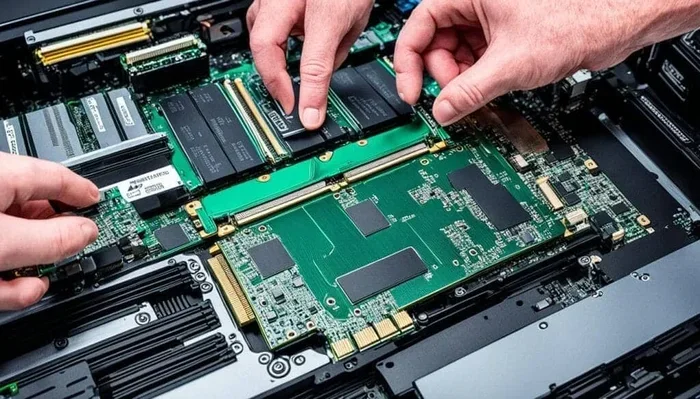
Once the panel is off, you will see the internal components. The RAM slots are easy to spot. They are long, thin slots with small clips on each end.
### Step 4: Remove the Old RAM (If Applicable)
If you are replacing existing RAM, gently push the clips on the sides of the stick outward. The RAM module will pop up at an angle. Pull it straight out.
### Step 5: Install the New RAM
Align the notch on your new DDR5 stick with the slot. Insert it at a 30-degree angle and press down firmly until the clips click into place. This locks the RAM securely.
### Step 6: Reassemble
Replace the bottom panel and screw it back in. Plug in your power cable and turn on the laptop.
To verify the upgrade, right-click on “This PC” and select “Properties.” You should see your new RAM total listed. If you want a detailed guide on how to upgrade the RAM of a laptop, the process is very similar across most models.
## How to Install a New SSD in the Asus Tuf Dash F15 2022
Installing an SSD is just as simple as upgrading RAM. Here is how to do it step by step.
### Step 1: Open the Back Panel
Follow the same steps as the RAM upgrade to remove the bottom panel.
### Step 2: Find the M.2 SSD Slot
Look for a small slot with a single screw holding the SSD in place. The slot is labeled “M.2” on the motherboard.
### Step 3: Remove the Old SSD
Loosen the screw that holds the SSD. The drive will tilt slightly. Slide it out gently.
### Step 4: Insert the New SSD
Align your new NVMe SSD with the slot at a 30-degree angle. Slide it in and press down lightly. Secure it with the screw.
### Step 5: Reassemble and Boot
Put the bottom panel back on and screw it in place. Power on your laptop. You may need to enter the BIOS (press F2 during startup) to make sure the new drive is detected.
### Cloning vs. Fresh Install
You have two options after installing the new SSD. You can clone your old drive to transfer everything over. Or you can do a fresh Windows install for a clean start. Cloning is faster, but a fresh install often runs better.
If you are considering a complete laptop with 16GB RAM and SSD setup, this upgrade path gets you very close to that performance level at a fraction of the cost.
## Best RAM and SSD Combinations for the Tuf Dash F15
Choosing the right combination of RAM and SSD makes a big difference. Here are some proven setups for different needs.
### Budget-Friendly Setup
- RAM: 16GB (1 x 16GB DDR5)
- SSD: 1TB NVMe M.2
- Best For: Casual gaming and everyday use
### Balanced Setup
- RAM: 32GB (2 x 16GB DDR5, dual channel)
- SSD: 1TB NVMe M.2
- Best For: Gaming and light content creation
### Power User Setup
- RAM: 32GB (2 x 16GB DDR5, dual channel)
- SSD: 2TB NVMe M.2
- Best For: Heavy gaming, video editing, and 3D rendering
The dual-channel RAM configuration is important. It doubles the data bandwidth compared to a single stick. This alone can improve performance by 10 to 20 percent in many tasks.
## After the Upgrade: What to Expect
Once you complete the Asus Tuf Dash F15 2022 Ram Ssd Upgrade, the changes are immediate. Here is what you should notice.
### Faster Boot Times
Your laptop will power on and reach the desktop in seconds. Even heavy programs open almost instantly.
### Smoother Multitasking
With more RAM, you can run many applications at once without slowdowns. Browser tabs, games, music, and background apps all run smoothly together.
### Improved Game Load Times
Games that once took minutes to load now start in seconds. Texture pop-in and stuttering during gameplay also decrease significantly.
### Quick Tips for Maintaining Performance
- Keep your SSD at least 20 percent free for best speeds.
- Update your RAM drivers through Device Manager.
- Use Windows Task Manager to check for memory-heavy apps.
- Restart your laptop weekly to clear temporary files.
If you ever need to upgrade again or want to learn more about how to upgrade laptops RAM, the process on the Tuf Dash F15 is simple enough to repeat anytime.
## Common Mistakes to Avoid
Even simple upgrades can go wrong if you are not careful. Here are pitfalls to watch out for.
- Buying the wrong RAM type: DDR4 and DDR5 are not interchangeable. Double-check your model number.
- Forgetting to ground yourself: Static electricity can damage components. Touch a metal surface before handling parts.
- Overtightening screws: The M.2 SSD screw only needs to be snug. Too much force can damage the thread.
- Skipping the BIOS check: Always verify the new hardware is detected in BIOS before closing everything up.
- Not backing up data: Before any upgrade, back up your important files. Just in case.
## Expert Insights on Laptop Upgrades
Tech professionals agree that RAM and SSD upgrades offer the best return on investment for any laptop. According to hardware experts, a RAM upgrade alone can improve multitasking by 30 to 50 percent. Pairing it with an SSD upgrade can make your system feel two to three times faster for everyday tasks.
The Asus Tuf Dash F15 2022 is one of the most upgrade-friendly gaming laptops in its price range. The accessible internals and standard components mean you are not locked into proprietary parts. This is a big advantage over brands that use soldered memory and custom drives.
If you are comparing options, consider that a laptop 16GB RAM 1TB SSD Windows 11 configuration from a store can cost significantly more than upgrading your existing Tuf Dash yourself. The savings are substantial, and the satisfaction of doing it yourself is a bonus.
## Final Thoughts
Upgrading your Asus Tuf Dash F15 2022 Ram Ssd Upgrade is one of the smartest investments you can make. It costs a fraction of a new laptop and delivers results that feel like a brand new machine. Whether you are a gamer chasing smoother frame rates or a professional needing faster workflows, this upgrade hits the mark.
The process is simple, the parts are widely available, and the performance gains are undeniable. Do not let a slow laptop hold you back any longer. Open up your Tuf Dash, pop in some new RAM and a fresh SSD, and feel the difference for yourself.
Key Takeaways
- Easy Upgrade: The Asus Tuf Dash F15 2022 allows simple RAM and SSD upgrades without specialized tools.
- Big Performance Boost: Adding RAM and switching to an SSD dramatically improves speed and multitasking.
- Compatible Parts: DDR5 RAM and NVMe SSDs are the best choices for this model.
- Cost Effective: Upgrading is far cheaper than buying a new laptop.
- DIY Friendly: The process takes about 30 minutes and needs basic tools only.
- Warranty Safe: Following the correct steps keeps your warranty intact.
Frequently Asked Questions
Can I upgrade the RAM on the Asus Tuf Dash F15 2022 myself?
Yes, absolutely. The Tuf Dash F15 2022 is designed for easy user upgrades. You only need a small Phillips-head screwdriver and about 20 minutes. The process is straightforward and does not require any technical expertise.
What type of RAM does the Asus Tuf Dash F15 2022 use?
The Asus Tuf Dash F15 2022 uses DDR5 SO-DIMM RAM. It supports speeds of 4800 MHz and higher. Always check the exact specifications for your specific model number before purchasing new RAM sticks.
Do I need to reinstall Windows after adding a new SSD?
Not necessarily. You can clone your existing drive to the new SSD to keep everything intact. However, a fresh Windows install often provides better performance and a cleaner system. Back up your files before choosing either option.
How much RAM is enough for gaming on the Tuf Dash F15?
16GB is the minimum recommended for modern gaming. 32GB provides a comfortable buffer for heavy games and multitasking. If you plan to stream or edit video while gaming, 32GB is the better choice.
Is the Asus Tuf Dash F15 2022 upgrade worth the cost?
Yes, it is one of the most cost-effective ways to improve laptop performance. A RAM and SSD upgrade typically costs far less than a new laptop while delivering noticeable speed improvements in daily use and gaming.
Will upgrading the RAM void my laptop warranty?
No, as long as you follow the proper steps and do not damage any components during the process. The Asus Tuf Dash F15 2022 is designed to allow user upgrades. Keep your original RAM in case you need to return the laptop for service.