Dell Precision 7690 Ram Ssd Upgrade Everything You Need

The Dell Precision 7690 is a powerful mobile workstation, but upgrading its RAM and SSD can unlock even greater performance. This guide covers everything from choosing compatible components to a step-by-step installation process. Whether you are a creative professional or an engineer, a Dell Precision 7690 RAM SSD upgrade will transform your workflow and speed up demanding tasks.
The Dell Precision 7690 is a serious machine. It is built for professionals who run heavy software every day. But even the best workstation can benefit from a Dell Precision 7690 RAM SSD upgrade. If your laptop feels slow or you need more storage space, upgrading these two components can make a huge difference.
In this guide, we will walk you through everything you need to know. We will cover why these upgrades matter, which parts to buy, and how to install them yourself. By the end, you will feel confident enough to do the upgrade on your own. Let us get started.
Key Takeaways
- Easy Process: Upgrading RAM and SSD on the Dell Precision 7690 is straightforward and requires minimal tools.
- Big Performance Boost: More RAM and a faster SSD dramatically improve multitasking and load times.
- Wide Compatibility: The 7690 supports DDR5 RAM and NVMe M.2 SSDs, giving you flexible upgrade options.
- Cost Effective: A RAM and SSD upgrade costs far less than buying a new workstation.
- DIY Friendly: You can complete the upgrade at home in under an hour with basic tools.
- Warranty Friendly: Follow proper procedures to keep your warranty intact during the upgrade.
📑 Table of Contents
- What Makes the Dell Precision 7690 a Great Workstation
- Why You Should Upgrade the RAM in Your Dell Precision 7690
- Choosing the Right SSD for Your Upgrade
- Step-by-Step Guide to Upgrading Your Dell Precision 7690
- Compatible RAM and SSD Options for the Dell Precision 7690
- Common Mistakes to Avoid During Your Upgrade
- Maximizing the Benefits of Your Upgrade
- How Much Does a Dell Precision 7690 RAM SSD Upgrade Cost?
- When Should You Consider a Professional Upgrade?
- Final Thoughts on the Dell Precision 7690 RAM SSD Upgrade
What Makes the Dell Precision 7690 a Great Workstation
The Dell Precision 7690 is a 16-inch mobile workstation designed for demanding professionals. It comes with powerful Intel processors and solid build quality. Out of the box, it offers good performance for tasks like 3D rendering, video editing, and data analysis.
However, the base configuration often includes 16GB of RAM and a standard SSD. For heavy workloads, this may not be enough. That is where a Dell Precision 7690 RAM SSD upgrade becomes essential. Adding more memory and swapping in a faster storage drive can breathe new life into your machine.
Key Specifications of the Dell Precision 7690
- Processor: Intel Core or Xeon options
- RAM: Up to 128GB DDR5
- Storage: Multiple M.2 NVMe SSD slots
- Display: 16-inch options up to 4K
- Graphics: NVIDIA professional GPUs
These specs show that the 7690 is built to handle tough workloads. But the real magic happens when you push past the base configuration with an upgrade.
Why You Should Upgrade the RAM in Your Dell Precision 7690
RAM is the short-term memory of your computer. When you open applications, edit large files, or run virtual machines, your system uses RAM. The more RAM you have, the smoother everything runs. A Dell Precision 7690 RAM SSD upgrade starts with understanding why memory matters so much.
If you currently have 16GB of RAM and you are running CAD software or editing 4K video, you are probably hitting your limits. Your system starts swapping data to the storage drive, which slows everything down. Upgrading to 32GB or even 64GB of DDR5 RAM eliminates this bottleneck completely.
Benefits of More RAM
- Faster multitasking: Run multiple heavy applications without lag.
- Smoother workflows: Large files load and process quicker.
- Better future-proofing: New software demands more memory every year.
- Reduced rendering times: Video and 3D projects finish faster.
Think of RAM like your desk space. The bigger the desk, the more papers you can spread out and work on at once. A Dell Precision 7690 RAM SSD upgrade gives you a much bigger desk to work on.
Choosing the Right SSD for Your Upgrade
Storage speed affects everything from boot times to file transfers. The Dell Precision 7690 uses M.2 NVMe SSDs, which are among the fastest storage options available. Upgrading to a larger or faster SSD can dramatically cut down wait times.
When selecting an SSD, consider both capacity and speed. A 1TB NVMe SSD is a popular choice for professionals who need plenty of space. If you work with massive datasets or video files, you might want 2TB or more.
SSD Speed Matters
Not all NVMe SSDs are the same. Look for drives with PCIe Gen 4 or Gen 5 support. These offer read speeds of 5000MB/s or higher. Compare that to older SATA SSDs that top out around 550MB/s. The difference is night and day.
After you upgrade, you will notice faster boot times, quicker application launches, and snappier file transfers. For anyone doing creative or technical work, this is a game changer. If you want to see what a well-configured setup looks like, check out this guide on laptops with 16GB RAM and 1TB SSD to understand the kind of performance gains you can expect.
Recommended SSD Capacities
- 1TB: Great for most professionals
- 2TB: Ideal for video editors and data scientists
- 4TB: Best for users handling massive projects
Pick a capacity that matches your workflow. Keep in mind that a Dell Precision 7690 RAM SSD upgrade works best when both components are upgraded together.
Step-by-Step Guide to Upgrading Your Dell Precision 7690
Now for the fun part. Upgrading the RAM and SSD on the Dell Precision 7690 is easier than you might think. You do not need to be a tech expert. With the right tools and a little patience, you can complete the whole process in about 30 to 45 minutes.
What You Will Need
- Phillips head screwdriver
- Anti-static wrist strap (optional but recommended)
- Your new RAM and SSD
- A clean, flat workspace
- A soft cloth or mat
Step 1: Backup Your Data
Before you start, back up all your important files. Even though the upgrade process is safe, it is always better to be cautious. Use an external drive or cloud storage for your backup.
Step 2: Power Down and Unplug
Shut down your Dell Precision 7690 completely. Unplug the power adapter and disconnect any peripherals. Remove the battery if your model allows it. This ensures safety during the upgrade.
Step 3: Open the Back Panel
Flip the laptop over and locate the screw holes on the bottom panel. Use your Phillips screwdriver to remove all the screws. Keep them in a small container so you do not lose them. Carefully lift off the back panel.
Step 4: Upgrade the RAM
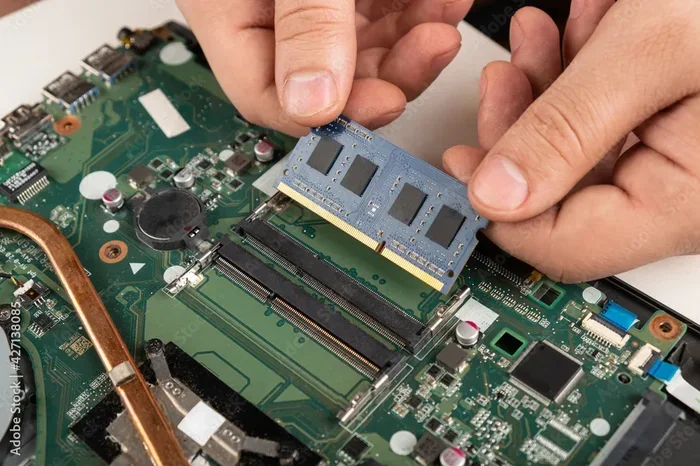
Locate the RAM slots on the motherboard. The Dell Precision 7690 typically has two or four slots. Press the clips on either side of the existing RAM sticks to release them. They will pop up at an angle. Remove them gently.
Align your new RAM stick with the slot at a 30-degree angle. Press it down firmly until the clips click into place. Make sure the RAM is fully seated. If you are installing multiple sticks, install them in matching pairs for dual-channel performance.
Step 5: Upgrade the SSD
Find the M.2 SSD slot on the motherboard. There may be a heat sink covering it. Remove the heat sink screw carefully. Slide out the old SSD at a slight angle. Insert your new NVMe SSD at a 30-degree angle and press it down flat. Secure it with the screw and reattach the heat sink.
Step 6: Reassemble and Test
Replace the bottom panel and screw it back in. Plug in the power adapter and turn on your laptop. Enter the BIOS to confirm that the new RAM and SSD are detected. If everything looks good, install your operating system and drivers. Your Dell Precision 7690 RAM SSD upgrade is complete.
If you want more detailed instructions on RAM installation, this guide on how to upgrade the RAM of a laptop provides excellent step-by-step visuals that complement the process above.
Compatible RAM and SSD Options for the Dell Precision 7690
Not all RAM and SSD modules work with the Dell Precision 7690. Compatibility is key to a successful upgrade. Using the wrong components can cause system instability or even prevent your laptop from booting.
RAM Compatibility
The Dell Precision 7690 uses DDR5 SODIMM RAM. It supports speeds up to 4800MHz. Most configurations use 32GB or 64GB kits. Always check Dell’s official specifications before purchasing RAM. Stick with reputable brands like Crucial, Kingston, or Corsair for the best results.
For a reliable upgrade path, consider matching your new RAM to your existing modules. This ensures compatibility and optimal performance. If you are unsure about what to buy, a Dell XPS laptop RAM upgrade guide can offer helpful insights since many Dell models share similar RAM specifications.
SSD Compatibility
The 7690 supports M.2 2280 NVMe SSDs with PCIe Gen 4 support. You can use single-sided or double-sided modules depending on your model. Samsung 980 Pro, WD Black SN850X, and Crucial T500 are all excellent choices.
Quick Comparison Table
Here is a quick look at popular SSD options for your upgrade:
- Samsung 980 Pro: 7000MB/s read, 5300MB/s write, 1TB-4TB options
- WD Black SN850X: 7300MB/s read, 6600MB/s write, 1TB-4TB options
- Crucial T500: 7400MB/s read, 7000MB/s write, 1TB-4TB options
All three options deliver outstanding performance for the Dell Precision 7690. Choose based on your budget and capacity needs.
Common Mistakes to Avoid During Your Upgrade
Upgrading your Dell Precision 7690 is generally safe, but mistakes can happen. Avoiding these common errors will save you time and frustration.
Mistake 1: Buying Incompatible RAM
Not all DDR5 RAM is the same. Some modules run at different voltages or speeds. Always verify that your RAM is DDR5 SODIMM and matches the 7690’s specifications. Mixing incompatible RAM can cause blue screens or boot failures.
Mistake 2: Forcing Components Into Place
RAM and SSDs should slide in smoothly. If you feel resistance, stop and double-check the alignment. Forcing a component can damage the slot or the module itself. Patience is your best friend during an upgrade.
Mistake 3: Skipping the BIOS Update
After upgrading, always update your BIOS if a new version is available. Updated BIOS firmware improves compatibility with newer RAM and SSD modules. It also fixes bugs that could affect system stability.
Mistake 4: Not Securing the Heat Sink
The SSD heat sink is important for maintaining optimal temperatures. If you remove it during the upgrade, make sure to reattach it properly. A loose heat sink can cause thermal throttling and reduced performance.
Mistake 5: Forgetting to Ground Yourself
Static electricity can damage sensitive components. Always touch a grounded metal surface before handling RAM or SSDs. An anti-static wrist strap adds an extra layer of protection.
By avoiding these mistakes, your Dell Precision 7690 RAM SSD upgrade will go smoothly and safely. Take your time and follow each step carefully.
Maximizing the Benefits of Your Upgrade
Once your upgrade is complete, there are a few steps you can take to get the most out of your new components. These tips will help you squeeze every bit of performance from your Dell Precision 7690.
Enable XMP Profiles in BIOS
If your new RAM supports XMP (Extreme Memory Profile), enable it in the BIOS. This allows your RAM to run at its rated speed instead of the default lower speed. You will see an immediate improvement in memory-intensive tasks.
Optimize Your Storage
After installing your new SSD, make sure to enable TRIM in your operating system. TRIM helps maintain SSD performance over time. You should also update your storage drivers for the best compatibility and speed.
Monitor Temperatures
After upgrading, keep an eye on your system temperatures. Use software like HWMonitor or Dell’s built-in diagnostics. If temperatures run high, check that your heat sink is properly attached and that your laptop ventilation is unobstructed.
These small steps make a big difference. They ensure your Dell Precision 7690 RAM SSD upgrade delivers the performance gains you are expecting. Your workstation will feel faster, more responsive, and ready for any challenge.
How Much Does a Dell Precision 7690 RAM SSD Upgrade Cost?
The cost of upgrading depends on the components you choose. DDR5 RAM prices have come down significantly in recent years. A 32GB DDR5 kit typically costs between $80 and $150. A 64GB kit ranges from $150 to $300.
SSD prices vary by capacity and brand. A 1TB NVMe SSD costs around $60 to $100. A 2TB model runs between $120 and $200. High-end drives with top speeds may cost a bit more.
Overall, a complete Dell Precision 7690 RAM SSD upgrade can range from $150 to $400 depending on your choices. Compared to the cost of a new workstation, this is an incredible value. You get better performance without breaking the bank.
When Should You Consider a Professional Upgrade?
Most users can handle the RAM and SSD upgrade themselves. However, there are situations where professional help makes sense. If you are uncomfortable opening your laptop, a technician can do the job for you. Dell also offers authorized service centers for complex upgrades.
Additionally, if your Dell Precision 7690 is still under warranty, check the terms before opening the chassis. Some warranty plans cover upgrades performed by authorized technicians only. In such cases, visiting a service center is the safest route.
For everyone else, the DIY route is rewarding and cost-effective. You learn about your hardware and save money in the process. A Dell Precision 7690 RAM SSD upgrade is one of the most satisfying upgrades you can do on your own.
Final Thoughts on the Dell Precision 7690 RAM SSD Upgrade
The Dell Precision 7690 is already an impressive workstation. But with a RAM and SSD upgrade, it becomes something truly special. You get faster load times, smoother multitasking, and the ability to tackle bigger projects than ever before.
A Dell Precision 7690 RAM SSD upgrade is one of the best investments you can make for your workstation. It is affordable, relatively simple, and delivers immediate results. Whether you are a video editor, engineer, data scientist, or creative professional, the upgrade will transform your daily workflow.
Do not let a slow workstation hold you back. Gather your tools, pick the right components, and give your Dell Precision 7690 the boost it deserves. You will wonder why you did not do it sooner.
Frequently Asked Questions
What RAM does the Dell Precision 7690 support?
The Dell Precision 7690 supports DDR5 SODIMM RAM with speeds up to 4800MHz. It can accommodate up to 128GB of memory across multiple slots. Always verify compatibility with Dell’s official specifications before purchasing.
Can I upgrade the SSD myself on the Dell Precision 7690?
Yes, the SSD upgrade on the Dell Precision 7690 is a straightforward DIY process. You will need a Phillips screwdriver and about 15 minutes. Just make sure to follow the steps carefully and back up your data first.
How much does a Dell Precision 7690 RAM SSD upgrade cost?
A full upgrade typically costs between $150 and $400 depending on the RAM capacity and SSD brand you choose. DDR5 RAM kits and NVMe SSDs are widely available at competitive prices from major retailers.
Will upgrading RAM void my Dell warranty?
No, upgrading RAM on the Dell Precision 7690 does not void your warranty. Dell designed the laptop to be user-upgradeable. However, if physical damage occurs during the process, that may not be covered.
What is the best SSD brand for the Dell Precision 7690?
Samsung, WD Black, and Crucial are all excellent choices for the Dell Precision 7690. These brands offer reliable NVMe SSDs with fast read and write speeds that match the laptop’s PCIe Gen 4 capabilities.
How long does a Dell Precision 7690 RAM SSD upgrade take?
Most users complete the entire upgrade in 30 to 45 minutes. The process involves opening the back panel, installing the new RAM and SSD, and reassembling the laptop. With a little practice, you can do it even faster.