Best Ram For Hp Elitebook How To Pick The Right One
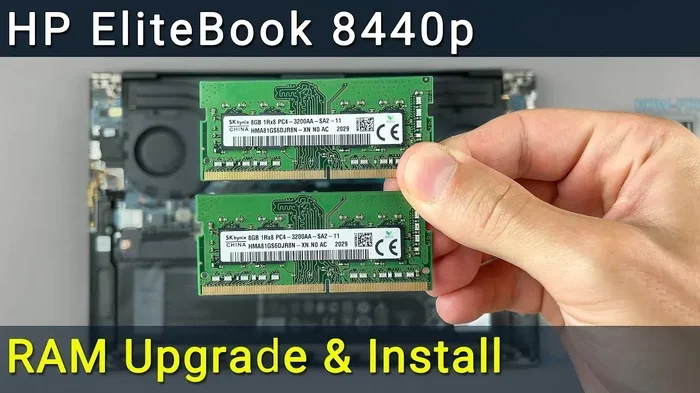
Choosing the right RAM for your HP EliteBook can boost speed and make work feel effortless. This guide covers everything from RAM types and capacities to compatibility and upgrade steps. You will learn exactly what memory your EliteBook needs and how to install it like a pro.
Your HP EliteBook is a powerful machine built for business. But if it feels slow, the answer might be simpler than you think. Upgrading the RAM can make a huge difference. In this guide, we will walk you through everything you need to know about picking the best RAM for HP EliteBook. We will cover types, sizes, speeds, and how to install them yourself.
Whether you use your EliteBook for spreadsheets, video calls, or light design work, the right memory makes all the difference. You do not need to be a tech expert to do this. By the end of this article, you will feel confident choosing and installing the perfect RAM for your laptop. Let us get started.
Key Takeaways
- DDR4 SO-DIMM is the standard: Most HP EliteBook models use DDR4 SO-DIMM RAM modules for reliable performance.
- 8GB is the minimum: For everyday business tasks, 8GB works well, but 16GB is the sweet spot for multitasking.
- Check your model first: Always verify your specific EliteBook model’s RAM specs before buying anything.
- Dual-channel matters: Using two RAM sticks instead of one can significantly improve memory bandwidth and speed.
- Upgrading is easy: Most HP EliteBooks allow RAM upgrades in minutes with just a screwdriver and basic steps.
- Speed and capacity both count: Higher MHz and larger capacity together give the best real-world performance boost.
📑 Table of Contents
Why RAM Matters for Your HP EliteBook
RAM stands for Random Access Memory. Think of it as your laptop’s short-term workspace. When you open apps, browse the web, or edit documents, they all live in RAM. More RAM means your laptop can handle more tasks at once without slowing down.
HP EliteBooks are designed for professionals. They run business apps, virtual machines, and multitasking workflows. Without enough memory, everything grinds to a halt. The right RAM keeps things smooth and responsive. It is one of the easiest and most affordable upgrades you can make.
Most modern HP EliteBooks use DDR4 SO-DIMM memory. Some older models may use DDR3. Always check your specific model before purchasing. If you are unsure about compatibility, our guide on RAM for HP laptop can help you figure out what works.
How RAM Affects Everyday Performance
Here is a simple way to think about RAM. Imagine your desk is the memory. A small desk holds only a few items. A big desk lets you spread out many documents at once. RAM works the same way for your laptop.
- 4GB RAM: Enough for basic web browsing and word processing. But it will struggle with multitasking.
- 8GB RAM: The sweet spot for most business users. Handles Office apps, email, and several browser tabs easily.
- 16GB RAM: Great for heavy multitaskers, virtual machines, and light creative work.
- 32GB RAM: Overkill for most users. Best for developers, engineers, and data analysts.
For most HP EliteBook users, 8GB to 16GB is the ideal range. If you want to learn more about whether 8GB is enough, check out our article on is 8GB RAM good for laptop.
Types of RAM Compatible with HP EliteBook
Not all RAM is the same. HP EliteBooks use specific memory types depending on the model and year. Understanding the differences helps you buy the right one. Here is a breakdown of the most common RAM types found in EliteBooks.
DDR4 SO-DIMM RAM
DDR4 is the current standard for most HP EliteBooks. SO-DIMM stands for Small Outline Dual In-Line Memory Module. It is a smaller form factor designed for laptops, not desktops. DDR4 RAM offers fast speeds and good power efficiency.
Most DDR4 SO-DIMM modules for EliteBooks run at speeds between 2400MHz and 3200MHz. Higher speed numbers mean faster data transfer. But the real-world difference between 2400MHz and 3200MHz is often small for everyday tasks.
DDR3 RAM (Older Models)
If you own an older HP EliteBook, it might use DDR3 RAM. These models are typically from 2012 to 2016. DDR3 is slower than DDR4 but still works well for basic tasks. Make sure you do not buy DDR4 for a DDR3 slot. They are not interchangeable.
DDR5 RAM (Newest Models)
The latest EliteBook models are starting to support DDR5 RAM. DDR5 offers even faster speeds and better efficiency. However, DDR5 modules are still more expensive. For most users, DDR4 remains the best value choice right now.
| RAM Type | Speed Range | Best For | Compatible Models |
|---|---|---|---|
| DDR4 SO-DIMM | 2400MHz – 3200MHz | Most current EliteBooks | EliteBook 840, 850, 860, 1030, 1040, 1050 |
| DDR3 SO-DIMM | 1600MHz – 1866MHz | Older EliteBook models | EliteBook 2540p, 2570p, 8460p, 8470p |
| DDR5 SO-DIMM | 4800MHz – 5600MHz | Latest flagship models | EliteBook 1060, 1070 (newer generations) |
How Much RAM Do You Really Need?
The right amount of RAM depends on how you use your HP EliteBook. Different workloads need different amounts of memory. Let us break it down by use case so you can make the best decision.
Basic Business Use (8GB)
If your work involves email, web browsing, Microsoft Office, and video conferencing, 8GB is plenty. This is the most common configuration for HP EliteBooks. It handles daily tasks without any issues. Eight gigabytes gives you room to run several apps at the same time.
Most HP EliteBooks come with 8GB RAM from the factory. For many users, this is all they will ever need. If your current EliteBook has 8GB and runs fine, you may not need an upgrade at all.
Power User and Multitasking (16GB)
Power users run multiple apps, virtual machines, or browser tabs simultaneously. For these users, 16GB makes a noticeable difference. You will experience fewer slowdowns and smoother performance. If you often work with large spreadsheets or data sets, 16GB is a great choice.
Many HP EliteBook models support up to 16GB or even 32GB of RAM. If you are considering a 16GB upgrade, our guide on HP laptop with 16GB RAM has helpful tips on what to look for.
Heavy Professional Work (32GB)
Software developers, engineers, and data scientists often need 32GB or more. These users run intensive applications like CAD software, virtual machines, and large databases. For the average business user, 32GB is overkill. But if your work demands it, the extra memory is worth every penny.
How to Choose the Right RAM for Your EliteBook
Picking RAM for your HP EliteBook is not just about buying the biggest or fastest module. Compatibility is the most important factor. Here is a step-by-step approach to making the right choice.
Step 1: Check Your Model Number
Every HP EliteBook has a specific model number. You can find it on the bottom of the laptop or in the system settings. Once you know your model, look up its RAM specifications. HP publishes detailed specs for each model on their website.
Step 2: Determine the RAM Type
As we covered above, your EliteBook uses either DDR3, DDR4, or DDR5. Make sure you buy the correct type. Mixing RAM types will not work. The model number tells you exactly which type to get.
Step 3: Check Maximum Capacity
Each EliteBook model has a maximum RAM limit. Some models support up to 16GB, while others can handle 32GB or even 64GB. Check the specs before buying. Installing more RAM than the motherboard supports will not work.
Step 4: Consider Speed and Dual-Channel
RAM speed is measured in MHz. Higher speeds offer slightly better performance. But the real game-changer is dual-channel configuration. This means using two RAM sticks instead of one. Dual-channel doubles the memory bandwidth, which improves overall responsiveness.
For the best results, buy a matched pair of RAM sticks. For example, two 8GB sticks give you 16GB in dual-channel mode. This is better than one 16GB stick running in single-channel mode.
Step 5: Buy from Trusted Brands
Stick with reputable RAM brands like Kingston, Crucial, Samsung, and Corsair. These brands offer reliable modules with good warranties. Cheap, no-name RAM can cause stability issues. It is not worth the risk for a business laptop.
How to Upgrade RAM in Your HP EliteBook
Upgrading RAM in an HP EliteBook is one of the easiest laptop upgrades you can do. Most models have a dedicated access panel on the bottom. You do not need to disassemble the entire laptop. Here is how to do it step by step.
What You Will Need
- A small Phillips-head screwdriver
- Your new RAM module(s)
- A clean, flat workspace
- An anti-static wrist strap (optional but recommended)
Step-by-Step Installation
- Shut down your laptop and unplug the power cable. Remove the battery if possible.
- Locate the RAM access panel on the bottom of the laptop. It is usually marked with a small RAM icon.
- Remove the screws holding the panel in place. Keep them in a safe spot.
- Slide off the panel gently. You should see the RAM modules seated in their slots.
- Release the old RAM by pushing the small metal clips on each side outward. The module will pop up at an angle.
- Remove the old module by pulling it straight out.
- Insert the new RAM at a 45-degree angle. Align the notch on the module with the slot.
- Press the module down until the clips snap into place. You should hear a click.
- Replace the access panel and screw it back in.
- Power on your laptop and check the RAM in System Settings to confirm the upgrade.
If you run into any issues or want more detailed guidance, our article on upgrade RAM in HP laptop provides additional tips and troubleshooting steps.
Common Mistakes to Avoid
- Forcing the RAM module: It should slide in smoothly. If it does not fit, check the alignment.
- Mixing different RAM speeds: Using a 2400MHz stick with a 3200MHz stick will slow everything down to the slower speed.
- Touching the gold contacts: Hold the module by the edges to avoid damaging the connectors.
- Skipping the anti-static precaution: Static electricity can damage RAM. Touch a metal surface before handling modules.
Where to Buy RAM for HP EliteBook
You can buy RAM from many places online and in stores. Here are some reliable options to consider.
- Amazon: Fast shipping and easy returns. Great for comparing prices and reading reviews.
- Best Buy: You can see the products in person and get same-day pickup.
- Crucial.com: Their online tool automatically detects compatible RAM for your laptop model.
- Kingston.com: Trusted brand with a wide selection of laptop memory.
- HP Store: Buying directly from HP ensures full compatibility, though prices may be higher.
Before you buy, double-check the specifications. Match the RAM type, speed, and capacity to your EliteBook model. A quick search for your specific model plus “RAM specs” will give you all the details you need.
Final Thoughts
Upgrading the RAM in your HP EliteBook is one of the best ways to breathe new life into your laptop. It is affordable, easy to do, and delivers noticeable performance improvements. Whether you choose 8GB, 16GB, or 32GB, the right RAM makes your workday smoother and more productive.
Remember to check your model number, buy the correct RAM type, and consider dual-channel configuration for the best results. With the steps in this guide, you have everything you need to make a smart choice. Your HP EliteBook will thank you for it.
Do not let slow performance hold you back. Pick the right RAM, follow the installation steps, and enjoy a faster, more responsive laptop. Happy upgrading!
Frequently Asked Questions
What is the best RAM for HP EliteBook 840 G7?
The HP EliteBook 840 G7 uses DDR4 SO-DIMM RAM. It supports up to 32GB of memory. For most users, a 16GB DDR4 3200MHz module is the best choice. Always verify the exact specs for your specific model number before purchasing.
Can I mix different RAM brands in my HP EliteBook?
Yes, you can mix brands, but it is not recommended. Different brands may have slightly different timings and speeds. This can cause compatibility issues or force all modules to run at the slowest speed. For best results, buy a matched pair from the same brand and model.
How do I know if my HP EliteBook RAM is upgradeable?
Most HP EliteBooks have at least one RAM slot accessible from the bottom panel. Check HP’s official website for your model number and look under the specifications section. It will list maximum RAM support and whether the RAM is soldered or upgradeable.
Is 8GB RAM enough for HP EliteBook business use?
For most business tasks like email, web browsing, and Office apps, 8GB is sufficient. However, if you run virtual machines or multitask heavily, 16GB will provide a much better experience. The right amount depends on your specific workflow.
How long does it take to upgrade RAM in an HP EliteBook?
A RAM upgrade typically takes about 10 to 15 minutes. You need a screwdriver, the new module, and a clean workspace. The process is straightforward and does not require any special technical skills.
Will upgrading RAM improve battery life on my HP EliteBook?
Upgrading RAM can slightly improve battery life. Faster RAM allows the processor to complete tasks more quickly, which means the CPU can return to low-power states sooner. However, the effect is modest. The bigger battery savings come from reducing heavy workloads through better memory.