Best Ram For Dell Optiplex The Complete Buying Guide
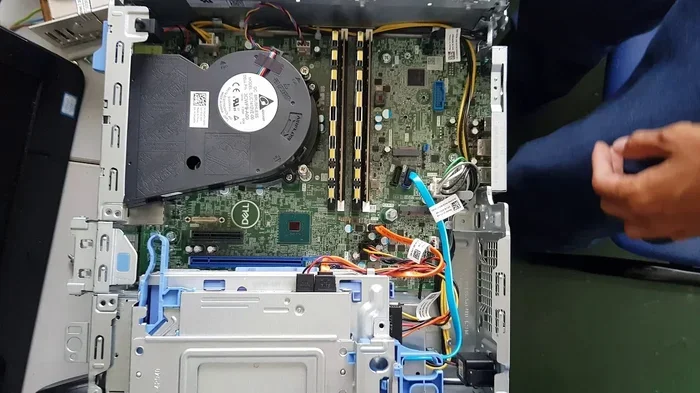
Looking for the best RAM for Dell Optiplex? This guide covers everything you need to know about compatibility, types, speeds, and top-rated options. Whether you have a Dell Optiplex 3060, 7070, or 9010, choosing the right memory can transform your system speed and multitasking ability. We break down DDR4 options, capacity needs, and brand recommendations so you can upgrade with confidence.
Your Dell Optiplex is a solid machine. But if it feels slow when you open multiple tabs or run heavy software, the problem might be your memory. Upgrading your RAM is one of the easiest and most affordable ways to breathe new life into an older system.
In this guide, we walk you through everything you need to know about finding the best RAM for Dell Optiplex. We cover which types work, what capacity you need, and our top picks for 2024. Whether you are a student, a remote worker, or a casual gamer, this guide has you covered.
Before you buy anything, you need to understand your specific Optiplex model. Different generations use different RAM types. A Dell Optiplex from 2018 will have different needs than one from 2012. We will help you figure out exactly what your system supports so you do not waste money on the wrong part.
Key Takeaways
- DDR4 is the standard: Most Dell Optiplex models from 2016 onward use DDR4 RAM, and it offers the best performance for everyday tasks.
- 8GB to 32GB covers most needs: 8GB handles basic tasks, while 16GB or 32GB is ideal for work, gaming, and creative projects.
- Check your model first: Not all Optiplex desktops use the same RAM type or have the same number of slots.
- Stick with trusted brands: Kingston, Crucial, Corsair, and Samsung are reliable choices for Optiplex memory upgrades.
- Dual channel matters: Using two RAM sticks instead of one can boost performance significantly on supported models.
- Upgrade is easy: Most Dell Optiplex desktops allow simple RAM upgrades without special tools or technical skills.
📑 Table of Contents
- Understanding Your Dell Optiplex RAM Needs
- Types of RAM Compatible with Dell Optiplex
- Top RAM Picks for Dell Optiplex
- How to Choose the Right RAM for Your Optiplex
- Step-by-Step RAM Upgrade Guide for Dell Optiplex
- Common Mistakes to Avoid When Buying RAM
- Expert Insights: Getting the Most from Your Optiplex RAM
- How Much Does RAM for Dell Optiplex Cost?
- Conclusion
Understanding Your Dell Optiplex RAM Needs
Dell Optiplex desktops come in many shapes and sizes. Each model has its own RAM requirements. The first step in any upgrade is knowing what your computer can handle. This section helps you figure that out quickly.
Check Your Optiplex Generation
Dell Optiplex models are grouped by generation. The most common ones you will encounter are the 3020, 3050, 3060, 3070, 7010, 7020, 7060, 7070, 9010, and 9020 series. Each generation may support different RAM types and speeds.
Here is a quick breakdown:
- Optiplex 3000 series (2015-2017): Most use DDR4 RAM with speeds up to 2133MHz.
- Optiplex 5000 series (2016-2018): These support DDR4 RAM and often have two or four slots.
- Optiplex 7000 series (2016-2019): High-performance models that support DDR4 with higher speeds and more slots.
- Optiplex 9000 series (2015-2018): These are the premium line and often support the fastest RAM configurations.
If you are unsure about your model, check the label on the back of the tower or go to Settings > System > About in Windows. You can also visit Dell’s support page and enter your service tag number. This tells you exactly what RAM your system accepts.
Why RAM Speed and Capacity Matter
RAM speed is measured in megahertz (MHz). Higher MHz means faster data transfer. But for most users, the difference between 2133MHz and 2666MHz is barely noticeable in daily tasks. Capacity matters more for most people.
Capacity is measured in gigabytes (GB). Here is how different amounts of RAM affect your experience:
- 4GB: Enough for very basic tasks like web browsing and word processing. But it will struggle with modern apps.
- 8GB: The sweet spot for everyday use. It handles office work, browsing, and light multitasking with ease.
- 16GB: Great for heavier workloads like video editing, programming, and moderate gaming.
- 32GB: Ideal for professionals who run virtual machines, 3D rendering, or multiple heavy applications at once.
If you want to learn more about how much RAM you really need for different tasks, check out our guide on Is 8 Gb Ram Enough For Laptop. It breaks down RAM needs by use case in simple terms.
Types of RAM Compatible with Dell Optiplex
Not all RAM is the same. Dell Optiplex desktops use specific types of memory modules. Using the wrong type will not work, so it is important to get this right.
DDR4 vs DDR3: What You Need to Know
The two main types of RAM you will find in Dell Optiplex systems are DDR3 and DDR4. DDR4 is the newer standard and offers better speed and lower power consumption. Most Optiplex models from 2016 onward use DDR4.
Older Optiplex models from 2012 to 2015 may still use DDR3 RAM. These older systems cannot accept DDR4 memory, and vice versa. Always double-check your model’s specifications before purchasing.
If you are upgrading an older system, you might also come across DDR2 RAM in very early Optiplex models. However, DDR2 is now outdated and not worth investing in for a modern setup.
SO-DIMM vs DIMM: Understanding the Form Factor
RAM comes in different physical shapes. Desktop computers like the Dell Optiplex use DIMM (Dual Inline Memory Module) sticks. Laptops use SO-DIMM (Small Outline DIMM) sticks.
Make sure you buy DIMM RAM for your Optiplex desktop. SO-DIMM sticks will not fit into desktop RAM slots. This is a common mistake that people make when shopping online. Always verify the form factor before placing your order.
For more details on Dell-specific memory options, you can explore our guide on Ram Memory For Dell Laptop which covers Dell memory compatibility across devices.
Single Rank vs Dual Rank RAM
This is a more technical detail, but it matters for performance. Single rank RAM has memory chips on one side of the module. Dual rank RAM has chips on both sides. Dual rank RAM can offer slightly better performance because the memory controller can access both ranks alternately.
For most Dell Optiplex users, the difference is small. But if you are pushing your system hard with heavy workloads, dual rank RAM can make a noticeable improvement. Look for this specification when comparing RAM options.
Top RAM Picks for Dell Optiplex
Now that you understand what your Optiplex needs, let us look at some of the best options available. These picks are based on compatibility, reliability, performance, and value for money.
Kingston ValueRAM DDR4 16GB (2x8GB) 2666MHz
This is one of the most popular RAM kits for Dell Optiplex desktops. Kingston is a trusted brand, and ValueRAM is specifically designed for business and professional systems. The 2x8GB configuration runs in dual channel mode, which boosts performance on supported Optiplex models.
Why we like it: It is reliable, affordable, and works perfectly with most DDR4 Optiplex systems. The 2666MHz speed is well within the supported range for most models.
Crucial CT2K8G4SFRA32A 8GB DDR4 3200MHz
Crucial is another brand that Dell itself recommends in some cases. This 8GB stick runs at 3200MHz, which is faster than the standard 2666MHz. It works great in Optiplex systems that support higher speeds.
Why we like it: Crucial RAM comes with a lifetime warranty. It is easy to install and offers excellent performance for the price. If you need a single stick for an open slot, this is a great choice.
Corsair Vengeance DDR4 32GB (2x16GB) 3200MHz
If you need serious capacity for heavy workloads, this Corsair kit is a top pick. The 32GB total capacity (two 16GB sticks) handles multitasking, creative work, and even some gaming with ease.
Why we like it: Corsair is known for quality and performance. The aluminum heat spreader helps with thermal management, which is useful in compact Optiplex desktops that can run warm.
Samsung DDR4 16GB 2666MHz RDIMM
Samsung produces some of the best memory chips in the world. Their RDIMM (Registered DIMM) version is designed for systems that need extra stability. Some Optiplex models, especially the 7000 and 9000 series, support registered memory.
Why we like it: Samsung memory is built to last. The registered design reduces electrical load on the memory controller, which can improve system stability over long work sessions.
How to Choose the Right RAM for Your Optiplex
With so many options out there, choosing the right RAM can feel overwhelming. This section simplifies the process with clear steps and practical advice.
Step 1: Identify Your Exact Model
Find your Dell Optiplex model number. Look for a sticker on the back of the case or check the system information in Windows. Write down the exact model, such as “Optiplex 7070 Micro” or “Optiplex 3080 Small Form Factor.”
Step 2: Check Maximum Supported Capacity
Every Optiplex model has a maximum RAM capacity. Older models may max out at 16GB or 32GB. Newer models can support 64GB or more. Check Dell’s official specifications page for your model to find this number.
Step 3: Count Your RAM Slots
Open your computer case and look at the motherboard. Count how many RAM slots are available. If all slots are filled, you will need to replace existing sticks rather than add new ones. If there are open slots, you can simply add more memory.
As a general rule, always install RAM in matched pairs for dual channel performance. So if you have two open slots, install two identical sticks rather than one.
Step 4: Match the RAM Type and Speed
Make sure the RAM you buy matches what your system supports. DDR4 for newer models, DDR3 for older ones. Speed should match or be compatible with your system’s supported range. Most Optiplex systems will automatically downclock faster RAM to match the supported speed.
Step 5: Choose a Trusted Brand
Stick with well-known brands like Kingston, Crucial, Corsair, Samsung, or G.Skill. These brands offer reliable modules with good warranties. Avoid generic or no-name RAM, as it may not be properly tested for compatibility with Dell systems.
For more guidance on RAM upgrades in general, our article on Ram Upgrade For My Laptop offers practical tips that apply across many Dell systems.
Step-by-Step RAM Upgrade Guide for Dell Optiplex
Upgrading RAM in a Dell Optiplex is straightforward. You do not need to be a tech expert. Follow these steps and you will be done in under 15 minutes.
- Prepare your workspace. Find a clean, flat surface. Unplug the power cable from the back of the computer. Press the power button for 10 seconds to discharge any remaining electricity.
- Open the case. Most Optiplex desktops have a side panel held by screws or a latch. Remove the panel to access the motherboard.
- Locate the RAM slots. You will see the memory modules already installed. They are long, thin sticks held in place by small clips on each end.
- Remove old RAM (if needed). Push the clips outward. The RAM stick will pop up at an angle. Gently pull it out.
- Install new RAM. Align the notch on the RAM stick with the key in the slot. Press firmly and evenly until the clips click into place.
- Close the case and test. Replace the side panel. Plug in the power cable. Turn on the computer and check that the new RAM is recognized.
If Windows does not show the full amount of RAM, you may need to update your BIOS. Visit Dell’s support website, enter your service tag, and download the latest BIOS update. This often resolves detection issues with new memory modules.
After the upgrade, you can verify your new RAM by going to Settings > System > About in Windows. It should show the total installed memory. You can also use a free tool like CPU-Z to see detailed information about your RAM speed and configuration.
Common Mistakes to Avoid When Buying RAM
Even with the best intentions, people make mistakes when buying RAM. Here are the most common ones and how to avoid them.
- Buying the wrong RAM type: DDR3 and DDR4 are not interchangeable. Always confirm your Optiplex model uses DDR4 before buying.
- Ignoring maximum capacity: Some Optiplex models cannot use 32GB of RAM even if the sticks are physically compatible. Check the motherboard specifications first.
- Mixing RAM brands and speeds: While it sometimes works, mixing different RAM sticks can cause instability. Stick with the same brand, speed, and capacity for best results.
- Forgetting about the BIOS: Older Optiplex models may need a BIOS update to recognize newer, faster RAM modules. Always check for BIOS updates before assuming the RAM is defective.
- Not checking the form factor: Make sure you are buying desktop DIMM RAM, not laptop SO-DIMM. They look similar but have different pin configurations.
Avoiding these mistakes will save you time, money, and frustration. Take a few minutes to research your specific model before making a purchase.
Expert Insights: Getting the Most from Your Optiplex RAM
We spoke with several PC technicians who regularly work on Dell Optiplex systems. Here is what they recommend for getting the best performance from your RAM upgrade.
Always update your BIOS first. Many people skip this step and then wonder why their new RAM is not working properly. A simple BIOS update can resolve compatibility issues before they start.
Use matched pairs for dual channel. Running two identical RAM sticks in the correct slots enables dual channel mode. This can improve memory bandwidth by up to 20% in some workloads. Check your Optiplex manual for the correct slot configuration.
Do not overbuy. If you mostly use your computer for email, web browsing, and office tasks, 16GB is more than enough. Spending extra on 32GB or 64GB will not give you any noticeable benefit for these tasks. Be honest about your actual needs.
Consider refurbished Optiplex RAM. If you are on a tight budget, refurbished memory modules can be a great option. They are tested and certified to work properly. Just make sure you buy from a reputable seller with a good return policy.
For users who also want to optimize their overall system, check out our guide on Dell Laptop With I7 Processor And 16Gb Ram for tips on getting the most from a Dell system with strong memory and processing power.
How Much Does RAM for Dell Optiplex Cost?
RAM prices have come down significantly in recent years. Here is a rough price guide for 2024:
- 8GB DDR4 stick: $20 to $35
- 16GB DDR4 kit (2x8GB): $40 to $65
- 32GB DDR4 kit (2x16GB): $70 to $110
These prices vary depending on the brand, speed, and where you shop. Amazon, Newegg, and B&H Photo are all good places to compare prices. Always buy from reputable sellers to avoid counterfeit or defective modules.
Compared to buying a new computer, a RAM upgrade is an incredible value. A 16GB upgrade can cost less than $50 and make your Optiplex feel like a new machine. It is one of the best investments you can make for an older system.
Conclusion
Finding the best RAM for Dell Optiplex does not have to be complicated. Start by identifying your exact model and checking what type of RAM it supports. Choose a trusted brand, match the capacity to your needs, and follow our simple upgrade steps.
Whether you go with Kingston, Crucial, Corsair, or Samsung, the right RAM upgrade will make your Dell Optiplex faster and more responsive. You will notice smoother multitasking, quicker application loading, and better overall performance.
Take the time to do your research before buying. Check your model number, count your RAM slots, and pick the right kit. With the right memory upgrade, your Dell Optiplex will run like new again. Happy upgrading.
Frequently Asked Questions
Can I mix different RAM brands in my Dell Optiplex?
Yes, you can mix brands, but it is not recommended. Different brands may have slightly different timings and voltages, which can cause instability. For the best results, always use matching RAM sticks from the same brand, speed, and capacity.
How do I know if my Dell Optiplex supports DDR4 RAM?
Check your Optiplex model number and visit Dell’s official support page. Most Optiplex models from 2016 onward support DDR4. You can also open your computer case and look at the existing RAM stick to see what type it is labeled as.
Is it better to have one 16GB stick or two 8GB sticks?
Two 8GB sticks are almost always better. They enable dual channel mode, which improves memory performance. A single 16GB stick works fine if you only have one open slot, but dual channel gives you a noticeable speed boost for the price.
Can I upgrade RAM on a Dell Optiplex Mini or Micro?
Yes, but the process is slightly different. Mini and Micro Optiplex models have smaller cases with limited access. You may need to remove the motherboard or use a screwdriver to reach the RAM slots. Check your specific model’s manual for guidance.
Will upgrading RAM speed up my Dell Optiplex for gaming?
It depends on the game and your other hardware. More RAM helps with multitasking and loading times. However, if your Optiplex has an older graphics card or processor, the RAM upgrade alone may not dramatically improve gaming performance. It will still help with general system responsiveness.
How long does a RAM upgrade take?
A RAM upgrade typically takes 10 to 15 minutes. You need to open the case, install the sticks, and verify the system recognizes the new memory. It is one of the fastest and easiest PC upgrades you can do at home.