Best Ram For Lenovo Ideapad Top Picks For Faster Speed
Looking for the best RAM for Lenovo IdeaPad? Upgrading your laptop memory is one of the easiest ways to speed up your machine. Whether you need more RAM for work, gaming, or school, the right memory upgrade can make a huge difference. In this guide, we break down the top options, compatibility tips, and step-by-step advice to help you choose the perfect RAM for your Lenovo IdeaPad.
If your Lenovo IdeaPad feels slow, the problem might be your RAM. Random Access Memory is the short-term memory your laptop uses to handle tasks. When you run out of it, everything slows down. The good news is that upgrading your RAM can breathe new life into an older machine.
In this guide, we will walk you through everything you need to know about choosing the best RAM for Lenovo IdeaPad models. We will cover what type of RAM works, how much you need, and which specific products deliver the best value. Whether you are a student, a professional, or a casual user, you will find the answers you need right here.
Key Takeaways
- DDR4 SODIMM is the standard: Most Lenovo IdeaPad models use DDR4 SO-DIMM RAM modules, making upgrades simple and affordable.
- 8GB is the sweet spot: For most users, 8GB of RAM provides smooth performance for everyday tasks and light multitasking.
- Check your slots first: Some IdeaPad models have one slot, others have two. Knowing this helps you plan your upgrade correctly.
- 16GB is great for heavy users: If you run video editing, programming, or modern games, 16GB of RAM will give you a noticeable boost.
- Speed matters but compatibility matters more: Always match the RAM type and frequency your laptop supports before buying.
- Upgrading is easy and cheap: You can do it yourself in minutes with basic tools, saving money over professional service.
📑 Table of Contents
- Why RAM Matters for Your Lenovo IdeaPad
- Understanding RAM Types for Lenovo IdeaPad
- Top Picks for the Best RAM for Lenovo IdeaPad
- How to Upgrade RAM in Your Lenovo IdeaPad
- Maximizing Performance After Your RAM Upgrade
- How Much Does RAM for Lenovo IdeaPad Cost?
- Which Lenovo IdeaPad Models Support RAM Upgrades?
- Final Thoughts
Why RAM Matters for Your Lenovo IdeaPad
RAM plays a huge role in how fast your laptop responds. Every app you open, every browser tab you keep active, and every file you switch between uses memory. Without enough RAM, your laptop has to rely on the hard drive, which is much slower. This causes delays, freezing, and frustration.
Think of RAM like your desk space. A bigger desk lets you spread out more papers and work on them at the same time. More RAM means your laptop can handle more tasks at once without slowing down. For most users, 8GB is the minimum comfortable amount. Power users and gamers often prefer 16GB or even 32GB for demanding workloads.
How Much RAM Do You Actually Need?
The right amount of RAM depends on what you do with your laptop. Here is a simple breakdown to help you decide:
- 4GB: Basic browsing and word processing only. This is the bare minimum and feels limiting today.
- 8GB: Great for everyday use, streaming, light photo editing, and casual gaming. This is the most popular choice.
- 16GB: Ideal for multitasking, video editing, programming, and modern gaming. This is the sweet spot for power users.
- 32GB: Best for professionals who run heavy software like CAD, 3D rendering, or virtual machines.
If you are unsure, start with 8GB. It covers most use cases and costs less than higher-capacity options. You can always upgrade later if needed.
Understanding RAM Types for Lenovo IdeaPad
Not all RAM is the same. Different types, speeds, and form factors exist, and your laptop only supports specific ones. Let us break down the key terms so you can shop with confidence.
DDR4 vs DDR3 RAM
Most modern Lenovo IdeaPad models use DDR4 RAM. This is the current standard for laptop memory. DDR4 runs faster and uses less power than the older DDR3 standard. If your laptop was made after 2018, it almost certainly uses DDR4.
DDR3 RAM is still found in older IdeaPad models from around 2012 to 2017. Before you buy any RAM, check your laptop’s specifications. You can find this information in your user manual or by checking the system properties in Windows. Using the wrong type of RAM will not work, so this step is essential.
SO-DIMM Form Factor
Laptops use a smaller version of desktop RAM called SO-DIMM, which stands for Small Outline Dual In-Line Memory Module. These compact sticks are designed to fit inside the tight space of a laptop. When shopping for RAM, always look for SO-DIMM modules, not desktop sticks.
Common SO-DIMM sizes include 4GB, 8GB, and 16GB sticks. You can mix and match different sizes if your laptop has two slots. For example, pairing an 8GB stick with another 8GB stick gives you 16GB of dual-channel memory, which improves performance.
RAM Speed and Frequency
RAM speed is measured in megahertz (MHz). Higher numbers mean faster data transfer. For DDR4 SO-DIMM RAM, common speeds are 2400MHz, 2666MHz, and 3200MHz. Most Lenovo IdeaPad models work well with 2666MHz RAM, which offers a great balance of speed and price.
Faster RAM does help with some tasks, but the difference is not always dramatic for everyday use. If you are on a budget, do not overspend on high-speed RAM. A 2666MHz module will serve you well for most needs. Save your money for a larger capacity instead.
Top Picks for the Best RAM for Lenovo IdeaPad
Now that you understand the basics, let us look at some of the best RAM options available. These picks are based on compatibility, performance, value, and user reviews.
Kingston Fury Beast 8GB DDR4 2666MHz SO-DIMM
This is one of the most popular RAM upgrades for Lenovo IdeaPad laptops. Kingston is a trusted brand in the memory world, and the Fury Beast line delivers solid performance. The 8GB capacity is perfect for everyday use, and the 2666MHz speed ensures smooth multitasking.
At an affordable price point, this module is a great entry-level upgrade. It fits most IdeaPad models with a single SO-DIMM slot and comes with a lifetime warranty. If you want a simple, reliable upgrade, this is an excellent choice.
Crucial 16GB DDR4 2666MHz SO-DIMM (CT2K8G4SFRA32A)
For users who need more power, the Crucial 16GB kit is a standout option. This comes as a matched pair of 8GB sticks, giving you 16GB of dual-channel memory. Dual-channel configuration improves bandwidth and can noticeably boost performance in demanding applications.
Crucial is one of the most trusted names in laptop memory. Their modules are rigorously tested for compatibility, and they offer easy installation guidance on their website. This kit works well for IdeaPad models that have two RAM slots and support up to 16GB or 32GB of total memory.
Samsung 8GB DDR4 3200MHz SO-DIMM
Samsung makes some of the highest-quality RAM modules on the market. Their 8GB DDR4 3200MHz SO-DIMM offers faster speeds than standard options, which can benefit productivity tasks and light gaming. Samsung RAM is known for its reliability and low power consumption.
This option is ideal if your IdeaPad supports higher-frequency RAM. Always double-check your laptop’s maximum supported speed before purchasing. A 3200MHz module will downclock to match your laptop’s supported speed, so there is no harm in buying faster RAM.
G.Skill Ripjaws SO-DIMM 16GB DDR4 2666MHz
G.Skill is well-known among gamers and enthusiasts, and their Ripjaws line offers excellent value. This 16GB SO-DIMM kit provides plenty of memory for multitasking and moderate gaming. The 2666MHz speed is well-supported by most IdeaPad models.
G.Skill modules often feature attractive heat spreaders, though they are less critical in laptops than in desktops. The real advantage here is the combination of capacity, speed, and brand reliability at a competitive price.
How to Upgrade RAM in Your Lenovo IdeaPad
Upgrading your RAM is one of the easiest laptop improvements you can do. You do not need to be a tech expert. With a few basic tools and about 15 minutes, you can complete the process yourself.
Step-by-Step Guide
- Turn off your laptop and unplug all cables. Remove the battery if possible.
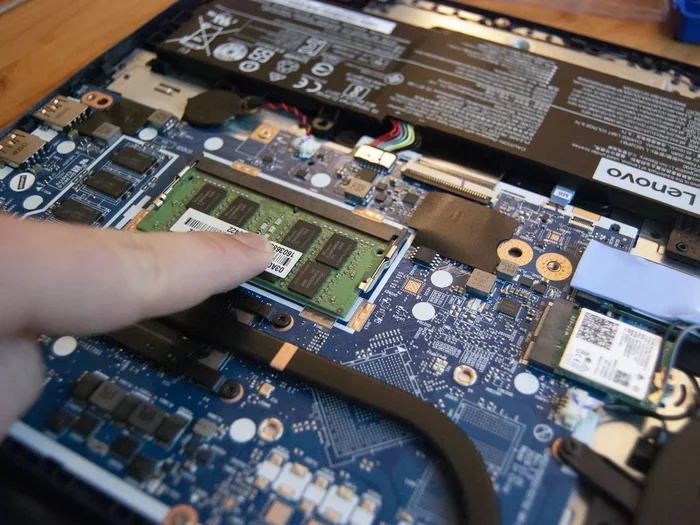
- Find the RAM access panel on the bottom of your IdeaPad. It is usually marked with a small icon of memory sticks.
- Remove the screws holding the panel in place. Keep them in a safe spot.
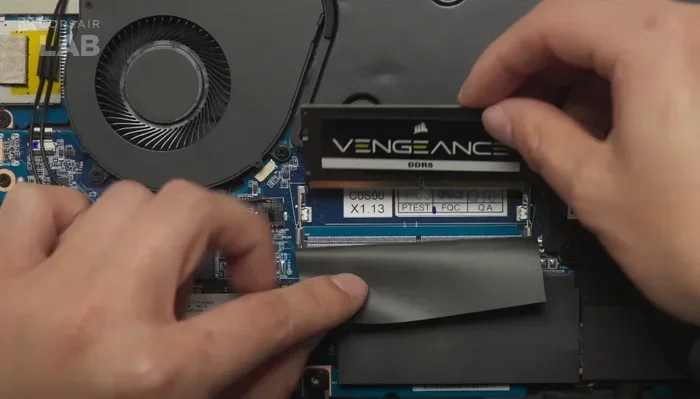
- Carefully remove the old RAM stick by pushing the side clips outward. The stick will pop up at an angle.
- Align the new RAM stick with the slot at a 30-degree angle. Press it down firmly until the clips click into place.
- Replace the access panel and screw it back in.
- Power on your laptop and check the system properties to confirm the new RAM is recognized.
If your IdeaPad has two slots and one is already occupied, you can add a second stick to expand your total memory. Just make sure the new stick matches the existing one in type and speed for the best results. Mixing different brands is generally fine, but matching speed and timing is important for stability.
Common Mistakes to Avoid
- Buying the wrong RAM type: Always verify DDR4 vs DDR3 and SO-DIMM vs DIMM before purchasing.
- Ignoring slot limits: Some IdeaPad models have only one slot. Check your specific model before buying.
- Forgetting to ground yourself: Touch a metal surface before handling RAM to prevent static damage.
- Overlooking compatibility: Not all RAM works with all laptops. Check Lenovo’s official support page for your model.
For more detailed guidance on the upgrade process, check out our article on how to upgrade RAM for Lenovo laptop. It covers model-specific tips and troubleshooting steps.
Maximizing Performance After Your RAM Upgrade
Once you have installed your new RAM, you will likely notice an immediate improvement. Apps open faster, multitasking feels smoother, and your laptop handles more tasks at once. But there are a few additional steps you can take to get the most out of your upgrade.
Enable Dual-Channel Mode
If your IdeaPad has two RAM slots, installing matching sticks in both slots activates dual-channel mode. This doubles the data bandwidth between the RAM and the processor, resulting in better overall performance. Look for RAM kits sold in pairs, or buy two identical sticks separately.
Update Your BIOS
Sometimes, a BIOS update can improve memory compatibility and stability. Visit the Lenovo support website, enter your IdeaPad model number, and check for the latest BIOS version. Installing updates is straightforward and can resolve issues with newly installed RAM.
Monitor Your Memory Usage
After upgrading, keep an eye on how much RAM your laptop is using. You can check this in the Task Manager under the Performance tab. If you are regularly using more than 80% of your available memory, you may benefit from an even larger upgrade. For heavy users, moving from 8GB to 16GB or 32GB can make a significant difference.
For more tips on how much RAM you really need, read our article on is 8GB RAM enough for a laptop. It covers real-world usage scenarios and helps you decide if an upgrade is right for you.
How Much Does RAM for Lenovo IdeaPad Cost?
One of the best things about upgrading laptop RAM is the price. Memory is one of the most affordable upgrades you can make. Here is a rough price guide for the RAM options we recommend:
- 8GB DDR4 SO-DIMM: $20 to $35 USD
- 16GB DDR4 SO-DIMM (single stick): $40 to $60 USD
- 16GB DDR4 SO-DIMM kit (2x8GB): $50 to $80 USD
- 32GB DDR4 SO-DIMM: $80 to $120 USD
Prices vary depending on the brand, speed, and retailer. Shopping during sales events like Black Friday or Amazon Prime Day can save you extra money. Always buy from reputable sellers to avoid counterfeit or defective modules.
For specific pricing on 8GB RAM options, you might find our article on 8GB RAM for laptop price helpful for current market rates.
Which Lenovo IdeaPad Models Support RAM Upgrades?
Most Lenovo IdeaPad models allow RAM upgrades, but the specifics vary by generation and model number. Popular series like the IdeaPad 3, IdeaPad 5, and IdeaPad Slim series typically have accessible RAM slots. Gaming-focused IdeaPad models like the IdeaPad Gaming 3 often support up to 32GB of RAM.
Before you buy RAM, look up your specific model number on the Lenovo support website. The page will list the maximum supported capacity, RAM type, and number of available slots. This information saves you from buying incompatible memory.
For a deeper dive into Lenovo IdeaPad RAM compatibility, our guide on Lenovo laptops with expandable RAM covers which models support upgrades and how to find your model number.
Final Thoughts
Upgrading the RAM in your Lenovo IdeaPad is one of the simplest and most cost-effective ways to improve performance. Whether you choose an 8GB stick for everyday use or a 16GB kit for heavy multitasking, the right memory upgrade can transform your experience. The key is to match the RAM type, form factor, and capacity to your specific IdeaPad model.
Start by checking your laptop’s current specifications. Determine how many slots you have and what type of RAM is supported. Then choose a module from the trusted brands we have recommended in this guide. The installation process is straightforward, and the results are well worth the effort.
Do not let a slow laptop hold you back. A RAM upgrade is a quick fix that delivers real, noticeable improvements. Your IdeaPad can feel like new again with the right memory. Take action today and enjoy a faster, smoother computing experience.
Frequently Asked Questions
Can I upgrade the RAM in my Lenovo IdeaPad myself?
Yes, most Lenovo IdeaPad models are designed for easy user upgrades. You just need a small Phillips screwdriver and about 15 minutes. The RAM access panel on the bottom makes it simple to swap out old memory for new modules.
What is the maximum RAM supported by Lenovo IdeaPad?
The maximum RAM varies by model. Most IdeaPad models support up to 16GB or 32GB. Check your specific model number on the Lenovo support website to find the exact maximum capacity and RAM type supported.
Is 8GB RAM enough for a Lenovo IdeaPad?
For most everyday tasks like browsing, streaming, and office work, 8GB is sufficient. However, if you do video editing, programming, or gaming, you may benefit from 16GB or more. The right amount depends on your usage habits.
Can I mix different RAM brands in my Lenovo IdeaPad?
Yes, you can mix brands, but it is best to match the RAM type, speed, and capacity. Using two different 8GB DDR4 2666MHz sticks is better than mixing a fast stick with a slow one. Matching specifications ensures stability and optimal dual-channel performance.
How do I know what RAM my Lenovo IdeaPad currently has?
You can check your current RAM by opening Task Manager in Windows and clicking the Performance tab. It will show you the total RAM, type, speed, and how many slots are being used. You can also check your model specifications on the Lenovo support website.
Does adding more RAM make a laptop faster?
Yes, adding more RAM can significantly speed up a laptop, especially if you are currently running low on memory. It helps with multitasking, app loading times, and overall system responsiveness. However, if your bottleneck is a slow processor or hard drive, RAM alone may not solve all performance issues.