Right Click Menu Freezing On Sign In 7 Fixes For Windows 11
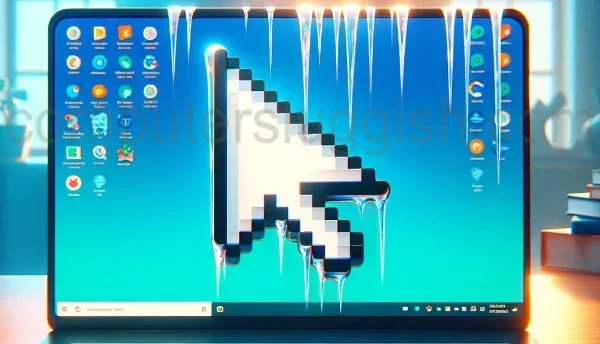
The right click menu freezing on the sign in screen is a frustrating but common issue in Windows 11. This problem can stop you from accessing settings, troubleshooting tools, and other essential options when you need them most. In this guide, we walk through 7 proven fixes that address the root causes, from driver issues to system file corruption. Whether you are a student, a professional, or a casual user, these solutions are designed to be simple and effective. You will find step-by-step instructions, practical tips, and expert insights to help you resolve the problem quickly and confidently.
Have you ever sat down at your laptop, ready to sign in, only to find that your right click menu is completely frozen? It is one of those annoying moments that can throw off your entire morning. You right-click on the sign in screen, and nothing happens. No context menu appears. No options pop up. Just silence.
This issue is more common than you might think, especially on Windows 11. The right click menu, also known as the context menu, is a small but powerful tool. It lets you access settings, troubleshoot problems, and navigate your system with ease. When it freezes, it can feel like your computer is holding you hostage. But here is the good news: there are 7 reliable fixes that can get your right click working again.
In this article, we break down each fix in simple, easy-to-follow steps. You do not need to be a tech expert. Whether your right click menu freezing on sign in happens every time or just once in a while, we have you covered. Let us dive in and get your mouse working the way it should.
Key Takeaways
- Restart First: A simple reboot can often clear temporary glitches that cause the right click menu to freeze on the sign in screen.
- Update Drivers: Outdated or corrupted mouse drivers are one of the most common reasons your context menu stops working.
- Use Built-In Tools: Windows 11 has troubleshooters and system tools that can automatically detect and fix many right click issues.
- Check for Updates: Running the latest Windows updates ensures your system has the latest patches for known bugs.
- Try a New Profile: A corrupted user profile can cause persistent freezing, and creating a new one often solves the problem.
- System Restore Works: If nothing else works, rolling back your system to a point before the issue started is a reliable fix.
📑 Table of Contents
- Why Does the Right Click Menu Freeze on the Sign In Screen?
- Fix 1: Restart Your Computer and Try Again
- Fix 2: Update or Reinstall Your Mouse Drivers
- Fix 3: Run the Windows Troubleshooter
- Fix 4: Check for Windows Updates
- Fix 5: Disable Built-In Mouse Drivers
- Fix 6: Create a New User Profile
- Fix 7: Perform a System Restore
- Quick Tips to Prevent Right Click Freezing
- Expert Insights on Right Click Menu Issues
- When to Seek Professional Help
- Conclusion
Why Does the Right Click Menu Freeze on the Sign In Screen?
Before we jump into the fixes, it helps to understand why this happens. The right click menu freezing on sign in screen is usually caused by a handful of common culprits. Knowing the cause can help you pick the right fix faster.
Sometimes, a temporary software glitch freezes the context menu. Other times, outdated mouse drivers or corrupted system files are to blame. In some cases, a Windows update goes wrong and breaks the right click functionality. Here are the most common reasons:
- Outdated or corrupted mouse drivers that fail to load properly at the sign in screen
- Corrupted system files that prevent the context menu from rendering
- A buggy Windows update that introduced a conflict with your mouse or touchpad
- Third-party software interfering with the right click function
- A corrupted user profile that causes settings to load incorrectly
- Temporary system glitches that a simple restart can clear
If you have ever searched for how to right click on a laptop without a mouse because your context menu was not working, you know how disruptive this can be. The good news is that most of these causes are easy to fix, and you do not need expensive tools or technical skills.
Fix 1: Restart Your Computer and Try Again
It sounds too simple, but restarting your computer solves a surprising number of issues. A restart clears temporary files, resets running processes, and gives your system a fresh start. Many times, the right click menu freezing on sign in is just a temporary glitch that a reboot can fix.
Here is what to do:
- Click the Start button and select Restart.
- Wait for your computer to fully shut down and turn back on.
- On the sign in screen, try right-clicking again.
If the right click menu still does not appear after a restart, do not worry. Move on to the next fix. Restarting is always the first step because it costs you nothing and takes only a minute.
Fix 2: Update or Reinstall Your Mouse Drivers
Your mouse driver is the software that tells Windows how to communicate with your mouse or touchpad. When this driver becomes outdated or corrupted, the right click menu freezing on sign in problem can appear. Updating or reinstalling the driver often resolves the issue completely.
How to Update Mouse Drivers
If you can access the desktop, updating drivers is straightforward:
- Right-click the Start button and select Device Manager.
- Expand the “Mice and other pointing devices” section.
- Right-click your mouse or touchpad device and select Update driver.
- Choose “Search automatically for drivers” and let Windows do the work.
How to Reinstall Mouse Drivers
If updating does not help, try uninstalling and reinstalling the driver:
- In Device Manager, right-click your mouse device and select Uninstall device.
- Restart your computer.
- Windows will automatically reinstall the driver during boot.
After reinstalling, check if the right click menu works on the sign in screen. This fix resolves the issue for many users, especially when the driver was the root cause.
Fix 3: Run the Windows Troubleshooter
Windows 11 comes with built-in troubleshooters that can automatically detect and fix common problems. The right click menu freezing on sign in issue can sometimes be traced back to a configuration error that the troubleshooter knows how to handle.
Here is how to run the Hardware and Devices troubleshooter:
- Open Settings by pressing Windows + I.
- Go to System and then select Troubleshoot.
- Click on Other troubleshooters.
- Find “Hardware and Devices” and click Run.
- Follow the on-screen instructions and let the tool scan for issues.
The troubleshooter will check for driver problems, configuration errors, and other common causes. If it finds an issue, it will try to fix it automatically. This is a great hands-off approach that works well for users who prefer not to dig into system settings manually.
You might also want to check out our guide on how to right click on a laptop without a mouse if you need temporary alternatives while troubleshooting.
Fix 4: Check for Windows Updates
Microsoft regularly releases updates that fix bugs and improve system stability. Sometimes, the right click menu freezing on sign in problem is caused by a known issue that has already been patched in a newer update. Keeping your system up to date is one of the easiest ways to prevent and fix problems.
Here is how to check for updates:
- Open Settings and go to Windows Update.
- Click Check for updates.
- Install any available updates and restart your computer.
If you are already on the latest version, you can also check for optional updates. Some driver updates are listed as optional and may not install automatically. These can include important mouse and touchpad driver improvements that fix right click issues.
Running updates regularly is a good habit. It not only fixes known bugs but also improves your system’s security and performance. A well-maintained system is far less likely to experience issues like a frozen context menu.
Fix 5: Disable Built-In Mouse Drivers
In some cases, conflicts between multiple mouse drivers can cause the right click menu to freeze. Disabling the built-in mouse driver temporarily can help you identify if this is the source of the problem. This fix is especially useful if you have both a USB mouse and a built-in touchpad.
Here is how to do it:
- Open Device Manager.
- Expand the “Mice and other pointing devices” section.
- Right-click the built-in mouse or touchpad device and select Disable device.
- Restart your computer and test the right click menu.
If disabling the built-in driver fixes the issue, you may need to update the driver or use an external mouse as a workaround. You can find more information about managing your mouse settings in our guide on how to disable the built-in mouse on a laptop.
Remember to re-enable the driver if you do not want to use an external mouse permanently. Disabling the driver is a diagnostic step, not a permanent solution.
Fix 6: Create a New User Profile
A corrupted user profile can cause all sorts of strange behavior in Windows 11, including a frozen right click menu on the sign in screen. When your user profile becomes damaged, settings and preferences do not load correctly, which can break basic functions like the context menu.
Creating a new user profile is straightforward:
- Open Settings and go to Accounts.
- Select Family & other users.
- Click Add account and follow the prompts to create a new user.
- Log in with the new account and check if the right click menu works.
If the right click menu works in the new profile, the old profile was the problem. You can then transfer your files and settings to the new account. This fix is especially helpful when the issue started after a system change or a failed update.
Keep in mind that creating a new profile does not delete your old one. You can keep both accounts and decide later which one to use as your primary account.
Fix 7: Perform a System Restore
If none of the previous fixes work, a system restore can roll your computer back to a point in time when everything was working correctly. This is a powerful fix because it undoes system changes without affecting your personal files.
Here is how to perform a system restore:
- Type “Create a restore point” in the Windows search bar and open it.
- Click System Restore.
- Choose a restore point from before the right click issue started.
- Follow the prompts and let Windows complete the restore.
After the restore, restart your computer and test the right click menu on the sign in screen. System restore is a safe and effective way to undo changes that may have caused the right click menu freezing on sign in problem.
If you are dealing with a freezing mouse in general, you may also want to check out our article on why your mouse keeps freezing on your laptop for additional troubleshooting tips.
Quick Tips to Prevent Right Click Freezing
Prevention is always better than cure. Here are some simple habits that can help you avoid the right click menu freezing on sign in problem in the future:
- Keep Windows updated at all times to benefit from the latest bug fixes.
- Update your mouse drivers regularly, especially after major Windows updates.
- Avoid installing suspicious software that may interfere with system functions.
- Restart your computer weekly to clear temporary files and reset processes.
- Use a reputable antivirus program to prevent malware from corrupting system files.
- Back up your system regularly so you can restore it quickly if something goes wrong.
These small habits take minimal effort but can save you a lot of frustration over time. A well-maintained Windows 11 system runs smoother and experiences fewer issues like a frozen right click menu.
Expert Insights on Right Click Menu Issues
According to Windows support professionals, the most common cause of right click menu freezing on the sign in screen is driver conflicts. When multiple pointing devices are detected, Windows sometimes struggles to assign the correct driver to each one. This can cause the context menu to fail to load.
Experts also recommend checking for sign in screen issues Windows 11 through the built-in diagnostic tools. The Event Viewer can reveal error logs that point to the exact cause of the problem. If you are comfortable using advanced tools, checking the Event Viewer can save you a lot of trial and error.
Another expert tip is to test your mouse on a different USB port. Sometimes, a faulty port can cause intermittent right click failures. If the issue only happens on one port, the problem may be hardware-related rather than software-related.
When to Seek Professional Help
Most of the time, the fixes in this guide will resolve the right click menu freezing on sign in issue. However, there are situations where professional help is the best choice:
- The problem persists after trying all 7 fixes
- You suspect hardware failure in your mouse or touchpad
- Your system has multiple issues beyond the right click menu
- You are not comfortable performing system restores or driver changes
A qualified technician can run deeper diagnostics and identify issues that are not visible through standard troubleshooting. There is no shame in seeking help when a problem is beyond your comfort zone.
Conclusion
A frozen right click menu on the sign in screen is frustrating, but it is almost always fixable. From simple restarts to system restores, the 7 fixes in this guide cover all the most common causes of the right click menu freezing on sign in problem in Windows 11. The key is to work through the fixes in order, starting with the simplest solutions and moving to more advanced ones only if needed.
Most users find that updating drivers or running the troubleshooter resolves the issue. If the problem is more stubborn, creating a new user profile or performing a system restore can bring your system back to normal. The important thing is not to give up. With patience and the right approach, you can get your right click menu working again.
Try these fixes today and take back control of your Windows 11 experience. Your mouse should work the way it is supposed to, and your sign in screen should be a place where you can access the tools you need without any hassle.
Frequently Asked Questions
Why does my right click menu freeze on the sign in screen in Windows 11?
The most common reason is outdated or corrupted mouse drivers that fail to load properly at the sign in screen. Other causes include corrupted system files, buggy Windows updates, and conflicts between multiple pointing devices. Most of the time, the issue is software-related and can be fixed with the steps in this guide.
Can a simple restart fix the right click freezing issue?
Yes, in many cases a simple restart clears temporary glitches that cause the right click menu to freeze. It is always the first step to try because it costs nothing and takes only a minute. If the issue persists after a restart, move on to the other fixes.
Do I need to be a tech expert to fix this problem?
Not at all. The fixes in this guide are designed for everyday users. Each step is explained in simple language with clear instructions. You do not need any special tools or technical knowledge to follow along.
What should I do if none of the 7 fixes work?
If all 7 fixes fail, it may be time to seek professional help. A technician can run deeper diagnostics and check for hardware issues. You can also consider resetting Windows 11 as a last resort, which reinstalls the operating system while keeping your personal files.
Is the right click menu freezing problem specific to Windows 11?
While the issue is most commonly reported on Windows 11, similar problems can occur on Windows 10 and earlier versions. Windows 11 has introduced new driver models and user interface changes that can sometimes cause compatibility issues with older hardware or software.
How can I prevent the right click menu from freezing in the future?
Keep Windows updated, update your mouse drivers regularly, restart your computer weekly, and avoid installing suspicious software. These simple habits go a long way in preventing the right click menu freezing on sign in problem and keeping your system running smoothly.