Your Guide To Parts Of A Computer Window And Functions
Founder & Hardware Reviewer at Ugra Technology Private Limited · Hardware Benchmarking Specialist; PC & Laptop Reviewer · Over 10 years testing laptops, PCs, and hardware components with real-world benchmarks
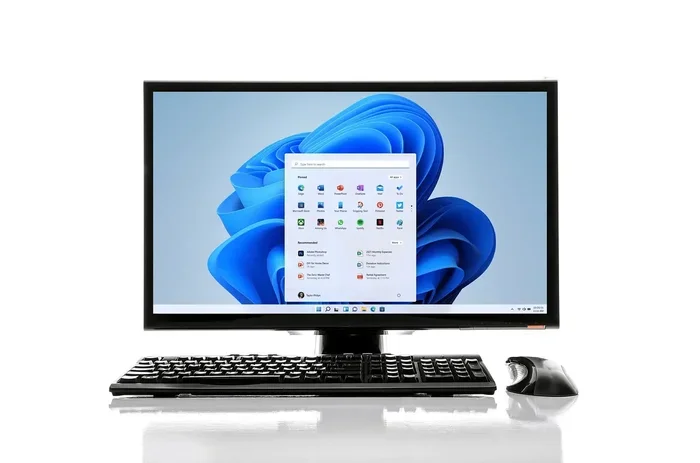
Understanding the parts of a computer window helps you navigate your PC faster and smarter. Every window on your screen has key elements like the title bar, menu bar, taskbar, and control buttons. This guide breaks down each part of a computer window so you can work more efficiently and troubleshoot common issues with confidence.
Every time you open a program on your computer, you see a window. But how many of us really stop to think about what each piece of that window does? The parts of a computer window are not just random design choices. Each element serves a specific purpose that makes your computing experience smoother and more organized.
Whether you are a student, a professional, or someone who just browses the web, knowing your way around a computer window is essential. You use windows all day long. You open them, close them, resize them, and switch between them. Yet most people barely notice the small details that make all the difference.
This guide walks you through every major part of a computer window. We will explain what each piece does, why it matters, and how you can use it to work smarter. By the end, you will look at your screen in a whole new way.
Key Takeaways
- The title bar shows the name of the active window and helps you move or resize it.
- The taskbar gives you quick access to open apps, system tools, and notifications.
- Window control buttons let you minimize, maximize, or close any window with a single click.
- The menu bar and ribbon provide access to all the important commands and features.
- The system tray houses icons for background apps, battery status, and network connections.
- Scroll bars and status bars help you navigate content and see real-time information.
- Knowing these parts makes you a more confident and efficient computer user.
📑 Table of Contents
What Are the Parts of a Computer Window?
A computer window is like a small workspace on your screen. It holds the content you are looking at right now. Each window has several built-in parts that help you control, move, and interact with it. Understanding these parts is the first step to becoming more productive on your computer.
The main parts of a computer window include the title bar, menu bar, toolbar, address bar, content area, scroll bars, status bar, and window control buttons. Each of these elements plays a role in how you use your computer every day. Let us break them down one by one.
The Title Bar
The title bar sits at the very top of every window. It displays the name of the program or file you are currently viewing. For example, if you have Microsoft Word open, the title bar will show the name of your document. If you are browsing the web, it shows the name of the website or page.
You can click and drag the title bar to move the window around your screen. This is one of the most basic and useful functions of the parts of a computer window. On Windows 11, the title bar also supports snap layouts, which let you organize multiple windows side by side with just a few clicks.
The Menu Bar
Below the title bar, you will usually find the menu bar. It contains drop-down menus like File, Edit, View, and Help. Each menu opens a list of commands you can use to perform actions within the program.
For example, the File menu often lets you open, save, or print your work. The Edit menu typically offers copy, paste, and undo options. The menu bar gives you direct access to powerful features without needing to search for them. If you are using a program like Microsoft Word, the menu bar connects to the ribbon interface, which we will cover shortly.
The Taskbar and System Tray
The taskbar is one of the most important parts of a computer window setup. It runs along the bottom of your screen by default. The taskbar holds the Start button, pinned app icons, open program buttons, and the system tray.
When you open multiple programs, each one gets a button on the taskbar. You can click any button to switch to that window instantly. This makes multitasking much easier and faster. You can also right-click a taskbar button to see a list of all open windows for that app.
The System Tray
The system tray sits at the far right side of the taskbar. It shows small icons for background programs and system tools. You will often see icons for your Wi-Fi connection, sound volume, battery level, and clock here.
The system tray is also called the notification area. When a program wants to alert you, it usually shows a notification here. For instance, antivirus software might display a shield icon. Cloud storage apps like OneDrive show a cloud icon. These tiny icons are part of the parts of a computer window ecosystem that keep you informed without cluttering your main workspace.
Window Control Buttons and Their Functions
Every window has a set of control buttons, usually located at the top right corner. These buttons are small but extremely powerful. They let you manage how each window behaves on your screen.
There are typically three control buttons. The first button minimizes the window. It shrinks the window down and sends it to the taskbar. The second button maximizes or restores the window. When a window is not full screen, this button makes it fill the entire screen. Click it again to restore the window to its previous size. The third button closes the window completely.
Knowing these buttons seems simple, but they save you a lot of time. Instead of hunting for the close option in a menu, you just click the X button. On Windows, you can also use keyboard shortcuts. Press the Windows key plus the down arrow to minimize or restore a window. These shortcuts work with the parts of a computer window to speed up your workflow.
Minimize, Maximize, and Close in Action
Let us say you are working on a spreadsheet and need to check your email. You can minimize the spreadsheet window with one click. Your email window stays open and ready. When you are done checking email, you click the maximize button on the email window to bring it back to full screen. This simple back-and-forth is made possible by the window control buttons.
If you want to close a program entirely, you click the close button. The program shuts down and frees up system resources. This is especially helpful when you have many programs running and your computer starts to slow down. If your laptop feels sluggish, you might want to check how much RAM your system is using. You can learn how to check your laptop RAM to see if an upgrade might help your performance.
The Toolbar and Ribbon Interface
Many programs include a toolbar or ribbon interface just below the menu bar. The toolbar provides quick access to the most commonly used commands. Instead of clicking through menus, you can use toolbar buttons for actions like saving, printing, or undoing your last change.
Microsoft Office programs like Word, Excel, and PowerPoint use the ribbon interface. The ribbon organizes commands into tabs such as Home, Insert, and Design. Each tab contains groups of related tools. For example, the Home tab in Word includes options for font style, font size, and text color.
The ribbon is part of the visual layout of the parts of a computer window. It takes up more space than a traditional menu bar, but it makes finding tools much easier. You can customize the ribbon by right-clicking it and selecting customize options. This lets you add or remove buttons based on how you work.
Quick Access Toolbar
Above the ribbon, you will find the Quick Access Toolbar in many Microsoft programs. It holds a small set of buttons for the commands you use most often. By default, it includes Save, Undo, and Redo. You can add other commands like Print or Spell Check by clicking the dropdown arrow on the toolbar.
This little toolbar is a great example of how the parts of a computer window are designed to save you time. Instead of digging through menus every time, your favorite tools are always right there at the top of the window.
The Address Bar and Content Area
In web browsers and file explorer windows, the address bar plays a key role. It shows the current location or path. In a browser, it displays the website URL. In File Explorer, it shows the folder path you are currently viewing.
You can type a new address directly into the address bar to navigate somewhere else. This is much faster than clicking through folders one by one. If you are looking at your documents, the address bar might show C:UsersYourNameDocuments. Clicking on any part of that path lets you jump to a different folder instantly.
The content area is the large space below the address bar and toolbar. This is where the actual content appears. It could be a web page, a document, a photo, or a spreadsheet. The content area takes up most of the window because that is where you do your real work.
Scroll Bars
When content is larger than the content area, scroll bars appear. You will see a vertical scroll bar on the right side and sometimes a horizontal scroll bar at the bottom. These bars let you move up, down, left, or right through the content.
You can click the scroll arrows, drag the scroll thumb, or click the scroll track to move through the content. On most laptops, you can also use the mouse scroll wheel or swipe on a touchpad. Scroll bars are a small but essential part of the parts of a computer window. Without them, you would have no easy way to see content that extends beyond the visible area.
The Status Bar and Desktop
The status bar sits at the very bottom of some windows. It displays helpful information about the current state of the program. For example, in a word processor, the status bar might show the page number, word count, and language setting. In a web browser, it might show the loading progress of a page.
The status bar gives you quick feedback without interrupting your work. It is a subtle but useful part of the window design. Not every program shows a status bar, but when it does, it provides valuable real-time information.
The Desktop and Start Menu
The desktop is the main screen you see when you open your computer. It is not technically a window, but it is the foundation of your computing workspace. The desktop holds shortcuts, files, and the taskbar.
When you click the Start button on the taskbar, the Start menu opens. It gives you access to all your installed programs, settings, and power options. The Start menu is one of the most used parts of the Windows experience. It connects directly to the parts of a computer window because every program you open starts from the desktop or Start menu.
If you have many programs open and your computer feels slow, you might want to check your system resources. Understanding how much memory your laptop uses can help you decide if an upgrade is needed. You can read about what laptop RAM is and how it affects performance to make an informed decision.
How to Customize Your Window Layout
One of the best things about modern Windows is how customizable it is. You can change the size, position, and behavior of every window on your screen. This lets you create a workspace that fits your personal style and work habits.
You can drag any window to the edges of your screen to snap it into place. Drag a window to the left edge and it fills half the screen. Do the same on the right, and you have two windows side by side. This feature is incredibly useful for comparing documents or referencing information while you work.
You can also use keyboard shortcuts to manage windows quickly. Press Windows key plus Left Arrow to snap a window to the left half. Press Windows key plus Right Arrow for the right half. Press Windows key plus Up Arrow to maximize. Press Windows key plus Down Arrow to minimize or restore. These shortcuts make window management fast and effortless.
Multiple Monitors and Window Management
If you use multiple monitors, window management becomes even more powerful. You can drag windows between screens or have different programs open on each monitor. The parts of a computer window work the same way on every monitor, so you do not need to relearn anything.
To set up multiple monitors, go to Settings, then System, then Display. Windows will detect your second monitor and let you choose how to arrange your screens. This setup is perfect for professionals who need extra screen space for coding, design work, or data analysis.
For students who need a reliable setup for studying, having enough RAM is important. You can explore laptops with plenty of RAM to ensure smooth multitasking across multiple windows and applications.
Common Issues with Computer Windows
Even with a good understanding of the parts of a computer window, you may run into problems from time to time. Windows can freeze, crash, or behave unexpectedly. Knowing what each part does helps you troubleshoot more effectively.
If a window becomes unresponsive, you can press Ctrl, Alt, and Delete together to open the Task Manager. From there, you can end the frozen program and free up resources. If your computer runs slowly overall, it could be related to your RAM or storage. Checking your system specs is always a good first step.
Another common issue is windows opening off-screen. This can happen when you connect a second monitor and then disconnect it. To fix this, right-click the taskbar, open Task Manager, find the off-screen program, and use the Move command to bring it back to your main screen. Understanding the parts of a computer window gives you the knowledge to solve these problems quickly.
Conclusion
The parts of a computer window are more than just visual elements on your screen. Each part serves a purpose that helps you work faster, organize better, and troubleshoot effectively. From the title bar and menu bar to the taskbar, system tray, and control buttons, every piece has a role to play.
By understanding these parts, you take control of your computing experience. You spend less time searching for features and more time getting things done. The next time you open a window, take a moment to notice each element. You will be surprised how much more efficient you become when you know exactly what everything does.
Start using keyboard shortcuts, customize your toolbars, and experiment with window snapping. Small changes add up to big improvements in your daily workflow. The more you know about your computer window, the more confident and capable you become as a user.
Frequently Asked Questions
What are the main parts of a computer window?
The main parts include the title bar, menu bar, toolbar, address bar, content area, scroll bars, status bar, and window control buttons. Each part serves a specific function that helps you navigate and manage your workspace effectively.
How do I resize a computer window?
You can resize a window by clicking and dragging its edges or corners. On Windows 11, you can also snap windows to half the screen or use keyboard shortcuts like Windows key plus arrow keys to quickly adjust window sizes.
What does the system tray do?
The system tray shows icons for background programs and system tools like Wi-Fi, sound, and battery. It also displays notifications from apps and gives you quick access to settings without opening a full window.
Why is my window unresponsive?
A window may become unresponsive if a program is using too much memory or processing power. You can open Task Manager by pressing Ctrl, Alt, and Delete, then end the unresponsive program to free up resources.
Can I customize the toolbar in a computer window?
Yes, you can customize the toolbar by right-clicking it and selecting customize options. This lets you add or remove buttons for the commands you use most often, making your workflow faster and more personalized.
How do I bring a window back if it goes off-screen?
Open Task Manager, find the off-screen program, right-click it, and select Move. Then use the arrow keys to push the window back onto your main screen. This is a common fix when a monitor is disconnected or rearranged.
=== INTERNAL LINKS USED ===
Internal links used: 3

Similar Posts