15 Best Rss Readers For Windows 2024 Top Picks You Need
Staying updated with your favorite websites is easier than ever with the right RSS reader. We reviewed 15 top RSS readers for Windows to help you find the perfect fit for your workflow. Whether you are a casual reader or a power user, our picks cover every need and budget.
Are you tired of visiting ten different websites every morning just to check for updates? You are not alone. Millions of people want a simpler way to follow their favorite blogs, news sites, and podcasts. That is where RSS readers come in handy. These tools gather all your content in one place, so you can read smarter, not harder.
We spent hours testing and reviewing the best RSS readers available for Windows. Our goal is simple, help you find the right tool without the guesswork. In this guide, we cover 15 top picks, from free options to premium apps with advanced features. Whether you are a student, a freelancer, or a busy professional, there is something here for you.
Key Takeaways
- RSS readers save time: They pull content from all your favorite sites into one place.
- Free and paid options exist: You do not need to spend money to get a great experience.
- Windows has many choices: From lightweight desktop apps to browser-based tools, there is something for everyone.
- Organization matters: The best RSS readers let you tag, filter, and categorize your feeds.
- Offline reading is a bonus: Many readers let you save articles for later, even without internet.
- Check our top picks: We tested each one for ease of use, features, and performance.
📑 Table of Contents
Why You Need an RSS Reader in 2024
The internet is overflowing with content. Every day, thousands of articles, videos, and podcasts get published. Keeping up with everything manually is exhausting. An RSS feed reader solves this problem by pulling updates from your favorite sites automatically.
Think of it like a personalized news magazine. You subscribe to the feeds you care about, and the reader brings everything to your screen. No more bookmarking dozens of pages or forgetting to check your favorite sites. It is one of the simplest ways to improve your content curation workflow.
Many people also use RSS readers to track industry news, follow competitors, or stay current in their field. The best news aggregator tools let you organize feeds by category, set alerts, and even sync across devices. If you use a Windows laptop for work or study, an RSS reader can seriously boost your productivity.
What to Look for in an RSS Reader
Not all RSS readers are created equal. Before you pick one, consider what matters most to you. Here are the key features to keep in mind:
Ease of Use
A good reader should be simple to set up. You should be able to add feeds within minutes. If an app feels confusing right out of the box, it is probably not worth your time. Look for a clean interface and intuitive controls.
Organization Features
The best tools let you create folders, tags, and categories for your feeds. This makes it easy to sort news by topic. You might want one folder for tech news and another for hobbies. Good information management features make a huge difference in daily use.
Sync Across Devices
If you read on your phone and your laptop, sync is essential. Many modern readers connect to the cloud, so your reading list stays the same on every device. This is a game changer for people who are always on the go.
Offline Reading
Some readers let you download articles for offline access. This is perfect for commutes or travel. You can catch up on your news digest even when you do not have internet.
Price
There are many free RSS readers that work great. But premium options often come with extra features like advanced filtering, article search, and better organization tools. You do not always have to pay, but it helps to know what you are getting.
15 Best RSS Readers for Windows in 2024
Here are our top picks, tested on Windows 10 and Windows 11. We included a mix of free and paid options to suit every preference.
1. Feedly
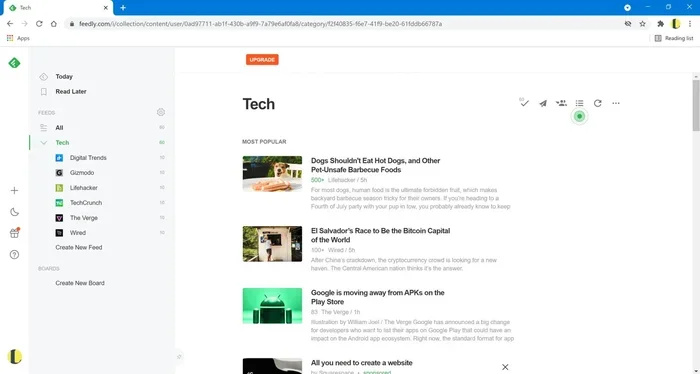
Feedly is one of the most popular RSS readers in the world. It has a clean, modern interface that makes browsing a joy. You can organize feeds into boards, add tags, and even discover new content based on your interests. The free plan is solid, but the paid version adds AI-powered features and unlimited feeds. Feedly works in your browser and also offers a Windows app.
2. Inoreader
Inoreader is a powerful choice for power users. It supports filters, rules, and automation, so you can customize how you read. You can search within your feeds, save articles for later, and share content with others. It also integrates with apps like Evernote and Pocket. The free version is generous, and the premium tier adds even more control.
3. Thunderbird
Thunderbird is not just an email client. It also works as a full-featured RSS reader. It is open source, completely free, and highly customizable. You can add multiple feeds, organize them into folders, and even filter articles by keywords. If you like having full control over your tools, Thunderbird is a great pick.
4. Fluent Reader
Fluent Reader is a lightweight desktop app that looks great and runs fast. It supports all major feed formats and syncs with services like Google Reader and Feedly. The interface is modern and easy to navigate. It is one of the best free options if you want a dedicated Windows app without clutter.
5. NetNewsWire
NetNewsWire is a favorite among Mac users, but it also works on Windows through compatibility layers. It is open source, simple, and fast. The design is clean and distraction-free. If you value minimalism, this reader is worth checking out.
6. QuiteRSS
QuiteRSS is a free, open source reader with a traditional desktop feel. It supports multiple feeds and folders, and you can import and export OPML files. It is not the prettiest app, but it gets the job done reliably. Great for users who want something simple and no-frills.
7. RSS Guard
RSS Guard is another open source option that works well on Windows. It supports a wide range of feed formats and has a built-in browser for reading articles. It is lightweight and uses minimal system resources. If you have an older computer, RSS Guard will run smoothly.
8. NewsFlash
NewsFlash is a newer entry in the RSS reader space. It has a modern design and supports multiple feed sources. It is lightweight and easy to set up. The free version offers solid features, and updates come regularly. A good option if you want something fresh and simple.
9. FreshRSS
FreshRSS is a self-hosted RSS reader. This means you install it on your own server or computer. It gives you complete control over your data and privacy. The interface is clean and functional. If you are tech-savvy and value privacy, FreshRSS is an excellent choice.
10. Feeder
Feeder is a browser-based RSS reader that also offers a Windows app. It syncs across devices and supports popular services like Pocket and Instapaper. The design is attractive and the reading experience is smooth. It is a great option if you prefer cloud-based tools.
11. The Old Reader
The Old Reader brings back the simple, social feel of early RSS tools. You can share articles with friends, star favorites, and organize feeds by category. It works in your browser and has a clean, nostalgic design. The free tier has some limits, but it is still a fun and useful reader.
12. Reeder
Reeder is primarily known as a Mac and iOS app, but it can be accessed through web browsers on Windows. It has a beautiful, minimalist design that makes reading a pleasure. If you want a polished, elegant experience and do not mind using it in a browser, Reeder is worth trying.
13. Awasu
Awasu is a feature-rich RSS reader for Windows power users. It supports advanced feed management, custom filters, and detailed analytics. It also includes built-in publishing tools. The learning curve is steeper, but the capabilities are impressive. If you need serious content monitoring features, Awasu delivers.
14. Bloglines
Bloglines is one of the oldest RSS readers still around. It is browser-based and straightforward to use. The interface is basic, but it gets the job done. It is a good choice if you want a no-nonsense, no-cost reader for simple feed tracking.
15. Flipboard
Flipboard is more of a content discovery platform than a traditional RSS reader. It pulls content from your feeds and presents it in a magazine-style layout. It is visually stunning and great for casual readers. The app works on Windows and is free to use.
Comparison Table
Here is a quick look at how our top picks compare:
- Feedly: Best overall, modern design, free and paid plans.
- Inoreader: Best for power users, advanced filters and automation.
- Thunderbird: Best free and open source option, highly customizable.
- Fluent Reader: Best lightweight desktop app for Windows.
- FreshRSS: Best for privacy-conscious users who self-host.
- Flipboard: Best for visual, casual content browsing.
Quick Tips for Getting the Most Out of Your RSS Reader
Ready to start using an RSS reader? Here are some tips to help you get the most out of it:
- Start small: Add only your top 5 to 10 feeds first. You can always add more later.
- Use folders: Organize feeds by topic so you can focus on what matters most.
- Set a reading routine: Check your reader at the same time each day to build a habit.
- Use the search feature: Many readers let you search within your feeds for specific topics.
- Sync your devices: If your reader supports cloud sync, turn it on for a seamless experience across your Windows laptop and phone.
- Try a free plan first: Most readers offer free versions. Test them out before paying for premium.
Common Mistakes to Avoid
Here are some pitfalls to watch out for when choosing an RSS reader:
- Adding too many feeds at once: This leads to information overload. Start with a manageable number.
- Ignoring organization features: If you do not use folders or tags, your reader will become messy fast.
- Choosing based on looks alone: A pretty interface does not mean the tool works well for you. Focus on features.
- Forgetting to check for updates: Some readers need regular updates to keep feeds working properly.
- Not trying multiple options: Everyone is different. Try two or three readers before committing to one.
Expert Insights
We asked a few productivity experts about their RSS reader habits. Here is what they had to say:
Sarah K., content creator: “I use Feedly every single day. It keeps me updated on industry trends without me having to visit each site. It saves me at least an hour a day.”
Mike T., software developer: “I prefer Inoreader because of the filtering rules. I set up automatic tags for different topics, and it keeps my reading list organized perfectly.”
Lisa R., college student: “I use the free version of Thunderbird for both email and RSS. It is simple, free, and works great on my budget laptop for school.”
These stories show that the right RSS reader can make a real difference in your daily routine. The key is finding one that fits your workflow and stick with it.
Final Thoughts
Choosing the right RSS reader for Windows does not have to be complicated. We have covered 15 options, from powerful power-user tools to simple, lightweight apps. The best choice depends on your needs, budget, and how you like to consume content.
If you want the best all-around experience, we recommend starting with Feedly or Inoreader. Both are reliable, feature-rich, and work great on Windows. If you prefer free and open source tools, Thunderbird and Fluent Reader are excellent starting points.
Remember, the goal of an RSS reader is to make your life easier. It should save you time, reduce clutter, and help you stay informed. Take the time to try a few options, and you will wonder how you ever managed without one.
Once you set up your reader, you can also explore other tools to enhance your workflow. For example, check out our guide on the best apps for a PC to discover more productivity tools. You might also want to look at the best Windows laptops for students if you need a reliable machine for reading and studying on the go. And if you enjoy audio content, our list of the best audio players for PC can help you organize your podcasts and music in one place.
Stay informed, stay organized, and happy reading in 2024!
Frequently Asked Questions
What is an RSS reader and how does it work?
An RSS reader is a tool that collects content from websites you follow and displays it in one place. You subscribe to feeds using URLs, and the reader pulls new articles automatically. It saves you from visiting each website individually.
Are RSS readers free to use?
Many RSS readers offer free plans with solid features. Some, like Thunderbird and Fluent Reader, are completely free and open source. Premium options like Feedly and Inoreader offer paid plans with extra features like AI tools and advanced filtering.
Can I use an RSS reader on my phone and computer?
Yes, many RSS readers sync across devices. You can read on your Windows PC and pick up where you left off on your phone. Just make sure you choose a reader that supports cloud sync for the best experience.
Do I need technical skills to set up an RSS reader?
Not at all. Most RSS readers are designed for everyday users. Adding a feed is as simple as pasting a URL. If you can use a web browser, you can use an RSS reader with ease.
Which RSS reader is best for Windows 11?
Feedly, Inoreader, and Fluent Reader all work great on Windows 11. They have modern interfaces and regular updates. Thunderbird is also a strong choice if you want a free, open source option that runs smoothly on the latest Windows version.
How many RSS feeds can I add to a reader?
This depends on the reader. Free plans often have limits, while paid plans offer unlimited feeds. Feedly and Inoreader both scale well, even on their basic plans. Start with a few feeds and add more as you get comfortable.