12 Best Putty Alternative SSH Clients for Windows PC
Finding the right SSH client for Windows can transform how you manage remote servers. PuTTY has been the go-to tool for years, but modern alternatives offer better interfaces, advanced features, and smoother workflows. This guide covers 12 top PuTTY alternative SSH clients that make remote server access faster, safer, and more intuitive for everyday users.
Managing remote servers used to feel like a chore. You fired up PuTTY, typed in the IP address, and hoped for the best. But times have changed. Today, Windows users have access to a whole lineup of SSH client tools that make remote server access faster, cleaner, and more secure.
If you have been using PuTTY for years, you are not alone. It has been a staple in the network administration world for decades. But it shows its age. The interface feels dated, and it lacks some features that modern workflows demand. That is exactly why so many people are searching for a PuTTY alternative SSH client that feels fresh and works better on Windows.
In this guide, we walk through 12 of the best options available right now. Whether you are a developer, a system administrator, or someone who just needs to check on a remote machine once in a while, you will find a tool that fits. We cover features, ease of use, security, and pricing so you can make a smart choice without the guesswork.
Key Takeaways
- Multiple great options exist: Windows users now have many powerful SSH clients beyond PuTTY, from lightweight tools to full-featured terminals.
- Security matters most: The best SSH clients for Windows support SSH key authentication, encrypted connections, and SSH tunneling to keep your data safe.
- Ease of use varies: Some alternatives offer modern GUIs and tabbed interfaces, while others stick to classic command-line simplicity.
- Free and open-source options dominate: Most top picks cost nothing and come with active communities and regular updates.
- Pick based on your needs: Whether you need SFTP file transfer, SSH port forwarding, or simple terminal access, there is a perfect fit.
📑 Table of Contents
Why You Should Ditch PuTTY and Try an Alternative
PuTTY is not bad. It works. But it was built in a different era of computing. Today, SSH terminal software has evolved significantly. Modern alternatives bring polished interfaces, better performance, and features that streamline daily tasks.
Here are the main reasons to consider switching:
- Better user interface: Many alternatives offer tabbed sessions, split panels, and customizable themes that make working with multiple servers easier.
- Built-in SFTP support: Transferring files over file transfer protocol becomes seamless without needing a separate tool.
- Advanced SSH key authentication: Modern clients handle key management more elegantly than PuTTY’s older approach.
- Active development: Open-source projects and modern tools receive regular updates, security patches, and new features.
- Windows integration: Newer clients take advantage of modern Windows features, including better clipboard support and DPI scaling.
If you are already comfortable with command line interface basics, switching to a new client is quick and painless. Most tools use the same core SSH protocol under the hood, so your existing server configurations will work just fine.
The 12 Best PuTTY Alternative SSH Clients for Windows PC
Below is our curated list of the best SSH client for Windows options you can use right now. Each one brings something unique to the table.
1. MobaXterm
MobaXterm is one of the most popular SSH clients for Windows available today. It combines an X server, SSH terminal, SFTP client, and serial console into one powerful package. The free version covers most needs, and the paid version adds extra features like multi-session management.
Key highlights:
- Built-in tabbed interface for multiple sessions
- X11 server support for running Linux GUI apps on Windows
- Integrated SFTP browser for easy file transfers
- Supports SSH tunneling and port forwarding
- Save sessions with bookmarks for quick access
MobaXterm is a strong choice for anyone who wants an all-in-one remote management tool. It handles everything from basic terminal access to complex SSH configuration tasks with ease.
2. KiTTY
KiTTY is a fork of PuTTY, so it feels familiar right out of the box. But it adds useful extras like session filters, auto-login scripts, and a portable version you can run from a USB drive. It is lightweight and perfect for users who want the PuTTY experience with a few modern upgrades.
Key highlights:
- Fork of PuTTY with added features
- Portable version available
- Auto-login scripts and session filters
- Supports SSH key authentication
- Very lightweight and fast
If you love PuTTY but want a bit more, KiTTY is the perfect middle ground. It is one of the simplest open source SSH client options on this list.
3. Windows Terminal
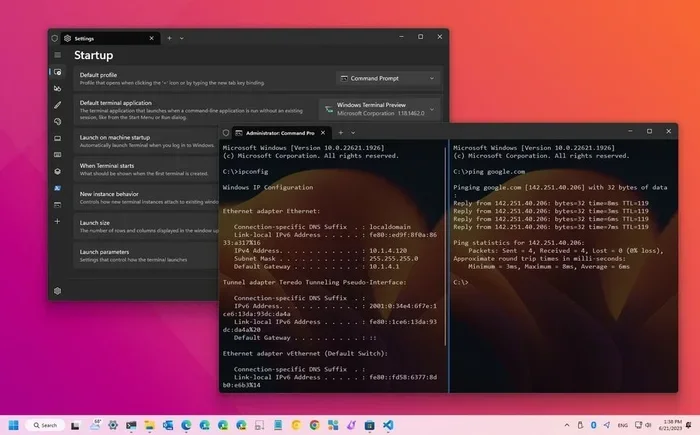
Microsoft’s own Windows Terminal is a modern terminal application that supports SSH natively. It comes pre-installed on Windows 11 and offers tabs, themes, GPU-accelerated rendering, and full customization. You can connect to remote servers directly from the terminal using the standard ssh command.
Key highlights:
- Native Windows application with deep OS integration
- Tabbed interface and customizable themes
- Supports SSH, PowerShell, CMD, and WSL
- GPU-accelerated text rendering for smooth performance
- Free and regularly updated by Microsoft
Windows Terminal is ideal if you want a clean, modern terminal that handles secure remote connection tasks alongside your other command-line work. It is also one of the best apps for a PC that every Windows user should have installed.
4. Bitvise SSH Client
Bitvise SSH Client is a feature-rich Windows application that excels at both terminal access and file transfers. It offers a clean interface, strong SSH key authentication support, and excellent SSH port forwarding capabilities. The free personal edition covers most individual needs.
Key highlights:
- Excellent SSH tunneling and port forwarding
- Built-in SFTP and file transfer tools
- Strong security with encrypted connection protocols
- Supports dynamic and static SOCKS proxies
- Clean, intuitive interface
Bitvise stands out for its robust SSH configuration options. It is a favorite among network administrators who need reliable and secure remote server access on a daily basis.
5. SecureCRT
SecureCRT from VanDyke Software is a professional-grade SSH terminal software designed for enterprise use. It supports SSH protocol versions 1 and 2, offers extensive session management, and includes powerful scripting capabilities. It is a paid tool, but it delivers serious value for power users.
Key highlights:
- Professional-grade terminal emulation
- Session management and folder organization
- Scripting and automation support
- Strong SSH key authentication and encrypted connection features
- Excellent for managing multiple servers simultaneously
SecureCRT is worth the investment if you manage many servers and need advanced automation and session organization. It is a top-tier remote management tool for serious network administration work.
6. Xshell
Xshell by NetSarang is a powerful and popular SSH client for Windows. It offers a beautiful interface, tabbed sessions, and strong support for various SSH protocols and authentication methods. The free version is quite capable for most users.
Key highlights:
- Modern, attractive user interface
- Tabbed sessions for managing multiple connections
- Supports SSH, Telnet, Rlogin, and Serial protocols
- Built-in SFTP file transfer
- Session sharing and multi-window management
Xshell strikes a great balance between features and usability. It is one of the best SSH clients for Windows if you want a polished experience without a steep learning curve.
7. Termius
Termius is a cross-platform SSH client that works beautifully on Windows. It offers a sleek, modern interface with cloud sync, making it easy to access your saved sessions from any device. It supports SSH key authentication, SSH tunneling, and SFTP file transfer out of the box.
Key highlights:
- Cloud sync across Windows, Mac, Linux, and mobile
- Modern, clean user interface
- Built-in SFTP and file browser
- Supports SSH tunneling and port forwarding
- Free tier available with generous features
Termius is perfect for users who work across multiple devices and need seamless access to their remote server access configurations from anywhere.
8. mRemoteNG
mRemoteNG is an open-source remote management tool that supports SSH, RDP, VNC, and other protocols in one application. It is ideal for users who manage different types of remote connections and want everything in a single interface.
Key highlights:
- Multi-protocol support (SSH, RDP, VNC, and more)
- Organized connection tree and folders
- Open-source and free
- Tabbed interface for easy navigation
- Strong encrypted connection support
If you juggle multiple types of remote connections, mRemoteNG saves you from running separate tools for each protocol. It is a versatile addition to any network administration toolkit.
9. Royal TS
Royal TS is a professional connection manager for Windows that supports SSH, RDP, VNC, and many other protocols. It offers powerful session management, bookmarks, and a clean interface. The free personal edition is quite capable for individual users.
Key highlights:
- Support for dozens of connection protocols
- Powerful session organization and search
- Bookmarks and favorites for quick access
- Strong SSH key authentication support
- Free personal edition available
Royal TS is a solid choice for users who want a professional-grade remote management tool without the enterprise price tag.
10. SmarTTY
SmarTTY is a lightweight and fast SSH client for Windows that focuses on simplicity and speed. It provides a clean interface with tabbed sessions, SSH key authentication, and built-in SFTP support. It is perfect for users who want a no-frills SSH terminal that just works.
Key highlights:
- Lightweight and fast performance
- Tabbed sessions for multiple connections
- Built-in SFTP file transfer
- Simple, clean interface
- Supports SSH tunneling and port forwarding
SmarTTY is a great option if you want something simple and efficient. It proves that you do not need a bloated interface to get excellent remote server access.
11. PuTTY (with SSH Windows feature)
Yes, PuTTY itself remains relevant. Microsoft has been working on native SSH support for Windows, and recent versions of Windows 10 and 11 include built-in SSH capabilities through PowerShell and Command Prompt. This means you can use Windows SSH client features directly without installing third-party software for basic tasks.
Key highlights:
- Built into Windows 10 and 11
- No installation required for basic SSH access
- Works with PowerShell and Command Prompt
- Supports SSH key authentication and SSH configuration
- Great for quick, simple connections
While it is not a full replacement for a dedicated SSH client, native Windows SSH support covers a lot of basic remote server access needs. It is worth knowing about even if you prefer a dedicated tool.
12. Tabby
Tabby is a modern, open-source terminal app that supports SSH, local shell commands, and serial connections. It features a clean interface, tabbed sessions, and a built-in SFTP browser. It is lightweight, free, and actively developed by the community.
Key highlights:
- Modern, clean interface with dark and light themes
- Built-in SFTP file browser
- Tabbed sessions and split terminals
- Open-source and free
- Supports SSH key authentication and SSH tunneling
Tabby is a rising star in the world of SSH terminal software. It combines a polished interface with solid functionality, making it one of the best free alternatives to PuTTY available today.
Comparison: Top SSH Clients at a Glance
Choosing the right SSH client for Windows depends on your specific needs. Here is a quick comparison of our top picks to help you decide.
| Client | Free Version | Tabbed Interface | SFTP Support | Best For |
|---|---|---|---|---|
| MobaXterm | Yes | Yes | Yes | All-in-one remote management |
| KiTTY | Yes | No | No | PuTTY fans wanting extras |
| Windows Terminal | Yes | Yes | Via SFTP tools | Modern Windows integration |
| Bitvise SSH Client | Yes (personal) | Yes | Yes | SSH tunneling and port forwarding |
| SecureCRT | No (paid) | Yes | Yes | Enterprise and power users |
| Xshell | Yes | Yes | Yes | Beautiful interface and features |
| Termius | Yes | Yes | Yes | Cross-device sync |
| mRemoteNG | Yes | Yes | Yes | Multi-protocol management |
| Royal TS | Yes (personal) | Yes | Yes | Professional session management |
| SmarTTY | Yes | Yes | Yes | Lightweight simplicity |
| Native Windows SSH | Yes | Via tabs in terminal | Via SFTP tools | Quick basic connections |
| Tabby | Yes | Yes | Yes | Modern open-source option |
How to Choose the Right SSH Client for Your Needs
With so many options, picking the right one can feel overwhelming. Here are some tips to help you choose the best SSH client for your situation.
Consider Your Use Case
If you only need to connect to a server occasionally, a lightweight tool like SmarTTY or native Windows SSH works great. If you manage multiple servers daily, go for something like MobaXterm, Xshell, or SecureCRT that offers session management and tabbed interfaces.
Think About Security
For any kind of secure remote connection, make sure your client supports SSH key authentication and encrypted connection protocols. All the clients on this list support these features, but some handle key management better than others. Bitvise and MobaXterm, for example, offer excellent key management tools.
Check for SFTP and File Transfer
If you regularly transfer files to and from remote servers, built-in SFTP support is a must. Clients like MobaXterm, Bitvise, and Tabby include full SFTP browsers that make file transfers as easy as dragging and dropping files in a file manager.
Evaluate the Interface
Your comfort with the interface matters a lot. If you prefer modern, polished designs, look at Xshell, Termius, or Tabby. If you like classic, no-nonsense layouts, KiTTY or SmarTTY might be your style. The goal is to find a tool you enjoy using every day.
Setting Up Your SSH Client on Windows
Getting started with any of these SSH clients is straightforward. Most of them follow a similar setup process.
- Download and install your chosen SSH client from the official website.
- Open the application and create a new session or connection profile.
- Enter the remote server IP address or hostname and the SSH port (usually 22).
- Choose your authentication method: password or SSH key authentication. For better security, use key-based authentication whenever possible.
- Save the session with a descriptive name for easy access later.
- Connect and start working on your remote server.
For the best remote management tool experience, take a few minutes to explore the settings. Configure SSH port forwarding if you need to access services behind the remote server, and set up your preferred terminal font and color scheme for comfortable long sessions.
If you are looking for more essential PC software and tools, check out our guide on the best apps for a PC to discover other useful applications that enhance your Windows experience.
Security Best Practices for SSH Connections
No matter which SSH client you choose, following security best practices keeps your secure remote connection safe from threats.
- Use SSH key authentication instead of passwords. Keys are far more secure and harder to brute-force than passwords.
- Keep your SSH client updated. Updates patch security vulnerabilities and improve performance.
- Use strong, unique passphrases for your SSH keys to add an extra layer of protection.
- Disable root login on your remote servers to reduce the attack surface.
- Use SSH tunneling for sensitive data transfers to keep traffic encrypted end-to-end.
- Consider your overall PC security. A good antivirus protects your system from threats that could compromise your SSH credentials. Check out our guide on the best antivirus for home PC to keep your machine safe.
Taking these simple steps ensures that your remote server access remains secure and your data stays protected. A good SSH client is only as strong as the security practices you use with it.
Final Thoughts
The world of SSH terminal software has grown tremendously. There has never been a better time to find a PuTTY alternative SSH client that matches your workflow and preferences. Whether you need a lightweight tool for quick connections or a full-featured remote management tool for daily network administration, this list has you covered.
My top recommendation for most Windows users is MobaXterm. It combines power, features, and ease of use in one free package. But if you prefer a more modern, integrated experience, Windows Terminal or Tabby are excellent choices that come built into or work beautifully with Windows.
Take some time to try a few of these options. Most are free, and finding the right SSH client is a worthwhile investment that will save you time and frustration every time you connect to a remote server.
Frequently Asked Questions
What is the best free SSH client for Windows PC?
MobaXterm and Windows Terminal are among the best free SSH clients for Windows PC. MobaXterm offers a full-featured package with SFTP and X server support, while Windows Terminal provides a modern, native experience with deep Windows integration. Both are excellent starting points for anyone looking to replace PuTTY.
Can I use SSH on Windows without installing third-party software?
Yes. Windows 10 and Windows 11 include built-in SSH support through PowerShell and Command Prompt. You can use the ssh command directly to connect to remote servers without installing any additional software. However, dedicated SSH clients offer better features and a more comfortable experience.
Is SSH key authentication safer than password authentication?
Absolutely. SSH key authentication is significantly more secure than passwords. Keys use cryptographic pairs that are extremely difficult to brute-force. Combined with a strong passphrase, SSH keys provide a robust layer of protection for your secure remote connection and are considered best practice for network administration.
What is SSH tunneling and why is it useful?
SSH tunneling (also called SSH port forwarding) encrypts traffic between your local machine and a remote server. It is useful for securely accessing services behind firewalls, protecting sensitive data on public networks, and creating encrypted connections for applications that do not natively support SSL or TLS.
How do I transfer files using an SSH client?
Most SSH clients on this list include built-in SFTP support, which lets you transfer files directly through the application. You can drag and drop files between your local machine and the remote server, making file transfers as simple as using a regular file manager on your PC.
Which SSH client is best for beginners?
For beginners, Windows Terminal and Tabby are the most approachable options. They come with clean interfaces, minimal setup, and plenty of documentation. Windows Terminal is already installed on Windows 11, making it the easiest starting point for anyone new to remote server access.
=== CONCLUSION ===
The search for the perfect PuTTY alternative SSH client ends with the options on this list. From lightweight tools like SmarTTY and KiTTY to full-featured suites like MobaXterm and SecureCRT, there is a Windows SSH client for every need and skill level. Each tool brings something valuable to the table, whether it is a polished interface, powerful SSH tunneling, or seamless SFTP file transfer capabilities.
Take the time to explore a few of these options. Switching from PuTTY to a modern SSH client can genuinely improve your daily workflow and make remote server access a smoother, more enjoyable experience. Start with the free options, find what works for you, and upgrade if you need more advanced features. Your future self will thank you every time you connect to a remote server.