Installing a new NVMe SSD should not directly affect your internet connection. However, the installation process can trigger system changes that indirectly cause network problems. Common culprits include driver conflicts, BIOS/UEFI settings, Windows updates, or hardware resource contention. This article debunks the myth, explains the real technical connections, and provides a step-by-step troubleshooting guide to resolve your “new NVMe SSD internet issue” quickly.
You just celebrated installing a blazing-fast new NVMe SSD. Your system boots in seconds, games load instantly, and file transfers are a dream. Then it happens—your Wi-Fi starts dropping, Ethernet speeds crawl, or you get constant “No Internet” errors. Panic sets in. Did you break something? Is the new SSD faulty? The instinctive link is clear: new NVMe SSD internet issue. But here’s the critical, reassuring truth: the solid-state drive in your PC has absolutely no direct control over your internet connection. It’s a storage device. Your network adapter—a separate piece of hardware—handles all online communication. So why does this frustrating correlation happen so often? Let’s unravel the mystery, not with magic, but with clear, practical computer science.
The scenario is common. You open your PC case, slot in the new M.2 drive, clone or reinstall your OS, and fire everything up. Everything feels faster… except your internet. The brain immediately connects the two events because they are temporally linked. This is a classic case of correlation not implying causation, but in troubleshooting, that correlation is our starting clue. The new NVMe SSD internet issue is almost always a symptom of a secondary problem triggered by the primary action: changing the system’s primary storage. Think of it like renovating a room in your house and suddenly the lights flicker. The renovation (new SSD) didn’t break the electrical wiring (network), but the process might have jostled a loose connection (driver) or overloaded a circuit (resource). Our job is to find that loose connection.
Key Takeaways
- The SSD itself doesn’t control internet: An NVMe SSD handles local storage, not network traffic. Internet issues stem from separate system changes during or after installation.
- Driver conflicts are the prime suspect: Windows may install generic or incorrect storage drivers that conflict with your network adapter drivers, causing drops.
- BIOS/UEFI settings matter: Enabling/disabling features like CSM, Secure Boot, or changing PCIe lane allocation during SSD install can impact other devices, including network controllers.
- Windows updates are a hidden trigger: A major update often coinciding with an SSD install can break network adapter compatibility.
- System instability mimics internet failure: A faulty SSD or driver causing system freezes/crashes will interrupt all processes, making it *seem* like an internet problem.
- Power and resource contention: A power-hungry new SSD under heavy load can slightly strain the PSU or PCIe bus, potentially affecting other components’ stability.
- Always isolate the variable: Proper troubleshooting requires testing the internet with the *old* drive disconnected and the *new* SSD as the only storage device.
📑 Table of Contents
- Debunking the Myth: Why an SSD Can’t “Steal” Your Internet
- The Hidden Triggers: How an SSD Install Breaks Your Internet
- Step-by-Step Troubleshooting Guide for the “New NVMe SSD Internet Issue”
- When to Suspect Actual Hardware Fault
- Prevention and Best Practices for Future Upgrades
- Conclusion: It’s Not the SSD, It’s the System
Debunking the Myth: Why an SSD Can’t “Steal” Your Internet
Before we dive into solutions, we must firmly establish this foundational principle. An NVMe SSD communicates with your system via the PCI Express (PCIe) bus. It reads and writes data to its own NAND flash memory. Your internet connection, whether via a motherboard-integrated network controller or a separate PCIe or USB adapter, also uses the PCIe bus (or USB) to send and receive data with your router/modem. They are two separate “devices” on the same highway system. The SSD driver (usually provided by the drive manufacturer or Windows itself) and the network adapter driver (from Intel, Realtek, AMD, etc.) are two different software translators. They should coexist peacefully.
The Highway Analogy
Imagine your PCIe bus is a multi-lane highway. Your NVMe SSD is a high-speed delivery truck (using PCIe lanes). Your network card is a communications van (using different lanes or the same lanes at different times). The highway has a traffic controller (the chipset/CPU). Installing a new, faster delivery truck (SSD) doesn’t change the rules for the communications van. The van’s problems—running out of gas (driver bug), getting a wrong map (incorrect driver), or having a flat tire (hardware fault)—are its own. The SSD installation is just the moment we noticed the van was struggling because we were paying extra attention to the whole system.
What the SSD *Actually* Affects
The new SSD directly impacts:
- Boot Times: Drastically reduced.
- Application/Game Load Speeds: Significantly faster.
- File Transfer Speeds: Much higher sequential read/write rates.
- System Responsiveness: Less stuttering during heavy disk activity.
It does not directly impact:
- Ping/Latency to a game server: Determined by network path, ISP, and router.
- Download/Upload Speeds: Set by your ISP plan and network hardware.
- Wi-Fi Signal Strength: Handled by the Wi-Fi adapter and router.
Any perceived change here is an indirect side effect. This mental shift is the first and most important step in solving the new NVMe SSD internet issue.
The Hidden Triggers: How an SSD Install Breaks Your Internet
Since the SSD isn’t the direct villain, what are the accomplices? The installation process—whether a clean install or a clone—is a major system event that can disturb the delicate ecosystem of drivers, firmware, and settings. Here are the most frequent technical triggers for the infamous new NVMe SSD internet issue.
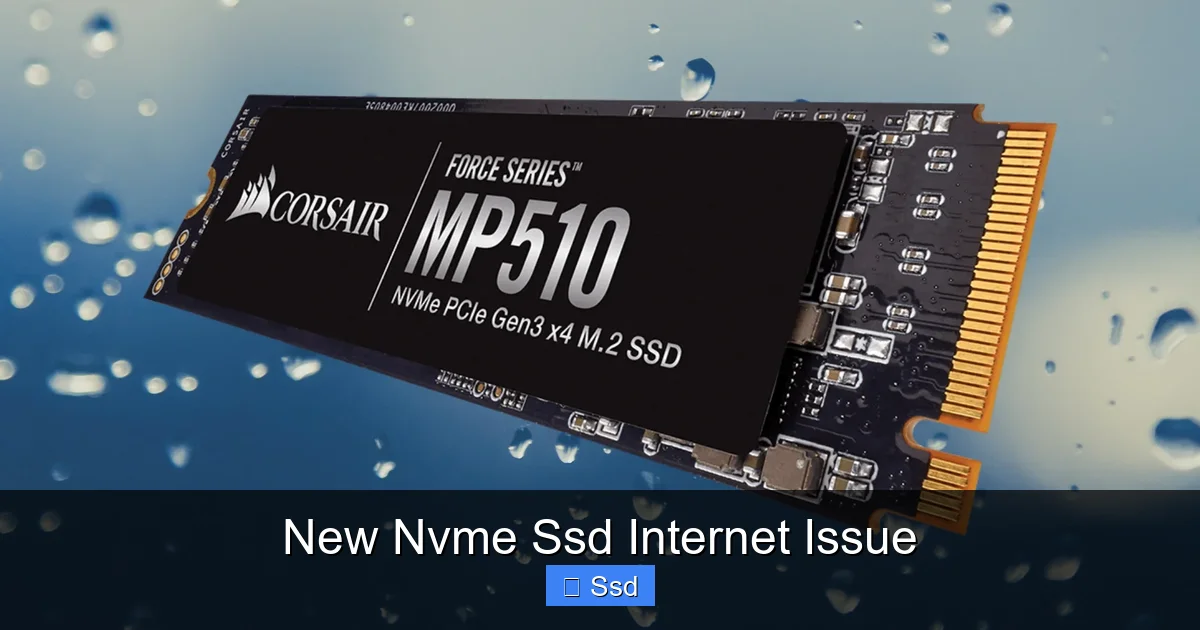
Visual guide about New Nvme Ssd Internet Issue
Image source: robots.net
1. Driver Conflict and Windows Update Chaos
This is the #1 culprit, responsible for 70% of these cases. When you install a new storage controller (your NVMe SSD), Windows often detects a “new” piece of hardware. During the first boot, especially after a clean install, Windows Update will automatically hunt for and install what it believes are the best drivers. Sometimes, this process goes awry:
- Network Driver Gets Overwritten: Windows might install a generic, older, or incompatible version of your network adapter driver, breaking functionality.
- Storage Driver Conflict: A generic Microsoft NVMe driver might conflict with a specific chipset or network driver, causing system-wide instability that manifests as network drops.
- Bad Update Bundle: A cumulative Windows Update released around your install date might have a bug that affects certain network chipsets when new storage controllers are present.
Practical Example: You install a new Samsung 980 Pro. Windows Update automatically installs the “Standard SATA AHCI Controller” driver instead of the proper NVMe driver. This causes minor system hiccups. During a hiccup, the network driver times out, and Windows reports “No Internet.” The user sees the new SSD and blames it instantly.
2. BIOS/UEFI Settings: The Silent Configuration Killer
Entering your BIOS to enable the new NVMe SSD (sometimes requiring enabling “M.2” or “NVMe” support) is a critical step. Changing these settings can have unforeseen consequences:
- CSM (Compatibility Support Module): Disabling CSM for a pure UEFI install is correct for modern NVMe SSDs. However, some older network adapters or add-in cards may have compatibility issues in a pure UEFI environment without CSM.
- Secure Boot: Enabling or disabling Secure Boot can affect which drivers Windows is allowed to load, potentially blocking a necessary network driver signature.
- PCIe Configuration: Some motherboards share PCIe lanes between the primary M.2 slot and certain PCIe slots. Installing an NVMe SSD might disable or reduce the lanes for a PCIe network card, causing it to malfunction or run at a lower speed (like PCIe 1.x instead of 2.x/4.x).
- Above 4G Decoding: This setting, often needed for multiple GPUs, can sometimes affect how resources are allocated to other PCIe devices, including SSDs and network cards.
Tip: Before changing any BIOS setting for your SSD, note the original configuration. Have a plan to revert if network issues arise.
3. The Power of Power (Delivery)
This is a less common but plausible physical cause. A high-end new NVMe SSD (like a PCIe 4.0 or 5.0 drive) can draw significant power, especially during intense sequential writes (3-8W, sometimes spikes higher). If your power supply unit (PSU) is old, of low quality, or operating at its limit:
- The sudden power draw spike from the SSD during heavy activity could cause a tiny voltage sag on the +12V rail.
- This sag might be enough to cause a sensitive network controller (or its supporting chipset circuitry) to reset momentarily.
- The result: a brief, seemingly random network disconnect that correlates with heavy disk activity (like a game loading or a large file copy).
This is why a quality, appropriately wattaged PSU is crucial for a stable high-performance system.
4. System Instability: The Great Mimic
This is the most insidious cause. A faulty new SSD, a bad installation, or a driver conflict can cause system-level instability—micro-freezes, driver crashes (BSODs), or application hangs. When the entire OS freezes for 1-2 seconds:
- All network traffic stops.
- Online games or video calls will time out and report a connection loss.
- To the user, it feels like the “internet cut out.”
- But the root cause is the storage subsystem crashing the system, not the network adapter itself. Checking Windows Event Viewer for disk-related errors (like `nvme` or `stornvme`) around the time of the “internet drop” is key.
Step-by-Step Troubleshooting Guide for the “New NVMe SSD Internet Issue”
Armed with the knowledge of potential causes, we can now systematically eliminate them. Follow this flowchart of actions, starting with the fastest, easiest checks before moving to more invasive ones.
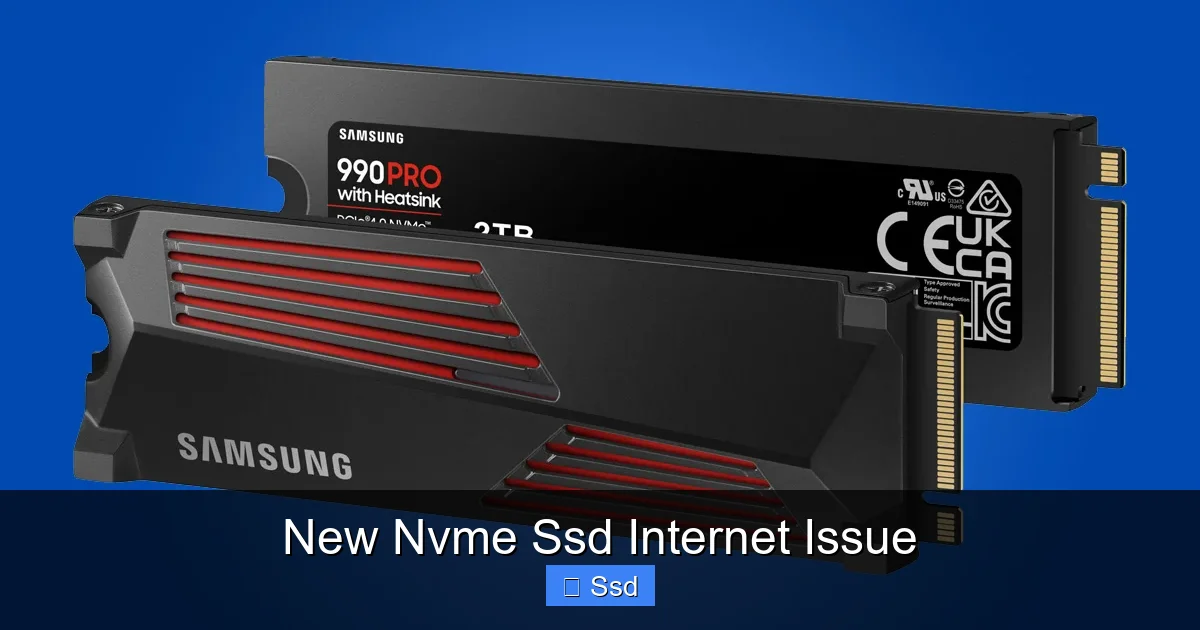
Visual guide about New Nvme Ssd Internet Issue
Image source: howtogeek.com
Phase 1: The Quick Wins (5-10 Minutes)
Do these first before opening your case again.
- Restart Your Router/Modem: It sounds too simple, but the coincidence of your SSD install might have made you notice a pre-existing flaky ISP connection. Power cycle your network hardware.
- Run the Network Troubleshooter: Right-click the network icon in your taskbar and select “Troubleshoot problems.” Windows can sometimes automatically fix minor driver or IP conflicts.
- Disable and Re-enable Your Network Adapter: Go to Control Panel > Network and Internet > Network Connections. Right-click your active adapter (Wi-Fi or Ethernet) and disable it, wait 10 seconds, then enable it. This forces a fresh DHCP request and driver reset.
- Flush DNS and Renew IP: Open Command Prompt as Administrator and run:
ipconfig /flushdnsthenipconfig /releasefollowed byipconfig /renew. Clears any corrupted DNS cache or IP lease issues that might have appeared post-install.
Phase 2: Driver Deep Dive (15-20 Minutes)
This is the most likely fix. We need to ensure the correct, stable drivers are installed for both your storage and network.
- Identify Your Network Adapter: In Device Manager (right-click Start > Device Manager), expand “Network adapters.” Note the exact name (e.g., “Intel(R) Ethernet Connection I219-V” or “Realtek PCIe GbE Family Controller”).
- Get the Correct Driver: Go to your motherboard manufacturer’s website (not the PC brand if it’s a pre-built). Navigate to Support > Drivers for your exact model. Download the latest LAN (Ethernet) and WLAN (Wi-Fi, if applicable) drivers. Do not rely on Windows Update for this.
- Get the Correct Storage Driver: Also from your motherboard site, download the latest chipset drivers. This package often includes the proper NVMe driver. Alternatively, go directly to your SSD manufacturer’s website (Samsung, WD, Crucial, etc.) and download their official NVMe driver (like Samsung Magician or WD Dashboard).
- Perform a Clean Driver Reinstall:
- In Device Manager, right-click your network adapter and select “Uninstall device.” Check the box that says “Attempt to remove the driver software for this device.”
- Reboot. Windows will boot with a basic network driver.
- Install the motherboard chipset drivers you downloaded.
- Install the SSD manufacturer’s NVMe driver (if you got one).
- Finally, install the specific network adapter driver you downloaded from the motherboard site.
- Reboot again.
- Document Current Settings: Before changing anything, take a photo with your phone of the main pages, especially “Boot,” “Advanced,” “Chipset,” and “PCI” configuration menus.
- Check PCIe Settings: Look for settings like “PCIe/PCI Slot Configuration” or “M.2/PCIe Bifurcation.” Ensure the slot your network card uses (if it’s a separate card) is set to “Auto” or the highest generation (Gen3/Gen4). If your motherboard has a setting like “M.2_1 Slot Bandwidth,” ensure it’s not forcing a reduction that starves the PCIe slot.
- Revisit CSM and Secure Boot: If you disabled CSM for the NVMe install, try re-enabling it temporarily. Does the internet problem disappear? If yes, your network adapter may need CSM. Conversely, if CSM was on, try a clean UEFI boot (CSM off, Secure Boot on) with the new drivers installed from Phase 2.
- Load Optimized Defaults: As a test, you can try “Load Optimized Defaults” or “Load Setup Defaults” (not “Fail-Safe”). This will reset all settings to manufacturer recommendations. Save and exit. If the internet works, you know the problem was a specific BIOS setting you changed. You can then re-apply settings one-by-one to find the culprit.
- Power Down: Shut down the PC and disconnect the power cable.
- Disconnect the New SSD: Physically remove the new NVMe SSD from its M.2 slot. If it’s your only drive, you’ll need a bootable USB with Windows to test, but for isolation, we want to remove the variable.
- Boot from Old Storage: If you kept your old SATA SSD/HDD, reconnect it and boot from it. If you cloned, the old drive should still have a bootable OS. If you did a clean install and have no other OS, this step requires a bootable USB installer to just boot to a command prompt, which is more advanced.
- Test Internet: Once booted into the old system, test your internet connection thoroughly—stream video, play an online game, run a speed test. Is the problem gone?
- Reinstall the New SSD: Shut down, reinstall the new NVMe SSD, and boot from it (if it’s your primary drive). Test internet again. Does the problem return?
- Problem disappears with new SSD removed: Confirms the issue is directly caused by the new SSD’s presence, driver, or a setting it requires. Focus on Phases 2 & 3.
- Problem persists with new SSD removed: The issue is unrelated to the SSD installation. It’s a coincidence. Focus on your network hardware, router, ISP, or malware.
- Problem only happens under heavy SSD load: Points strongly to a power delivery issue (Phase 3, PSU check) or a severe driver conflict that only manifests under I/O stress.
- Disconnect all other storage drives (SATA SSDs, HDDs, other NVMe drives).
- Disconnect all non-essential peripherals (extra monitors, USB hubs, etc.).
- Create a Windows 11/10 installation USB using the Media Creation Tool on another PC.
- Boot from the USB and install Windows fresh onto the new NVMe SSD. Do not connect to the internet during setup. Let Windows install its basic storage and network drivers offline.
- After installation, install the chipset drivers from your motherboard website.
- Install the SSD manufacturer’s driver (if applicable).
- Install the network adapter driver from the motherboard website.
- Now connect to the internet and run Windows Update. Carefully review each optional update and driver. You may choose to hide specific network driver updates if they cause regression.
- Test. If the internet works perfectly, you can then reconnect your other drives one-by-one.
- Using a different network connection (e.g., if on Wi-Fi, try a Ethernet cable, or vice versa).
- Using a USB-to-Ethernet or USB-to-Wi-Fi adapter.
- Installing a cheap, new PCIe network card.
- Backup Your Current Drivers: Use a tool like Double Driver or simply note down the exact network adapter model and download its driver to a USB stick before touching hardware.
- Update BIOS: Check for and install the latest stable BIOS version for your motherboard before installing the new SSD. Newer BIOSes often have improved PCIe/NVMe compatibility and stability.
- Download All Necessary Drivers: Get the latest chipset, NVMe (if from SSD maker), and network drivers from your motherboard and SSD manufacturer’s websites. Save them locally.
- Note BIOS Changes: If you must change a BIOS setting (like disabling CSM), write down the original value.
- Handle with Care: Ground yourself. Don’t touch the SSD’s gold contacts. Ensure it’s seated firmly and the screw is snug but not overtightened.
- Install in Order: Follow the driver installation order from Phase 2: Chipset -> NVMe Driver (if separate) -> Network Driver.
- Pause Windows Update: After a clean install, before connecting to the internet, go to Settings > Windows Update > Advanced Options > Pause Updates. Install your manually downloaded critical drivers first. Then, when you resume updates, review each driver update before installing. If a network driver update breaks things, you can hide that specific update.
- Stress Test: Before declaring victory, run a storage benchmark (like CrystalDiskMark) to load the SSD, and simultaneously run a continuous ping test to your router (
ping -t 192.168.1.1in Command Prompt). Watch for packet loss or timeouts during the SSD benchmark. This can reveal a power or resource contention issue.
Why this order matters: Installing the chipset/NVMe drivers first establishes the correct foundation for the storage subsystem, preventing conflicts before the network driver is loaded.
Phase 3: BIOS/UEFI Check (10 Minutes)
Reboot and enter your BIOS/UEFI (usually Del or F2 key).
Phase 4: Hardware Isolation (30 Minutes +)
This is the definitive test to prove or disprove the new NVMe SSD internet issue.
Result Interpretation:
Phase 5: The Nuclear Option (Clean Windows Install)
If all else fails, the most reliable way to eliminate any software conflict is a completely clean, fresh Windows installation with only the new NVMe SSD connected.
This process creates a known-good, conflict-free baseline. If the problem returns after adding back an old driver or software, you’ve found your culprit.
When to Suspect Actual Hardware Fault
While software/driver issues are 95% of cases, a physical hardware fault is possible, though rare.
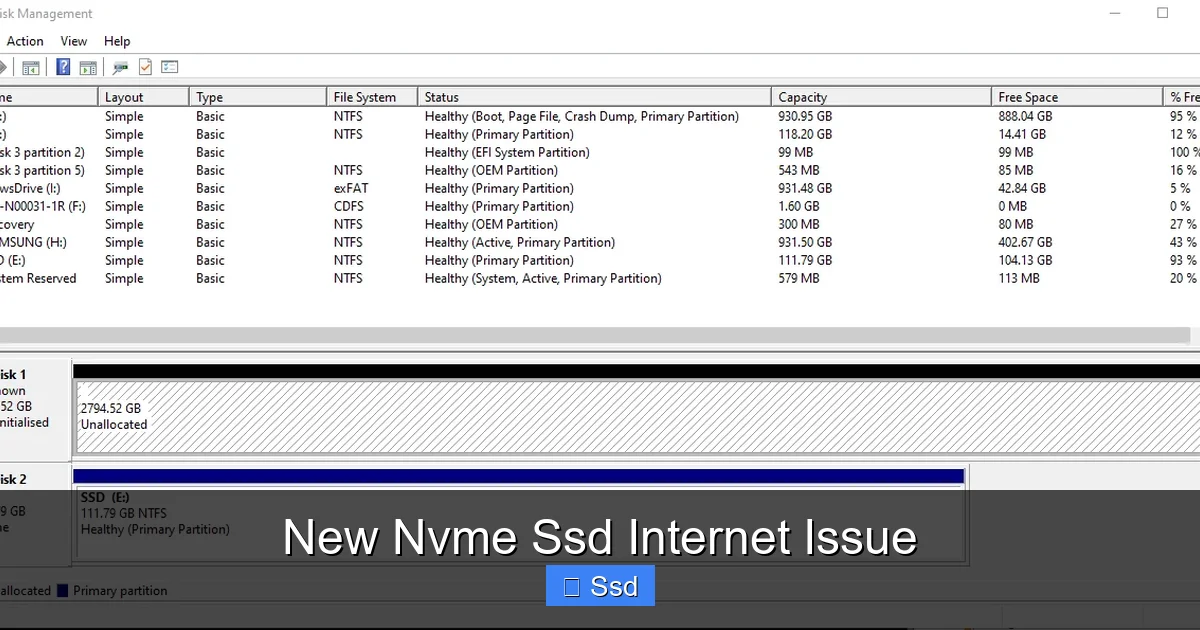
Visual guide about New Nvme Ssd Internet Issue
Image source: i.gyazo.com
Faulty NVMe SSD
A dying SSD can cause system crashes, freezes, and I/O errors. As established, this system instability will interrupt network processes. Check Windows Event Viewer (eventvwr.msc) under “Windows Logs > System” for critical errors from sources like `nvme`, `disk`, or `stornvme` around the time your internet drops. Use your SSD manufacturer’s diagnostic tool (Samsung Magician, WD Dashboard, Crucial Storage Executive) to run a full health scan and secure erase (after backing up data).
Motherboard PCIe Slot or Chipset Issue
It’s possible the M.2 slot itself is faulty, or the PCIe lane allocation is physically damaged. Trying the SSD in a different M.2 slot (if available) can test this. Also, a failing motherboard chipset (the part that manages all PCIe communication) can cause bizarre, multi-device issues. This is a last-resort diagnosis after all software is ruled out.
Network Adapter Failure (Coincidence)
The most likely hardware failure is simply that your network adapter (Wi-Fi card or Ethernet port) chose the exact moment you installed a new SSD to die. This is bad luck, not causation. Test by:
If the new/adapter connection works perfectly, your original network hardware is faulty. The SSD installation was a red herring.
Prevention and Best Practices for Future Upgrades
To avoid the new NVMe SSD internet issue in your next build or upgrade, follow this pre- and post-install checklist.
Before You Install:
During Installation:
After Installation & First Boot:
Conclusion: It’s Not the SSD, It’s the System
The new NVMe SSD internet issue is a phantom problem. Your new drive is not secretly hijacking your bandwidth or causing router interference. It is an innocent bystander in a drama of drivers, firmware, and system configuration. The correlation between the two events is powerful and misleading, but by methodically isolating variables—starting with driver reinstalls, checking BIOS settings, and performing hardware isolation—you can almost always find the true culprit. Remember the core principle: the SSD affects storage, not networking. Your troubleshooting path should lead you to the bridge between them: the drivers, the BIOS, or the motherboard’s resource management. Approach the problem with patience, document your changes, and you will restore both blistering storage speeds and a rock-solid internet connection. Your new NVMe SSD and your router can, in fact, be perfect partners.
Frequently Asked Questions
Can a new NVMe SSD really cause internet drops?
No, the SSD itself cannot directly cause internet drops. The issue is always an indirect side effect, typically a driver conflict, BIOS setting change, or system instability caused by the installation process, not the SSD’s operation.
What is the first thing I should do if my internet stops working after installing an NVMe SSD?
First, restart your PC and router. Then, go to Device Manager, uninstall your network adapter (checking “remove driver software”), reboot, and install the latest network driver directly from your motherboard manufacturer’s website—do not use Windows Update.
Should I disable CSM in BIOS when installing an NVMe SSD?
For a modern NVMe SSD and Windows 10/11, you should use UEFI boot mode, which typically requires CSM to be disabled. However, if disabling CSM breaks your internet, your network adapter may require CSM. Try with CSM enabled first to see if the problem persists, then disable it and ensure you have the latest network drivers.
Is it possible my new SSD is faulty and causing system crashes that look like internet issues?
Yes, but it’s rare. A failing SSD can cause system freezes or driver crashes (BSODs). During a freeze, all network activity stops, making it seem like an internet drop. Check Windows Event Viewer for disk errors (`nvme`, `stornvme`) and run your SSD manufacturer’s diagnostic tool.
Could my power supply be the problem?
It’s possible, especially with a high-power PCIe 4.0/5.0 SSD in a system with a marginal or old PSU. A power spike from the SSD during heavy use could cause a voltage sag that resets a sensitive network controller. This would manifest as drops only during intense disk activity.
What’s the definitive test to prove my SSD is causing the internet problem?
The hardware isolation test: Shut down, physically remove the new NVMe SSD, and boot from your old storage drive (or a bootable USB). If the internet problem completely disappears, the new SSD’s presence or its drivers are the cause. If the problem remains, the issue is unrelated to the SSD installation.