Acer Laptop Monitor Broken
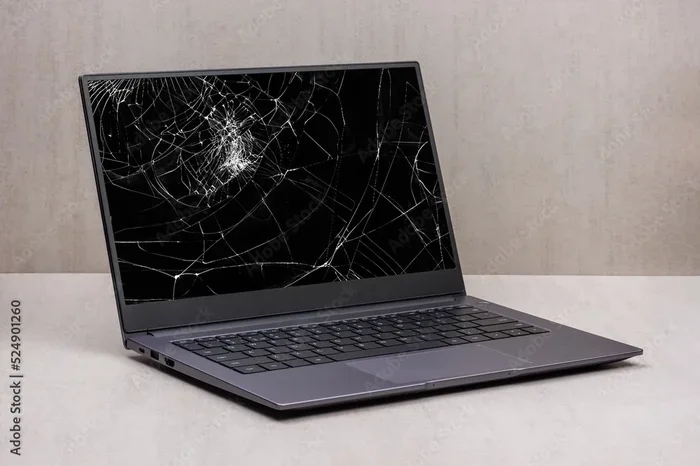
A broken Acer laptop monitor can ruin your day, but the good news is that most screen problems have simple solutions. Whether you have a cracked display, flickering lines, or a completely black screen, this guide walks you through every step to diagnose and fix the issue. You will learn the common causes, repair options, costs, and how to prevent future damage to your Acer laptop monitor.
Key Takeaways
- Identify the Problem Early: Catching signs like flickering, lines, or dimness quickly can save you from a full replacement.
- Try Simple Fixes First: A soft reset, driver update, or cable check often solves monitor issues without any cost.
- Know Your Repair Options: You can DIY with replacement parts or visit a professional depending on the damage severity.
- Understand the Costs: Acer laptop screen replacements typically range from $50 to $200 depending on the model and panel type.
- Prevent Future Damage: Using a protective case, adjusting brightness, and handling your laptop carefully extends screen life.
- Use an External Monitor Temporarily: A portable external monitor can keep you productive while you fix the broken screen.
📑 Table of Contents
- What Happens When Your Acer Laptop Monitor Is Broken
- Common Signs Your Acer Laptop Monitor Is Broken
- Why Does an Acer Laptop Monitor Break?
- How to Diagnose a Broken Acer Laptop Monitor
- How to Fix a Broken Acer Laptop Monitor
- How Much Does It Cost to Replace an Acer Laptop Screen?
- Preventing Future Monitor Damage on Your Acer Laptop
- When Should You Replace Instead of Repair?
- Conclusion
What Happens When Your Acer Laptop Monitor Is Broken
A cracked or malfunctioning screen turns your trusty laptop into a frustrating brick. You cannot work, watch videos, or even check your emails comfortably. The Acer laptop monitor broken problem is more common than you might think. Spills, drops, and pressure hits cause most screen failures. But sometimes the issue is purely software-related.
Understanding what went wrong is the first step toward a fix. This guide covers every angle of a broken Acer laptop monitor. We will look at symptoms, causes, DIY fixes, professional repairs, and costs. By the end, you will know exactly what to do next.
Do not panic if your screen goes dark or shows strange lines. Most problems are fixable. Let us walk through them together.
Common Signs Your Acer Laptop Monitor Is Broken
Screen problems show up in many different ways. Some are obvious, while others creep in slowly. Here are the most common signs that your Acer laptop monitor is damaged.
Flickering or Blinking Screen
Does your screen flash on and off randomly? A flickering display often points to a loose cable or a failing backlight. Sometimes a driver issue causes this too. If updating the graphics driver does not help, the problem is likely hardware-related.
Horizontal or Vertical Lines
Thin or thick lines running across the screen are a classic sign of a damaged LCD panel. These lines may start small and slowly spread. Once you see them growing, the panel itself is failing and needs replacement.
Black or Dark Screen
A completely black screen is alarming. But before you assume the worst, check if the laptop is actually running. Listen for fan noise or look for a faint image under bright light. A dark screen can mean a dead backlight or a broken display cable.
Cracked or Shattered Glass
Physical damage is easy to spot. A cracked screen usually happens after a drop or impact. Even a small crack can spread and ruin the entire display over time.
Dim or Discolored Display
If your screen looks unusually dim or has a yellowish tint, the backlight or inverter may be failing. Color distortion can also signal a graphics card problem, so rule that out first.
Why Does an Acer Laptop Monitor Break?
Knowing the cause helps you prevent future damage. Several factors lead to a broken Acer laptop monitor. Some are accidental, while others come from normal wear and tear.
Physical Impact and Drops
The number one cause of a broken screen is dropping the laptop. Even a short fall onto a hard surface can crack the panel. Laptops with thin bezels are especially vulnerable because the screen has less frame protection.
Pressure on the Lid
Placing heavy objects on a closed laptop puts pressure on the screen. Over time, this pressure creates hairline cracks. Sleeping with a laptop under a pillow or piling books on top is a common mistake.
Liquid Spills
Water, coffee, or any liquid can short-circuit the display circuitry. Even a small spill near the hinge area can seep inside and damage the panel. Quick action after a spill can sometimes save the screen.
Manufacturing Defects
Rarely, a screen fails due to a factory defect. Some Acer models have known backlight issues that develop over months of use. If your laptop is still under warranty, this is great news.
Loose or Damaged Cables
The ribbon cable connecting the screen to the motherboard can wear out. Opening and closing the lid thousands of times stresses this cable. A loose connection causes flickering or a blank screen.
How to Diagnose a Broken Acer Laptop Monitor
Before spending money on repairs, run through these diagnostic steps. You might save yourself a lot of trouble if the problem is software-related.
Step 1: Check if the Laptop Is Running
Listen for sounds. Open the laptop in a dark room and shine a flashlight on the screen at a slight angle. If you can see a faint image, the backlight is dead, not the entire panel.
Step 2: Connect an External Monitor
Plug your laptop into a TV or external display using HDMI or VGA. If the external screen works perfectly, your laptop’s internal panel is the problem. This is a quick way to confirm a hardware issue. You can also use a secondary monitor as a temporary workspace while you arrange repairs.
Step 3: Update or Roll Back Graphics Drivers
Open Device Manager and check your display adapter. Right-click and select Update Driver. If the problem started after a recent update, roll back the driver. Many flickering and distortion issues resolve with a driver fix.
Step 4: Run Built-In Diagnostics
Acer laptops come with built-in diagnostic tools. Restart your laptop and press F2 to enter the BIOS. Run the LCD test if available. This test checks for dead pixels, backlight issues, and panel defects.
Step 5: Check the Display Cable
If you are comfortable opening your laptop, inspect the display cable. Look for fraying, pinching, or loose connections at both ends. Reseating the cable sometimes fixes flickering and blank screens.
How to Fix a Broken Acer Laptop Monitor
Once you confirm the screen is physically damaged, you have several repair paths. Your choice depends on the damage type, your budget, and your technical comfort level.
Option 1: DIY Screen Replacement
Replacing the screen yourself saves a lot of money. You need a replacement panel that matches your Acer model exactly. Search for your laptop model number online to find compatible screens. The process involves removing the bezel, disconnecting the old panel, and connecting the new one.
Here is a quick overview of what you need:
- A matching replacement LCD or LED panel
- A small Phillips-head screwdriver set
- A plastic spudger or guitar pick for the bezel
- A soft, clean workspace with good lighting
YouTube has excellent step-by-step videos for most Acer models. Watch at least two tutorials before you start. Go slowly and be gentle with the cables. If you feel unsure, skip this option and go to a professional.
Option 2: Professional Repair Service
Taking your laptop to a repair shop is the safest route. Certified technicians handle the replacement quickly and correctly. Most shops offer a warranty on their work, usually 30 to 90 days. This option costs more but gives you peace of mind.
Search for authorized Acer service centers in your area. They use genuine parts and follow proper procedures. If your laptop is still under warranty, check with Acer before paying for any repair.
Option 3: Use an External Monitor Permanently
If the repair cost does not make sense for your situation, use an external monitor. Many Acer laptops support dual display output. You can close the lid and work on a larger, better screen. This is a great budget-friendly workaround.
For a portable option, consider a best portable monitor. These lightweight screens connect via USB-C or HDMI and give you a second display anywhere. They are perfect for students and professionals on the go.
Option 4: Wait for Warranty or Insurance Coverage
If your Acer laptop is still under warranty, contact Acer support immediately. Many models include a one-year warranty that covers manufacturing defects. Accidental damage protection, if you purchased it, also covers screen repairs. Check your coverage before paying out of pocket.
How Much Does It Cost to Replace an Acer Laptop Screen?
The cost of replacing a broken Acer laptop monitor varies quite a bit. Several factors determine the final price. Understanding these helps you set realistic expectations.
Standard LED panels for common Acer models like the Aspire or Nitro series cost between $40 and $100. Higher-resolution panels, touchscreen displays, or IPS panels run from $100 to $250. Gaming laptops with high refresh rate screens can cost $200 or more for a replacement panel.
Professional repair labor adds $50 to $150 on top of the part cost. So the total for a professional screen replacement usually falls between $100 and $300. DIY replacement only costs the price of the panel, which is the most affordable option.
| Repair Option | Estimated Cost | Time Required |
|---|---|---|
| DIY Screen Replacement | $40 – $250 (panel only) | 1 – 2 hours |
| Professional Repair Shop | $100 – $350 (parts + labor) | 1 – 3 days |
| Acer Authorized Service | $150 – $400 | 3 – 7 days |
| External Monitor (Temporary) | $100 – $200 | Immediate |
Always get a quote before committing to a repair. Some shops charge diagnostic fees that you can get credited toward the repair if you proceed.
Preventing Future Monitor Damage on Your Acer Laptop
Prevention is always better than repair. A few simple habits can protect your Acer laptop monitor from future damage.
Use a Protective Sleeve or Case
A padded laptop sleeve absorbs shock during transport. It prevents minor bumps and pressure hits that add up over time. Get a snug-fitting case that covers the entire laptop.
Avoid Placing Objects on the Laptop
Never close the laptop with pens, pencils, or other objects on the keyboard. These items press directly onto the screen when the lid closes. Always clear the keyboard before shutting the lid.
Handle the Lid Gently
Open and close the lid with both hands. Using one hand puts uneven pressure on the hinge and screen. Over time, this uneven pressure causes cracks and display issues.
Keep Brightness at Reasonable Levels
Running your screen at maximum brightness drains the battery and stresses the backlight. Keep brightness at 50 to 70 percent for daily use. This small habit extends the life of your display significantly.
Update Drivers Regularly
Outdated graphics drivers can cause display glitches that mimic hardware problems. Keep your Acer system updated through the Acer Care Center or Windows Update. A simple driver update can sometimes save you from an unnecessary screen replacement.
When Should You Replace Instead of Repair?
Not every broken screen is worth repairing. Here are situations where replacement makes the most sense.
If the crack is small and only in the outer glass, a repair might work. But if the LCD panel itself is cracked, replacement is the only real fix. A cracked panel causes spreading damage and distorts the image constantly.
If your Acer laptop is more than three years old and the repair costs over half the price of a new laptop, consider upgrading. You might get a better screen and faster performance for a similar price.
Also consider the warranty situation. If your laptop is out of warranty and the repair is expensive, an external monitor plus a future upgrade might be the smartest move.
Conclusion
A broken Acer laptop monitor does not mean the end of your laptop’s life. Most screen problems have clear solutions, from simple driver updates to full panel replacements. Start by diagnosing the issue carefully. Try the free and easy fixes first before spending money. If you need a replacement, compare DIY and professional costs to find the best option for your budget.
Protect your new or repaired screen with good habits. Use a sleeve, handle the lid gently, and keep your software updated. These small steps save you from the frustration of a broken screen again. Your Acer laptop is a valuable tool, and with the right care, it will serve you well for years to come.
Frequently Asked Questions
Can I use my Acer laptop with a broken monitor?
Yes, you can connect an external monitor to your Acer laptop and continue working normally. Most Acer laptops have HDMI or USB-C ports that support external displays. This is a great temporary solution while you arrange for a screen repair or replacement.
How long does it take to replace an Acer laptop screen?
A DIY screen replacement typically takes one to two hours if you have the right tools and replacement panel. Professional repair shops usually complete the job within one to three business days. Authorized Acer service centers may take three to seven days depending on part availability.
Is it worth repairing a cracked Acer laptop screen?
It depends on your laptop’s age and value. If the repair cost is less than half the price of a new laptop and the rest of the laptop is in good shape, repair is worth it. For older laptops, using an external monitor and saving for a new device may be the smarter choice.
What causes an Acer laptop screen to flicker?
Flickering is often caused by a loose display cable, a failing backlight, or outdated graphics drivers. Start by updating your display drivers and checking the cable connection. If those steps do not help, the backlight or panel itself may need replacement.
Can a broken Acer laptop screen be covered under warranty?
Manufacturing defects are covered under the standard Acer warranty. However, physical damage from drops or spills is usually not covered unless you purchased accidental damage protection. Check your warranty terms or contact Acer support to confirm your coverage.
How do I find the right replacement screen for my Acer laptop?
Find your exact laptop model number on the bottom of the device or in the BIOS. Search for that model number along with “replacement screen” or “LCD panel.” Make sure the replacement matches the size, resolution, connector type, and backlight type of your original panel. Matching all specs ensures a perfect fit.