Acer Laptop Screen Turns on and Off Repeatedly
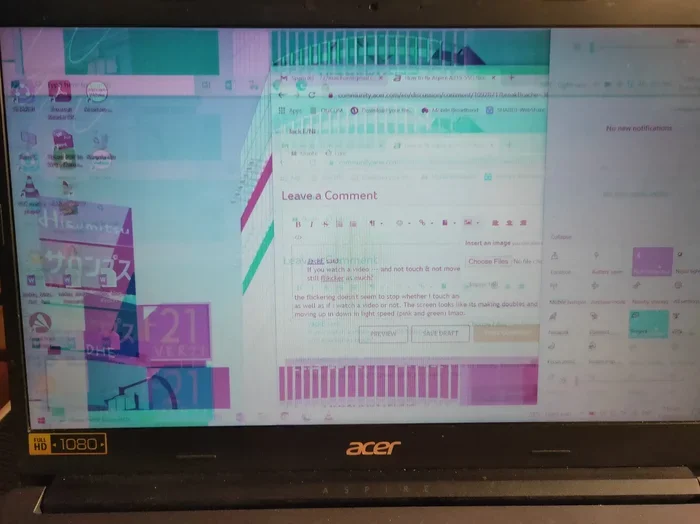
An Acer laptop screen that turns on and off repeatedly is a frustrating but usually fixable problem. This guide walks you through the top causes, from power settings and graphics drivers to hardware issues, with easy step-by-step solutions. You will also learn quick prevention tips to keep your display working smoothly. Whether you use an Acer Aspire, Nitro, or any other model, these fixes apply to most Acer laptops.
There is nothing more annoying than your Acer laptop screen turns on and off repeatedly while you are trying to get work done. The screen blinks, goes dark for a second, and then lights up again. This cycle can ruin your focus and make you want to throw your laptop across the room.
But here is the good news. Most of the time, this problem has a simple fix. Whether it is a power setting, a driver issue, or a loose connection, you can usually solve it without spending a single penny. This guide will show you exactly what to do, step by step.
We will cover the main reasons your Acer laptop screen flickering happens, the best screen flickering fix methods, and easy tips to stop your laptop screen on and off problem for good. By the end, you will know exactly how to troubleshoot your display like a pro.
Key Takeaways
- Power management settings are the most common cause of an Acer laptop screen turning on and off repeatedly
- Outdated graphics drivers can trigger display flickering and unexpected screen shutoffs on Acer laptops
- Hardware problems like faulty backlights or loose cables need professional attention
- Simple fixes such as adjusting screen timeout settings often solve the problem quickly
- Regular maintenance including driver updates helps prevent screen issues from returning
- Peripheral interference from touchpads or external devices can sometimes cause display glitches
📑 Table of Contents
What Causes an Acer Laptop Screen to Turn On and Off Repeatedly
Before you start fixing anything, it helps to understand what is going wrong. Several things can make your laptop display turning off by itself. Let us look at the most common culprits.
Power Management Settings
Your laptop has built-in power settings that control when the screen turns on and off. These settings are designed to save battery, but sometimes they go haywire. If your screen timeout settings are set too aggressively, the display might keep turning off even when you are actively using the computer.
This is especially common on Acer Aspire screen issue models where the default power profile is set to balanced mode. The laptop thinks the screen should dim or turn off after a short period of inactivity, even when you are typing or reading.
Another related issue is the laptop power button settings. Sometimes a faulty power button or a stuck key can send repeated signals that make the screen toggle on and off. If you press the power button by accident while typing, it can trigger this cycle.
Graphics Driver Problems
The graphics driver is the software that tells your laptop how to display images on the screen. When this driver becomes outdated or corrupted, your laptop screen blinking can start without warning. This is one of the most common reasons for a laptop monitor turning off unexpectedly.
Acer laptops use Intel, AMD, or NVIDIA graphics chips depending on the model. Each of these requires specific driver updates. If your display adapter settings are not communicating properly with the operating system, the screen may flicker or shut off randomly.
Sometimes a recent Windows update can break the graphics driver. This is annoying but very fixable. We will cover the exact steps to update your driver in the next section.
Hardware and Connection Issues
Not all screen problems are software-related. Sometimes the hardware itself is the issue. A loose display cable inside the laptop can cause the screen to turn on and off repeatedly. This happens especially if you frequently open and close your laptop lid.
The backlight issue laptop is another common hardware problem. The backlight is what makes your screen visible. If the backlight inverter starts failing, the screen might go dark for a few seconds and then come back. This can look exactly like the screen is turning on and off.
An inverter problem laptop is more serious and usually requires professional repair. If you notice a faint image on the screen when it goes dark, the backlight is likely failing. In this case, software fixes will not help.
How to Fix Your Acer Laptop Screen Flickering
Now that you know the common causes, let us get into the fixes. These steps are ordered from simplest to most advanced. Start with the first one and work your way down.
Adjust Power and Screen Timeout Settings
The easiest fix for an Acer laptop screen turning on and off repeatedly is to adjust your power settings. Here is how to do it.
- Click on the Start menu and open Settings.
- Go to System and then Display.
- Look for the Screen timeout or Sleep settings.
- Set the screen timeout to at least 5 or 10 minutes.
- Also check the Power & Sleep section and adjust the sleep timer.
This simple change stops the laptop from turning off the display too quickly. If your display settings laptop were causing the problem, this fix alone might solve it.
You should also check the laptop screen refresh rate. A refresh rate that is too high or too low for your display can cause flickering. Go to Display Settings, scroll down to Advanced Display, and make sure the refresh rate matches your screen’s native rate, which is usually 60 Hz.
Update Your Graphics Drivers
If adjusting the power settings did not help, the next step is to update your graphics driver. An outdated graphics driver update can cause all sorts of display problems.
- Right-click on the Start button and open Device Manager.
- Expand the Display adapters section.
- Right-click on your graphics card and select Update driver.
- Choose Search automatically for drivers.
- Restart your laptop after the update is complete.
If Windows does not find a new driver, you can visit the Acer support website and download the latest driver for your specific model. Enter your laptop model number on the Acer support page and look for the Display or Graphics section.
You can also use a trusted third-party driver updater tool to scan for outdated drivers automatically. Just make sure you download from a reputable source.
Check the Display Cable and Connections
If software fixes did not work, the problem might be a loose or damaged display cable. This is more common in older laptops or ones that have been dropped.
First, try closing and opening your laptop lid gently. If the screen flickers when you do this, the cable connection might be loose. You can also try connecting an external monitor to see if the external display stays stable. If the external monitor works fine, the problem is likely with the internal display cable or the screen itself.
For a deeper check, you would need to open the laptop back panel. However, this is not recommended unless you have experience with laptop hardware. Opening the laptop can void your warranty and risk damaging other components.
Common Acer Laptop Screen Problems and Their Solutions
Acer laptops are popular, but they are not immune to screen problems. Let us look at some specific issues and how to solve them.
Screen Flickering on Acer Laptops
Screen flickering on Acer laptops can happen for many reasons. The most common one is a conflict between the integrated graphics and an external display. If you have an external monitor connected and the Acer laptop not displaying properly, try disconnecting the external monitor and see if the flickering stops.
Another cause is background apps that use heavy graphics. Games, video editors, and even some web browsers can push your graphics card too hard and cause flickering. Try closing unnecessary apps and see if the problem improves.
Sometimes a simple restart fixes the flickering. This clears the graphics memory and resets the display connection. It is a quick fix that many people overlook.
Backlight and Inverter Issues
If your screen goes completely dark but you can still see a faint image when you shine a light on it, the backlight is failing. This is a backlight issue laptop that requires either a backlight replacement or a full screen swap.
The inverter is the small circuit board that powers the backlight. When the inverter problem laptop occurs, the screen will cycle between bright and dark. This is different from software flickering because the entire screen goes black, not just a quick flash.
Backlight and inverter repairs should be handled by a professional. These components are delicate and require special tools to replace. You can find repair shops that specialize in Acer laptops, or contact Acer support for authorized service options.
Touchpad and Mouse Interference
Sometimes the issue is not the screen itself but a peripheral conflict. If you also notice keypad and mouse not working on laptop alongside the screen turning on and off, the problem might be related to shared power or driver resources.
When your system is struggling with input device conflicts, it can cause the display to behave erratically. A good first step is to disable the touchpad temporarily and see if the screen stabilizes. You can learn how to turn off mouse pad on laptop through the Device Manager or the Acer settings panel.
If you are using an external mouse and experiencing issues, disconnect it and test with the touchpad only. Sometimes an external mouse driver conflict causes the laptop screen to flicker or turn off. Similarly, if you notice that mouse not working on Acer laptop happens at the same time as the screen issue, the root cause is likely a shared driver or power management conflict.
You can also try turning off built-in mouse on laptop as part of your diagnostic steps. This helps you isolate whether the touchpad is causing the screen problem. If disabling the built-in mouse stops the screen from flickering, you have found your culprit.
Another scenario is when you experience keypad and mouse not working on laptop together with display issues. This points to a deeper problem, possibly with the motherboard or the system’s power distribution board. In such cases, it is best to consult a professional technician.
When to Seek Professional Repair
Not all screen problems can be fixed at home. If you have tried all the software fixes and the Acer laptop screen turns on and off repeatedly still continues, it is time to seek professional help.
Here are signs that you need a technician:
- The screen goes completely black and does not come back on for several minutes
- You see a faint image on the screen when it is dark, indicating a backlight failure
- The laptop makes clicking or buzzing sounds when the screen flickers
- The screen has visible lines or cracks along with the on-and-off behavior
- Software fixes have been tried for more than a week with no improvement
A professional can open up your laptop, check the internal connections, and test the display panel with specialized tools. They can also check the motherboard for power delivery issues that might be causing the screen to cycle on and off.
Before taking your laptop in for repair, make sure to back up all your important files. Screen issues can sometimes be a sign of a larger system problem that could affect your data.
How to Prevent Your Acer Laptop Screen From Acting Up
Prevention is always better than cure. Here are some simple habits that can keep your Acer laptop display working smoothly for years.
- Keep your drivers updated. Check for driver updates at least once a month. Acer releases updates that fix known display issues.
- Adjust your power settings wisely. Do not set the screen timeout too short. A 5 to 10 minute timeout is usually enough.
- Avoid overheating. Heat is the enemy of electronics. Use your laptop on a hard surface and clean the vents regularly.
- Handle your laptop gently. Avoid opening and closing the lid too forcefully. This can loosen the display cable over time.
- Use a surge protector. Power surges can damage the display circuitry. A simple surge protector can save you from costly repairs.
- Restart your laptop regularly. A weekly restart clears the graphics memory and prevents driver conflicts from building up.
These small habits go a long way. They keep your Acer laptop troubleshooting needs to a minimum and help your laptop run smoothly every day.
Dealing with an Acer laptop screen turning on and off repeatedly is frustrating, but it is almost always fixable. Start with the simple power and driver fixes, work your way up to hardware checks, and do not be afraid to call a professional if needed. Your screen will be back to normal in no time.
Frequently Asked Questions
Why does my Acer laptop screen keep turning on and off by itself?
The most common reason is power management settings that are too aggressive. Your laptop might be turning off the display after a very short period of inactivity. Outdated graphics drivers can also cause this behavior. Try adjusting your screen timeout settings and updating your graphics driver first.
Can a loose cable cause my Acer laptop screen to flicker?
Yes, a loose or damaged display cable inside the laptop can cause the screen to flicker or turn on and off repeatedly. This is especially common if you frequently open and close your laptop lid. If you suspect a loose cable, it is best to have a professional open the laptop and check the connection.
Is it safe to use my Acer laptop if the screen keeps turning off?
It is generally safe to continue using the laptop, but you should back up your important files just in case. The screen issue might be a sign of a deeper problem. If the laptop also shuts down completely or restarts, stop using it and seek professional help right away.
How do I know if the backlight is failing on my Acer laptop?
Shine a flashlight on the screen when it goes dark. If you can see a faint image of the desktop, the backlight is failing. The backlight issue laptop problem requires a hardware repair, either replacing the backlight or the entire display panel.
Will updating Windows fix my Acer laptop screen flickering?
Sometimes yes. Windows updates often include fixes for graphics driver conflicts and display bugs. Make sure your laptop is running the latest version of Windows. You can check for updates by going to Settings, then Update & Security, and clicking Check for updates.
How much does it cost to fix an Acer laptop screen that turns on and off repeatedly?
Software fixes like driver updates and power setting adjustments are free. If the problem is hardware-related, such as a backlight or inverter replacement, the cost can range from $50 to $200 depending on your Acer model. Always get a quote from a certified repair shop before agreeing to any repair.
=== CONCLUSION ===
An Acer laptop screen turns on and off repeatedly for a variety of reasons, but most of them are easy to fix. Start with the simple stuff like adjusting power settings and updating drivers. If those do not work, dig deeper into hardware checks and peripheral interference. Remember that touchpad and mouse conflicts can sometimes mimic screen problems, so do not overlook those connections.
Keep your drivers updated, handle your laptop gently, and use good power habits. These small steps can save you from a lot of trouble down the road. If the problem persists despite your best efforts, do not hesitate to reach out to a professional technician who can diagnose the issue properly.
With the right approach, you can stop your Acer laptop screen flickering and get back to using your laptop without any interruptions. Happy troubleshooting.